

クーポンを作成する
クーポンの作成方法 
このガイドでは、クーポンリンク/コードの生成方法について説明します。また、有効なコードの管理方法と、バックオフィスの「マイクーポン&リンク」ページの操作方法についても説明します。
1. Log in to your Back Office. Once logged in, travel to your My Coupons & Links ページ。

スクライブで作成 – https://scribehow.com
2. There are two tabs on the page. The “Active Codes” tab includes all the coupons that are currently active and can be used.

3. The “Expired Codes” tab contains all of your previously active coupons that are now expired.

4. To generate a new coupon, click “Create New Coupon”.

5. Within the Generate Coupon Code popup, you have the ability to determine the details of the coupon. You can select your discount percentage by choosing any of the preset discount amounts.

6. Or you can choose the “Custom” option to then select a specific discount amount. The max discount for coupons is 15%, so you can choose any amount up to 15%.

7. Next, you can select the coupon usage. You can dictate if the coupon will be one-time use per Customer or if it can be used unlimited times per Customer.

Made with Scribe – https://scribehow.com 4
8. Important Note: there is a set expiration timeframe for the one-time use per Customer option. The one-time use per Customer option will expire in 5 years.

9. Selecting the unlimited use option will allow you to set your own expiration date, up to 1 year.

10. You can select the preset 15 Days expiration option or you can choose to customize the date it expires. You can enter the number of days until it expires or you can choose a date.

11. To choose a specific date from the calendar, you will click the little calendar icon in the “Pick a date field”.

Made with Scribe – https://scribehow.com 6
12. 事前のview of the coupon details (amount & expiration date) at the top of the popup.

13. Once ready, you will then click “Generate” at the bottom of the popup.

Made with Scribe – https://scribehow.com 7
14. You can now see the newly generated coupon at the top of the “Active Codes” tab.
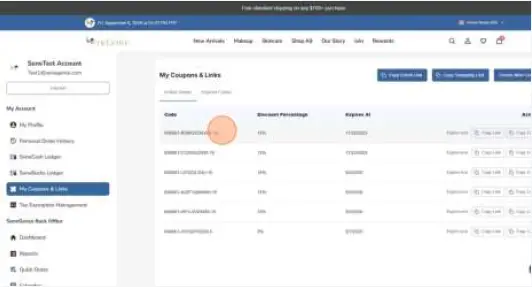
15. Click “Copy Link” to share the coupon link.

Made with Scribe – https://scribehow.com 8
16. Click “Copy Code” to share the coupon code.

17. If you need to delete/end the coupon before its set expiration date, you can click “Expire now” to immediately expire it.

Made with Scribe – https://scribehow.com 9
18. The expired coupon will now show in your “Expired Codes” tab.

Made with Scribe – https://scribehow.com 10
ドキュメント / リソース
 |
Scribe クーポン作成 [pdf] 取扱説明書 クーポンを作成、クーポンを作成 |