

Pulse PRO Automate RTI スマートシェードコントロール ユーザーガイド

AUTOMATE PULSE PRO OVERVIEW
Automate電動シェードをRTI制御システムにシームレスに統合することで、Automateエクスペリエンスをさらに向上させることができます。Automate Pulse PROは、個別のシェード制御と双方向通信による強力な統合を提供し、シェードの位置とバッテリー残量をリアルタイムで更新します。イーサネット(CAT 5)と2.4GHzワイヤレス接続の両方を備えたPulse PROは、ハブ背面のアクセスしやすいRJ45ポートを介して、スムーズなホームオートメーション接続を実現します。各ハブは最大30台のシェードをサポートし、あらゆるホームオートメーション環境に対応する汎用性の高いソリューションです。
はじめる:
In order to integrate your motorized window treatments with RTI Control System, you will need to have:
- Downloaded the free Automate Pulse PRO via the Apple App Store (available under iPhone /iPad apps) or the Google Play Store.
- スペースのサイズに応じて 1 台以上の Automate Pulse PRO を購入し、必要に応じて追加のリピーターも購入します。
- 電動ウィンドウトリートメントを Automate Shades アプリに統合しました。
説明書付属:
- Set up instructions for both the Automate Shades App & Automate Pulse PRO.
- RTI Driver Installation Specification.
- RTI Control System Driver Operating Guide.
- Integration Diagram.
- Integration FAQ’s.
改訂履歴:
- Initial release of the driver.
一般情報:
- The Automate Pulse PRO Operating Guide for information on setup of the system. This driver is for control and feedback only. Setup of the Automate Pulse PRO Hub must be completed prior to setting up driver. Contact Rollease Acmeda for information on how to complete setup using the Hub and App. This driver is for the Automate Pulse PRO Hub only and control motors (i.e. shades) via TCP Communication.
接続設定: The Network TCP is the only method for communicating with the Pulse PRO Hub. Enter the IP Address of the Hub in the TCP Address field.
MOTOR COUNT (i.e. Shade Count): Enter the number of motors (Shades) that this Pulse PRO is controlling using the App to have the same capability on RTI Control System Driver.
MOTOR NAME (i.e. Shade Naming): Enter a unique name for each motor (i.e. shade). When the driver is running on the processor, the Motor or Shade name is updated automatically accordingly named on the Automate Shades App.
MOTOR ADDRESS (i.e. Shade Address): Enter the motor address that corresponds to the motor (i.e. shade) to be controlled. This address is acquired during the Automate App setup on the system.
DRIVER COMMAND: The control commands are available for movement of motors (i.e. shades) up and down as well as adjusting the shade to a discrete level by entering a value as a percentage.
DRIVER VARIABLES: Feedback variables are available for initialization state, connection state, and motor (i.e. shade) specific.
DRIVER INSTALATION:
- 機器の開梱:
• In this case, were used XP3 Processor and a KX3 Touch Panel to exemplify the communication between the RTI Control System and Automate Pulse PRO.
• XP3 – Use provided power supply to power up processor. Also connect to network (make sure to use ethernet connection and not RS-232). If you have a POE connection, then the XP-3 can be powered that way as well.
• KX3 – Use provided power supply (has a RJ-45 end) to power the KX3 through the Control Port on the back of the unit. Connect this to the network as well. If you have a POE connection, then the KX3 can be powered that way as well. - 解凍します file ドライバーとsを含むample fileドライバーをコピーする file (Rollease Pulse.rtidriver) to Integration Designer’s Control Driver Library (Documents\Integration Designer\Control Drivers). We will open the sample file in Integration Designer APEX
- Load Integration Designer APEX onto your computer and launch software.
- Open provided Integration Designer APEX file (ロールリースパルスSample File.apex)から File メニュー。

- Use the Automate Shades App to get the Hub IP address. On Manage Hub screen, you have the full Hub information. Enter “Hub IP Address” as one variable on the connection settings on Integration Designer Software.

- この例ampモーター/シェードは2つしか使用されていませんでした。モーターの「カウント数」によって、その下のリストに表示されるモーターの数が決定されます。リスト上の各モーターに固有の「モーター名」を追加し、デバイス画面のAutomate Shadesアプリで利用可能な「モーターアドレス」に従って、各シェードの「モーターアドレス」を入力してください。

- Click on the “Download” icon from the top toolbar. This will open a screen with all devices available on Integration Designer. After that, click on the “USB” link that corresponds to your processor (in this case for the XP-3) in the Target column. When clicking that, a new window will open that shows all processors in your system. Select that one it corresponds to your processor and click on “Use Select Device”. Then after the window closes click the “Send” button in the Download column.
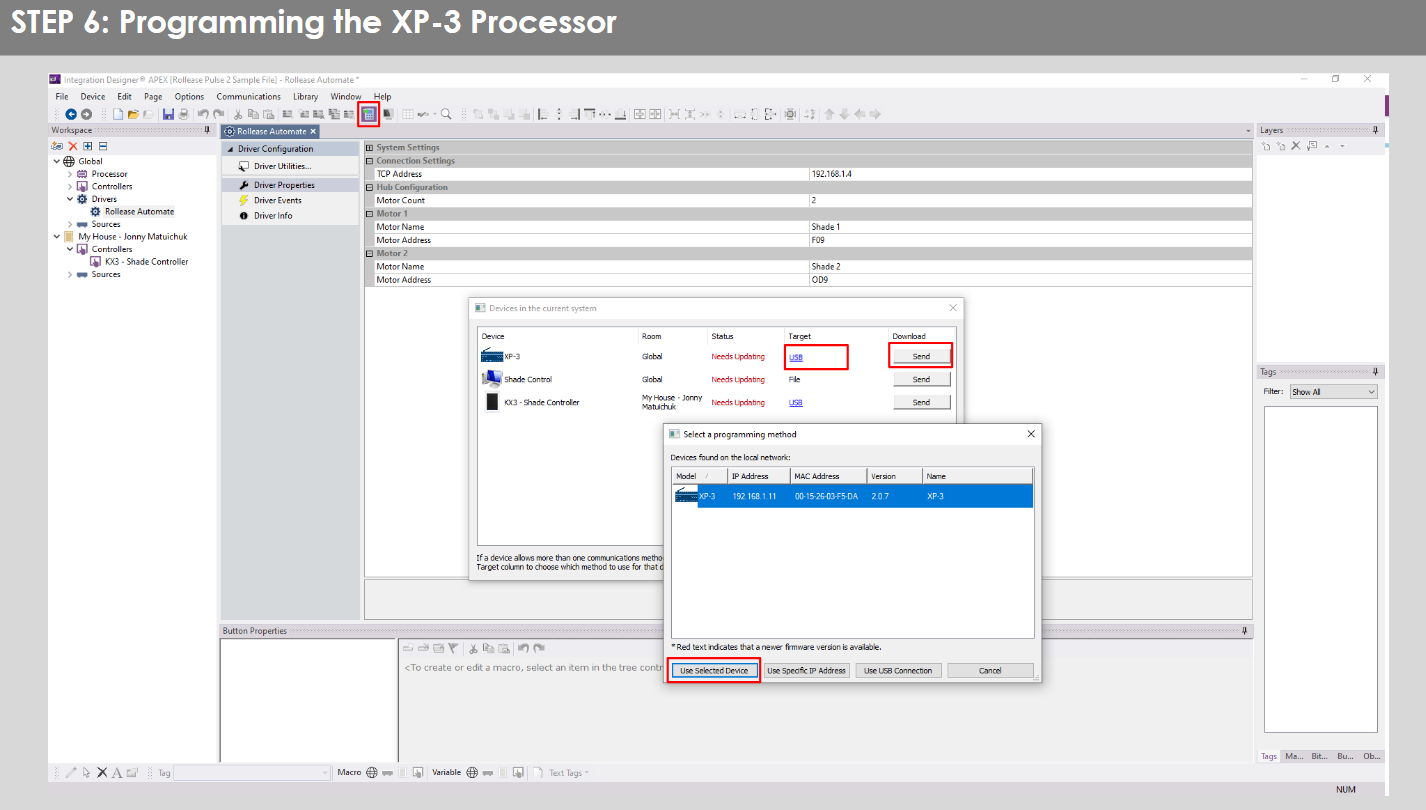
- Repeat the same process for KX3 Touch Pad.

- There is also a Virtual Panel control provided in the file これにより、コンピューターのコントローラーが作成されます。


- To launch the Virtual Panel, click the “Send” button like you did with the previous devices. Since this is a virtual device you will be directed to save the Virtual Panel to a location on your computer.

- Once you save the Virtual Panel it will launch.

よくある間違い:
- 「IP アドレス」設定行に間違った IP アドレスを入力します。
If you’re failing to communicate with the devices, double check this!
RTI制御システム接続:

よくある質問:
Q. No Pulse PRO detected.
A. Automate Pulse PRO が正しいネットワークに接続され、使用可能な IP アドレスが取得され、Automate Shades アプリを使用してネットワークと通信していることを確認します。
Q. 日陰制限が正しく設定されていません。
A. Calibrate shade limits with your Rollease Acmeda remote before setting the appropriate open and close time within RTI Control System.
Q. シェードが全く動きません。
A. Make sure the selected Pulse PRO Hub is the correct Pulse PRO Hub for the shade to be controlled. Confirm the correct bindings are set in the RIT Control System connections tab between the Pulse PRO Hub and Shade drivers.
Q. We get unexpected responses from the RTI system, or “?” symbols
A. イーサネット ポートまたは Wi-Fi を使用するすべての接続が正しく機能していることを確認します。 接続が失われると、望ましくない結果や予期しない結果が生じることが知られています。
サポートリソース:
さらにサポートが必要な場合は、販売店にお問い合わせください。 webサイト www.rolleaseacmeda.com

ドキュメント / リソース
 |
AUTOMATE Pulse PRO 自動化RTIスマートシェードコントロール [pdf] ユーザーガイド RTI、Pulse PRO RTIスマートシェードコントロールの自動化、RTIスマートシェードコントロールの自動化、スマートシェードコントロール、シェードコントロール |