1. はじめに
This manual provides detailed instructions for the installation, operation, and maintenance of your Lemorele 4K HDMI Video Capture Card with USB3.0. This device is designed for high-quality video capture and passthrough, supporting resolutions up to 4K@60Hz for passthrough and 1080p for capture. It is compatible with various gaming consoles, cameras, and computers, making it suitable for streaming, recording, and live presentations.
2. パッケージ内容
パッケージにすべてのアイテムが含まれていることを確認してください。
- Lemorele 4K HDMI Video Capture Card (Model: 4K60HZ)
- USB-C - USB-A ケーブル
- ユーザーマニュアル

Image: The Lemorele 4K HDMI Video Capture Card, USB-C cable, and user manual are shown together, indicating the typical package contents.
3.製品オーバーview
The Lemorele 4K HDMI Video Capture Card features a durable aluminum alloy body and multiple ports for versatile connectivity.
3.1. デバイスのレイアウト
画像: 上 view of the capture card highlighting the HDMI OUT, HDMI IN, and Type-C ports. The HDMI OUT port is for looping out the display, HDMI IN is for the device being captured, and Type-C is for connecting to the acquisition device (computer).

画像: サイド view of the capture card highlighting the MIC IN, LINE IN, and AUDIO OUT ports. These ports are used for connecting external microphones, mixers, and audio output devices respectively.
3.2. ポートの説明
- HDMI出力: Connects to a display (monitor, TV, projector) for zero-latency passthrough.
- HDMI入力: Connects to the source device (gaming console, camera, laptop) for video input.
- TYPE-C: Connects to your computer (laptop, PC, Mac, iPad Pro) for data transfer and power.
- マイク入力: Connects to an external microphone for audio input.
- LINE IN: Connects to an audio mixer or instrument for additional audio input.
- 音声出力: オーディオをモニタリングするためにヘッドフォンまたはスピーカーに接続します。
4. セットアップ
Follow these steps to set up your Lemorele 4K HDMI Video Capture Card:
- ソースデバイスを接続: Connect your HDMI source device (e.g., Nintendo Switch dock, PS5, Xbox, camera) to the HDMI IN HDMI ケーブルを使用してキャプチャ カードのポートに接続します。
- ディスプレイを接続する(オプション): If you wish to monitor your gameplay or video feed without latency, connect your display (monitor, TV) to the HDMI出力 HDMI ケーブルを使用してキャプチャ カードのポートに接続します。
- コンピュータに接続します: Connect the capture card to your computer (laptop, PC, Mac, iPad Pro) using the provided USB-C to USB-A cable. Plug the USB-C end into the タイプC port on the capture card and the USB-A end into an available USB 3.0 port on your computer.
- オーディオを接続します (オプション): For external audio input, connect your microphone to the マイク入力 port or an audio mixer to the ライン入力 port. For audio monitoring, connect headphones or speakers to the オーディオ出力 ポート。
- ソフトウェアのセットアップ: Install and open your preferred video capture software (e.g., OBS Studio, Zoom, Twitch, YouTube). The capture card should be recognized as a video input device.
Video: This video demonstrates the connection process for the Lemorele AC09 video capture card, showing how to connect the HDMI IN, HDMI OUT, and Type-C ports to a Nintendo Switch dock, a monitor, and a laptop for capturing game footage using OBS Studio.

Image: A visual diagram illustrating the connection of the capture card to a gaming console (PS5), a monitor, and a laptop for streaming and recording.
5. 操作手順
Once the capture card is set up, you can begin capturing or streaming your content.
5.1. Using with OBS Studio (Example)
- コンピューターで OBS Studio を開きます。
- 「ソース」パネルで、「+' icon and select 'ビデオキャプチャデバイス'.
- Create a new source or select an existing one. In the device dropdown, choose your Lemorele capture card (it may appear as 'USB Video' or similar).
- Configure resolution, FPS, and audio input settings as needed. Ensure 'Use custom audio device' is checked and select the capture card's audio input.
- Click 'OK' to add the source. You should now see your video feed in OBS.
- Adjust the video source size and position within the preview ウィンドウ。
- To start recording or streaming, click the 'Start Recording' or 'Start Streaming' button in OBS Studio.
5.2.オーディオコントロール
The capture card features dedicated MIC IN and LINE IN ports for advanced audio integration. Ensure your capture software is configured to use these audio inputs for optimal sound quality.
ビデオ: このビデオでは、view of the Lemorele 4K HDMI Video Capture Card, showcasing its features and various applications in gaming, streaming, and professional settings.

Image: A user is shown actively streaming a game, with the capture card connected to a console and a laptop running streaming software, demonstrating a typical usage scenario.
6. 特徴
- 4K@60Hz Ultra HD Passthrough: Supports 4K@60Hz zero-lag passthrough to a display while capturing video at 1080p, ensuring a smooth viewing experience for the user and high-quality capture for the audience.
- 高度なオーディオコントロール: Dedicated MIC IN and LINE IN ports allow direct connection to external microphones, mixers, or instruments, facilitating professional audio integration for various content creation needs.
- Comprehensive I/O Connectivity: Equipped with HDMI IN & OUT, USB-C, and AUDIO OUT ports, providing flexible setup options for connecting gaming consoles, cameras, laptops, and monitors.
- Stable & Reliable Performance: The durable aluminum alloy body ensures efficient heat dissipation and anti-interference protection, supporting continuous operation during extended streaming or recording sessions.
- Plug-and-Play Wide Compatibility: Works seamlessly with Windows, macOS, and iPad Pro, and supports popular software such as OBS Studio, Zoom, Twitch, and YouTube. Compatible with PS5, Xbox Series X/S, Nintendo Switch, and DSLR cameras.

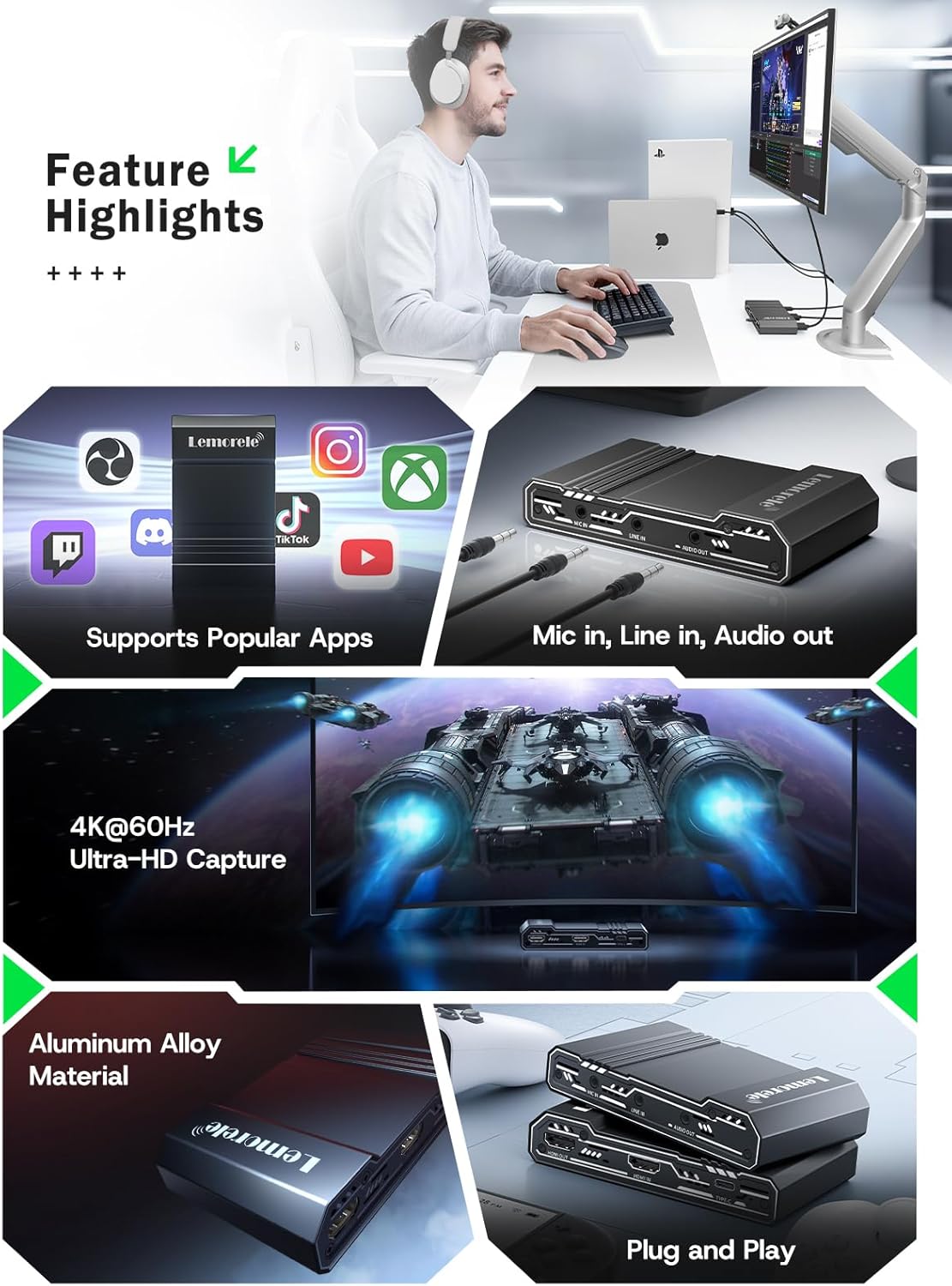
Image: This graphic highlights key features of the capture card, including support for popular streaming applications, dedicated audio input/output ports, 4K@60Hz Ultra-HD capture, durable aluminum alloy construction, and plug-and-play functionality.
7。 トラブルシューティング
問題が発生した場合は、次の一般的な問題と解決策を参照してください。
- ビデオ信号なし:
- すべての HDMI ケーブルが正しいポート (ソースからの HDMI IN、ディスプレイへの HDMI OUT) にしっかりと接続されていることを確認します。
- Verify the source device is powered on and outputting video.
- Check your capture software settings to ensure the correct video capture device is selected and configured.
- Disable HDCP on your source device (e.g., PS5 settings) if you are experiencing a blank screen.
- 音声なし:
- Confirm audio cables are correctly connected to MIC IN, LINE IN, or AUDIO OUT ports.
- In your capture software, ensure the audio input device is correctly selected and not muted.
- ソースデバイスのオーディオ設定を確認してください。
- ビデオの遅延または途切れ:
- コンピュータがビデオキャプチャとストリーミングの最小システム要件を満たしていることを確認してください。
- Use a USB 3.0 port for connecting the capture card to your computer.
- バックグラウンドで実行されている不要なアプリケーションを閉じて、システム リソースを解放します。
- ソフトウェア設定でキャプチャ解像度またはフレーム レートを下げます。
- デバイスが認識されません:
- キャプチャ カードをコンピューターの別の USB ポートに接続してみてください。
- コンピュータを再起動します。
- オペレーティング システムが最新であることを確認してください。
8. 仕様
| 特徴 | 詳細 |
|---|---|
| ブランド | レモレレ |
| モデル | 4K60HZ |
| ハードウェアインターフェイス | 3.5mm Audio, HDMI, USB 3.0 Type C |
| Max HDMI Input Resolution | 4K@60Hz |
| 最大HDMIパススルー解像度 | 4K@60Hz |
| 最大キャプチャ解像度 | 1080p |
| アイテム重量 | 9.8オンス |
| パッケージ寸法 | 6.1 x 4.02 x 1.42インチ |
| 材料 | アルミニウム合金 |
| 互換性 | Windows, macOS, iPad Pro, OBS Studio, Zoom, Twitch, YouTube, PS5, Xbox Series X/S, Nintendo Switch, DSLR cameras |
9. メンテナンス
To ensure the longevity and optimal performance of your capture card, follow these maintenance guidelines:
- クリーニング: デバイスの外側を清掃する際は、柔らかく乾いた布をご使用ください。液体クリーナーや研磨剤の使用は避けてください。
- ストレージ: デバイスは直射日光や極端な温度を避け、涼しく乾燥した場所に保管してください。
- 取り扱い: 物理的な損傷を防ぐため、デバイスを丁寧に取り扱ってください。落としたり、強い衝撃を与えたりしないでください。
- 換気: Ensure the device has adequate ventilation during operation to prevent overheating, especially during long streaming sessions. The aluminum alloy body is designed for efficient heat dissipation.
10. 保証とサポート
Lemorele products are designed for reliability and performance. This product comes with a standard manufacturer's warranty. For specific warranty details, please refer to the warranty card included in your package or visit the official Lemorele webサイト。
For technical support, troubleshooting assistance, or any inquiries regarding your Lemorele 4K HDMI Video Capture Card, please contact our customer support team:
- メールアドレス: support@lemorele.com
- Webサイト: Visit the Lemorele official webFAQ と追加リソースのサイト。


