1.製品オーバーview
The GMKtec NucBox K8 Plus is a high-performance mini PC designed for gaming, business, and creative tasks. It features the latest AMD Ryzen 7 8845HS processor, advanced graphics capabilities, and extensive connectivity options in a compact form factor.
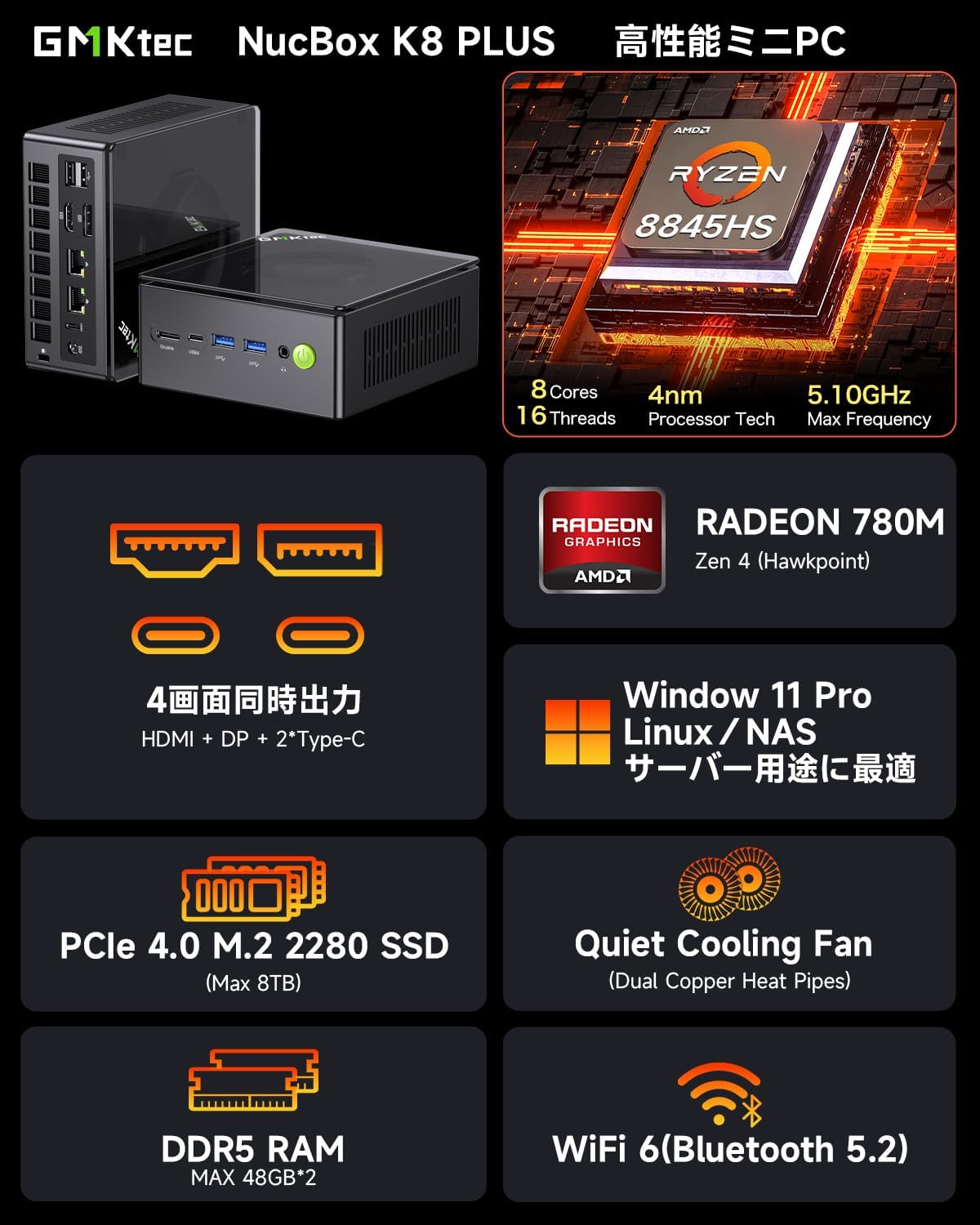
Image: GMKtec NucBox K8 Plus Mini PC highlighting its core features and specifications.
主な特徴:
- プロセッサ: AMD Ryzen 7 8845HS (8 Cores, 16 Threads, Max 5.1GHz) with integrated AMD Ryzen AI Engine (NPU).
- グラフィック: AMD Radeon 780M GPU (RDNA3 architecture), comparable to GTX 1650 Ti.
- メモリ: Supports up to 128GB DDR5 (5600MHz, 64GBx2) (barebone model requires separate purchase).
- ストレージ: Supports up to 8TB PCIe 4.0 x4 M.2 SSD (barebone model requires separate purchase).
- 表示出力: Simultaneous 4-screen output with 8K@60Hz support via 2x USB4, 1x HDMI 2.1, and 1x DisplayPort 2.1.
- 接続性: Dual 2.5Gbps LAN, Wi-Fi 6 AX200 (2.4Gbps), Bluetooth 5.2.
- ポート: 2x Type-C (USB4/PD), 1x HDMI, 1x DP, 2x USB 3.2, 2x USB 2.0, 1x 3.5mm CTIA, 1x DC jack.
- 冷却: Dual-fan cooling system with VC heat plate for stable performance.
2. セットアップとインストール
Important Note for Barebone Models:
This NucBox K8 Plus model is a barebone unit. It does not come with pre-installed DDR memory or an SSD. You must purchase and install these components separately for the PC to function correctly and display the operating system. Failure to install them will result in the system not booting or displaying a blue screen.
Memory (DDR) and SSD Installation:
Follow these steps to install your DDR memory and SSD. It is recommended to install and verify each memory module individually if installing two.
- Open the Mini PC cover to access the motherboard.
- For DDR memory, insert the SO-DIMM module(s) at an angle into the slot(s) and gently push down until it clicks into place.
- For SSD, insert the M.2 SSD card into its slot and secure it with the provided screw.
- If installing two memory modules, insert one first. Power on the PC and wait approximately 1 minute for the system to recognize it. After recognition, power off, then insert the second module and restart.
Video: Demonstrates the installation process for DDR memory and M.2 SSD, including how to check recognition in BIOS.
周辺機器の接続:
Connect your monitor, keyboard, and mouse. For initial setup, it is recommended to use a wired mouse or a USB receiver-based wireless mouse, as Bluetooth mice may not be recognized during the initial Windows setup screen.

画像: 詳細 view of the Mini PC's front and rear ports for connecting peripherals.
3. 操作手順
Powering On and Initial Boot:
After installing memory and SSD, connect the power adapter and a monitor. The PC will automatically enter the BIOS screen upon first boot. Here you can verify memory and SSD information.
Video: Shows the BIOS screen after initial boot, confirming memory and SSD detection.
ディスプレイ構成:
The NucBox K8 Plus supports up to four simultaneous displays, offering flexibility for various setups including gaming, video editing, and multi-tasking. Connect your monitors to the available HDMI, DisplayPort, and USB4 (Type-C) ports.

画像: Example of a 4-screen setup for gaming and productivity.
ネットワーク接続:
Utilize the dual 2.5Gbps LAN ports for high-speed wired network connections, or connect wirelessly using the integrated Wi-Fi 6 (AX200) and Bluetooth 5.2 for peripherals.

Image: High-speed network connectivity options.
4. メンテナンス
内部コンポーネントへのアクセス:
The NucBox K8 Plus is designed for easy access to internal components for upgrades or maintenance. Simply remove the top cover and screws to access the memory, SSD slots, and cooling system.
Video: Shows how to open the Mini PC and access the internal components for maintenance or upgrades.
冷却システム:
The device features a dual-fan cooling system with a VC heat plate. Regular cleaning of the fans and heatsink is recommended to maintain optimal performance and prevent overheating.

Image: Internal cooling system design.
5。 トラブルシューティング
System Not Booting / Blue Screen:
- Ensure that DDR memory and SSD are correctly installed. This is a barebone model and requires these components.
- If installing two memory modules, try installing one at a time and verifying recognition before installing the second.
- If the issue persists, power off the PC, disconnect all external devices, press and hold the power button for 30 seconds, clean the metal terminals of the memory/SSD, then reconnect and restart.
周辺機器の認識の問題:
- For initial setup, use wired keyboards and mice or those with a USB receiver, as Bluetooth devices may not be recognized until the operating system is fully configured.
- すべてのケーブルが正しいポートにしっかりと接続されていることを確認します。
6. 仕様
| 特徴 | 詳細 |
|---|---|
| ブランド名 | GMKテック |
| モデル名 | NucBox K8 Plus (Mini PC AMD 8845HS) |
| CPUモデル | AMD ライゼン 7 8845HS |
| CPU速度 | 5.1 GHz(最大) |
| グラフィックカード | 統合型AMD Radeon 780M |
| メモリサポート | Up to 128GB DDR5 (5600MHz) |
| ストレージサポート | Up to 8TB PCIe 4.0 x4 M.2 SSD |
| オペレーティング·システム | Windows 11 Pro (Compatible) |
| ディスプレイ出力 | 2x USB4 (40Gbps), 1x HDMI 2.1 (8K@60Hz), 1x DisplayPort 2.1 (8K@60Hz) - Supports 4 simultaneous screens |
| ネットワーク接続 | Dual 2.5Gbps LAN, Wi-Fi 6 AX200 (2.4Gbps), Bluetooth 5.2 |
| ポート | 2x Type-C (USB4/PD), 1x HDMI, 1x DP, 2x USB 3.2, 2x USB 2.0, 1x 3.5mm CTIA, 1x DC jack |
| 製品寸法 | 13.2 x 12.5 x 5.8 cm |
| 重さ | 1.62キロ |
| 付属アクセサリ | 内蔵マイク |
| Typical Power Consumption (Balance Mode) | Idle: 13-15W, Web Browsing: 19-29W, YouTube FHD: 21-23W, YouTube 4K: 23-29W, Gaming (MHW: Iceborne): 82-85W, Cinebench R23 Multi-core (10min): 77-79W |
| Typical Power Consumption (Performance Mode) | Cinebench R23 Multi-core (10min): 92-96W |
Note: Power consumption figures are approximate and may vary based on usage and configuration.
Video: Demonstrates power consumption under various loads and modes using a watt checker.
7. 保証とサポート
GMKtec offers a 1-year manufacturer's warranty for this product. In case of any product defects, please contact the customer support center. The warranty period can be extended by 90 days upon request.
さらに詳しいサポートについては、 AmazonのGMKtecストア.