1. はじめに
This manual provides essential information for setting up, operating, and maintaining your Thunderobot Storm 15 4050 Gaming Laptop. Please read this manual thoroughly before using your device to ensure optimal performance and longevity.
2. パッケージ内容
製品パッケージにすべてのアイテムが揃っていることを確認します。
- Thunderobot Storm 15 4050 Gaming Laptop
- 電源アダプターとケーブル
- ユーザーマニュアル(このドキュメント)
- 保証書
Note: Additional accessories may be included depending on your specific purchase configuration.
3. フィジカルオーバーview
3.1. Laptop Exterior
Familiarize yourself with the external components of your laptop.
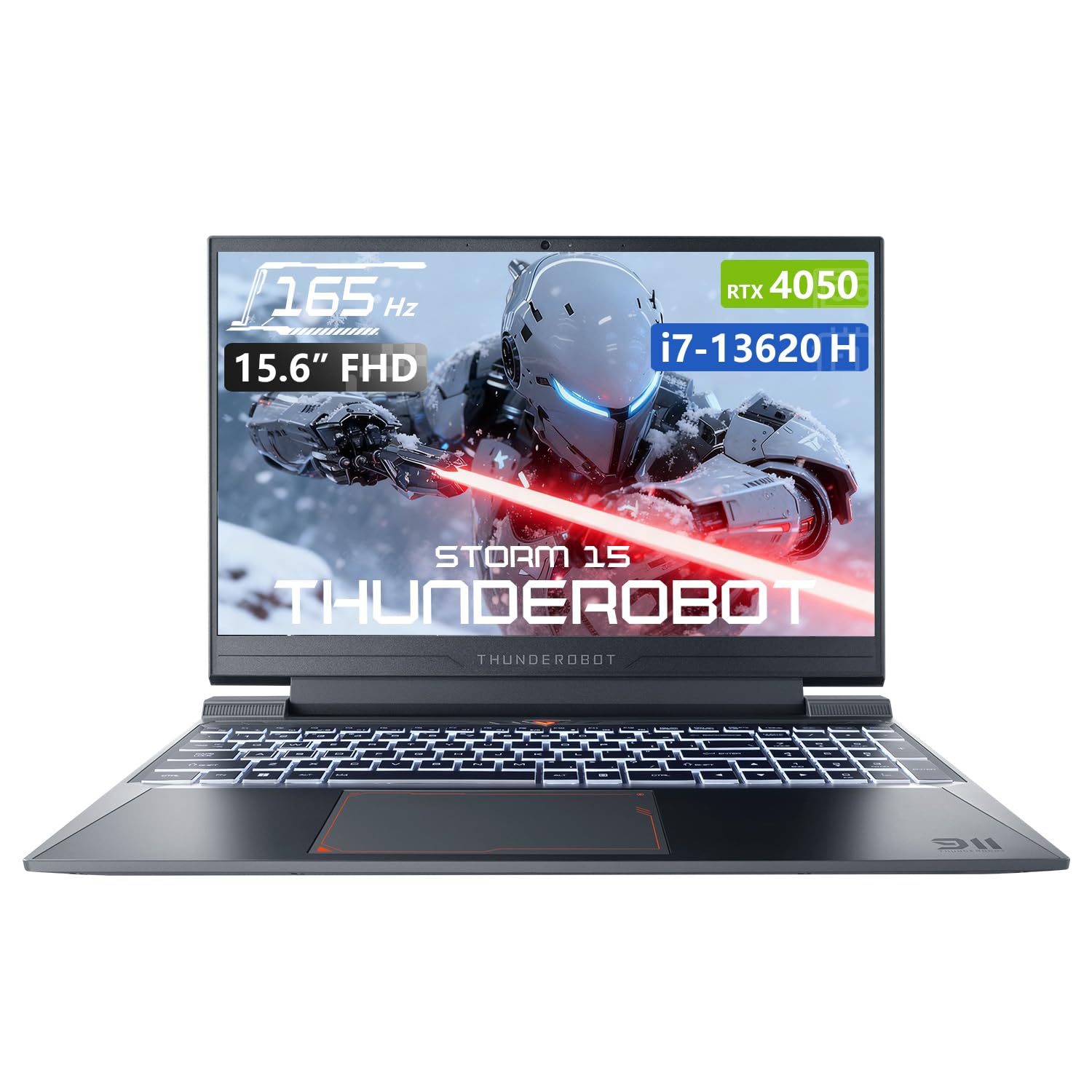
図3.1: トップダウン view of the Thunderobot Storm 15 4050 Gaming Laptop.

図3.2: 開く view of the Thunderobot Storm 15 4050 Gaming Laptop, highlighting the keyboard and display.
3.2. ポートとコネクタ
The Thunderobot Storm 15 4050 is equipped with various ports for connectivity. Refer to the diagram below for port locations and functions.

Figure 3.3: Port layout of the Thunderobot Storm 15 4050 Gaming Laptop.
- USB 3.1 Gen 2 タイプC: 高速データ転送とディスプレイ出力用。
- RJ-45 イーサネット ポート: 有線ネットワーク接続用。
- USB 3.1 タイプA (x3): USB デバイスを接続します。
- HDMIポート: 外部ディスプレイに接続します。
- 3.5mmコンボジャック: ヘッドフォンまたはマイク付きヘッドセット用。
- 電源入力: 電源アダプタを接続します。
3.3. キーボードとタッチパッド
The laptop features a full-size backlit keyboard with a numeric keypad for enhanced usability. The touchpad supports multi-touch gestures.

図3.4:詳細 view of the backlit keyboard.
4. セットアップ
4.1. 初回電源投入
- 電源アダプターをノートパソコンの電源入力ポートに接続し、電源コンセントに接続します。
- ノートパソコンの蓋を開けます。
- 電源ボタンを押してラップトップの電源を入れます。
- 画面の指示に従って、Windows 11 Home のセットアップを完了します。
4.2.ネットワークへの接続
You can connect to the internet via Wi-Fi or a wired Ethernet connection.
- Wi-Fi: After initial setup, click the Wi-Fi icon in the taskbar, select your network, and enter the password.
- イーサネット: ルータまたはモデムからのイーサネット ケーブルをラップトップの RJ-45 ポートに接続します。
5. ノートパソコンの操作
5.1. パフォーマンスモード
The Thunderobot Storm 15 4050 features an Intelligent Control Center allowing you to switch between different performance modes to optimize for various tasks. These modes typically include:
- バーサークモード: Full performance release for demanding applications and gaming.
- ゲームモード: Optimized for smooth gaming performance.
- Audio and Video Office Mode: Balances performance with power efficiency for everyday tasks.
Access the Control Center by searching for "Control Center" in the Windows search bar or by using dedicated function keys (if available). Note: System mode switching in Control Center requires the device to be connected to a power source.

Figure 5.1: Intelligent Control Center interface.
5.2. 冷却システム
The laptop incorporates an advanced Frost Cooling System designed for efficient heat dissipation, crucial during intensive use. This system includes multi-heat-pipe design, high-pressure turbine fans, and high-density copper fins.
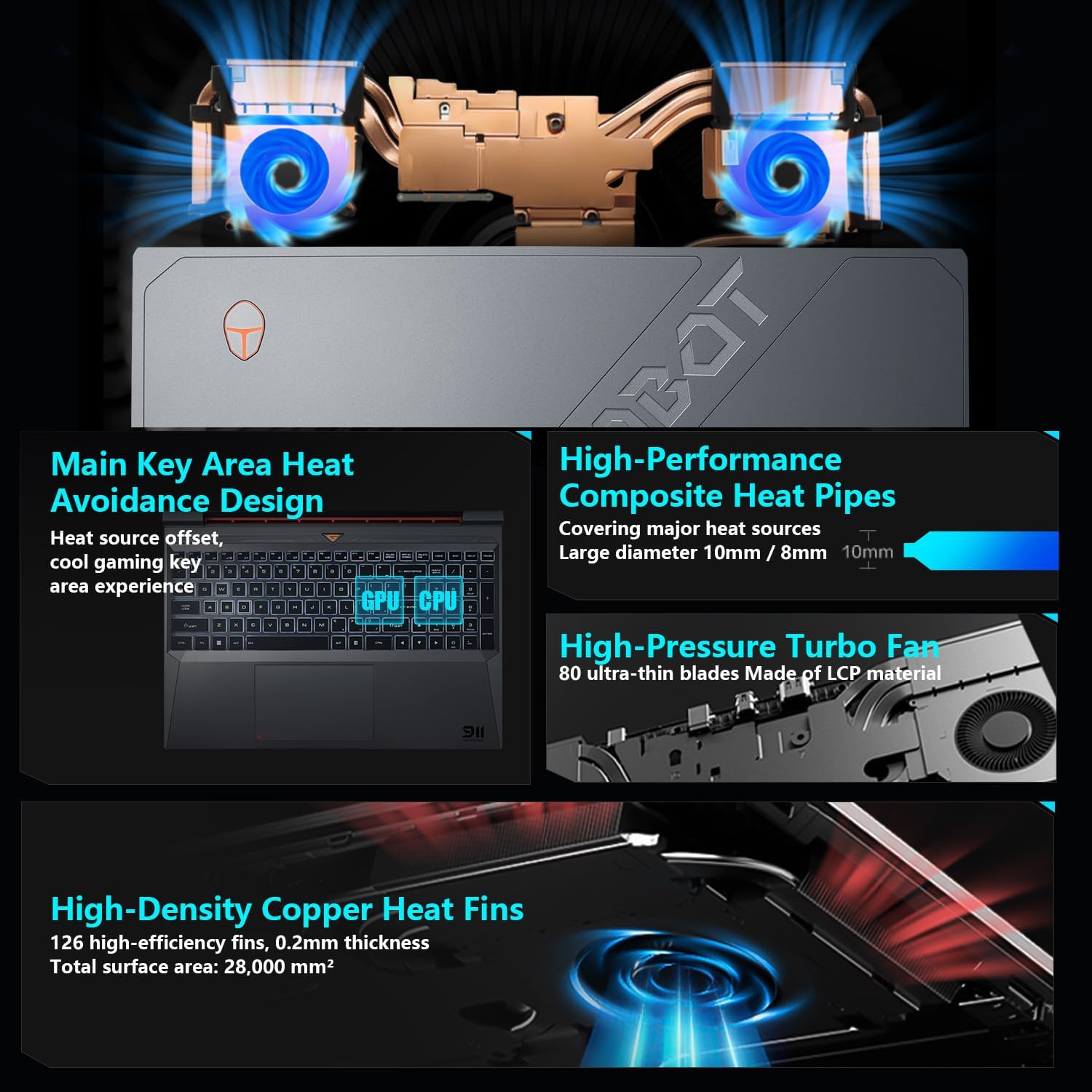
図5.2:内部 view of the Frost Cooling System.
Ensure that the air vents are not obstructed to maintain optimal cooling performance. Fan speed can be adjusted via the Control Center.
5.3.ディスプレイ設定
Your laptop features a 15.6-inch Full HD (1920x1080) display with a 165Hz refresh rate. You can adjust display settings through Windows settings (Right-click on desktop > Display settings) to customize resolution, refresh rate, and color profiles.
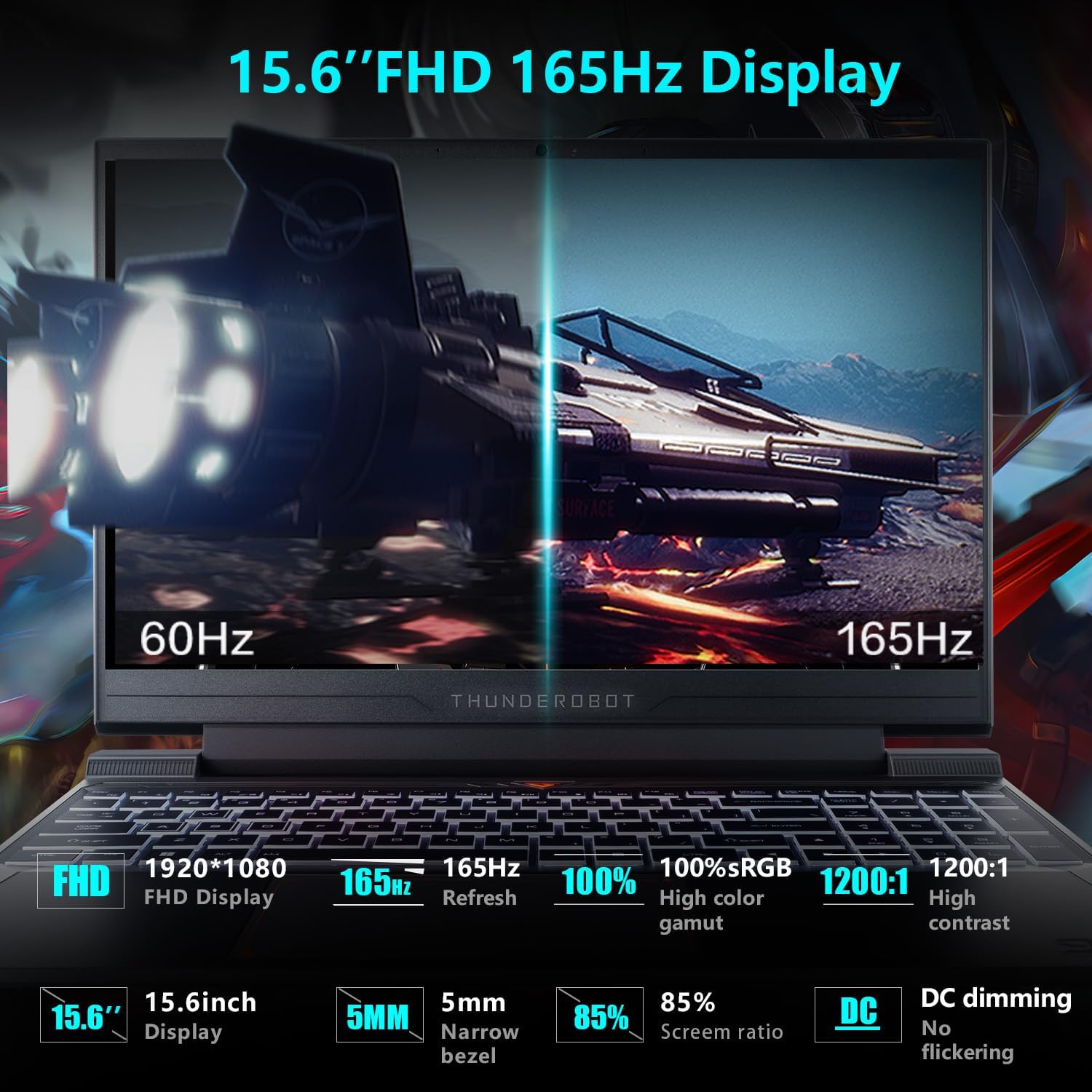
Figure 5.3: Display features of the Thunderobot Storm 15 4050.
5.4. オーディオシステム
The laptop is equipped with a professional sound system for an immersive audio experience. Adjust volume and sound settings through the Windows sound control panel.
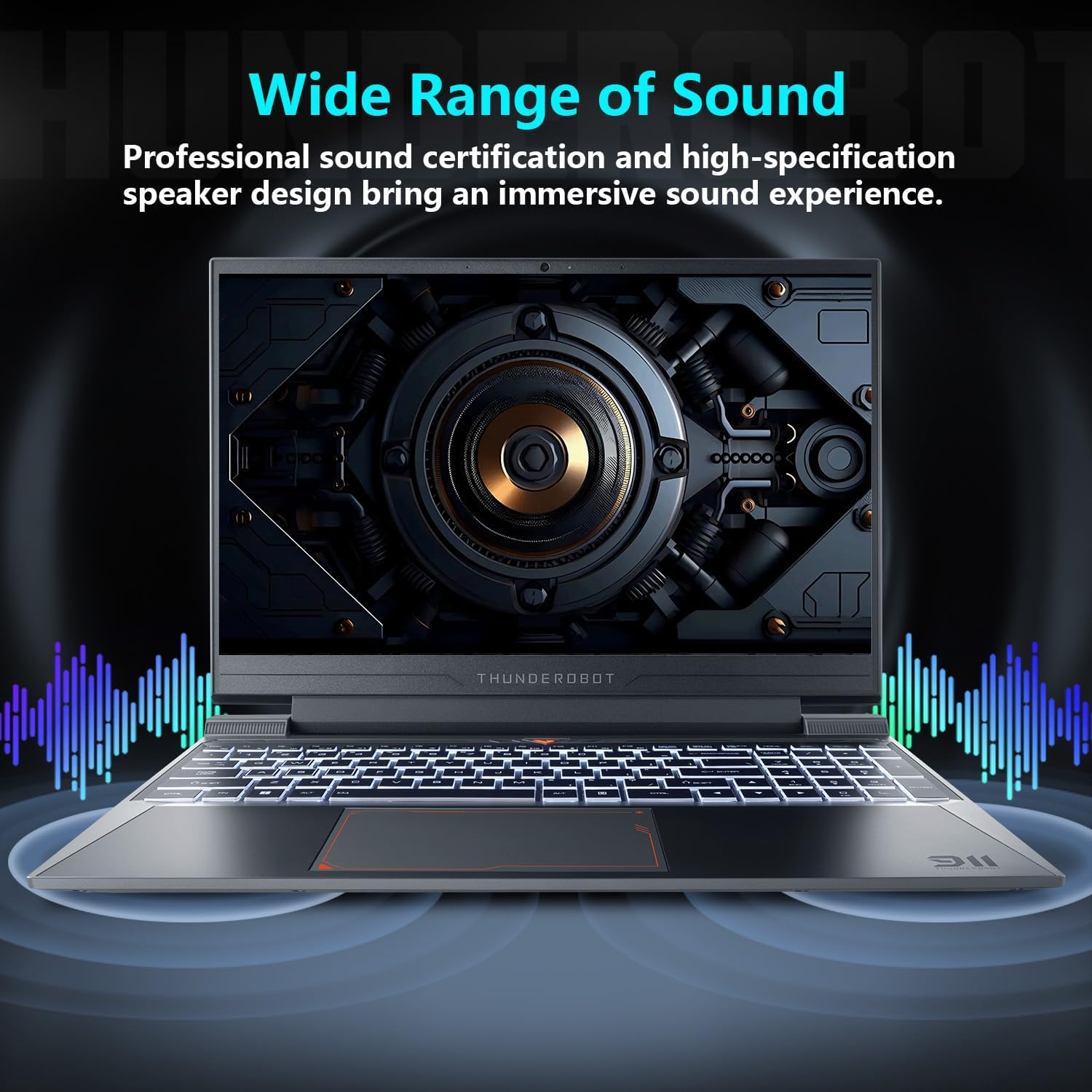
Figure 5.4: Audio system overview.
6. メンテナンス
適切なメンテナンスを行うことで、ノートパソコンの寿命とパフォーマンスが保証されます。
- クリーニング: Use a soft, dry cloth to clean the screen and chassis. For stubborn marks, a slightly damp cloth with a mild cleaning solution can be used, ensuring no liquid enters the device.
- 換気: Regularly check and clean the air vents to prevent dust buildup, which can hinder cooling performance.
- バッテリーのケア: バッテリー寿命を最適に保つには、バッテリーを継続的に完全に放電したり、長期間にわたって 100% 充電状態に保ったりしないようにしてください。
- ソフトウェアアップデート: 安定性とセキュリティを確保するために、オペレーティング システムとドライバーを最新の状態に保ってください。
7。 トラブルシューティング
このセクションでは、発生する可能性のある一般的な問題について説明します。
| 問題 | 考えられる原因 | 解決 |
|---|---|---|
| ノートパソコンの電源が入りません。 | Battery depleted, power adapter not connected properly. | Ensure the power adapter is securely connected and the laptop is charging. Try a different power outlet. |
| 電源投入後も画面が黒いままです。 | External display connected, display driver issue. | Disconnect any external displays. Try pressing Fn+F1 キー (or the appropriate function key for display toggle) to switch display output. |
| Wi-Fi接続の問題。 | Wi-Fiが無効、パスワードが間違っている、ルーターに問題がある。 | Windowsの設定でWi-Fiが有効になっていることを確認してください。Wi-Fiのパスワードを確認してください。ルーターを再起動してください。 |
| Laptop is running slow or overheating. | Too many applications running, obstructed vents, outdated drivers. | Close unnecessary applications. Clean air vents. Update drivers. Adjust fan speed in Control Center. |
ここに記載されていない問題が発生した場合、または提案された解決策で問題が解決しない場合は、カスタマー サポートにお問い合わせください。
8. 仕様
Detailed technical specifications for the Thunderobot Storm 15 4050 Gaming Laptop:
- モデル: ストーム15
- プロセッサ: Intel Core i7-13620H (10 コア、16 スレッド、最大 4.9 GHz)
- グラフィック: NVIDIA GeForce RTX 4050 Laptop GPU (Dedicated)
- 画面: 15.6-inch Full HD (1920x1080) 165Hz
- ラム: 16GB DDR4 3200MHz
- ストレージ: 1TB PCIe M.2 SSD
- オペレーティング·システム: Windows 11 ホーム
- ワイヤレス接続: 802.11ac Wi-Fi、Bluetooth
- ポート: USB 3.1 Gen 2 Type-C, 3x USB 3.1 Type-A, HDMI, RJ-45 Ethernet, 3.5mm Combo Jack, Power Input
- キーボード: Full-size Backlit Keyboard with Numeric Keypad
- 寸法: 14.12 x 10.14 x 0.94インチ
- 重さ: 約12ポンド
9. 保証とサポート
Every Thunderobot laptop includes a 12-month warranty, offering expert support, thorough diagnostics, and genuine parts if a repair is needed. We also provide a 90-day warranty on all warranty replacement parts, ensuring hassle-free repairs.
For technical support, warranty claims, or service inquiries, please visit the official Thunderobot website or contact their customer service department. Keep your purchase receipt and warranty card for reference.
ビデオ9.1: 短い事前view ビデオショーasing the Thunderobot Storm 15 4050 Gaming Laptop's features and design. This video is provided by the seller and offers a quick visual overview 製品の。
Video 9.2: Another short preview video highlighting the Thunderobot Storm 15 4050 Gaming Laptop's design elements and user interaction. This video is provided by the seller and offers a quick visual overview 製品の。


