1.製品オーバーview
The Acer KB272 P6bi is a 27-inch IPS Full HD (1920 x 1080) monitor designed for both gaming and office use. It features a Zero-Frame design, AMD FreeSync Technology, up to a 144Hz refresh rate, and a 1ms Visual Response Boost (VRB) for smooth visuals. The IPS panel ensures accurate colors and wide view角度を変える。

図1: 前面 view of the Acer KB272 P6bi monitor.
主な特徴:
- Vibrant Full HD Display: Experience crisp, true-to-life colors with 1920x1080 resolution and a 16:9 aspect ratio.
- AMD FreeSync テクノロジー: Eliminates screen tearing and stuttering by synchronizing the monitor's refresh rate with your graphics card's frame rate.
- 迅速な応答時間: A fast 1ms (VRB) response time ensures smooth rendering of fast-moving action without smearing or ghosting.
- 高リフレッシュレート: Up to 144Hz refresh rate provides ultra-smooth 2D motion scenes.
- ゼロフレームデザイン: A near bezel-less design maximizes screen real estate and allows for seamless multi-monitor setups.
- IPSテクノロジー: Delivers accurate colors and consistent image quality across wide viewing angles of up to 178 degrees.
2. 箱の中身
セットアップを続行する前に、すべてのコンポーネントが揃っていることを確認してください。
- Acer KB272 P6bi Monitor Display
- モニタースタンド(ベースとネック)
- 電源コード
- HDMIケーブル
3. セットアップ手順
3.1 モニタースタンドの組み立て
- 傷がつかないように、モニターの表面を下にして、柔らかくて清潔な表面に慎重に置いてください。
- Attach the stand neck to the back of the monitor until it clicks into place or is secured with screws (refer to the quick start guide for specific model details).
- スタンドベースをスタンドネックに取り付け、しっかりと固定されていることを確認します。
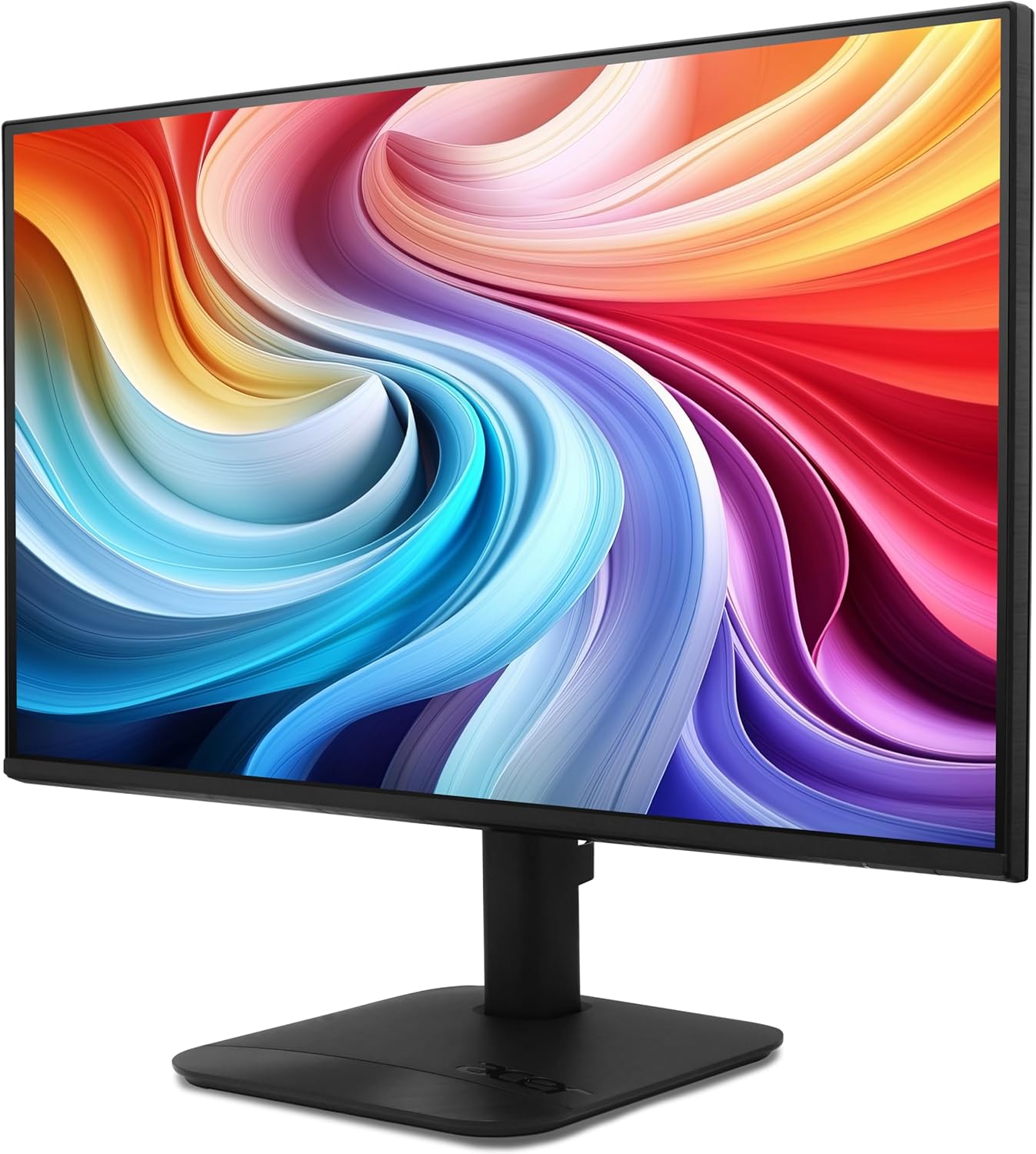
図2:背面 view of the monitor with stand attachment area.
3.2 モニターの接続
- Connect one end of the provided HDMI cable to the HDMI port on your computer or graphics card.
- Connect the other end of the HDMI cable to the HDMI port on the Acer KB272 P6bi monitor. Alternatively, use a VGA cable if your system requires it.
- 電源コードをモニターの電源入力に接続し、次に電源コンセントに接続します。
- モニターの電源ボタンを押して電源を入れます。

Figure 3: Monitor connectivity ports (HDMI and VGA).
4. モニターの操作
4.1 電源オン/オフ
Press the power button, typically located on the back or bottom right of the monitor, to turn the display on or off.
4.2 オンスクリーンディスプレイ(OSD)メニュー
The monitor features a joystick-style button, often integrated with the power button, for navigating the OSD menu. Press the button once to bring up the options, then tilt it in one of four directions to select and adjust settings such as brightness, contrast, color temperature, and input source.
4.3 ディスプレイ設定の調整
- 輝度コントラスト: これらの設定を好みに合わせて調整してください view環境と好みによって異なります。
- 色の設定: Modify color temperature or select preset modes for optimal visual experience.
- 入力ソース: 自動検出が機能しない場合は、HDMI と VGA 入力を手動で選択します。
- リフレッシュレート: Ensure your computer's display settings are configured to utilize the monitor's maximum refresh rate (up to 144Hz) for the smoothest experience.
- AMDフリーシンク: Enable FreeSync in both the monitor's OSD menu and your graphics card's control panel for tear-free gaming.

Figure 4: Visual representation of AMD FreeSync technology.
5. メンテナンス
5.1 モニターの掃除
- 清掃する前に必ずモニターの電源をオフにし、電源コードを抜いてください。
- 柔らかく糸くずの出ない布を軽く拭いてください。amp水または、研磨剤を含まない低刺激のスクリーンクリーナーで拭いてください。
- 画面を優しく拭いてください。過度の圧力をかけないようにしてください。
- アルコール、アンモニアベースのクリーナー、研磨剤は画面の表面を傷つける可能性があるため、使用しないでください。
5.2一般的なケア
- モニターやそのケーブルの上に重い物を置かないでください。
- モニターを直射日光、熱源、過度の湿気から遠ざけてください。
- 過熱を防ぐために、モニターの周囲に十分な換気を確保してください。
6。 トラブルシューティング
6.1 画面が表示されない/黒い画面
- Check if the monitor is powered on and the power indicator light is illuminated.
- Ensure all video cables (HDMI/VGA) are securely connected to both the monitor and the computer.
- モニターの OSD メニューで正しい入力ソースが選択されていることを確認します。
- 可能であれば、別のコンピューターまたは別のビデオ ケーブルを使用してモニターをテストします。
6.2 画像のちらつきや歪み
- ビデオ ケーブルに損傷や接続の緩みがないか確認してください。
- Adjust the refresh rate in your computer's display settings to match the monitor's capabilities.
- Disable AMD FreeSync in the OSD menu and graphics card settings to see if it resolves the issue.
- グラフィック カード ドライバーが最新であることを確認してください。
6.3 Colors Appear Incorrect
- OSD メニューからモニターの色設定を工場出荷時のデフォルトにリセットします。
- Adjust the color temperature or individual RGB values in the OSD menu.
- Calibrate your display using your operating system's color calibration tools.
7. 仕様
Detailed technical specifications for the Acer KB272 P6bi monitor:
| 特徴 | 仕様 |
|---|---|
| 画面サイズ | 27インチ |
| パネルタイプ | IPS |
| 解決 | 1920 x 1080 (フルHD) |
| アスペクト比 | 16:9 |
| リフレッシュレート | 最大144Hz |
| 応答時間 | 1ms(VRB) |
| アダプティブシンクテクノロジー | AMDフリーシンク |
| 接続性 | HDMI、VGA |
| View角度 | 178°(H / V) |
| 色 | 黒 |
| アイテム重量 | 8.38ポンド |
| 製品寸法 | 8.26 x 27.36 x 18.29インチ |
8. 保証とサポート
保証情報およびテクニカルサポートについては、製品に付属のマニュアルを参照するか、Acerの公式サポートサイトをご覧ください。 webサイト。 保証請求に備えて購入時のレシートを保管しておいてください。


