1. 安全情報
このモニターをご使用になる前に、すべての説明書をよくお読みください。このマニュアルは、今後の参考のために保管してください。
- 火災や感電を防ぐため、モニターを雨や湿気にさらさないでください。
- モニターを開けないでくださいasing. 内部にはユーザーが修理できる部品はありません。修理はすべて資格のある担当者にご依頼ください。
- モニターが落ちないように、安定した平らな面に置いてください。
- モニター周囲の換気が適切であることを確認してください。通気口を塞がないでください。
- モニターに付属の電源アダプターのみを使用してください。
- モニターを長期間使用しない場合は、電源プラグをコンセントから抜いてください。
2. パッケージ内容
パッケージにすべてのアイテムが含まれていることを確認します。
- CRUA 34-inch Ultrawide Gaming Monitor
- モニタースタンド(ベースとネック)
- 電源アダプターとケーブル
- HDMIケーブル
- ディスプレイポート(DP)ケーブル
- ユーザーマニュアル
- スタンド組み立て用ネジ
3. セットアップ
3.1 スタンドの組み立て
- モニターを柔らかい表面の上で保護しながら、慎重にパッケージから取り出します。
- 付属のネジを使用して、スタンド ネックをモニターの背面パネルに取り付けます。
- スタンドベースをスタンドネックに接続し、指定されたネジで固定します。
- 組み立てたモニターを安定した机の上に置きます。
モニタースタンドは、最適な角度に調整できるようになっています。 view角度。
3.2 壁掛け(オプション)
This monitor supports VESA wall mounting (75x75mm). To wall mount:
- すでにモニターにスタンドが取り付けられている場合は、取り外します。
- Attach a compatible VESA 75x75mm wall mount bracket (not included) to the monitor's rear panel using appropriate screws.
- 安全に設置するには、壁マウントに付属の手順に従ってください。

画像: 背面 view of the monitor highlighting the 75x75mm wall mount area and various input ports.
3.3 デバイスへの接続
利用可能なポートのいずれかを使用して、コンピューターまたはゲーム コンソールをモニターに接続します。
- ディスプレイポート(DP 1.4): For optimal performance, especially for high refresh rates and FreeSync.
- HDMI(HDMI 1.4 x2): Compatible with most devices.
電源アダプターをモニターの DC 入力に接続し、電源コンセントに差し込みます。
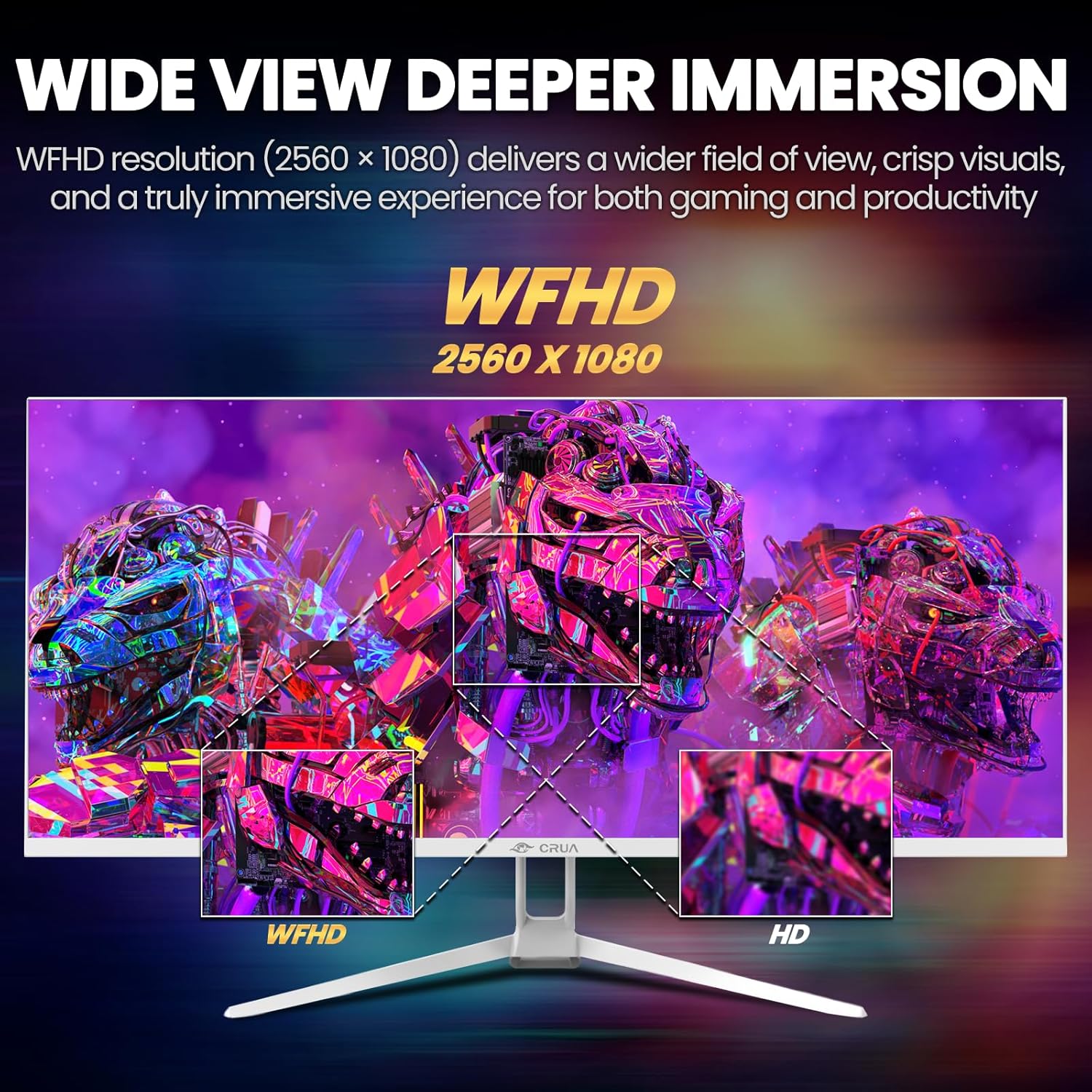
Image: A detailed diagram illustrating the monitor's connectivity options, including two HDMI 1.4 ports, one DisplayPort 1.4, an audio output, a USB charging port, and the DC power input.
4. 操作手順
4.1 電源オン/オフ
Press the power button, typically located on the bottom or rear of the monitor, to turn it on or off. The power indicator light will illuminate when the monitor is on.
4.2 オンスクリーンディスプレイ(OSD)メニュー
The OSD menu allows you to adjust various monitor settings. Access it by pressing the OSD menu button (often a joystick-like button or a set of dedicated buttons) on the monitor.
- ナビゲーション: Use the OSD buttons or joystick to navigate through the menu options.
- 選択: 選択ボタンを押してサブメニューに入るか、設定を確認します。
- 出口: 終了ボタンを使用して、OSD メニューに戻るか閉じます。
4.3画像設定
視覚パラメータを最適に調整する viewing:
- 輝度: 画面全体の輝度を制御します。
- 対比: 明るい部分と暗い部分の差を調整します。
- 色温度: プリセットカラーモード(例:暖色、寒色、ユーザー)を選択します。
- ブルーライトフィルター: ブルーライトの放出を抑え、長時間使用時の目の疲れを最小限に抑えます。
- アスペクト比: Set to 21:9 for ultrawide content or other options as needed.

Image: The CRUA ultrawide monitor showcasing its 21:9 aspect ratio, demonstrating how it provides more horizontal screen space compared to a standard 16:9 display.
4.4 オーディオ設定
The monitor includes built-in speakers. Adjust volume through the OSD menu or your connected device. An external audio output port is also available for headphones or external speakers.
4.5 AMDフリーシンク
To enable AMD FreeSync for tear-free gaming, ensure your graphics card supports FreeSync and that it is enabled in your graphics card's control panel. Then, activate FreeSync within the monitor's OSD menu.

Image: A visual comparison demonstrating the effect of AMD FreeSync, showing a torn image when FreeSync is off and a smooth image when FreeSync is on, highlighting the 120Hz refresh rate.
5. メンテナンス
5.1 画面のクリーニング
- モニターの電源を切り、電源コードを抜きます。
- 柔らかく糸くずの出ない布を軽く拭いてください。amp水または専用のスクリーンクリーナーで拭き取ってください。
- Wipe the screen gently. Do not press hard or use abrasive cleaners.
5.2一般的なケア
- モニターを直射日光、熱源、過度のほこりから遠ざけてください。
- モニターやそのケーブルの上に重い物を置かないでください。
- Do not spray cleaning liquids directly onto the monitor.
6。 トラブルシューティング
モニターに問題が発生した場合は、次の一般的な問題と解決策を参照してください。
| 問題 | 考えられる解決策 |
|---|---|
| 画面に画像がありません | Ensure power cable is securely connected and the monitor is turned on. Check video cable (HDMI/DP) connections to both monitor and computer. Select the correct input source via the OSD menu. |
| 画像がちらついたり不安定になったりする | Check video cable connections. Ensure your graphics card drivers are up to date. If using FreeSync, try disabling it temporarily to see if the issue persists. Adjust refresh rate in your computer's display settings. |
| 内蔵スピーカーから音が出ない | Increase volume via the OSD menu and your computer's sound settings. Ensure the correct audio output device is selected on your computer. Check if the audio cable (if used) is properly connected. |
| 色が正しく表示されない | Reset picture settings to factory defaults via the OSD menu. Adjust color temperature and individual RGB values if available. |
これらの解決策を試しても問題が解決しない場合は、CRUA カスタマー サポートにお問い合わせください。
7. 仕様
Key technical specifications for the CRUA 34-inch Ultrawide Gaming Monitor (Model CR340AU):
| 特徴 | 仕様 |
|---|---|
| 画面サイズ | 34インチ |
| パネルタイプ | IPS |
| 解決 | 2560 x 1080(WFHD) |
| アスペクト比 | 21:9 |
| リフレッシュレート | 120Hz |
| 応答時間 | (Not specified in provided data, typical for IPS is 1-5ms GTG) |
| 輝度 | 350 cd/m² |
| 色域 | 120% sRGB |
| 色深度 | 8ビット(16.7万色) |
| View角度を変える | 178°(水平/垂直) |
| アダプティブ同期 | AMDフリーシンク |
| 接続性 | 2x HDMI 1.4, 1x DisplayPort 1.4, Audio Out, USB Charging, DC Power Input |
| 内蔵スピーカー | はい |
| 壁掛け | VESA 75x75mm |
| 製品寸法 | 9.4 x 24.13 x 17.47インチ |
| アイテム重量 | 14.92ポンド |
8. 保証とサポート
CRUA provides high-quality computer monitors and customer service. For any questions or support needs regarding your CRUA 34-inch Ultrawide Gaming Monitor, please contact CRUA customer support.
Refer to your purchase documentation or the official CRUA web具体的な保証条件および連絡先情報については、サイトをご覧ください。