1.製品オーバーview
The ProtoArc EM03 NL is an ergonomic wireless trackball mouse designed for comfort and efficiency. It features an index finger-controlled trackball, multi-device connectivity, quiet clicking, adjustable DPI settings, and a rechargeable battery, making it suitable for various computing environments.
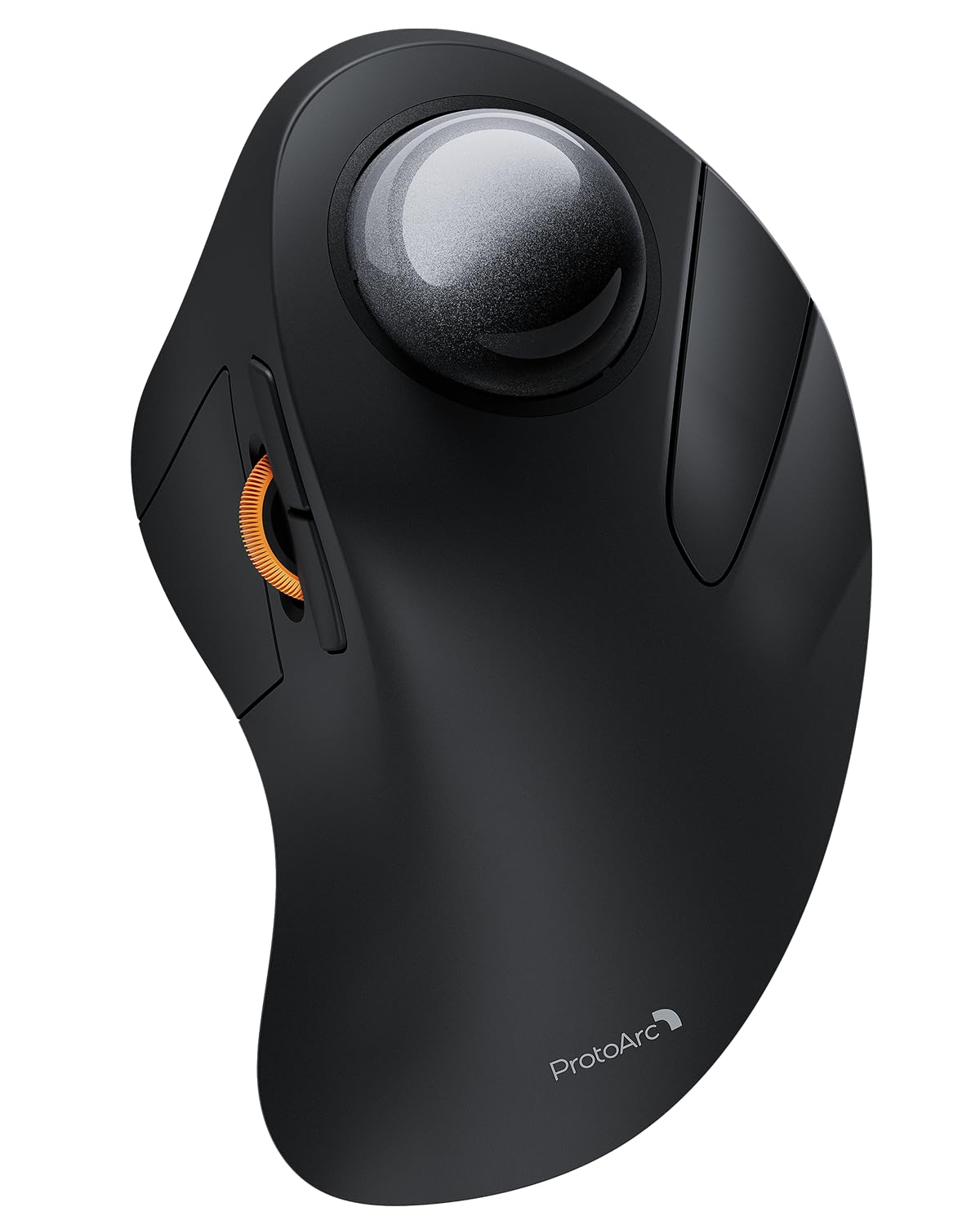
Image 1: The ProtoArc EM03 NL Wireless Bluetooth Trackball Mouse in gray, showcasin人間工学に基づいたデザイン。
2. 箱の中身
- ProtoArc EM03 NL Trackball Mouse
- ユーザーマニュアル
- USBレシーバー
- 充電ケーブル(USB-C)
3. 主な特徴
- Ergonomic Index Finger Trackball: Sculpted to fit the hand naturally, promoting a comfortable wrist posture and precise control with its 44mm trackball.
- マルチデバイス接続: Connects to up to 3 devices via 2.4G USB receiver or Bluetooth (BT1, BT2), allowing seamless switching.
- 静かなクリック音: Smooth frosted surface and quiet clicks for a better user experience without disturbing others.
- 調整可能なDPI: 5 DPI levels (200/400/800/1200/1600 DPI) for customizable cursor sensitivity and precise tracking.
- 充電式バッテリー: Built-in 930mAh lithium battery provides up to 60 days of power on a single full charge. Features auto-sleep mode to conserve battery.
- スペースセーバー: Stationary trackball design frees up desk space, ideal for small workstations or minimalist setups.

Image 2: A hand resting comfortably on the ProtoArc EM03 NL mouse, highlighting its ergonomic design for all-day comfort.

Image 3: Close-up of the ProtoArc EM03 NL trackball mouse, emphasizing the large 44mm trackball designed for index finger control and precise handling.

Image 4: The ProtoArc EM03 NL trackball mouse shown in different usage scenarios: an office desk, an aircraft cabin, and a library, illustrating its versatility and space-saving design.
4.セットアップガイド
4.1. USB Receiver Connection (2.4G Wireless)
- マウスの底面の収納部に収納されている USB レシーバーを見つけます。
- USBレシーバーをコンピューターの使用可能なUSBポートに接続します。
- 底面の電源スイッチを使用してマウスの電源をオンにします。
- Switch the channel selector on the bottom of the mouse to the '2.4G' position (usually indicated by a USB icon or '1'). The mouse should connect automatically.
4.2. Bluetooth接続(BT1 / BT2)
- 底面の電源スイッチを使用してマウスの電源をオンにします。
- Switch the channel selector on the bottom of the mouse to either 'BT1' or 'BT2' position.
- Press and hold the channel button for 3 seconds until the corresponding indicator light flashes quickly, indicating pairing mode.
- On your device (PC, iPad, Mac, etc.), go to Bluetooth settings and search for new devices.
- Select 'ProtoArc EM03 NL' from the list of available devices to connect. The indicator light will turn solid once connected.

Image 5: Diagram illustrating the multi-device connection options (2.4G, BT1, BT2) on the underside of the ProtoArc EM03 NL mouse, showing how to switch between devices.
5. 操作手順
5.1. ボタンの機能

Image 6: Labeled diagram of the ProtoArc EM03 NL mouse, showing the positions of the trackball, left button, right button, scroll wheel, forward button, backward button, DPI button, channel switch, power switch, and USB receiver slot.
- 左ボタン: 標準的な左クリック機能。
- 右ボタン: 標準的な右クリック機能。
- スクロールホイール: Scroll up and down pages.
- 進むボタン: 前方へ移動 web ブラウザまたは file 探検家。
- 戻るボタン: 戻る web ブラウザまたは file 探検家。
- トラックボール: Control cursor movement with your index finger.
5.2. DPI調整
The DPI button is located on the bottom of the mouse. Press it to cycle through the 5 available DPI levels (200/400/800/1200/1600 DPI) to adjust cursor speed and precision according to your preference.
5.3. 複数デバイスの切り替え
Use the channel switch on the bottom of the mouse to seamlessly switch between the 2.4G USB receiver connection and the two Bluetooth connections (BT1, BT2).
6. メンテナンス
6.1. トラックボールのクリーニング
To ensure smooth operation, periodically clean the trackball:
- Gently push the trackball from the bottom opening to remove it.
- Use a soft, lint-free cloth to wipe any dust or debris from the trackball and the inside of the trackball cavity.
- Reinsert the trackball into its slot.

Image 7: Step-by-step visual guide on how to remove, clean with a soft cloth, and reinsert the trackball of the ProtoArc EM03 NL mouse.
6.2. 充電
Connect the provided USB-C charging cable to the charging port on the mouse and to a USB power source. The mouse can be used while charging. A full charge takes approximately 3.5 hours and provides up to 60 days of use.

Image 8: Visual representation of the USB-C charging port on the ProtoArc EM03 NL mouse and an illustration of the 5 adjustable DPI modes.
7。 トラブルシューティング
- マウスが反応しない: Ensure the mouse is turned on and fully charged. Check the connection mode (2.4G or Bluetooth) and ensure it matches your device's connection. For 2.4G, ensure the USB receiver is securely plugged in. For Bluetooth, re-pair the device if necessary.
- カーソルの動きが不規則または固定される: メンテナンス セクションの説明に従って、トラックボールとそのキャビティをクリーニングします。
- Bluetooth接続の問題: Ensure your device's Bluetooth is enabled. Try forgetting the device in your Bluetooth settings and re-pairing. Ensure the mouse is in pairing mode (flashing indicator light).
- DPIが変化しない: Press the DPI button firmly on the bottom of the mouse to cycle through settings.
8. 仕様
| 特徴 | 詳細 |
|---|---|
| ブランド | プロトアーク |
| モデル | EM03 オランダ |
| 接続技術 | 2.4G、ブルートゥース |
| 動き検出技術 | トラックボール |
| DPI レベル | 200/400/800/1200/1600 |
| バッテリー容量 | 930mAhリチウム電池 |
| 充電時間 | 約3.5時間 |
| 待機時間 | 最長60日間 |
| 特集 | Ergonomic Design, Rechargeable, Soundless |
| アイテム重量 | 13.1オンス |
| パッケージ寸法 | 6.89 x 4.92 x 3.27インチ |
9. 公式製品ビデオ
Video 1: An official product video from ProtoArc showcasing the features and benefits of the Wireless Bluetooth Trackball Mouse. This video highlights the ergonomic design, multi-device connectivity, and overall user experience.
10. 保証とサポート
For warranty information, technical support, or customer service, please refer to the contact details provided in the included User Manual or visit the official ProtoArc website. ProtoArc aims to deliver innovative workspace solutions that enhance comfort, boost productivity, and foster overall wellness.
また、 AmazonのProtoArcストア 詳しい製品と情報については、こちらをご覧ください。


