1. はじめに
This instruction manual provides comprehensive guidance for the installation, operation, and maintenance of your ZALMAN P40 DS White Mid-Tower PC Case. Please read this manual thoroughly before proceeding with any installation or operation to ensure proper usage and to prevent damage to the product or other components.
The ZALMAN P40 DS White Mid-Tower PC Case offers a distinct style with updated chassis features, including advanced back connector compatibility for a cleaner build. A key feature is its integrated 9.1-inch display (1920 x 492 resolution) located on the left side, near the power supply compartment. This display is configurable via the OZ Wide software, allowing users to show system information through customizable widgets. The case also includes four pre-installed 120mm ARGB fans for optimal cooling and aesthetic appeal.

Figure 1.1: ZALMAN P40 DS White Mid-Tower PC Case with installed components.
2. 安全情報
- コンポーネントの取り付けまたは取り外しを行う前に、必ず壁のコンセントから電源を抜いてください。
- Handle all components with care to avoid damage from static electricity. Consider using an anti-static wrist strap.
- Keep the case and components away from water, moisture, and direct sunlight.
- 過熱を防ぐために、PC ケースの周囲に適切な換気を確保してください。
- Do not attempt to modify the case or its components. Unauthorized modifications may void your warranty and pose safety risks.
- 小さな部品やネジは子供の手の届かないところに保管してください。
3. パッケージ内容
Please verify that all items listed below are present in your package. If any items are missing or damaged, please contact your retailer or ZALMAN customer support.
- ZALMAN P40 DS White Mid-Tower PC Case
- アクセサリ ボックス (ネジ、ケーブル タイ、スタンドオフなどを含む)
- ユーザーマニュアル(このドキュメント)
- 保証情報カード
4.製品オーバーview
The ZALMAN P40 DS is a mid-tower PC case designed for high-performance builds with a focus on aesthetics and functionality. It supports ATX motherboards and features a spacious interior for various components.
4.1 主な特徴
- Integrated 9.1-inch LCD Display: A high-resolution screen (1920 x 492) for system monitoring and customization via OZ Wide software.
- Back Connector Compatibility: Designed to support motherboards with rear-facing connectors for a cleaner internal layout.
- プリインストールされた ARGB ファン: Four 120mm ARGB fans provide efficient cooling and vibrant lighting effects.
- 広々とした室内: Accommodates large graphics cards, multiple storage drives, and various cooling solutions.
- 耐久性のある構造: Made from alloy steel for robust and long-lasting performance.

図4.1:内部 view of the ZALMAN P40 DS case.

図4.2: 前面 view of the ZALMAN P40 DS case with components.
5.インストールガイド
Follow these steps to install your PC components into the ZALMAN P40 DS case.
5.1インストール前のチェックリスト
- Ensure you have all necessary PC components (motherboard, CPU, RAM, GPU, PSU, storage drives).
- Gather your tools: Phillips head screwdriver, cable ties, anti-static wrist strap.
- Prepare a clean, flat, and static-free workspace.

Figure 5.1: Empty interior of the ZALMAN P40 DS case, ready for component installation.
5.2マザーボードの取り付け
- Lay the case on its side.
- Install the CPU, CPU cooler, and RAM onto your ATX motherboard before placing it into the case.
- Align the motherboard with the standoffs inside the case. The P40 DS supports ATX motherboards.
- 付属のネジでマザーボードを固定します。
5.3 グラフィックカード(GPU)のインストール
- Remove the necessary PCIe slot covers from the rear of the case. The P40 DS features a convenient mechanism for PCIe slot access.
- グラフィック カードをマザーボードの PCIe スロットに慎重に挿入します。
- Secure the graphics card with the provided screws or retention clips.

Figure 5.2: PCIe slot retention mechanism.
5.4 ストレージドライブのインストール (HDD/SSD)
The case provides dedicated mounting points for 2.5-inch SSDs and 3.5-inch HDDs. Refer to the case's internal layout for specific drive bay locations.
- Locate the drive bays or mounting brackets.
- Mount your SSDs or HDDs using the appropriate screws.
5.5電源ユニット(PSU)の設置
- Position the PSU in its designated compartment, typically at the bottom rear of the case.
- 電源装置に付属のネジを使用して、PSU をケースに固定します。
5.6 ケーブル管理
The ZALMAN P40 DS is designed with ample space behind the motherboard tray for effective cable management, including a 34mm clearance. Utilize the cable routing cutouts and included cable ties to organize your cables for improved airflow and aesthetics.

図 5.3: マザーボード トレイの後ろにあるケーブル管理領域。
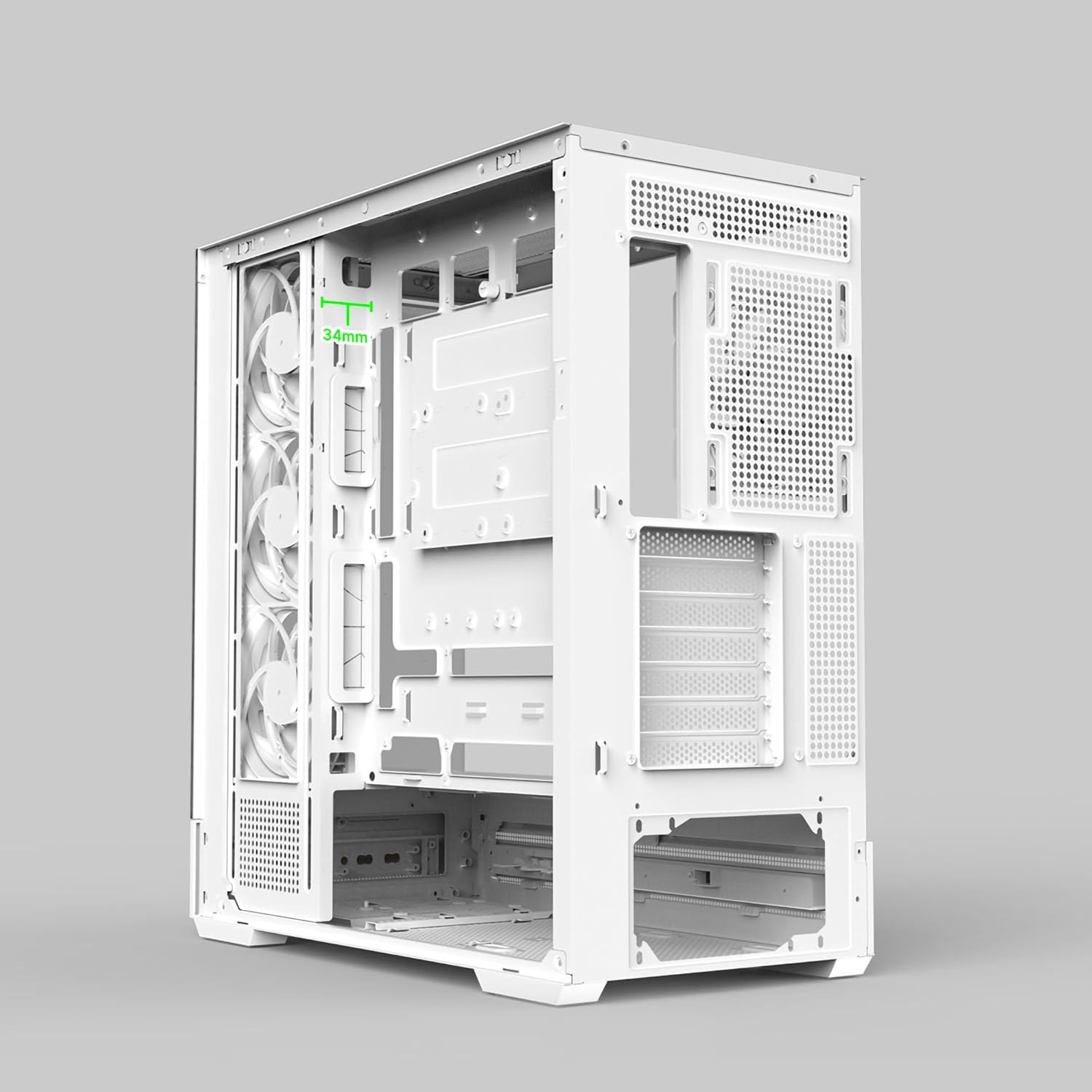
Figure 5.4: 34mm cable management clearance.
5.7 Connecting Front I/O and LCD
Connect the front panel cables (USB, audio, power, reset) to the corresponding headers on your motherboard. Ensure the LCD display cable is securely connected to the appropriate port on your motherboard or a dedicated controller, as per the display's instructions.
6. Operating the LCD Display
The integrated 9.1-inch LCD display on your ZALMAN P40 DS case is designed to provide real-time system information and customizable visuals.
- ソフトウェアのインストール: Download and install the official OZ Wide software from the ZALMAN webサイト。
- 構成: Use the OZ Wide software to configure the display. You can select from various widgets to show CPU temperature, GPU usage, fan speeds, and more.
- カスタマイズ: The software allows for customization of widget layouts and rotation, enabling you to display up to four widgets simultaneously on the screen, with others accessible through rotation.
7. メンテナンス
定期的なメンテナンスを行うことで、PC ケースの寿命が長くなり、パフォーマンスが最適になります。
- ダストクリーニング: Periodically clean dust filters (if present) and the interior of the case using compressed air or a soft brush. Ensure the system is powered off and unplugged before cleaning.
- ファンのメンテナンス: Check the pre-installed ARGB fans for dust buildup and clean them gently. Ensure fan blades are not obstructed.
- 外装清掃: 外側の表面を柔らかい布で拭きます。amp 布で拭いてください。研磨剤入りの洗剤や溶剤は使用しないでください。
8。 トラブルシューティング
If you encounter issues with your ZALMAN P40 DS case, consider the following common troubleshooting steps:
- 電源なし: 電源が壁のコンセントとマザーボードに正しく接続されていることを確認してください。すべての内部電源ケーブルを確認してください。
- ファンが回転しない/ARGBが動作しない: Verify that the fan and ARGB cables are correctly connected to the motherboard or fan controller. Check software settings for ARGB control.
- LCDディスプレイが動作しない: Ensure the display cable is securely connected. Check if the OZ Wide software is installed and running correctly. Restart your system.
- システムの不安定性: Double-check all component installations (motherboard, GPU, RAM, storage) to ensure they are seated correctly and securely.
For more complex issues, refer to the ZALMAN support webサイトにアクセスするか、カスタマーサービスにお問い合わせください。
9. 仕様
| 特徴 | 仕様 |
|---|---|
| ブランド | ザルマン |
| モデル名 | P40DS WHITE |
| 色 | 白 |
| 材料 | 合金鋼 |
| ケースタイプ | ミッドタワー |
| 製品寸法(長さ x 幅 x 高さ) | 42.5 x 23.5 x 49.2 cm |
| アイテム重量 | 8.7キログラム |
| マザーボードの互換性 | ATTX |
| 特集 | Integrated Fan, 9.1" LCD Display |
| 推奨用途 | ゲーム |
| 付属ファン | 4 x 120mm ARGBファン |
| LCDの解像度 | 1920×492 |
10. 保証とサポート
The ZALMAN P40 DS Mid-Tower PC Case comes with a 2年間のメーカー保証この保証は、通常の使用における材料および製造上の欠陥をカバーします。
For warranty claims, technical support, or further inquiries, please visit the official ZALMAN website or contact their customer service department. Please have your product model number (P40DS WHITE) and proof of purchase ready when seeking support.
Note: Information regarding the availability of spare parts and guaranteed software updates is not available at this time.


