1.製品オーバーview
The SUPVAN T50M Pro is a portable thermal label maker designed for various labeling needs. It operates without ink or toner, utilizing thermal paper for printing. This manual provides instructions for setup, operation, and maintenance of your device.
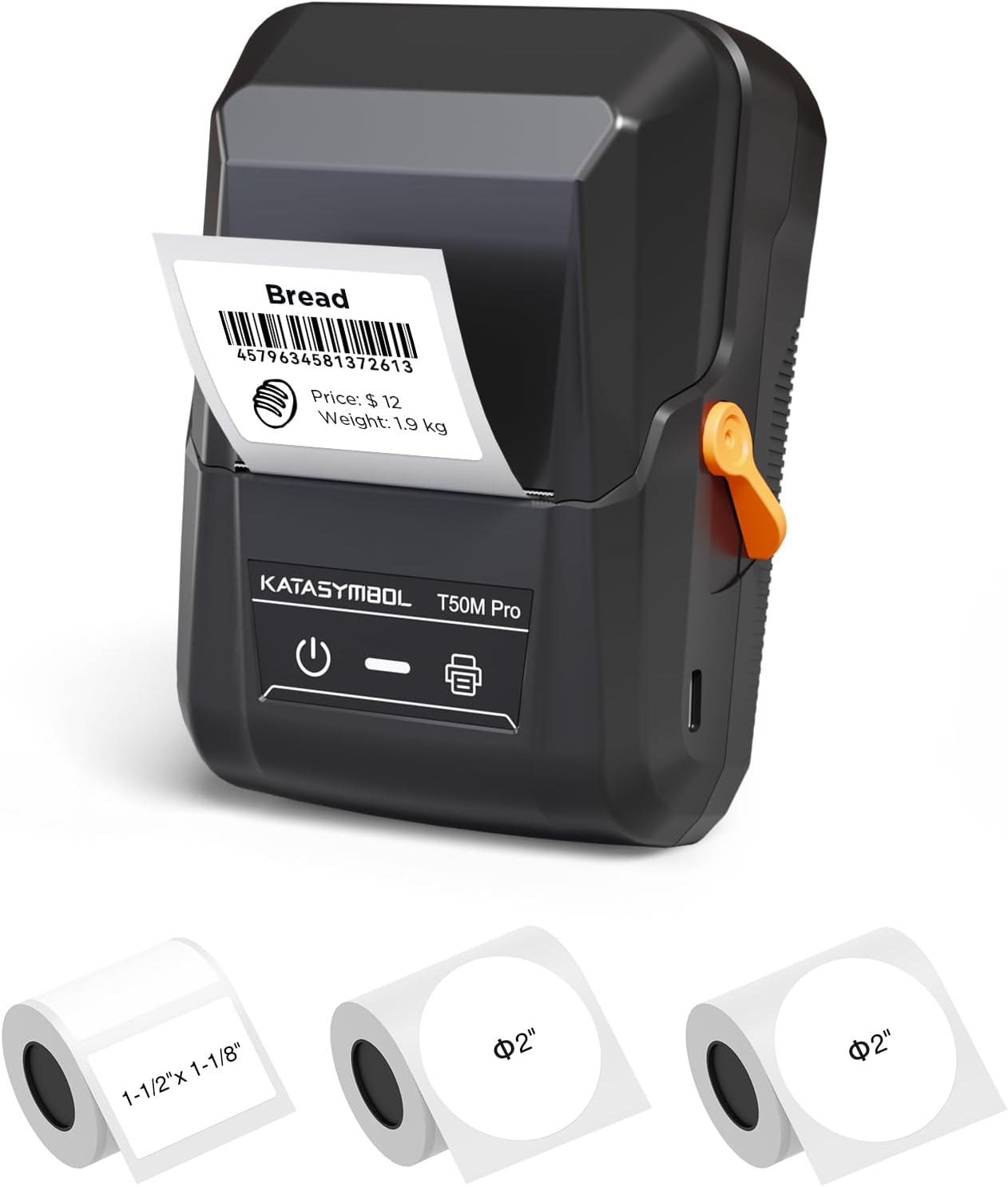
Image 1.1: The SUPVAN T50M Pro label maker shown with different label rolls and a printed label displaying "Bread" and a barcode (4579634581372613).
2. パッケージ内容
開梱したら、すべてのアイテムが揃っていることを確認してください。
- SUPVAN T50M Pro Label Maker
- 2 rolls of round white labels (Φ 2'', 140 labels/roll)
- 1 roll of rectangular white labels (1.57'' × 1.18'' / 40mm × 30mm, 250 labels/roll)
- USB Cable (for charging and connectivity)
- ユーザーマニュアル(このドキュメント)
3.セットアップガイド
3.1デバイスの充電
Before first use, fully charge the label maker using the provided USB cable. Connect the cable to the device's USB port and a standard USB power adapter (not included). The device features a 1200 mAh built-in rechargeable battery.
3.2 感熱紙のセット
- ラベルコンパートメントカバーを開きます。
- Insert the thermal label roll with the printing surface facing upwards.
- Ensure the label roll is properly seated and the leading edge of the label extends slightly out of the printer slot.
- Close the compartment cover securely. The printer's smart RFID auto-detection will recognize the label size.

Image 3.2: Illustration of how to load thermal paper into the SUPVAN T50M Pro label maker. The image shows a roll of thermal paper being inserted into the transparent compartment of the device.
3.3 アプリのインストール
Download the official SUPVAN label editing application from your device's app store (iOS/Android). The app is free to use and does not require a subscription.
4. 操作手順
4.1 電源のオン/オフ
- To power on: Press and hold the power button (marked with a universal power symbol) until the indicator light illuminates.
- 電源を切るには: インジケーター ライトが消えるまで電源ボタンを押し続けます。
4.2 アプリへの接続
Ensure Bluetooth is enabled on your smartphone or tablet. Open the SUPVAN app and follow the on-screen instructions to pair with your T50M Pro label maker. The device can also connect via USB.
4.3 ラベルの作成と印刷
The SUPVAN app offers extensive features for label creation:
- Template Library: Access over 140 constantly updated templates for various uses (e.g., home, product, shipping, school).
- カスタムデザイン: Utilize 40+ fonts, embed images, pictures, icons, shapes, QR codes, and Excel data.
- Auto Label Size Recognition: The app automatically detects the loaded label size (e.g., 2" x 2", 3/4" x 3/8").
- 印刷: After designing, select "Preview & Print" within the app to send the label to the T50M Pro.

Image 4.3a: The SUPVAN app interface showing various editing functions, including font selection (40+ options), image/picture integration, and automatic label size recognition (e.g., 2" x 2").

Image 4.3b: The SUPVAN app displaying a selection of over 140 available templates, including designs for nutrition information, thank you notes, and product labels.

Image 4.3c: Examples of various label styles supported by the SUPVAN T50M Pro, including round "Thank you" labels, price tags, banking labels, Halloween designs, and address labels, demonstrating its ability to print 3/4 to 2-inch wide labels.
5. メンテナンス
5.1 プリントヘッドのクリーニング
最適な印刷品質を保つために、プリントヘッドを定期的にクリーニングしてください。柔らかく糸くずの出ない布で軽く拭いてください。ampイソプロピルアルコールで洗浄後、プリントヘッドの表面を優しく拭いてください。使用前に、デバイスの電源がオフになっており、完全に乾いていることを確認してください。
5.2バッテリーケア
For long-term battery health, avoid fully discharging the device frequently. If storing for an extended period, charge the battery to approximately 50% and store in a cool, dry place.
5.3 ストレージ
Store the label maker in a clean, dry environment away from direct sunlight and extreme temperatures. Remove any label rolls if storing for very long periods to prevent dust accumulation.
6。 トラブルシューティング
If you encounter issues with your SUPVAN T50M Pro, consider the following:
- 電源なし: デバイスが充電されていることを確認してください。電源に接続してもう一度お試しください。
- 印刷品質が悪い: Check if the thermal paper is loaded correctly. Clean the print head as described in Section 5.1. Ensure you are using genuine SUPVAN thermal labels.
- 接続の問題: Verify Bluetooth is enabled on your mobile device and the label maker is powered on. Restart both devices and try pairing again. For USB connection, ensure the cable is securely connected.
- ラベルジャム: Open the label compartment and carefully remove any jammed labels. Ensure the label roll is inserted correctly and not too tight.
- アプリが応答しない: Close and reopen the app. If the issue persists, restart your mobile device.
For further assistance, refer to the in-app help section or contact SUPVAN customer support.
7. 仕様
| 特徴 | 詳細 |
|---|---|
| モデル名 | T50M Pro |
| ブランド | スーパーバン |
| 印刷技術 | サーマル |
| 接続技術 | USB |
| プリンタ出力 | モノクロ |
| 特集 | ポータブル |
| バッテリー | 1200 mAh built-in rechargeable |
| サポートされているメディアサイズ | Up to 50.8 mm (2 inches) wide, e.g., 50 x 30 mm |
| 商品型番 | T50M Pro |
| ハードウェアインターフェイス | USB |
| 色 | 黒 |
| BPAフリー | Yes (labels comply with BPA-free standard) |

Image 7.1: The SUPVAN T50M Pro label maker shown in a bag, highlighting its portability. Key specifications like size (5" x 3.7" x 2.3"), weight (0.6 lb), and 1200 mAh battery are displayed.

図7.2: 例amples of the SUPVAN T50M Pro's versatility, showing labels used for home organization (jars), product labeling (cookies), shipping (address labels), and school supplies (notebooks).
8. 保証情報
The SUPVAN T50M Pro Label Maker comes with a limited warranty. Please refer to the warranty card included in your package or contact SUPVAN customer support for specific terms and conditions.
9. カスタマーサポート
For technical support, troubleshooting, or warranty inquiries, please visit the official SUPVAN website or contact their customer service department. Contact information can typically be found on the product packaging or the SUPVAN brand store on Amazon.
Note: Always ensure you have your product model number (T50M Pro) and purchase details ready when contacting support.


