1. はじめに
Welcome to the user manual for your new TCL 75P89K QLED 4K Google TV. This guide provides essential information for setting up, operating, and maintaining your television to ensure optimal performance and enjoyment. Please read this manual thoroughly before using your TV and keep it for future reference.
製品終了view
The TCL 75P89K is a 75-inch QLED 4K Ultra HD Google TV, featuring a 144Hz refresh rate, Dolby Vision, HDR10+, and HDMI 2.1 connectivity. It offers a stunning visual experience with vibrant colors and sharp details, powered by Google TV for smart functionality and seamless content access.
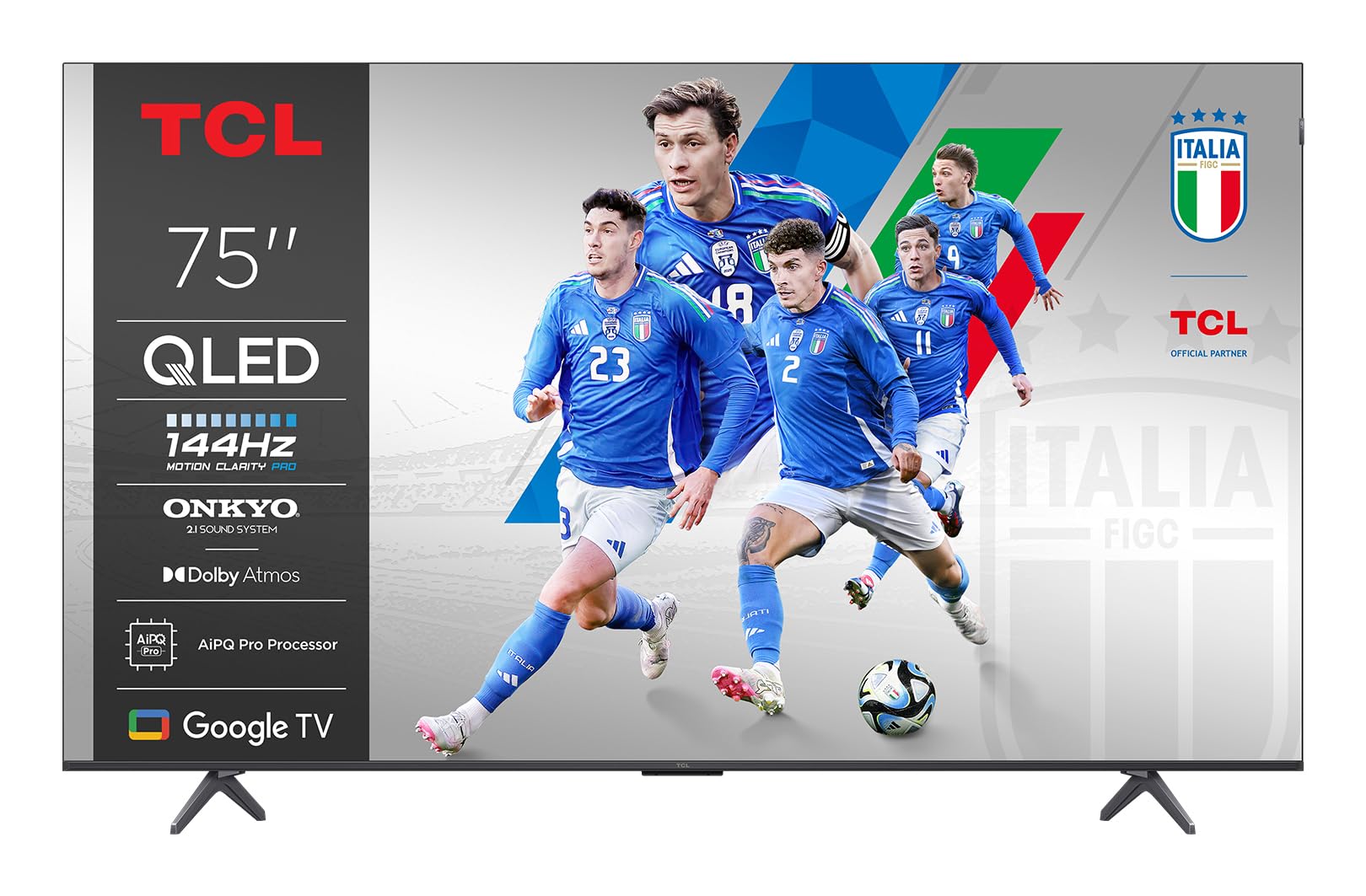
画像: 正面 view of the TCL 75P89K QLED 4K Google TV, showcasinスリムなデザインと鮮やかなディスプレイが特徴です。
2. 安全情報
Before operating the TV, please read all instructions carefully. Keep these instructions for future reference. Always follow basic safety precautions to reduce the risk of fire, electric shock, and injury to persons.
- 通気口を塞がないでください。
- 熱源の近くに設置しないでください。
- 電源コードが踏まれたり挟まれたりしないように保護してください。
- メーカー指定のアタッチメント/アクセサリのみを使用してください。
- 雷雨のときや長期間使用しない場合は、この装置のプラグを抜いてください。
- すべてのメンテナンスは資格のあるサービス担当者に依頼してください。
3. セットアップ
3.1 開梱
Carefully remove the TV from its packaging. It is recommended to keep the original packaging for future transport or servicing needs. Ensure all accessories are present.
3.2 スタンド設置または壁掛け
Your TV can be placed on a stand or mounted on a wall. Follow the instructions provided with your TV stand or wall mount kit.
Wall Mounting Instructions (Example for PERLESMITH TV Wall Mount)
If you are using a PERLESMITH wall mount (model PSPILFK1), the following video provides a detailed guide on how to install it. This video demonstrates the steps for attaching the TV brackets and mounting the assembly to the wall.
Video: Installation guide for PERLESMITH TV Wall Mount (PSPILFK1-E). This video demonstrates how to attach the TV brackets to the television and then securely mount the entire assembly onto a wall, ensuring proper alignment and stability.
3.3 周辺機器の接続
Connect your external devices such as Blu-ray players, gaming consoles, sound systems, and cable/satellite boxes to the TV's ports.
- HDMI: Use HDMI cables for high-definition video and audio. Your TCL 75P89K supports HDMI 2.1 for advanced features like 4K@144Hz.
- USB: メディアの再生やソフトウェアの更新のために USB デバイスを接続します。
- 力: 電源コードをテレビに差し込み、次に壁のコンセントに差し込みます。
3.4 初期設定
Once powered on, the TV will guide you through the initial setup process. This includes selecting your language, connecting to a Wi-Fi network, and signing in to your Google account to access Google TV features.
4. テレビの操作
4.1 リモートコントロールオーバーview
Familiarize yourself with the TV's remote control. It typically includes buttons for power, volume, channel selection, input source, navigation, and direct access to smart TV apps.
4.2 基本機能
- 電源オン/オフ: リモコンまたはテレビの電源ボタンを押します。
- 音量コントロール: 音量アップ/ダウンボタンを使用します。
- チャンネル選択: チャンネルアップ/ダウンボタンまたは数字キーパッドを使用します。
- 入力ソース: Press the Input button to switch between connected devices (HDMI, AV, etc.).
4.3 スマートテレビの機能(Google TV)
Your TCL 75P89K runs on Google TV, providing access to a vast library of apps, streaming services, and personalized content recommendations.
- ホーム画面: パーソナライズされたコンテンツ、アプリ、設定にアクセスします。
- 音声アシスタント: Use the built-in Google Assistant for voice commands, content search, and smart home control.
- アプリ: Google Play ストアからアプリをダウンロードしてインストールします。
4.4 画像とサウンドの設定
カスタマイズ viewテレビの設定メニューから、サウンドとリスニング体験をコントロールできます。
- 画像モード: Select from various preset picture modes (e.g., Standard, Movie, Sport, Vivid) or customize settings like brightness, contrast, color, and sharpness.
- サウンドモード: Choose sound modes (e.g., Standard, Music, Movie) or adjust equalizer settings.
- Dolby Vision/HDR10+: The TV automatically detects and optimizes content for Dolby Vision and HDR10+ for enhanced dynamic range and color.
4.5 ゲーム機能
The 75P89K is optimized for gaming with a 144Hz refresh rate and HDMI 2.1.
- 144Hzリフレッシュレート: ペースの速いゲームでも非常にスムーズな動きを実現します。
- VRR (可変リフレッシュ レート): 画面のティアリングやスタッタリングを軽減し、スムーズなゲームプレイを実現します。
- ALLM (自動低遅延モード): ゲーム機が検出されると、テレビを自動的に低遅延モードに切り替えます。
4.6 Casting/Screen Mirroring
Share content from your mobile devices to the TV using built-in casting features.
- Chromecastビルトイン: Cast videos, photos, and apps from your compatible smartphone or tablet.
- AirPlay 2: Stream content directly from Apple devices.
5. メンテナンス
5.1 テレビの掃除
- 画面: Gently wipe the screen with a soft, lint-free cloth. For stubborn marks, use a screen cleaner specifically designed for TVs.
- フレーム: フレームとスタンドを柔らかく乾いた布で拭いてください。
- 注意: Do not use abrasive cleaners, waxes, or solvents as they can damage the TV's finish. Always unplug the TV before cleaning.
5.2ソフトウェアアップデート
テレビは、パフォーマンスの向上や新機能の追加のためにソフトウェアアップデートを受け取る場合があります。これらのアップデートを自動的に受信するには、テレビがインターネットに接続されていることを確認してください。または、設定メニューで手動でアップデートを確認してください。
6。 トラブルシューティング
テレビで問題が発生した場合は、次の一般的な問題と解決策を参照してください。
| 問題 | 考えられる解決策 |
|---|---|
| 電源なし | 電源コードがテレビと壁のコンセントにしっかりと差し込まれているか確認してください。別のコンセントを試してください。 |
| 映像はないが、音声はある | 入力ソースを確認してください。外部デバイスの電源がオンになっており、正しく接続されていることを確認してください。 |
| 音はないが、映像は表示される | Check the volume level and mute status. Verify audio output settings and external audio device connections. |
| リモコンが動作しない | 電池を交換してください。リモコンとテレビの間に障害物がないことを確認してください。 |
| Wi-Fi接続の問題 | Restart your router and modem. Check TV network settings. Ensure the TV is within range of your Wi-Fi network. |
For more complex issues, please contact TCL customer support.
7. 仕様
| 特徴 | 詳細 |
|---|---|
| ブランド | TCL |
| メーカー | TCL |
| モデル名 | 75P89K |
| モデル年 | 2021 |
| ハードウェアインターフェイス | HDMI |
| ディスプレイ解像度 | 4K |
| ディスプレイ技術 | クォリティLED |
| 画面サイズ | 75インチ |
| 画像のコントラスト比 | 高い |
| アスペクト比 | 16:9 |
| オーディオ入力 | HDMI |
| スピーカーサラウンドサウンドチャンネル構成 | 5.1 |
| リフレッシュレート | 144ヘルツ |
| USBポートの数 | 1 |
| コネクタタイプ | HDMI |
| 取り付け互換性 | 壁掛け |
| 製品重量 | 9キロ |
| ソフトウェアアップデートの保証期間 | 未知 |
| サポートされているインターネットサービス | Google TV |
| 色 | 黒 |
8. 保証とサポート
8.1 保証情報
保証の詳細については、製品に付属の保証書を参照するか、TCLの公式ウェブサイトをご覧ください。 webサイトでご確認ください。保証請求の際は購入証明として領収書を保管してください。
8.2 カスタマーサポート
If you require further assistance or have questions not covered in this manual, please contact TCL customer support. You can find contact details on the official TCL webサイトまたは製品ドキュメントに記載されています。
オンラインサポート: 訪問 www.tcl.com FAQ、サポート記事、連絡先情報については、こちらをご覧ください。