1. はじめに
The Hama WM-450 Multi-Device Wireless Mouse is an optical mouse designed for versatile use across multiple devices. It features 7 buttons, a scroll wheel, and supports wireless connectivity via Bluetooth (two channels) and a 2.4 GHz radio frequency (one channel) using a USB-A receiver. This allows simultaneous connection to up to three devices, with quick switching between them. An integrated AI Assist button enhances productivity by activating an inter-program AI assistant. The mouse is designed for comfortable and silent operation.

画像1.1: 以上view of the Hama WM-450 mouse highlighting its key features: Bluetooth connectivity, 10-meter wireless range, USB-A receiver, and battery power.
2. セットアップ
2.1 バッテリーの取り付け
- マウスの下側にあるバッテリー収納部を見つけます。
- 電池ボックスのカバーを開きます。
- Insert the two AAA batteries (included) according to the polarity markings (+/-) inside the compartment.
- 電池カバーをしっかりと閉じてください。
2.2 電源のオン/オフ
Slide the ON/OFF switch, located on the underside of the mouse, to the 'ON' position to power on the mouse. Slide it to 'OFF' when not in use to conserve battery life.
2.3 Connecting via USB-A Receiver (2.4 GHz Radio)
- Remove the USB-A receiver from its storage slot on the underside of the mouse.
- Plug the USB-A receiver into an available USB-A port on your computer, laptop, or compatible device.
- The mouse should be automatically recognized and ready for use. This connection uses the 2.4 GHz radio channel.
2.4Bluetooth経由で接続する
The mouse supports two Bluetooth channels for connecting to different devices.
- マウスの電源がオンになっていることを確認してください。
- Press the channel switch button (usually on the underside or top of the mouse) to select either Bluetooth Channel 1 or Bluetooth Channel 2. The corresponding indicator light will flash.
- デバイス(PC、タブレット、スマートフォン)で Bluetooth 設定に移動し、Bluetooth を有効にします。
- 検索する new devices. The mouse should appear as 'Hama WM-450' or similar.
- ペアリングするマウスを選択します。画面に表示される指示に従ってください。
- Once paired, the indicator light will stop flashing and remain solid for a few seconds, indicating a successful connection.

Image 2.1: The underside of the Hama WM-450 mouse, illustrating the battery compartment, the ON/OFF switch, and the integrated storage for the USB-A receiver.
3.運用
3.1 基本機能
- 左クリック: 一次選択とアクティベーション。
- 右クリック: コンテキスト メニューにアクセスします。
- スクロールホイール: 文書をスクロールして web pages. The high-quality aluminum scroll wheel provides precise control.
- サイレントクリックボタン: 左クリックボタンと右クリックボタンは静音操作を実現するように設計されており、静かな環境でのノイズを低減します。
3.2 マルチデバイススイッチング
To switch between connected devices (USB-A, Bluetooth 1, Bluetooth 2), press the dedicated channel switch button on the mouse. The mouse will instantly connect to the selected device.
3.3 Side Navigation Buttons
The mouse features two practical side buttons. These buttons typically function as 'Back' and 'Forward' for easier navigation in web ブラウザ、 file explorers, and applications like Outlook.

画像3.1: クローズアップ view of the two side navigation buttons on the Hama WM-450 mouse, used for 'Back' and 'Forward' functions.
3.4 DPI調整
The mouse includes a DPI switch button, usually located near the scroll wheel. Press this button to cycle through different sensitivity settings: 800, 1200, and 1600 DPI (Dots Per Inch). Choose the DPI setting that best suits your preference and task.
3.5 AI Assist Button
The dedicated AI Assist button activates an inter-program AI assistant, designed to enhance productivity. Refer to your device's software documentation for specific functionalities enabled by this feature.
4. メンテナンス
4.1 クリーニング
マウスを清掃するには、柔らかく乾いた糸くずの出ない布を使用してください。頑固な汚れには、軽くampen the cloth with water or a mild cleaning solution. Avoid using harsh chemicals, abrasive cleaners, or excessive moisture, as these can damage the mouse.
4.2 電池の交換
When the mouse performance degrades or the indicator light signals low battery, replace the two AAA batteries. Always use fresh batteries of the same type.
4.3 USBレシーバーのストレージ
When transporting the mouse or not using the 2.4 GHz radio connection, store the USB-A receiver in its dedicated slot on the underside of the mouse to prevent loss.
5。 トラブルシューティング
- マウスが反応しない:
- マウスの電源がオンになっていることを確認してください。
- バッテリーレベルを確認し、必要に応じて交換してください。
- For USB-A connection, ensure the receiver is securely plugged into a working USB port. Try a different USB port.
- Bluetooth接続の場合、デバイスでBluetoothが有効になっていること、およびマウスがペアリングされていることを確認してください。マウスのペアリングを再度お試しください。
- Ensure the correct channel (USB-A, BT1, BT2) is selected on the mouse.
- 断続的な接続:
- Move the mouse closer to the receiver/device. The effective range is up to 10 meters, but obstacles can reduce this.
- 干渉を引き起こす可能性のある他のワイヤレス デバイスの近くでマウスを使用しないでください。
- カーソルの動きが不安定または遅い:
- マウスの裏側にある光学センサーを清掃します。
- マウスを適切な表面で使用していることを確認してください。反射率の高い表面や透明な表面では、パフォーマンスに影響が出る可能性があります。
- カーソルが遅すぎる場合は、DPI 設定を高い値に調整します。
- Side buttons or AI Assist button not working:
- Ensure your operating system or application supports these functions.
- Check for any specific software or driver requirements for your device.
6. 仕様
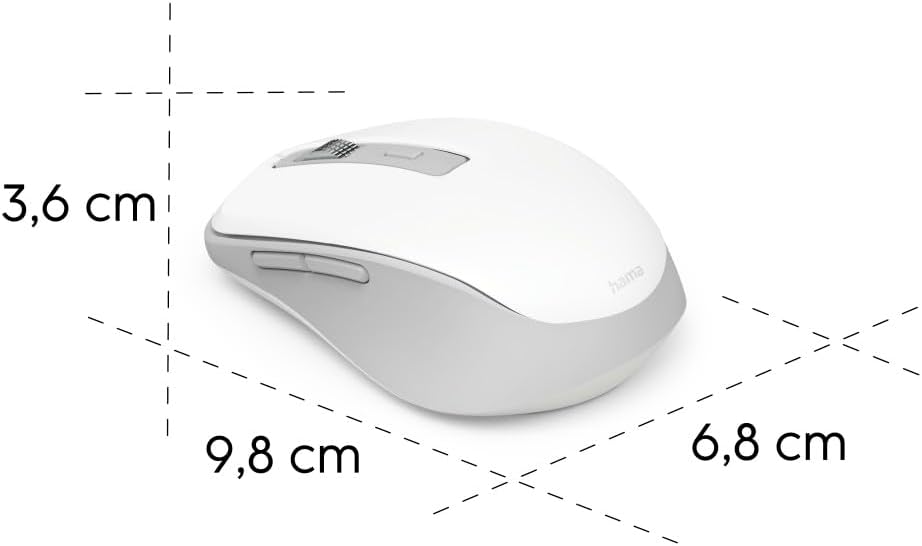
Image 6.1: Dimensional diagram of the Hama WM-450 mouse, indicating its length, width, and height.
| ブランド | ハマ |
| モデル名 | WM-450 |
| モデル番号 | 00173080 |
| 接続技術 | Bluetooth, 2.4 GHz Radio (USB-A) |
| ワイヤレス範囲 | 最大10メートル |
| センサー技術 | 光学 |
| DPI設定 | 800、1200、1600 |
| ボタンの数 | 7(スクロールホイールのクリックを含む) |
| 電源 | 単2電池XNUMX本(付属) |
| 寸法(長さ×幅×高さ) | 9.8 x 6.8 x 3.6 cm(おおよそ) |
| 重さ | 140グラム |
| 対応デバイス | PC, Tablet, Laptop, Smartphone, iPad |
| 特集 | Multi-device connectivity (3 devices), AI Assist button, Silent click buttons, Side navigation buttons, Retractable USB receiver, Polymer-coated mouse feet, High-quality aluminum scroll wheel. |
| 材料構成 | At least 20% recycled materials |
| パッケージ | 100%プラスチックフリー |
7. 保証とサポート
保証情報、技術サポート、またはサービスに関するお問い合わせについては、製品に付属の保証書を参照するか、Hamaの公式ウェブサイトをご覧ください。 webカスタマーサポートの連絡先は通常、メーカーのウェブサイトに掲載されています。 webサイト。