1. はじめに
Thank you for choosing the EvoFox Deathray V2 Gaming Keyboard and Mouse Combo. This manual will guide you through the setup, operation, and maintenance of your new gaming peripherals. Designed for precision and comfort, this combo enhances your gaming and productivity experience.

Image: The EvoFox Deathray V2 Gaming Keyboard and Mouse Combo, showcasing both devices connected via their braided cables.
2. パッケージ内容
- EvoFox Deathray V2 Gaming Keyboard
- EvoFox Deathray V2 Gaming Mouse
- ユーザーマニュアル(このドキュメント)
3. セットアップ手順
- キーボードを接続します: Plug the USB connector of the EvoFox Deathray V2 Keyboard into an available USB port on your computer.
- マウスを接続します: Plug the USB connector of the EvoFox Deathray V2 Mouse into another available USB port on your computer.
- ドライバーのインストール: オペレーティングシステムは必要なドライバーを自動的に検出し、インストールします。通常、基本的な機能については追加のソフトウェアのインストールは必要ありません。
- 配置: Place the keyboard and mouse on a flat, stable surface for optimal performance.
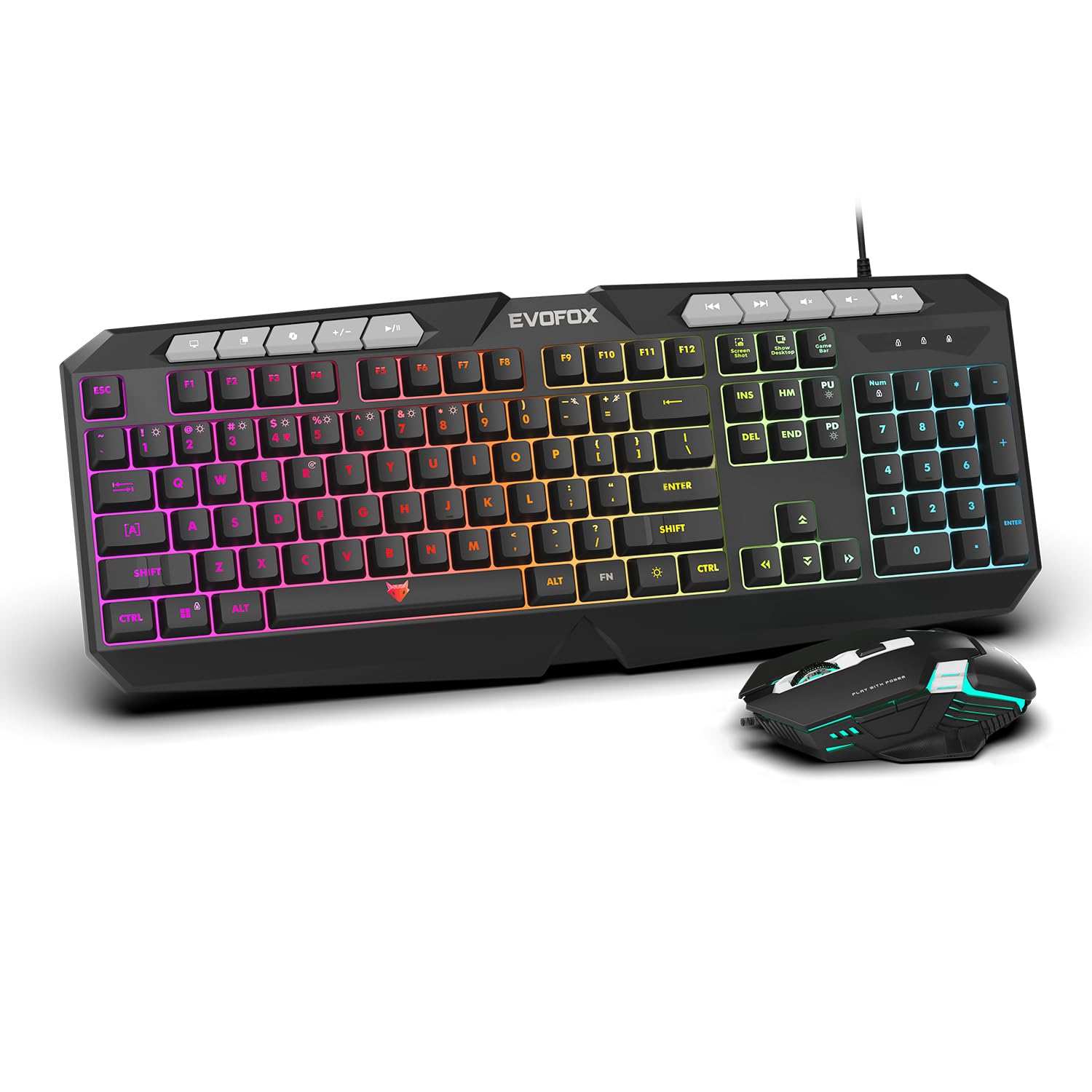
画像: クローズアップ view of the EvoFox Deathray V2 Keyboard and Mouse, illustrating their wired connection readiness.
4. キーボードの操作
4.1.基本機能
The EvoFox Deathray V2 Keyboard features a full-size layout with standard QWERTY keys, a numeric keypad, and function keys (F1-F12).
4.2. マルチメディアキー
Dedicated multimedia keys are located above the function keys for quick access to media controls:
- 音量を上げる/下げる/ミュート: オーディオレベルを制御します。
- 再生/一時停止、前のトラック/次のトラック: メディアの再生を管理します。
4.3. 特殊機能キー
The keyboard includes special shortcut keys for enhanced productivity and gaming:
- スクリーンショット: Captures a screenshot of your display.
- デスクトップを表示する: Minimizes all open windows to show the desktop.
- Xbox ゲームバー: Opens the Xbox Game Bar for gaming features.
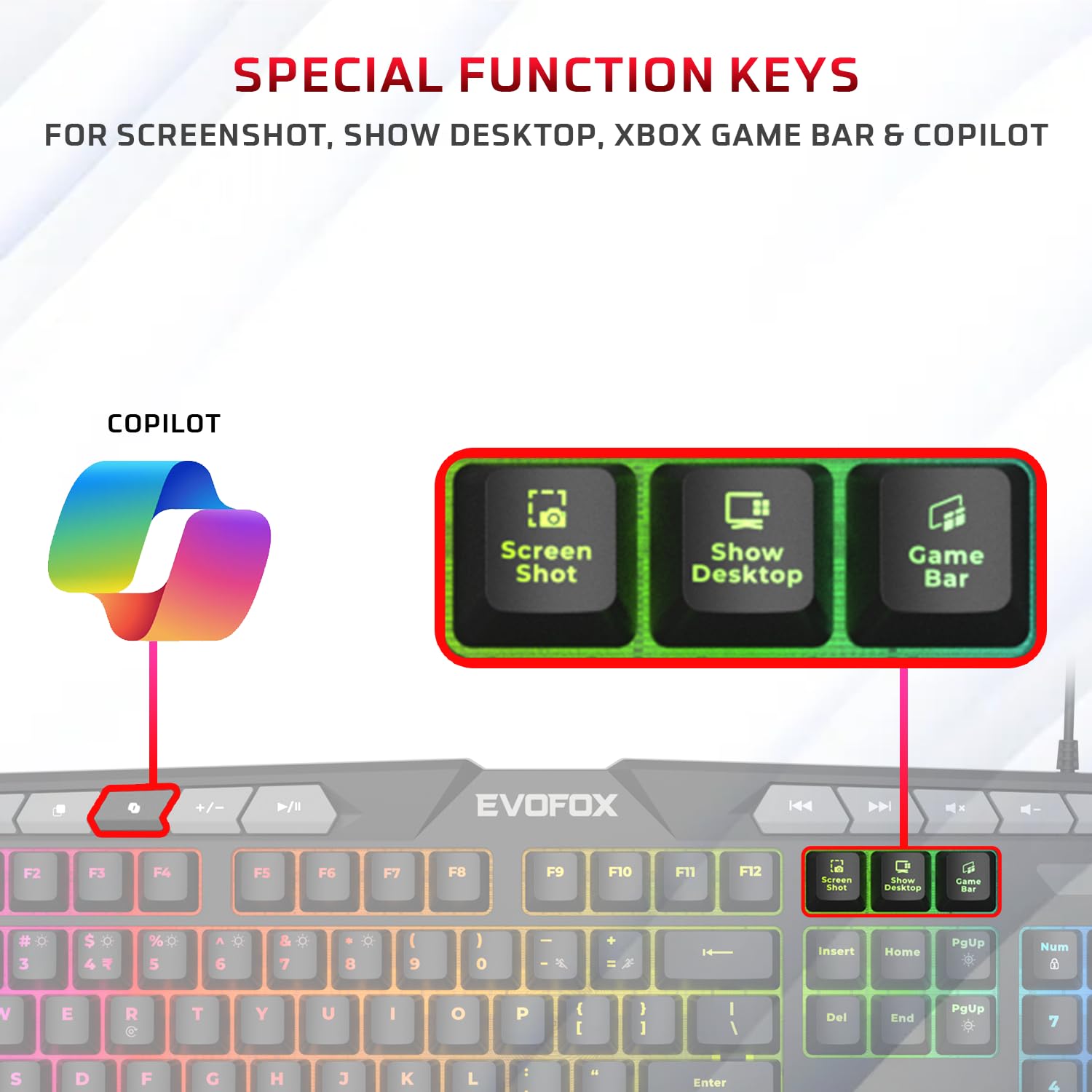
画像: 詳細な view of the EvoFox Deathray V2 Keyboard highlighting the dedicated Screenshot, Show Desktop, and Game Bar keys.
4.4. アンチゴーストキー
The keyboard features 19 anti-ghosting keys, ensuring that multiple simultaneous key presses are registered accurately, which is crucial for gaming.

Image: The EvoFox Deathray V2 Keyboard, visually indicating the 19 anti-ghosting key zones for precise input.
5. マウスの操作
5.1. ボタンと機能
The EvoFox Deathray V2 Mouse features 6 buttons for versatile control:
- 左クリック
- 右クリック
- スクロールホイール(クリック可能)
- DPI調整ボタン
- 進むボタン
- 戻るボタン
5.2. DPI調整
The mouse offers adjustable DPI (Dots Per Inch) settings to change cursor sensitivity. Press the DPI button located behind the scroll wheel to cycle through the available DPI levels:
- 1200DPI
- 1800DPI
- 2400DPI
- 3600DPI
Each DPI level may be indicated by a specific LED light pattern or color change on the mouse.

Image: The EvoFox Deathray V2 Mouse, illustrating its ergonomic design and the DPI adjustment button.

Image: A close-up of the EvoFox Deathray V2 Mouse, highlighting its 6-button design, rugged braided cable, and magnetic ring for data transmission.
6. Lighting Customization
6.1. Keyboard RGB Backlighting
The EvoFox Deathray V2 Keyboard features 6-zone RGB backlighting with multiple lighting modes. Use the dedicated lighting control keys (often marked with a light bulb icon or specific function key combinations) to cycle through different effects and adjust brightness.
- 8つの照明モード: Cycle through various preset lighting effects.
- カスタム照明: Some modes may allow for custom color assignments or patterns.

Image: The EvoFox Deathray V2 Keyboard displaying its vibrant 6-zone customizable RGB backlighting.
6.2. Mouse LED Lighting
The EvoFox Deathray V2 Mouse features 7-color LED lighting, often with a breathing effect, which changes automatically. There are typically no user-adjustable settings for the mouse lighting beyond its default cycling pattern.

Image: The EvoFox Deathray V2 Mouse illuminated with its 7-color rainbow LED lighting, featuring a breathing effect.
7. メンテナンス
Proper maintenance ensures the longevity and optimal performance of your EvoFox Deathray V2 combo.
- クリーニング: キーボードとマウスは、柔らかく乾いた布で拭いてください。頑固な汚れには、軽く湿らせた布で拭いてください。amp cloth can be used, ensuring no liquid enters the devices. Avoid harsh chemicals or abrasive materials.
- ほこりの除去: 圧縮空気を使用して、キーボードのキーの間やマウス センサーの周囲からほこりやゴミを取り除きます。
- ケーブルのお手入れ: Avoid sharp bends or excessive pulling on the braided cables to prevent damage.
- ストレージ: 長期間使用しない場合は、直射日光や極端な温度を避け、清潔で乾燥した環境にデバイスを保管してください。

Image: A close-up of the EvoFox Deathray V2 Keyboard, highlighting its durable design with a 1.8m braided cable and soft membrane keys.
8。 トラブルシューティング
| 問題 | 考えられる原因 | 解決 |
|---|---|---|
| キーボード/マウスが反応しない | USB 接続が緩んでいる、USB ポートに障害がある、ドライバーに問題がある。 |
|
| キーが認識されない、またはゴーストが発生する | Software conflict, physical obstruction, hardware issue. |
|
| マウスカーソルが不安定または動かない | センサーが汚れている、表面が適切でない、センサーに障害がある。 |
|
| RGB照明が機能しない | Lighting mode off, brightness too low, software issue. |
|
9. 仕様
| 特徴 | 詳細 |
|---|---|
| 製品モデル | V2 - 2 in 1 |
| 接続性 | 有線USB |
| キーボードタイプ | メンブレン、フルサイズ |
| キーボードバックライト | 6-Zone RGB with 8 modes |
| アンチゴースト | 19つのキー |
| マウスボタン | 6 Buttons (Left, Right, Scroll Click, DPI, Forward, Backward) |
| マウスのDPI設定 | 1200 / 1800 / 2400 / 3600DPI |
| マウスの照明 | 7-Color LED Lighting (Breathing Effect) |
| ケーブルタイプ | Braided Cable (1.8m for keyboard) |
| マウススイッチ | Huano switches, rated for 10 million clicks |
| 製品寸法(キーボード) | 50 x 18 x 4 cm |
| アイテム重量 | 800グラム |
| 原産国 | 中国 |
10. 保証とサポート
EvoFox products are designed for durability and performance. For warranty information, technical support, or service inquiries, please refer to the official EvoFox webサイトをご覧いただくか、カスタマー サポートに直接お問い合わせください。
メーカー: アライド・エレクトロニクス・アンド・マグネティクス・プライベート・リミテッド
住所: C-64/4, Okhla Phase - 2, New Delhi - 110020, India
保証請求のために購入証明書を保管してください。
11. 安全情報
- Do not expose the devices to liquid or excessive moisture.
- 極端な温度を避けてください。
- ご自身でデバイスの分解や修理を試みないでください。保証が無効になります。
- お子様の手の届かない場所に保管してください。


