1. はじめに
このマニュアルには、KAYSION SK45 Bluetoothサーマル配送ラベルプリンターのセットアップ、操作、メンテナンスに関する詳細な手順が記載されています。プリンターを最適な状態で長くお使いいただくために、ご使用前にこのマニュアルをよくお読みください。
製品の特徴:
- Bluetooth接続: スマートフォンやタブレット (iOS および Android) からのシームレスなワイヤレス印刷。
- USB接続: Mac OS および Windows のラップトップおよび PC と互換性があります。
- ユーザーフレンドリーなデザイン: 耐久性に優れたプリントヘッド、ワンタッチの用紙送り調整、静かな動作。
- スマートサーマルプリント: インクやトナーは不要、鮮明な印刷を実現する 203 DPI の解像度、最大 150 mm/秒の高速印刷を実現します。
- 幅広いラベルの互換性: 4x6 インチの配送ラベル、製品ラベル、住所ラベルなど、幅 1 インチから 4.4 インチまでのラベルをサポートします。
- 多用途なアプリケーション: 配送、バーコード、製品の価格設定、整理など、商業および家庭での使用に最適です。
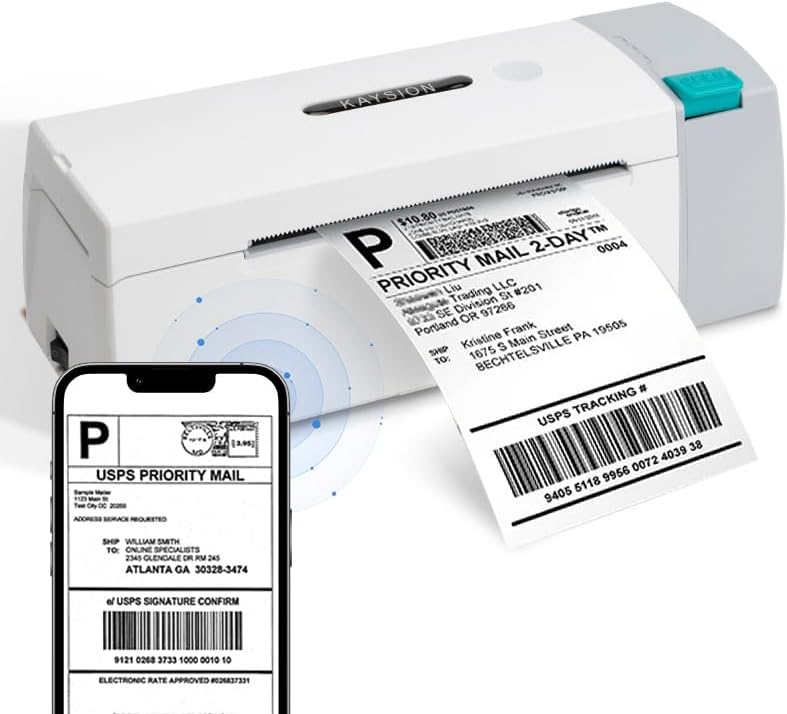
KAYSION SK45 サーマル プリンターが稼働しており、モバイル デバイスから直接配送ラベルを印刷できることを実証しています。
2.セットアップガイド
2.1 開梱と初期検査
すべての部品をパッケージから慎重に取り出します。以下のものがすべて揃っていることを確認してください。
- KAYSION SK45 サーマルプリンター
- 電源アダプター
- USBケーブル
- Sample ラベル
プリンターに目に見える損傷がないか点検してください。部品が不足または破損している場合は、カスタマーサポートにお問い合わせください。
2.2 ラベルの読み込み
SK45 プリンタには、最大 12 メートルの長さのラベル ロールを収容できるように設計された内蔵用紙コンパートメントが備わっています。
- プリンターの側面にある「開く」ボタンを押して、上部カバーを持ち上げます。
- ラベル ロールを用紙トレイに置き、ラベルが下から給紙され、印刷面が上を向くようにします。
- ラベルを数枚、プリントヘッドを越えて引き出します。
- 上部カバーをカチッと音がするまでしっかりと閉じます。
- プリンターはラベルのサイズを検出するために、自動的に調整してラベルをいくつか送り出します。

KAYSION SK45 プリンタの内部用紙トレイを示す画像。ラベル ロールをセットする場所を示しています。
2.3電源接続
電源アダプタをプリンターの電源ポートに接続し、壁のコンセントに差し込みます。電源インジケータライトが点灯します。
2.4 ソフトウェアとアプリのインストール
KAYSION SK45 プリンターは、有線接続と無線接続の両方をサポートします。
モバイルデバイスの場合(Bluetooth):
スマートフォンまたはタブレット用の公式アプリケーションをダウンロードしてインストールします。
- Androidアプリ: 「ラベルを印刷」
- iOSアプリ: 「Zラベル」
これらのアプリは通常、Google PlayストアまたはApple App Storeでそれぞれの名前を検索すると見つかります。インストールしたら、アプリを開き、アプリ内の指示に従ってBluetooth経由でプリンターに接続してください。

モバイル アプリケーションを使用して Bluetooth 経由でプリンターを接続する 4 つの手順 (QR のスキャン、接続、編集、印刷) を示すビジュアル ガイド。
コンピューターの場合(USB):
Mac OSおよびWindowsのノートパソコンやPCの場合は、付属のUSBケーブルを使用してプリンターを接続します。ドライバーが必要な場合があり、通常はKAYSIONの公式ウェブサイトから入手できます。 webサイトから入手するか、購入時に CD/USB ドライブに含まれています。

KAYSION SK45 プリンターは、スマートフォンへのワイヤレス接続とラップトップへの有線 USB 接続というデュアル接続オプションを実演しています。
3. 操作手順
3.1 最初のラベルの印刷
プリンターを接続し、ラベルをセットしたら、印刷を開始できます。モバイルアプリを使用するか、コンピューターアプリケーションを使用するかによって、手順が若干異なります。
モバイルアプリの使用:
- 「Print Label」(Android)または「Zlabel」(iOS)アプリを開きます。
- 印刷したいラベル デザインを選択または作成します。
- アプリ内でプリンターが選択され、Bluetooth 経由で接続されていることを確認します。
- 「印刷」ボタンをタップします。プリンターが自動的にラベルを送り、印刷します。
コンピュターを使う:
- お好みのラベル デザイン ソフトウェアまたは配送プラットフォームを開きます。
- プリンターとしてKAYSION SK45を選択します。
- 必要に応じて印刷設定を調整します (例: ラベル サイズ、向き)。
- ソフトウェアから印刷コマンドを開始します。

さまざまな用途のラベルを印刷しながら、KAYSION SK45 プリンターの操作のしやすさを実証するユーザー。
3.2 サポートされているラベルの種類とサイズ
KAYSION SK45 は、印刷幅が 0.78 インチ (20 mm) から 4.09 インチ (104 mm) までの幅広いサーマル ラベルに印刷できるように設計されています。
一般的にサポートされているラベルの種類は次のとおりです。
- 4x6インチの配送ラベル
- 3x2インチの製品ラベル
- 3x1インチの住所ラベル
- 2x2インチの円形ラベル
- 2.25x1.25インチの製品SKUラベル
- 2x1インチのバーコードラベル
- 1x1インチのQRコードラベル
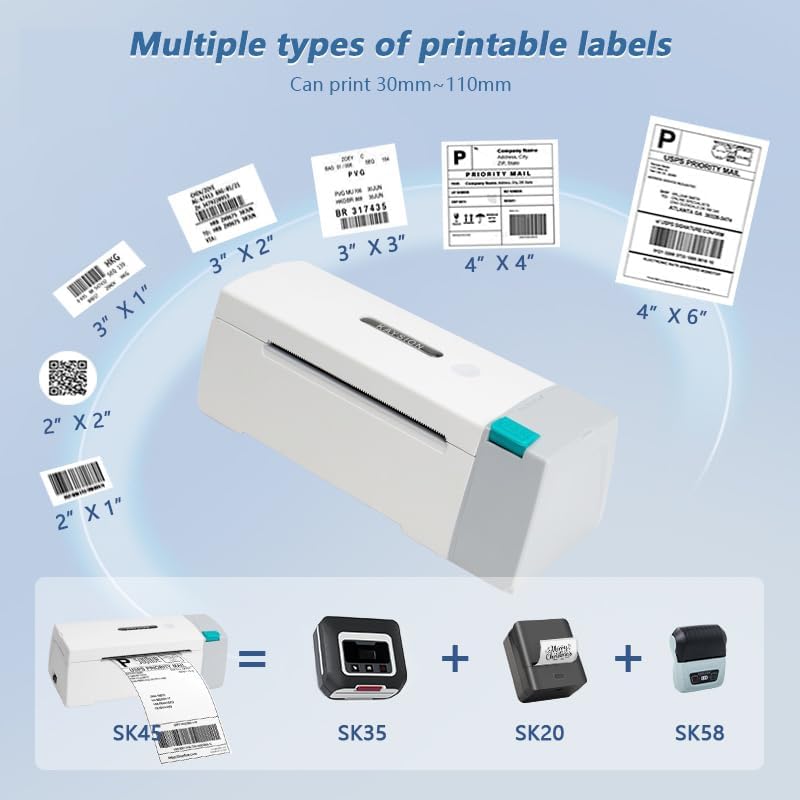
イラストショーasinKAYSION SK45 サーマルラベル プリンターを使用して印刷できる、さまざまなラベル サイズとタイプを紹介します。
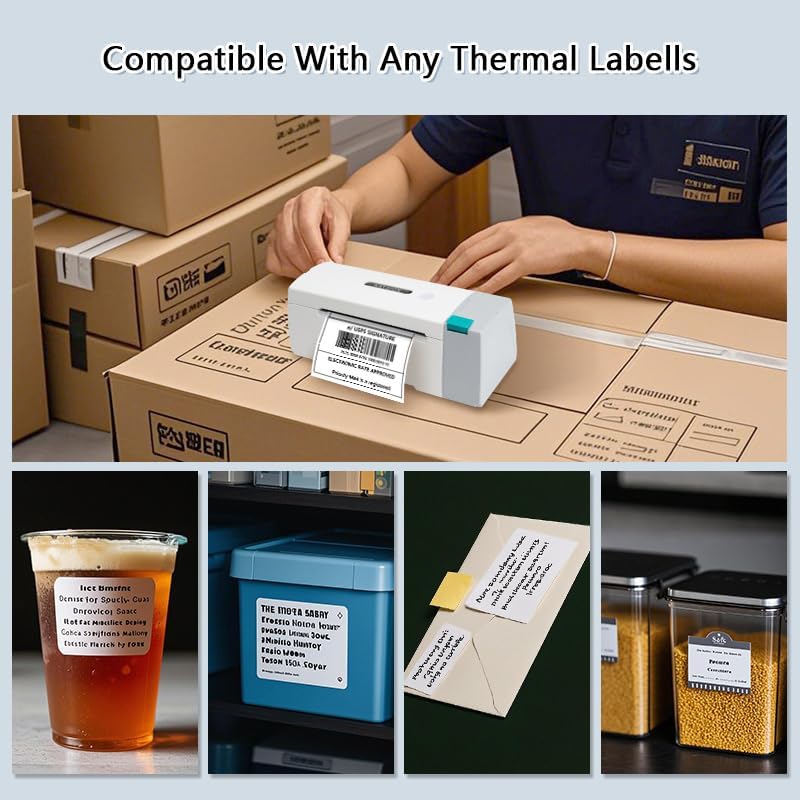
KAYSION SK45 プリンターは、さまざまなタイプの感熱ラベルとの互換性を示しており、さまざまなビジネスおよび個人のニーズに適しています。
3.3 ビデオガイド: KAYSION SK45 サーマルプリンターview
このビデオでは、view KAYSION SK45サーマルプリンターの機能と基本操作をご紹介します。プリンターの設計、用紙のセット方法、そして様々な印刷アプリケーションについてご紹介します。
4. メンテナンス
定期的なメンテナンスにより、KAYSION SK45 プリンターの寿命が長くなり、最適なパフォーマンスが確保されます。
4.1 プリントヘッドのクリーニング
プリントヘッドは重要なコンポーネントなので、特に印刷品質が低下したり、ラベルに線が現れたりした場合は、定期的にクリーニングする必要があります。
- プリンタの電源を切り、電源コードを抜きます。
- プリンタの上部カバーを開きます。
- アルコール綿または糸くずの出ない布でプリントヘッドの表面を軽く拭きます。ampイソプロピルアルコールで消毒しました。
- カバーを閉じてプリンターの電源を再びオンにする前に、プリントヘッドが完全に乾くまでお待ちください。
4.2一般的なクリーニング
プリンターの外側は、柔らかく乾いた布で拭いてほこりやゴミを取り除きます。研磨剤入りの洗剤や溶剤の使用は避けてください。
5。 トラブルシューティング
KAYSION SK45 プリンターで問題が発生した場合は、次の一般的な問題と解決策を参照してください。
| 問題 | 考えられる原因 | 解決 |
|---|---|---|
| プリンターが起動しない | 電源が入らない、電源アダプターに不具合がある | 電源接続を確認してください。電源アダプタがプリンターと壁のコンセントの両方にしっかりと差し込まれていることを確認してください。別のコンセントを試してください。 |
| ラベルが送られない、または詰まる | ラベルが正しくセットされていない、用紙経路が塞がれている、ラベルの種類が間違っている | ラベルが正しくセットされ、折り目が付いていないことを確認してください。用紙経路に障害物があれば取り除いてください。プリンタに対応した感熱ラベルのみを使用してください。ワンタッチ給紙キャリブレーションを実行してください。 |
| 印刷品質が悪い(かすれ、線、空白) | プリントヘッドの汚れ、ラベルの品質低下、印刷密度の設定ミス | メンテナンスセクションの説明に従ってプリントヘッドをクリーニングしてください。高品質の感熱ラベルを使用してください。印刷ソフトウェア/アプリで印刷濃度の設定を調整してください。 |
| Bluetooth接続の問題 | プリンターがペアリングモードになっていない、アプリに問題がある、デバイスの Bluetooth がオフになっている | プリンターのBluetoothインジケーターがアクティブになっていることを確認してください。プリンターとモバイルデバイスを再起動してください。印刷アプリを再インストールしてください。デバイスでBluetoothが有効になっていることを確認してください。 |
| USB接続が認識されません | ドライバーが不足しているか間違っている、USBケーブルに欠陥がある、ポートが間違っている | プリンタドライバをインストールまたは更新してください。別のUSBケーブルまたはコンピュータのUSBポートを試してください。コンピュータを再起動してください。 |
これらの解決策を試しても問題が解決しない場合は、KAYSION カスタマー サポートに問い合わせて、さらにサポートを受けてください。
6. 仕様
KAYSION SK45サーマル配送ラベルプリンターの詳細な技術仕様:
- モデル: SK45
- 印刷技術: サーマル
- 印刷解像度: 203 DPI (203 x 203 DPI)
- 最大印刷速度(モノクロ): 150mm/秒
- 印刷幅: 0.78インチ - 4.09インチ (20mm - 104mm)
- 接続性: ブルートゥース、USB
- ハードウェアインターフェイス: USB
- 色: 白
- 製品寸法: 8.38 x 2.75 x 2.95 インチ (21.29 x 6.99 x 7.49 cm)
- 商品の重量: 2.2ポンド(1kg)
- 最大入力シート容量: 50(ロールラベル用)
- 記憶容量: 64MB
- 含まれるコンポーネント: ラベル(sample)
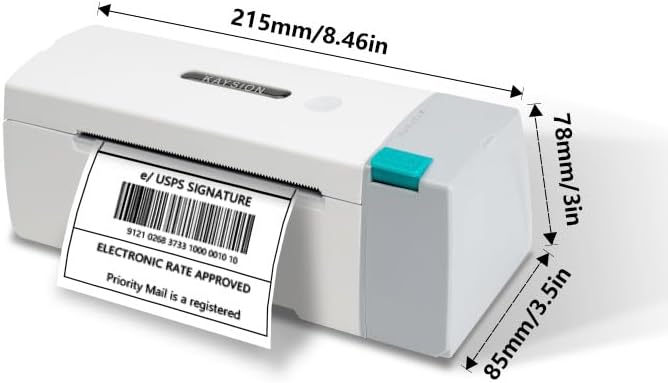
KAYSION SK45 プリンターの物理的寸法をミリメートルとインチの両方で示す図。
7. 保証とサポート
KAYSION SK45 Bluetoothサーマル配送ラベルプリンターには、標準のメーカー保証が付いています。具体的な保証条件については、製品に付属の保証書またはKAYSION公式ウェブサイトをご覧ください。 webサイト。
テクニカルサポート、トラブルシューティングのサポート、またはプリンターに関するお問い合わせについては、公式ウェブサイトに記載されている連絡先を通じてKAYSIONカスタマーサービスにお問い合わせください。 webサイトまたは購入プラットフォーム。
メーカー: 上海登源情報技術有限公司


