1. はじめに
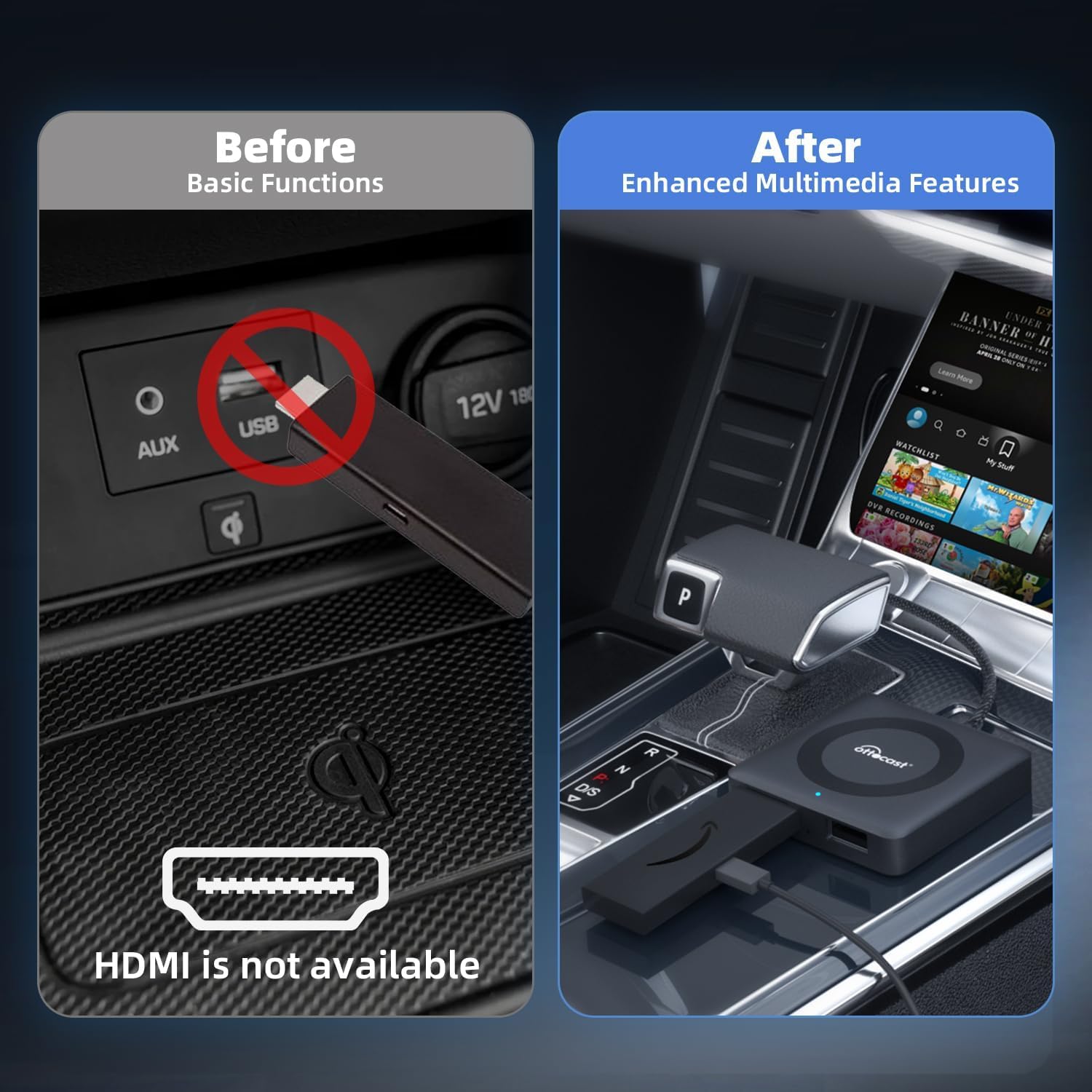
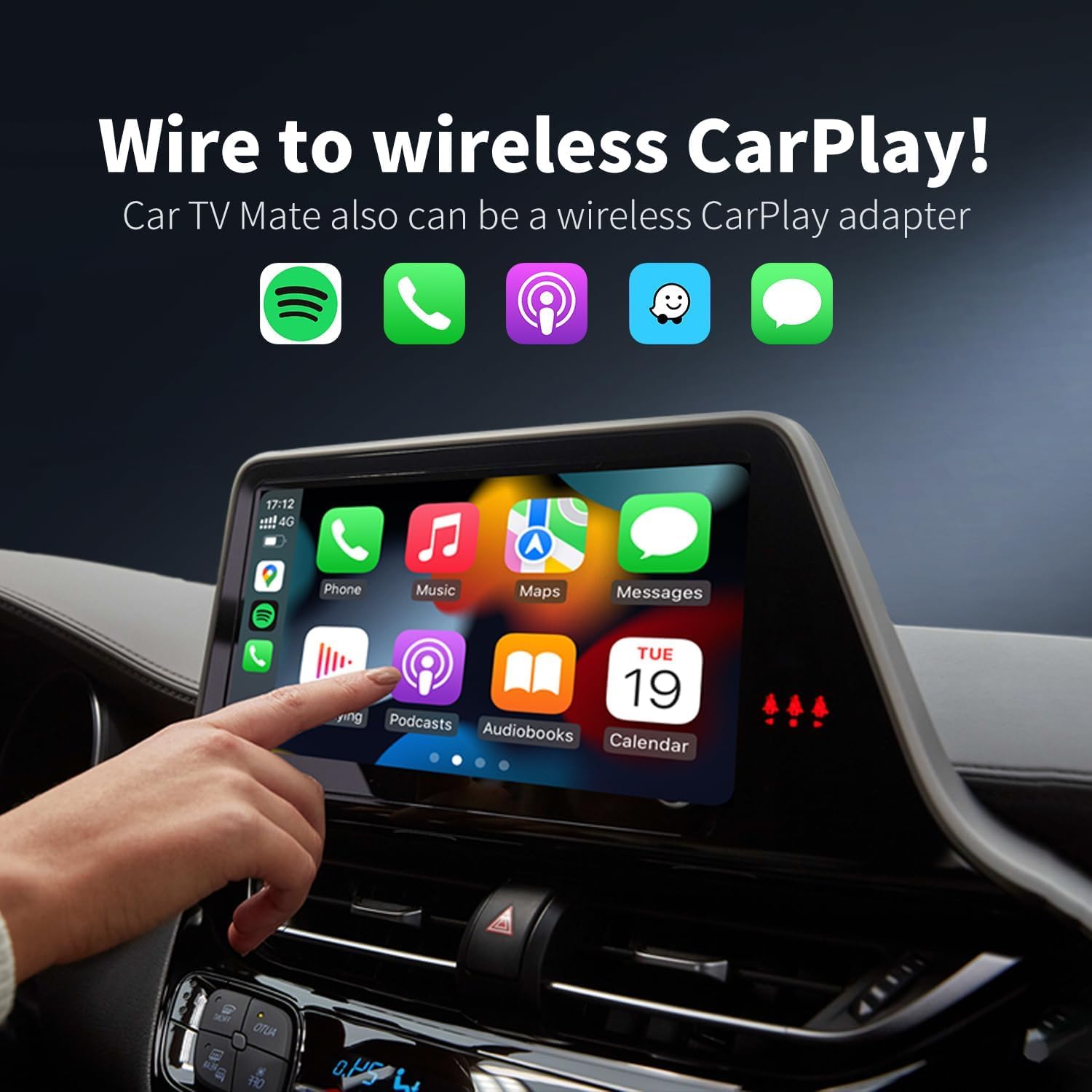
The OTTOCAST Car TV Mate Pro is a versatile device designed to enhance your in-car entertainment experience. It allows you to connect various HDMI output devices, such as TV sticks and gaming consoles, to your car's factory-installed wired CarPlay display. Additionally, it features an integrated wireless CarPlay adapter, providing seamless connectivity for navigation, calls, and music without the need for cables. This manual provides detailed instructions for setting up and operating your Car TV Mate Pro.
2.製品オーバーview およびパッケージの内容
The Car TV Mate Pro is a compact and lightweight device, designed for easy integration into your vehicle. It features essential ports for connectivity and comes with necessary accessories for immediate use.

画像: The compact OTTOCAST Car TV Mate Pro device with its integrated USB cable.

画像: Close-up of the Car TV Mate Pro showing its USB plug, HDMI port, and USB 2.0 port.
パッケージ内容:
- 1x Car TV Mate Pro device
- 1x USB A to C plug adapter
- ユーザーマニュアル x 1
- 製品パッケージ

画像: Visual representation of the Car TV Mate Pro package contents.
3. セットアップ手順
The Car TV Mate Pro offers a hassle-free plug-and-play setup. Follow these steps to get started:
- Connect to CarPlay USB Port: Plug the Car TV Mate Pro's USB connector into your car's factory-installed wired CarPlay USB port. No external power is needed for the adapter itself.

画像: The USB plug of the Car TV Mate Pro being inserted into a car's USB port.
- Insert TV Stick/HDMI Device: Connect your TV stick (e.g., Fire TV Stick) or other HDMI output device into the HDMI port on the Car TV Mate Pro.

画像: A Fire TV Stick being inserted into the HDMI port of the Car TV Mate Pro.
- Power TV Stick (if needed): Most TV sticks require external power. Use a separate USB port in your car or a car charger to power your TV stick.
画像: A hand plugging a power cable for the TV stick into a car's USB power outlet.
- Connect to Wireless CarPlay (Optional): If you wish to use wireless CarPlay, ensure your phone's Bluetooth and Wi-Fi are enabled. On your car's screen, select the CarPlay option. Pair your phone with the device via Bluetooth (look for "AUTO-XXXX" or similar).

画像: Visual guide for connecting to wireless CarPlay, showing the adapter plugged in, phone Bluetooth settings, and CarPlay interface.
4. 操作手順
4.1 Using with TV Sticks/HDMI Devices:
Once your TV stick is connected and powered, and the Car TV Mate Pro is plugged into your car's CarPlay USB port, your car's screen should display the TV stick's interface. Use the remote control of your TV stick to navigate and enjoy streaming content.
- Enjoy streaming services like Netflix, YouTube, Prime Video, Hulu, and more.
- Experience crystal-clear 2K HD visuals and a 60Hz refresh rate.
- 注記: While using the entertainment feature, CarPlay will not be accessible.

画像: Car TV Mate Pro connected, displaying streaming services on the car's screen.
画像: Various streaming service logos displayed around the Car TV Mate Pro device, indicating compatibility.
4.2 Using Wireless CarPlay:
The Car TV Mate Pro has an integrated wireless CarPlay adapter. To switch to wireless CarPlay mode:
- On your car's display, select the CarPlay option.
- Ensure your iPhone's Bluetooth and Wi-Fi are active.
- Pair your iPhone with the Car TV Mate Pro via Bluetooth.
- Once connected, your iPhone's CarPlay interface will appear on the car's screen.
- 注記: You cannot use both TV stick features and CarPlay simultaneously.

画像: A car's display showing the CarPlay interface, indicating wireless connectivity.
4.3 4K TV Stick Resolution Adjustment:
If you are using a 4K TV stick, you may need to adjust its resolution for optimal display on your car's screen. Follow these steps:
- Open the TV stick settings interface and click "Display & Audio".
- Click "Display" to confirm and then "Video Resolution".
- Select any resolution (1080P 60Hz is recommended) and confirm. Do not select "Auto".

画像: Screenshots illustrating the steps to adjust video resolution on a TV stick.
5. 互換性
The Car TV Mate Pro is compatible with over 800 car models equipped with factory-installed wired CarPlay. It supports a wide range of HDMI output devices and smartphones.
- 必須: Factory-installed wired CarPlay.
- サポートされているデバイス: TV sticks (e.g., Fire TV Stick, Google TV, Roku TV, Apple TV), gaming consoles (e.g., Nintendo Switch), smartphones, tablets, set-top boxes, DVD players, and other devices with HDMI outputs.
- 重要な注意: Car TV Mate Pro adds wireless CarPlay but does not support Android Auto. Neither product (Car TV Mate 1st Gen or Pro 2nd Gen) supports HDMI output.
画像: A grid of car logos (Audi, Benz, Porsche, VW, Honda, Nissan, Ford, Lexus, Volvo, Cadillac, Chevrolet, Citroen, Kia, Toyota, Buick, Hyundai) indicating broad compatibility.
To verify specific compatibility for your vehicle, please visit the official OTTOCAST compatibility checker:
6。 トラブルシューティング
- 車の画面に信号なし:
- Ensure the Car TV Mate Pro is securely plugged into the CarPlay USB port.
- Verify that your HDMI device (e.g., TV stick) is correctly inserted into the adapter's HDMI port and is receiving power.
- Check your car's display input settings to ensure the correct input (CarPlay or HDMI) is selected.
- If using a 4K TV stick, ensure the resolution is manually set to 1080P 60Hz and not "Auto" (refer to section 4.3).
- ワイヤレスCarPlay接続の問題:
- Confirm that your iPhone's Bluetooth and Wi-Fi are turned on.
- Ensure your iPhone is paired with the Car TV Mate Pro via Bluetooth.
- iPhone と車のインフォテインメント システムを再起動します。
- 遅延またはパフォーマンスの問題:
- Ensure your HDMI device has sufficient power.
- Check the internet connection stability if streaming content.
- For 4K TV sticks, verify the resolution setting is optimized for your car's display (1080P 60Hz).
7. メンテナンス
To ensure the longevity and optimal performance of your OTTOCAST Car TV Mate Pro, follow these simple maintenance guidelines:
- デバイスを清潔に保ち、ほこりやゴミを取り除いてください。清掃には柔らかく乾いた布を使用してください。
- デバイスを極端な温度や直射日光に長時間さらさないでください。
- 保証が無効になるため、デバイスを自分で分解または修理しないでください。
- デバイスを使用しないときは、涼しく乾燥した場所に保管してください。
8. 仕様
| 特徴 | 詳細 |
|---|---|
| モデル番号 | CA361-C3 |
| パッケージ寸法 | 4.76 x 4.45 x 1.02インチ |
| アイテム重量 | 1.59オンス |
| 色 | 黒 |
| 材料 | プラスチック |
| ハードウェアインターフェイス | USB、HDMI |
| 対応デバイス | Smartphones, TV sticks, Gaming Consoles, Set-top boxes |
| ビデオ出力解像度 | Up to 2K HD (60Hz refresh rate) |
| ワイヤレス接続 | Wireless CarPlay (via Bluetooth/Wi-Fi) |
9. 保証とサポート
9.1 保証情報:
The OTTOCAST Car TV Mate Pro comes with a 2年間の保護 warranty, offering hassle-free replacement for 2 years from the order date. Proof of purchase is required for warranty claims.

画像: Diagram illustrating the 2-year protection plan.
9.2 カスタマーサポート:
For any questions, technical support, or warranty claims, please contact OTTOCAST customer service:
- Method 1: Via Amazon Product Page
- On the product page, click "Ottocast Store".
- Then click "Ask a Question" or call the service number provided on the store page.
- Method 2: Via After Sales App
- Download the After Sales App for quick support, compatibility checks, and updates.
- アプリのダウンロードリンク: OTTOCAST After Sales App
- メールサポート: Support@ottocast.com (7x24 Hours Online)

画像: Visual guide for contacting customer support via Amazon or the After Sales App.
10. 製品ビデオ
Watch these official videos from the seller for a visual guide on setting up and using your OTTOCAST Car TV Mate Pro.
Brief for OTTOCAST Car TV Mate & Wireless Carplay Adapter
ビデオの説明: このビデオでは、view of the OTTOCAST Car TV Mate Pro, demonstrating its core functionalities including connecting TV sticks for in-car entertainment and enabling wireless CarPlay. It shows the device being plugged in, a Fire TV interface on the car screen, and wireless CarPlay activation.
Car TV Mate TV Stick Converter for Car
ビデオの説明: This video focuses on the Car TV Mate Pro's capability as a TV stick converter. It illustrates how to connect a TV stick to the device and display its content on the car's infotainment screen, highlighting the ease of bringing home entertainment into your vehicle.
OTTOCAST カーテレビ Mate Max
ビデオの説明: This video showcases the OTTOCAST Car TV Mate Max, a similar product, demonstrating its features and benefits for in-car entertainment. It provides a general idea of the user experience with OTTOCAST's car entertainment adapters.
OTTOCAST Car TV Mate Pro also is a wireless CarPlay adapter
ビデオの説明: This video highlights the dual functionality of the Car TV Mate Pro, specifically focusing on its ability to act as a wireless CarPlay adapter. It demonstrates the seamless transition from wired to wireless CarPlay for enhanced convenience.
Amazon Fire TV on CarPlay Display
ビデオの説明: This video specifically demonstrates how to use an Amazon Fire TV stick with the OTTOCAST Car TV Mate Pro to display Fire TV content directly on your car's CarPlay screen, showcasing the integration and user experience.


