1. はじめに
This manual provides detailed instructions for the setup, operation, maintenance, and troubleshooting of your Phomemo D520BT Bluetooth Thermal Label Printer. Please read this manual thoroughly before using the device to ensure proper functionality and to extend the product's lifespan.

Figure 1: Phomemo D520BT printer in purple, printing a shipping label, with a smartphone displaying a label design connected via Bluetooth. This image illustrates the printer's compact design and wireless printing capability.
2. パッケージ内容
下記のすべての品目がパッケージに含まれていることをご確認ください。不足または破損している品目がある場合は、カスタマーサポートまでご連絡ください。
- Phomemo D520BT Thermal Printer
- Roll Label (sample)
- クイックスタートガイド
- ユーザーガイド(このドキュメント)
- 電源コード
- USBケーブル
- Type-Cアダプター
- 電源アダプター

Figure 2: All components included in the Phomemo D520BT product package.
3.セットアップガイド
3.1 開梱
- プリンターとすべての付属品をパッケージから慎重に取り出します。
- Remove any protective films or packing materials from the printer.
3.2 ラベルの読み込み
The Phomemo D520BT supports both roll paper and folding paper labels.
- プリンターのカバーをゆっくり持ち上げて開きます。
- For Roll Paper: Place the label roll into the internal paper holder, ensuring the labels feed from the bottom and the printing side faces upwards. Guide the first label through the output slot until it is slightly visible.
- For Folding Paper: Place the stack of folding labels behind the printer, ensuring the labels feed smoothly into the rear input slot and the printing side faces upwards. Guide the first label through the output slot until it is slightly visible.
- プリンターのカバーをしっかりと閉じてください。

Figure 3: The Phomemo D520BT printer supports both folding paper and roll paper labels.
3.3プリンターの接続
The D520BT offers both USB and Bluetooth connectivity.
3.3.1 USB Connection (Windows, Mac, Chrome OS, Linux)
- USB ケーブルの一方の端をプリンターに接続し、もう一方の端をコンピューターに接続します。
- 電源アダプターをプリンターに接続し、電源コンセントに差し込みます。
- プリンタの電源を入れます。
- Install the necessary printer drivers for your operating system. Drivers can typically be found on the official Phomemo webサイト。
3.3.2 Bluetooth Connection (Android, iOS, iPad)
- 電源アダプターをプリンターに接続し、電源コンセントに差し込みます。
- プリンタの電源を入れます。
- ダウンロードしてインストールする “Labelife” デバイスのアプリ ストアからアプリをダウンロードします。
- Open the Labelife app and follow the in-app instructions to pair your device with the D520BT printer via Bluetooth.

Figure 4: The Phomemo D520BT supports both Bluetooth and USB connectivity for various devices and operating systems.
4. 操作手順
4.1 電源オン/オフ
- 電源オン: Press the power button located on the printer. The indicator light will illuminate.
- 電源を切る: インジケータライトが消えるまで電源ボタンを押し続けます。
4.2 ラベルの印刷
- Ensure the printer is powered on and connected to your device (computer via USB or mobile device via Bluetooth).
- 印刷するドキュメントまたはアプリケーションを開きます。
- Select the Phomemo D520BT as your printer.
- Adjust print settings as needed (e.g., label size, orientation). The printer supports a width range of 1 to 4.6 inches.
- 印刷コマンドを開始します。
The Labelife app provides various free templates for customizing shipping labels, address labels, barcode labels, and thank-you stickers.
4.3 主な特徴
- 高速印刷: The D520BT can print up to 72 labels per minute (150mm/s), suitable for high-volume printing tasks.
- 高解像度: Prints at 203 DPI, ensuring sharp and precise details on each label.
- Wide Printing Range: Supports label widths from 1 inch to 4.6 inches, accommodating various label types including 4x6 inch shipping labels.
- インクフリーサーマルテクノロジー: Utilizes direct thermal printing, eliminating the need for ink or toner cartridges.
- 省スペース設計: Features a built-in paper holder, reducing the need for external label racks and optimizing desktop space.
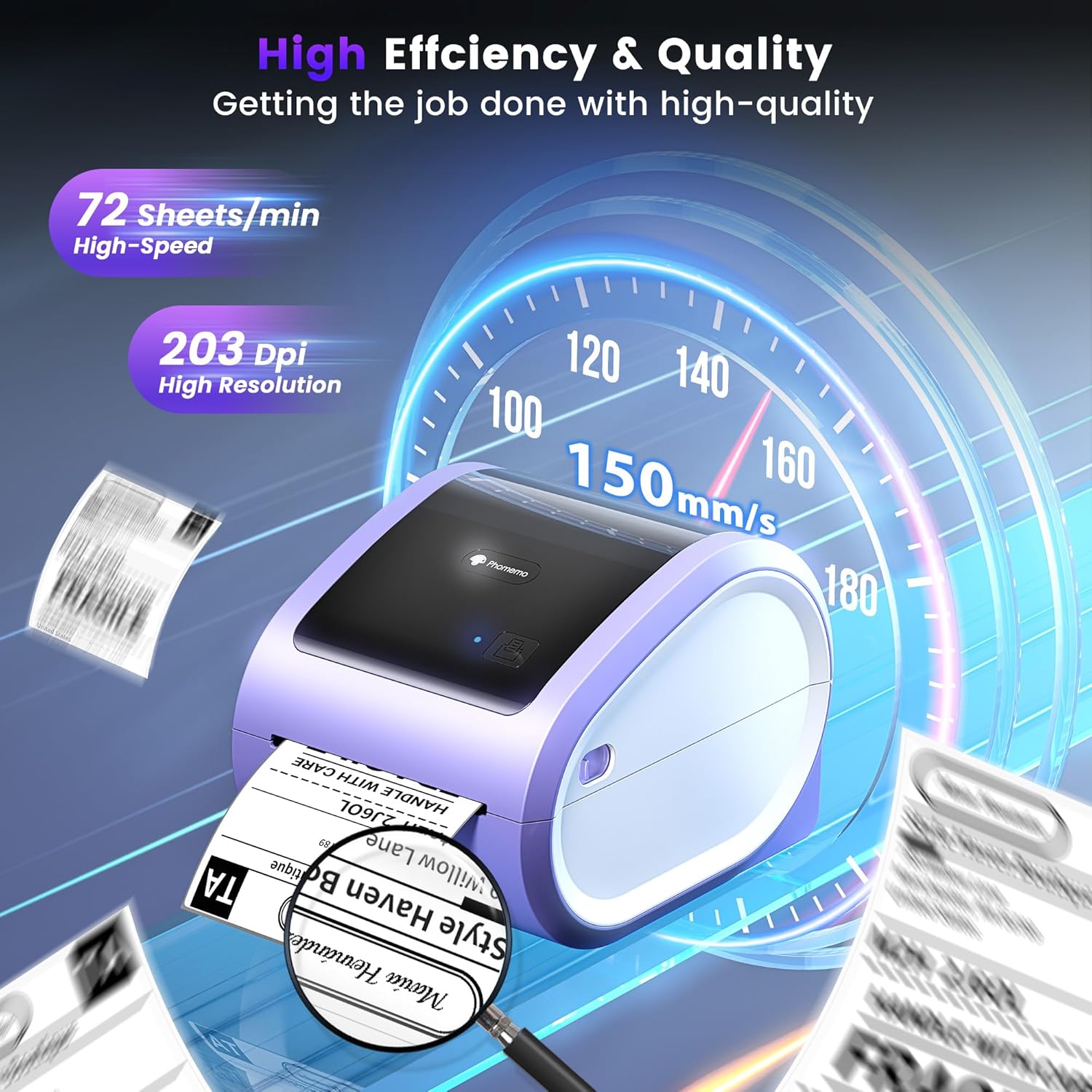
Figure 5: The Phomemo D520BT offers high efficiency and quality with a print speed of 150mm/s and 203 DPI resolution.

Figure 6: The Phomemo D520BT is compatible with various label sizes, from 1 inch to 4.6 inches wide.

Figure 7: The Phomemo D520BT supports multi-scenario applications for various labeling needs.

Figure 8: The Phomemo D520BT is compatible with all major shipping and sales platforms.
5. メンテナンス
5.1 プリントヘッドのクリーニング
Regular cleaning of the print head ensures optimal print quality and extends the printer's life.
- プリンタの電源を切り、電源コードを抜きます。
- プリンターのカバーを開きます。
- Gently wipe the print head with an alcohol swab or a soft, lint-free cloth lightly dampイソプロピルアルコールで消毒しました。
- カバーを閉じてプリンタの電源を入れる前に、プリントヘッドが完全に乾くまでお待ちください。
5.2 ストレージ
Store the printer in a cool, dry place away from direct sunlight and extreme temperatures. Avoid exposing the printer to dust or moisture.
6。 トラブルシューティング
If you encounter issues with your Phomemo D520BT printer, refer to the following common problems and solutions:
- プリンターの電源が入らない:
- 電源アダプタがプリンタと正常な電源コンセントの両方にしっかりと接続されていることを確認します。
- 電源ボタンがしっかりと押されているか確認してください。
- Labels not printing or feeding incorrectly:
- Verify that labels are loaded correctly with the printing side facing up.
- Ensure there are no obstructions in the label path.
- Check if the label roll or stack is depleted.
- Poor print quality (faded, streaky, or blank labels):
- セクション 5.1 の説明に従ってプリント ヘッドをクリーニングします。
- 高品質のサーマルラベルを使用していることを確認してください。
- Check print density settings in your printer preferences.
- Bluetooth接続の問題:
- Ensure Bluetooth is enabled on your mobile device and the printer.
- プリンターとモバイルデバイスの両方を再起動します。
- Ensure you are within the Bluetooth range.
- Re-pair the printer through the Labelife app.
- USB接続の問題:
- USB ケーブルがプリンターとコンピューターの両方にしっかりと接続されていることを確認します。
- Ensure the correct printer drivers are installed.
- 別の USB ポートまたはケーブルを試してください。
For further assistance, refer to the detailed video tutorials and user manuals available online, or contact Phomemo customer support.
7. 仕様
| 特徴 | 仕様 |
|---|---|
| ブランド | フォメモ |
| モデル名 | D520BT |
| 接続技術 | ブルートゥース、USB |
| 印刷技術 | サーマル |
| 特集 | Portable, Built-in Holder |
| プリンタ出力 | モノクロ |
| 最大印刷速度 | 150 mm/s (72 labels/min) |
| 印刷解像度 | 203DPI |
| 最大印刷幅 | 4.6インチ |
| アイテム重量 | 2.4 ポンド |
| 製品寸法 | 奥行き10.31インチ x 幅10.31インチ x 高さ7.87インチ |
8. 保証とサポート
Phomemo provides customer support to assist with any questions or issues you may encounter. For detailed warranty information, please refer to the warranty card included with your product or visit the official Phomemo website. Our customer support team is available via phone, email, or remote support.
For additional resources, including video tutorials and updated user manuals, please visit the Phomemo support page.


