1. はじめに
This manual provides detailed instructions for the setup, operation, and maintenance of your EBTOOLS 2K Video Calling Smart Camera. Please read this manual thoroughly before using the device to ensure proper functionality and to maximize your user experience. This camera is designed for indoor security, monitoring family members, children, pets, or the elderly, offering two-way video communication and smart features.
2. パッケージ内容
パッケージに以下の項目が含まれているか確認してください。
- 1 x EBTOOLS 2K Video Calling Smart Camera
- ユーザーマニュアル (本書) x 1
- 1 x Power Supply Cord (USB Type-C)
3.製品オーバーview
Familiarize yourself with the various components of your smart camera:

画像: フロント view of the EBTOOLS Smart Camera with key features labeled. This includes the PTZ (Pan-Tilt-Zoom) camera head, 400W HD lens, infrared night vision, Call Key 1, Call Key 2, Dual MIC array, and the IPS 4.3-inch HD screen.
- PTZ350° Camera Head: Allows for pan, tilt, and zoom functionality to cover a wider area.
- 400W HD Lens: Provides clear 2K resolution video.
- 赤外線ナイト Viewing: Enables clear vision up to 8 meters in low-light conditions.
- Call Key 1 & 2: Dedicated buttons for initiating video calls to pre-assigned contacts.
- Dual MIC Array: Enhances audio clarity for two-way communication.
- IPS 4.3in HD Screen: Displays video calls, clock, and other information.

画像: 後方 view of the EBTOOLS Smart Camera showing the TF (Micro SD card) slot, Type-C power port, and Reset button.
- TFカードスロット: Supports Micro SD cards up to 128GB for local video storage.
- タイプCポート: For connecting the power supply cord.
- リセットボタン: Used to restore the device to factory settings.
4. セットアップ
Follow these steps to set up your EBTOOLS Smart Camera:
- 電源接続: Connect the provided USB Type-C power supply cord to the Type-C port on the back of the camera and plug the other end into a power adapter (not included) or a compatible USB power source. The camera will power on automatically.
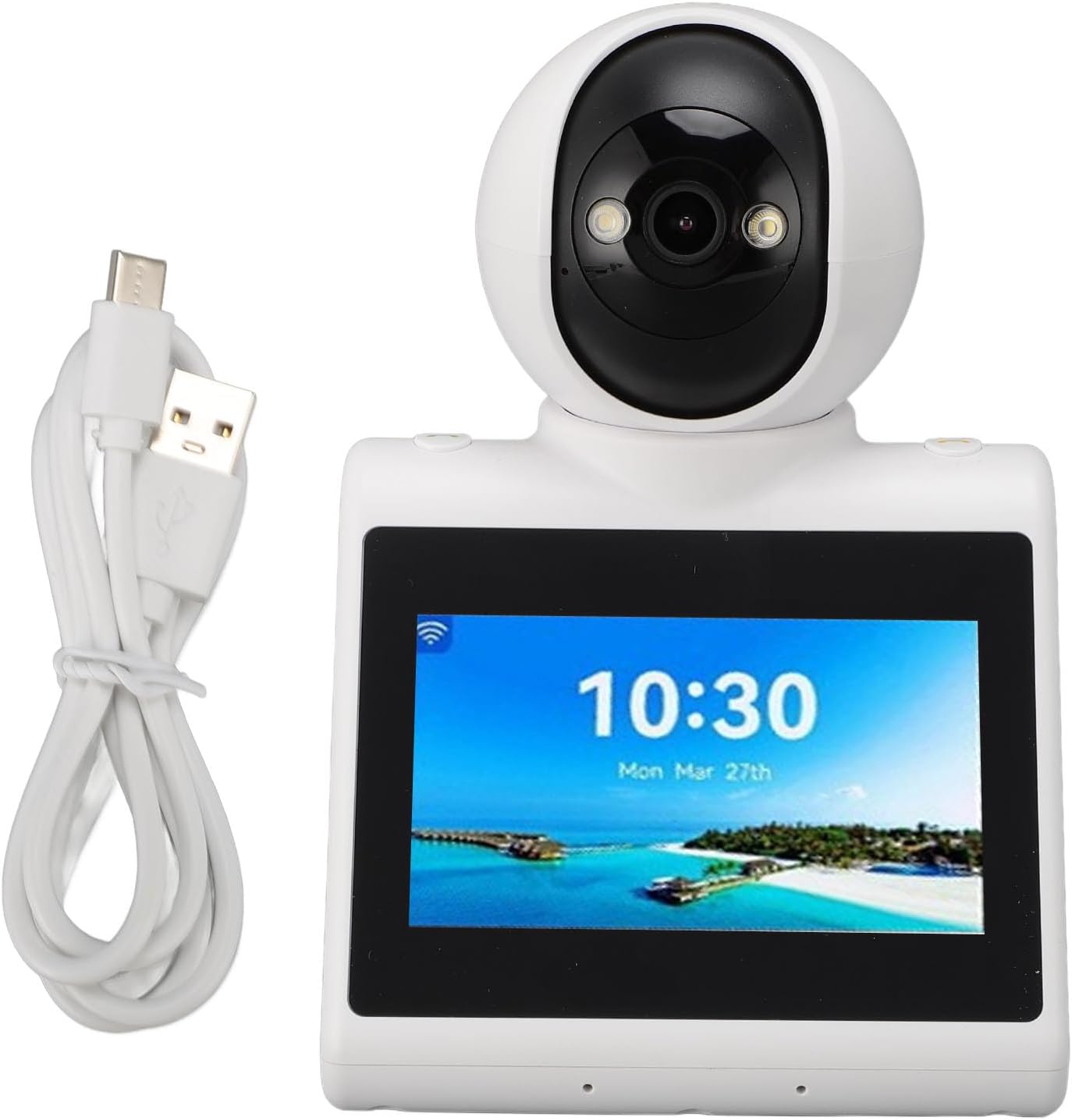
画像: The EBTOOLS Smart Camera with its USB Type-C power cable connected, ready for use.
- Micro SD カードのインストール (オプション): If you wish to store recordings locally, gently insert a Micro SD card (up to 128GB, not included) into the TF card slot on the back of the camera until it clicks into place.
- ネットワーク接続: Follow the on-screen prompts or refer to the accompanying app instructions (if applicable) to connect the camera to your home Wi-Fi network. This step is crucial for video calling and smart features.
- アプリのペアリング: Download the dedicated mobile application (details typically found in a separate quick start guide or on-screen QR code) and follow the instructions to pair your camera with your smartphone. This enables remote control and access to advanced features.
5. 操作手順
Your EBTOOLS Smart Camera offers a range of intelligent features:
5.1 AI Voice Function
Engage with the camera's AI for interactive learning and entertainment. You can ask questions, request jokes, or listen to stories. Simply activate the AI voice function through the camera's interface or paired app and speak your command.
5.2 Intelligent Voice Call
The camera supports voice calls to specified family roles or names. This feature simplifies communication, allowing users to initiate calls easily. If a call is not answered, the system will send a voice reminder to the phone, ensuring no important calls are missed.
5.3 Daily Clock Reminder
Set up accurate daily reminders for various activities. This intelligent reminder system helps maintain an organized daily routine. Manage and customize reminders via the camera's screen or the paired mobile application.

画像: The EBTOOLS Smart Camera screen showing a time display (08:00) and a smartphone interface demonstrating how to set and manage daily clock reminders.
5.4 One-Click Video Call
Initiate a video call with ease by pressing a designated call key on the camera. This feature allows for direct connection to your mobile phone without complex setup procedures, facilitating quick and convenient communication.
5.5 Video Call Between Devices
The camera supports two-way video communication, allowing users to see and speak with individuals on the other end. This is ideal for checking in on family members or pets remotely.

画像: Two EBTOOLS Smart Cameras positioned to show a video call in progress, illustrating the two-way communication capability between devices.
5.6 Automatic Video Switching
The camera features automatic video switching, which can enhance the viewing experience, especially when monitoring multiple subjects or in dynamic environments.

画像: The EBTOOLS Smart Camera screen showing a video call with two individuals, while a child observes the screen, demonstrating the camera's video display capabilities.
5.7 Missed Call Notifications
If a video call is missed on the camera, a notification will be sent to the paired smartphone, ensuring you are always aware of attempted communications.

画像: The EBTOOLS Smart Camera displaying a missed call icon, with an arrow pointing to a smartphone receiving a call notification, illustrating the missed call alert feature.
6. メンテナンス
カメラの寿命を延ばし、最適なパフォーマンスを確保するには:
- クリーニング: カメラのレンズと本体のお手入れには、柔らかく乾いた布をご使用ください。液体クリーナーや研磨剤の使用は避けてください。
- 配置: Place the camera on a stable surface indoors, away from direct sunlight, heat sources, and excessive moisture.
- ストレージ: カメラを長期間保管する場合は、電源を外して涼しく乾燥した場所に保管してください。
7。 トラブルシューティング
カメラに問題が発生した場合は、次の一般的な問題と解決策を参照してください。
- カメラの電源が入らない:
- Ensure the power supply cord is securely connected to both the camera and a working power source.
- 別の電源アダプタまたは USB ポートを使用してみてください。
- No video feed or poor video quality:
- Check your internet connection. A stable Wi-Fi connection is essential for clear video.
- カメラのレンズがきれいで、障害物がないことを確認してください。
- Restart the camera by unplugging and re-plugging the power cord.
- Video calls not connecting:
- Verify that both the camera and the receiving device (smartphone) have a stable internet connection.
- Ensure the camera is properly paired with the mobile application.
- Check app permissions on your smartphone for microphone and camera access.
- Micro SD カードが認識されません:
- Ensure the Micro SD card is inserted correctly into the TF slot.
- Check if the card is formatted correctly (usually FAT32).
- カードの故障を排除するために、別の Micro SD カードを試してください。
- カメラが反応しません:
- Press the Reset button on the back of the camera using a small pin or paperclip. This will restore factory settings.
8. 仕様
| 特徴 | 詳細 |
|---|---|
| モデル名 | EBTOOLSkbvc84gapy |
| ビデオ解像度 | 1920 x 1080 (2K) |
| 材料 | アブソリュート |
| Small Memory Card Slot | Supports up to 128GB (Micro SD card) |
| 電源 | AC/DC |
| 接続プロトコル | Ethernet (Note: Wireless Wi-Fi connectivity is typically also supported for smart cameras) |
| コントローラータイプ | Android (Implies mobile app control) |
| パッケージ寸法 | 7.87 x 5.51 x 5.51インチ |
| アイテム重量 | 1.29ポンド |
| 推奨用途 | 屋内 |
| 特集 | Adjustable (PTZ functionality) |
9. 保証とサポート
For warranty information and customer support, please refer to the warranty card included in your product packaging or contact EBTOOLS customer service directly through their official website or the retailer where the product was purchased. Please have your model number (EBTOOLSkbvc84gapy) and purchase details ready when contacting support.