1. はじめに
The Bewinner WiFi 6 Wireless Network Card (Model MT7921) is designed to upgrade your computer's wireless capabilities, offering high-speed internet connectivity and Bluetooth 5.2. This Mini PCIE card supports dual-band WiFi (2.4GHz and 5GHz) for efficient data transmission, smoother online gaming, HD video streaming, and fast file transfers. Its compact design makes it suitable for laptops and small form-factor PCs running Windows 10 or 11.
主な特徴:
- Efficient Transmission: Up to 1200 Mbps on 5GHz and 574 Mbps on 2.4GHz.
- Seamless Dual-Band Switching: Automatically selects the optimal frequency band for wider coverage and reduced interference.
- Bluetooth 5.2接続: Enhanced transmission speed and distance for pairing with peripherals like headphones and keyboards.
- 幅広い互換性: Plug-and-play design for Windows 10 and 11 systems.
- コンパクトなデザイン: Mini PCIE interface, ideal for space-constrained devices.
2. パッケージ内容
パッケージにすべてのアイテムが揃っていることを確認してください:
- 1 x Bewinner WiFi 6 Wireless Network Card (Model MT7921)
- 取り付けネジ2本

Image: The Bewinner WiFi 6 Wireless Network Card (Model MT7921) shown with its two included mounting screws.
3. セットアップとインストール
This section guides you through the physical installation of the Mini PCIE wireless network card. Ensure your computer is powered off and unplugged before proceeding.
3.1物理的な設置
- 電源を切る: Shut down your computer completely and disconnect the power cable. For laptops, remove the battery if possible.
- Access Mini PCIE Slot: Open your computer case (for desktops) or the access panel (for laptops) to locate the Mini PCIE slot. Refer to your computer's manual for specific instructions on accessing internal components.
- カードを挿入してください: Carefully align the Bewinner WiFi 6 card with the Mini PCIE slot. Insert the card at an angle (typically 30-45 degrees) and gently push it into the slot until it is fully seated.
- カードを安全に保管する: Once seated, push the card down until it is parallel with the motherboard. Use the provided screws to secure the card in place.
- アンテナを接続します(該当する場合): If your system uses external antennas, connect them to the corresponding connectors on the card (usually labeled "MAIN" and "AUX" or "1" and "2").
- 閉じて電源をオンにします: Close the computer case or access panel, reconnect the power cable, and power on your computer.
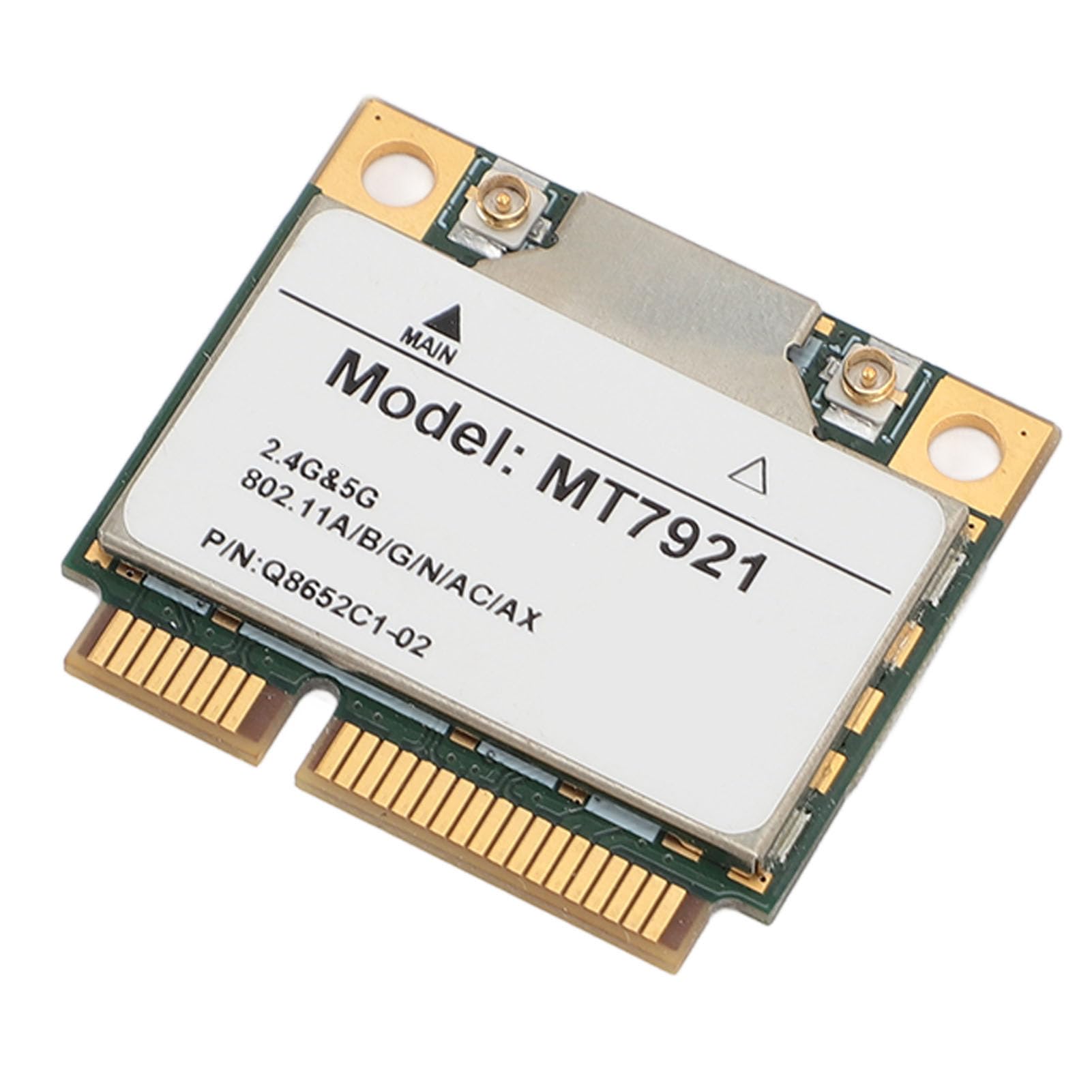
Image: A Bewinner WiFi 6 Wireless Network Card (Model MT7921) shown installed in a laptop, with a user interacting with the laptop.
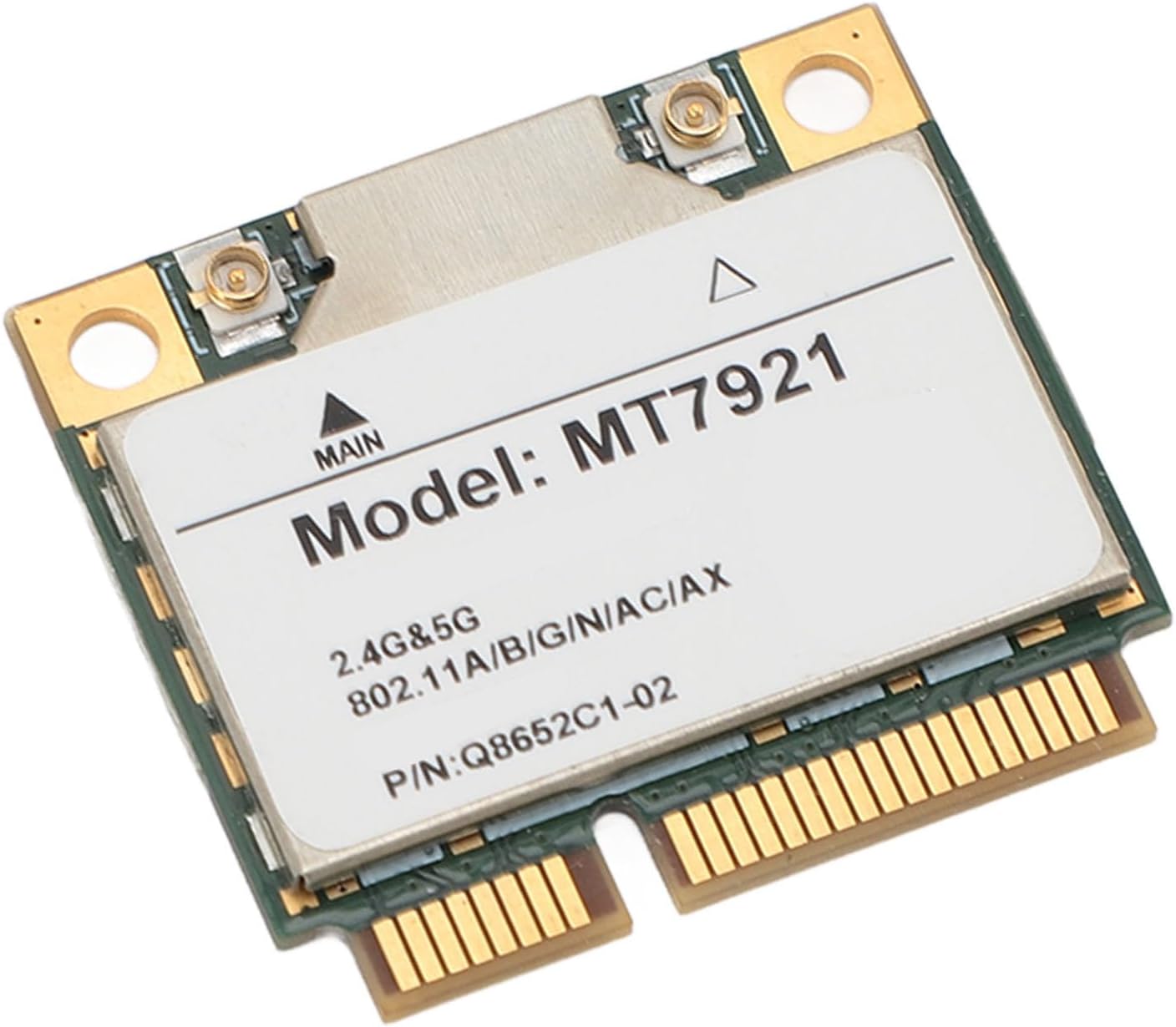
画像: クローズアップ view of the Bewinner WiFi 6 Wireless Network Card, clearly displaying "Model: MT7921" and "2.4G & 5G 802.11A/B/G/N/AC/AX".
3.2 ドライバのインストール
The Bewinner WiFi 6 Wireless Network Card is designed for plug-and-play functionality with Windows 10 and 11. In most cases, the operating system will automatically detect the new hardware and install the necessary drivers.
- 自動インストール: After booting your computer, Windows should automatically install the drivers. You can check the Device Manager (Right-click Start > Device Manager) under "Network adapters" and "Bluetooth" to confirm the card is recognized.
- 手動インストール(必要な場合): If the drivers do not install automatically, you may need to download them from the manufacturer's website (Bewinner or the chipset manufacturer, e.g., MediaTek for MT7921). 検索する "MT7921 driver Windows 10" or "MT7921 driver Windows 11".
4. 操作手順
Once the card is installed and drivers are recognized, you can connect to wireless networks and Bluetooth devices.
4.1Wi-Fiネットワークへの接続
- Wi-Fiを有効にする: Ensure Wi-Fi is enabled in your operating system settings. In Windows, click the Wi-Fi icon in the taskbar.
- ネットワークを選択: 利用可能な Wi-Fi ネットワークのリストが表示されます。目的のネットワークを選択します。
- パスワードを入力してください: プロンプトが表示されたら、ネットワーク セキュリティ キー (パスワード) を入力し、「接続」をクリックします。
- 接続を確認します: 接続されると、Wi-Fi アイコンにアクティブな接続が表示されます。
4.2 Bluetoothデバイスの接続
- Bluetoothを有効にする: Windows の [設定] > [デバイス] > [Bluetooth とその他のデバイス] に移動し、Bluetooth が「オン」になっていることを確認します。
- ペアデバイス: Put your Bluetooth device (e.g., headphones, keyboard) into pairing mode.
- デバイスを追加: In Windows Settings, click "Add Bluetooth or other device" and select "Bluetooth". Your device should appear in the list.
- ペアリング完了: Select your device and follow any on-screen prompts to complete the pairing process.
5. メンテナンス
To ensure optimal performance and longevity of your Bewinner WiFi 6 Wireless Network Card, consider the following maintenance tips:
- ドライバーを最新の状態に保つ: Regularly check for updated drivers from the chipset manufacturer (e.g., MediaTek) or your computer manufacturer.
- 適切な換気を確保する: Make sure your computer has adequate airflow to prevent overheating, which can affect component performance.
- ほこりをきれいにする: Periodically clean dust from inside your computer case, especially around the network card, using compressed air.
- 物理的損傷を避ける: Handle the card carefully during installation and avoid exposing it to excessive force or moisture.
6。 トラブルシューティング
If you encounter issues with your Bewinner WiFi 6 Wireless Network Card, refer to the following common troubleshooting steps:
6.1 Card Not Detected / Not Working
- Re-seat the Card: Power off your computer, open the case, and carefully re-seat the network card in its Mini PCIE slot to ensure it's properly connected.
- デバイス マネージャーを確認します。 In Windows Device Manager, look for "Network adapters" and "Bluetooth". If you see an unknown device or a device with a yellow exclamation mark, it indicates a driver issue.
- ドライバーのインストール/更新: Manually install or update the drivers as described in Section 3.2.
- 互換性: Ensure your system's Mini PCIE slot is compatible with this type of card. Some older systems or specific BIOS configurations might have limitations. (Note: One user reported incompatibility with an Intel laptop. While the card is generally compatible with Windows 10/11, specific hardware configurations might vary.)
6.2 Wi-Fi接続なし
- Check Wi-Fi Switch: Ensure the physical Wi-Fi switch (if present on your laptop) and the software Wi-Fi setting in Windows are enabled.
- ルーター/モデムを再起動します。 Wi-Fi ルーターとモデムの電源を入れ直します。
- ネットワークを忘れる: In Windows Wi-Fi settings, "forget" the problematic network and try reconnecting.
- アンテナ接続: Verify that any external antennas are securely connected to the card.
6.3 Wi-Fi速度が遅い
- ルーターの近接性: 信号強度を改善するには、Wi-Fi ルーターに近づいてください。
- 干渉: 他の電子機器(電子レンジ、コードレス電話など)からの干渉を軽減します。
- ルーター設定: Ensure your router is configured for Wi-Fi 6 (802.11ax) and using both 2.4GHz and 5GHz bands effectively.
- ドライバーの更新: 最新のドライバーがインストールされていることを確認してください。
6.4 Bluetooth Device Connection Issues
- デバイスがペアリングモードになっていることを確認します。 Confirm your Bluetooth device is discoverable.
- 削除して再ペアリング: In Windows Bluetooth settings, remove the device and attempt to pair it again.
- デバイスのバッテリーを確認してください: Ensure the Bluetooth device has sufficient battery power.
7. 仕様
| 特徴 | 詳細 |
|---|---|
| モデル | MT7921 (Product SKU: Bewinnerw15by076zf) |
| インタフェース | ミニPCIE |
| Wi-Fi規格 | 802.11a/b/g/n/ac/ax(Wi-Fi 6) |
| 周波数帯域 | 2.4GHz / 5GHz |
| Max Wi-Fi Speed (5GHz) | 1200 Mbps |
| Max Wi-Fi Speed (2.4GHz) | 574 Mbps |
| Bluetoothバージョン | 5.2 |
| オペレーティングシステムの互換性 | Windowsの10、Windowsの11 |
| 対応デバイス | Laptop, Desktop PC (with Mini PCIE slot) |
| 材料 | プリント基板 |
| 寸法(約) | 6 x 4 x 1 cm |
| 重量(約) | 4グラム |

Image: The reverse side of the Bewinner WiFi 6 Wireless Network Card, indicating "Standard IEEE: 802.11a/b/g/n/ac/ax".
8. 保証情報
Bewinner products are manufactured to high-quality standards. This product comes with a standard manufacturer's warranty against defects in materials and workmanship. Please retain your proof of purchase for warranty claims. For specific warranty duration and terms, refer to the documentation provided with your purchase or contact Bewinner customer support.
9. カスタマーサポート
If you have any questions, require technical assistance, or need to report an issue, please contact Bewinner customer support. Contact information can typically be found on the Bewinner official webサイトまたは製品パッケージに記載されています。
サポートにお問い合わせの際は、以下の情報をご用意ください。
- Product Model: MT7921 (SKU: Bewinnerw15by076zf)
- 購入日
- この件についての説明
- Your computer's operating system and specifications


