1. はじめに
Thank you for choosing the Haozee Smart WiFi Sprinkler Timer with Hub. This device provides an automatic and intelligent solution for watering your garden, lawn, or yard. Featuring app control, voice control, a built-in flow meter, and support for Home Assistant Zigbee2mqtt, this system ensures precise and efficient irrigation tailored to your needs. Please read this manual carefully before installation and operation to ensure optimal performance and longevity of your device.
2.製品オーバーview
The Haozee Smart WiFi Sprinkler Timer is designed for seamless integration into your smart home ecosystem. It connects to a Zigbee gateway (included) to enable remote control and advanced scheduling features via a smartphone application.

Image: The main unit of the Haozee Smart WiFi Sprinkler Timer, showing its robust gray plastic casing and brass hose connectors.
主な特徴:
- App Control/Voice Control/Button Control: Manage your watering schedules and settings through the dedicated smartphone app, voice commands, or directly via the device button.
- Precise Watering On Demand: Built-in flow meter calculates water volume, allowing for accurate irrigation and preventing overwatering.
- 雨天遅延モード: Easily activate a rain delay for 24, 48, or 72 hours to conserve water and avoid over-saturation.
- 簡単な管理: Monitor irrigation history and water consumption for the past 7 days directly from the app.
- Zigbee2mqtt Support: Compatible with Tuya Zigbee hub, Home Assistant, and Zigbee2mqtt for expanded smart home integration.
- Included Gateway: The product comes with a multi-mode Zigbee gateway for immediate setup.
3. パッケージ内容
パッケージを開封したら、すべてのアイテムが揃っていて良好な状態であることを確認してください。
- Haozee Smart WiFi Sprinkler Timer (Main Unit)
- Multi-mode Zigbee Gateway (Model G01Pro)
- ユーザーマニュアル
- Mounting Screws and Wall Plugs (for gateway)
- 小型ドライバー(電池ボックス用)
- Brass Adapter (1 inch to 3/4 inch inlet)
- Plastic Adapter (1 inch to 1/2 inch inlet)
Video: An unboxing and product display of the Haozee Smart Water Valve, showing the main unit, included gateway, and accessories.
4. 仕様
| 特徴 | 詳細 |
|---|---|
| ブランド | ハジー |
| モデル番号 | HZ-ZB-WV-US |
| 色 | グレー |
| 材料 | プラスチック |
| 製品寸法 | 奥行き1.8インチ x 幅4.7インチ x 高さ6.9インチ |
| アイテム重量 | 0.47 キログラム (1.04 ポンド) |
| 設定数 | 4 |
| スマートホームの互換性 | Tuya Gateway, Home Assistant, Zigbee2mqtt |
| Wireless Protocol (Gateway) | 2.4G Wi-Fi, Zigbee, BLE |
| Power Source (Timer) | 4*AA Alkaline Batteries (not included) |
| 電源(ゲートウェイ) | DC5V/1A |
| Working Temperature (Gateway) | -20℃~85℃ |
| 耐水性 | IP65 Waterproof (Timer) |
5.セットアップガイド
5.1 Install Batteries in Sprinkler Timer
- Locate the battery compartment on the back of the sprinkler timer.
- Use the provided screwdriver to open the battery slot.
- Insert 4*AA alkaline batteries, ensuring correct polarity.
- Securely close the battery compartment with the screws.

Image: Close-up of the battery compartment, showing the location for four AA batteries and the waterproof rubber pads.
5.2 Connect the Zigbee Gateway
- Plug the multi-mode Zigbee Gateway into a power source using a DC 5V/1A adapter (not included).
- Ensure the gateway is within Wi-Fi range and close enough to the sprinkler timer for initial pairing.
- Download the "Smart Life" or "Tuya Smart" app from your smartphone's app store (iOS/Android).
- アプリを開いて登録またはログインします。
- Follow the in-app instructions to add the Zigbee Gateway. The app will search for nearby devices.
5.3 Pair the Sprinkler Timer with the Gateway
- Once the gateway is successfully added to the app, select "Add Device" within the gateway's interface in the app.
- On the sprinkler timer, long-press the on/off switch (pairing/switching button) for 5 seconds until the indicator light flashes, indicating pairing mode.
- The app will detect the sprinkler timer. Confirm the addition.
- Once paired, the device will appear in your app, ready for configuration.
Video: Demonstrates the process of adding the Zigbee gateway to the app, installing batteries in the timer, and pairing the timer with the app.
5.4物理的な設置
- Attach the sprinkler timer to your outdoor faucet. Use the appropriate adapter (brass for 3/4 inch, plastic for 1/2 inch) if needed. Ensure a tight, leak-free connection.
- Connect your garden hose or irrigation system to the 3/4" external thread outlet at the bottom of the timer.
- Position the timer to avoid direct exposure to extreme weather conditions if possible, although it is IP65 waterproof.

Image: The sprinkler timer installed on an outdoor faucet, with the Zigbee gateway shown nearby, illustrating the remote control capability.

Image: A diagram highlighting the 1-inch to 1/2-inch inlet, 1-inch to 3/4-inch inlet, 1-inch internal thread inlet, battery slot, pairing/switching button, and 3/4-inch external thread outlet.
6. 操作手順
6.1 アプリコントロール
Once the sprinkler timer is paired with the app, you can access various control and scheduling options:
- 手動灌漑: Turn the water on/off instantly or set a specific duration for a single watering cycle.
- Scheduled Irrigation: Create custom watering schedules based on time, duration, and frequency (e.g., daily, specific days of the week).
- Volume-Based Irrigation: Utilize the built-in flow meter to set watering based on a specific volume of water (e.g., 10 gallons).
- 雨による遅れ: Activate the rain delay feature to skip watering for 24, 48, or 72 hours, preventing overwatering during rainy periods.
- Water Consumption Tracking: View real-time irrigation records and water consumption data for the past 7 days.

Image: The sprinkler timer connected to a hose, with a smartphone displaying the app interface for controlling watering duration and capacity.

Image: A screenshot of the app interface demonstrating settings for cyclical irrigation, including start time, duration, frequency, and capacity mode.

Image: A visual representation of the rain delay mode in the app, allowing users to skip watering for 24, 48, or 72 hours.
6.2 音声制御
If your Zigbee gateway supports voice assistants like Alexa or Google Assistant, you can link your Smart Life/Tuya Smart account to enable voice commands for basic watering functions (e.g., "Alexa, turn on the garden water," "Hey Google, turn off the sprinkler").
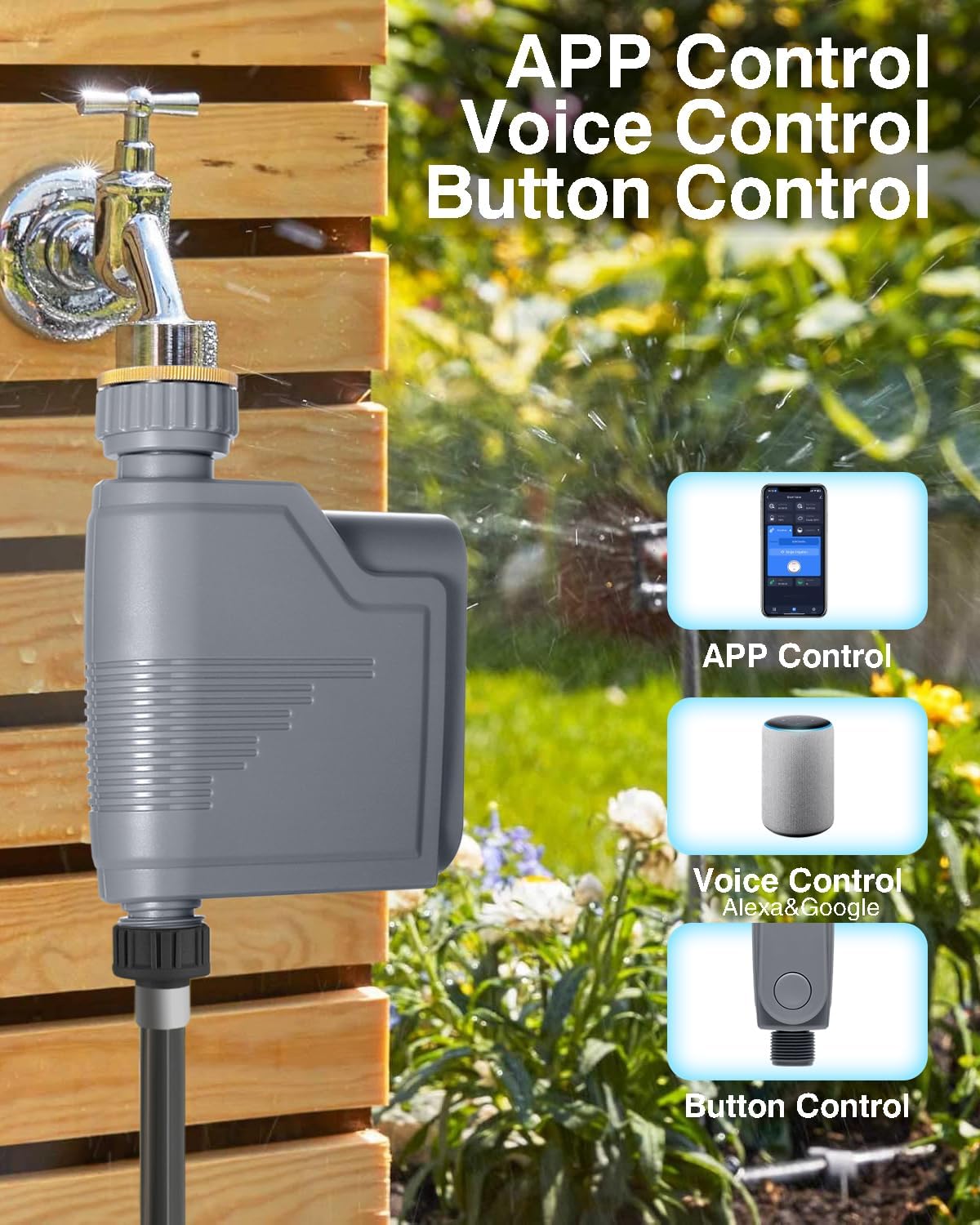
Image: Illustrates the three control methods: APP Control, Voice Control (Alexa & Google), and Button Control, with the sprinkler timer in the background.
6.3ボタンコントロール
The physical button on the sprinkler timer serves two primary functions:
- Watering Switch: A short press can manually start or stop watering.
- Network Settings/Reset: Long-press the button for 5 seconds to reset the internet connection or enter pairing mode.

画像: 詳細な view of the button on the sprinkler timer, indicating its dual function as a watering switch and a network settings/reset button.
7. メンテナンス
- バッテリー交換: Replace the 4*AA alkaline batteries when the app indicates low battery or the device stops responding. Ensure the battery compartment is sealed tightly after replacement.
- クリーニング: タイマーの外側を定期的に柔らかくて乾いた布で掃除してください。amp 布で拭いてください。研磨剤入りの洗剤を使用したり、デバイスを水に浸したりしないでください。
- 冬季: Before freezing temperatures, disconnect the timer from the faucet and hose. Drain any remaining water and store the device indoors in a dry, frost-free location.
- Thread Adapters: Ensure the movable metal thread adapter is tightened properly to prevent leaks. The flexible fitting design allows for easy disassembly and assembly for cleaning or storage.

Image: A close-up of the movable metal thread adapter, highlighting its practical and durable design for easy installation and removal.
8。 トラブルシューティング
| 問題 | 考えられる原因 | 解決 |
|---|---|---|
| デバイスがアプリとペアリングされていません。 | Gateway not connected, timer not in pairing mode, weak signal. | Ensure gateway is online. Long-press timer button for 5 seconds to enter pairing mode. Move gateway closer to the timer. Check app for correct device type selection. |
| 水が流れません。 | Faucet off, low battery, timer valve stuck, hose kinked. | Check if the outdoor faucet is fully open. Replace batteries. Manually activate the valve via the app or button to check for movement. Ensure hose is not kinked. |
| 接続部からの漏れ。 | 接続が緩んでいる、ワッシャーが摩耗している。 | Tighten all connections. Check and replace rubber washers if they are worn or damaged. |
| App shows incorrect data (e.g., battery, weather). | Connectivity issue, app not refreshed. | Ensure stable Wi-Fi connection for the gateway. Refresh the app. If issues persist, try re-pairing the device. |
9. 保証とサポート
Haozee products are designed for reliability and performance. For warranty information and technical support, please refer to the contact details provided on the product packaging or visit the official Haozee webサイト。 保証請求に備えて購入時のレシートを保管しておいてください。
オンラインサポート: For the latest FAQs, troubleshooting guides, and software updates, please visit Haozee Store on Amazon.


