1. はじめに
This manual provides essential information for the safe and efficient operation of your VISION VP-621 4K Ultra HD Multimedia Projector. Please read this manual thoroughly before using the projector and retain it for future reference.
The VISION VP-621 is a versatile smart projector featuring 4K Ultra HD support, 11000 lumens brightness, 5G WiFi, Bluetooth 5.0, Auto Focus, Wireless Miracast, and an integrated Android 9.0 operating system. It is designed for various applications including home entertainment, business presentations, and educational purposes.
2. 安全情報
- 通気口を塞がないでください。過熱を防ぐため、プロジェクター周囲に十分な空気の流れを確保してください。
- プロジェクターレンズを直接見ないでください。amp 点灯しています。明るい光は目を傷める可能性があります。
- プロジェクターが落下しないように、安定した水平な場所に置いてください。
- プロジェクターを水、湿気、極端な温度から遠ざけてください。
- プロジェクターに付属の電源アダプターのみを使用してください。
- プロジェクターをご自身で開けたり修理したりしないでください。修理はすべて資格のある専門家にご依頼ください。
- 雷雨のときや長期間使用しない場合は、プロジェクターのプラグを抜いてください。
3. パッケージ内容
以下にリストされているすべてのアイテムがパッケージに含まれていることを確認してください。
- VISION VP-621 Projector
- 電源コード
- アダプタ
- リモートコントロール
- AVケーブル
- プロジェクターレンズカバー
4.製品オーバーview
Familiarize yourself with the main components and interfaces of your VISION VP-621 projector.

画像: 正面と側面 view of the VISION VP-621 projector, showcasinコンパクトなデザインとレンズが魅力です。
4.1 フロントパネルとトップパネル
- 投影レンズ: 画像を放出します。
- 赤外線受信機: リモコン信号用。
- コントロールボタン: Power, Navigation (OK, Up, Down, Left, Right), Back.
- 換気グリル: 内部コンポーネントの冷却用。

画像: 上 view of the projector highlighting the integrated control buttons for power and navigation.
4.2 Rear Panel and Connectivity Ports
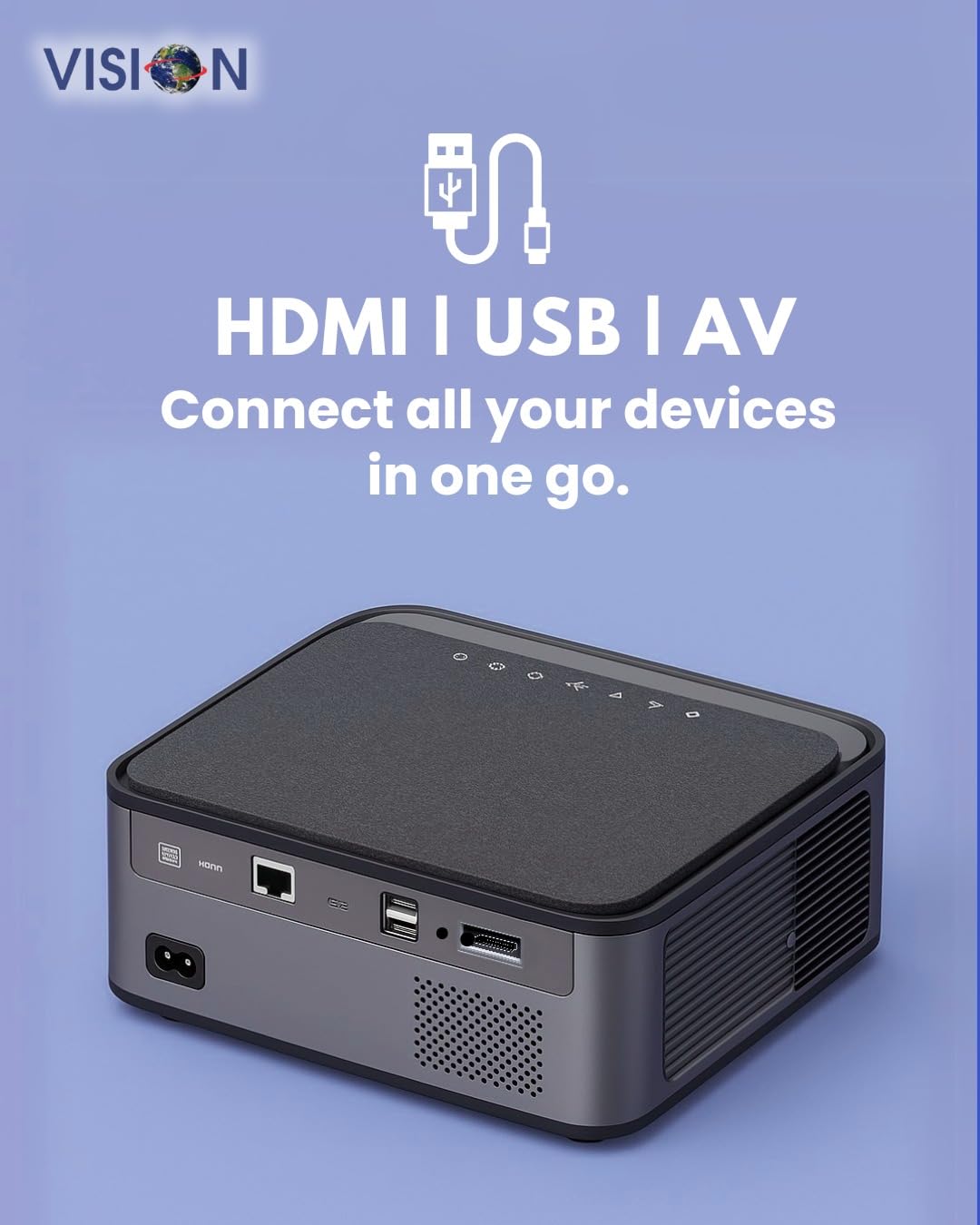
画像: 背面 view of the projector displaying the various input and output ports, including HDMI, USB, and AV.
- 電源入力: ここに電源アダプターを接続します。
- HDMIポート: HDMI 対応デバイス (ラップトップ、ゲーム コンソール、ストリーミング スティック) に接続します。
- USBポート(x2): メディア再生用または外部デバイス用の USB ドライブを接続します。
- AV 入力: 付属の AV ケーブルを使用して古いデバイスに接続します。
- オーディオ出力(3.5mm): 外部スピーカーまたはヘッドフォンを接続します。
- LANポート: For wired internet connection (if available).
5. セットアップ
5.1 プロジェクターの配置
Choose a flat, stable surface for the projector. Ensure there are no obstructions in front of the lens and that the ventilation grilles are clear.

Image: A projector positioned on a desk, illustrating a typical setup environment.
5.2電源接続
- 電源アダプタをプロジェクターの電源入力ポートに接続します。
- 電源コードを壁のコンセントに差し込みます。
- プロジェクターの電源インジケータ ライトが点灯します。
5.3初期電源オン
- プロジェクターまたはリモコンの電源ボタンを押して電源を入れます。
- プロジェクターが起動し、Android 9.0 のホーム画面が表示されます。
5.4 フォーカスとキーストーン調整
The VISION VP-621 features automatic focus and 4D keystone correction for a clear and properly aligned image.

Image: Illustrates the projector's automatic focus and keystone correction capabilities, ensuring a sharp and aligned picture.
- オートフォーカス: プロジェクターは起動時または移動時に自動的にフォーカスを調整し、鮮明な画像を表示します。
- 4Dキーストーン補正: The projector automatically corrects image distortion when placed at an angle. Manual adjustments may be available in the settings menu if needed.
6. 操作手順
6.1 Android 9.0 スマートOS
The integrated Android 9.0 system allows direct access to streaming services and apps.
- ナビゲーション: Use the remote control's directional buttons and "OK" button to navigate the interface.
- アプリのインストール: Access the Google Play Store to download and install applications like YouTube, Netflix, and Prime Video.
- ネットワーク接続: Go to Settings > Network to connect to a 5G WiFi network or a wired LAN connection.
6.2 外部機器の接続
HDMI接続
- Connect an HDMI cable from your device (laptop, gaming console, Fire TV Stick) to the HDMI port on the projector.
- プロジェクターのホーム画面で、HDMI 入力ソースを選択します。
USB接続
- Insert a USB drive into one of the USB ports on the projector.
- The projector will typically prompt you to open the media player or file browser. If not, navigate to the file manager app on the Android home screen.
AV接続
- Connect the provided AV cable to the AV input port on the projector and to your external device.
- Select the AV input source on the projector.
Bluetooth 5.0 Audio Output
- Go to Settings > Bluetooth on the projector.
- Bluetoothを有効にして、利用可能なデバイスを検索します。
- Select your Bluetooth speaker or headphones from the list to pair and connect.
Wireless Miracast (Screen Mirroring)
Miracast allows you to wirelessly mirror the screen of your compatible smartphone, tablet, or laptop.
- On the projector's home screen, select the "Miracast" or "Screen Mirroring" application.
- On your mobile device, enable screen mirroring (often found in quick settings or display settings, named "Cast," "Smart View," "Wireless Display," etc.).
- 利用可能なデバイスのリストからプロジェクターを選択して接続を確立します。
7. メンテナンス
7.1 プロジェクターのクリーニング
- レンズ: 光学レンズ専用の柔らかく糸くずの出ない布を使用してください。研磨剤入りのクリーナーは使用しないでください。
- Casing: プロジェクターcを拭くasin柔らかく乾いた布で拭いてください。頑固な汚れには、軽くamp布を水で濡らし、乾拭きしてください。
- 換気: Regularly check and clean the ventilation grilles to ensure proper airflow and prevent dust buildup. Use a soft brush or compressed air.
7.2リットルamp 人生
The VISION VP-621 utilizes advanced LED technology, providing an estimated lamp 最大50,000時間の寿命。これにより、メンテナンスの必要性が大幅に減少します。amp 従来のプロジェクターに比べて優れた代替品です。
8。 トラブルシューティング
| 問題 | 考えられる原因 | 解決 |
|---|---|---|
| 画像が表示されない |
|
|
| ぼやけた画像 |
|
|
| 音が出ない |
|
|
| Wi-Fiに接続できません |
|
|
9. 仕様
| ブランド | ビジョン |
| モデル名 | VP-621 AN |
| ディスプレイ技術 | 液晶 |
| 表示タイプ | 導かれた |
| 輝度 | 11000ルーメン |
| 画像のコントラスト比 | 18000:1ピクセル |
| ネイティブ解像度 | 1920 x 1280 (フルHD) |
| サポートされている解像度 | 最大4KウルトラHD |
| アスペクト比 | 16:9、4:3 |
| オペレーティング·システム | アンドロイド9.0 |
| 接続技術 | Bluetooth 5.0, HDMI, USB, Wi-Fi (5G) |
| ハードウェアインターフェイス | Bluetooth 5, HDMI, USB 3.0 |
| 特集 | Built-In 3D, Built-In Cooling System, Built-In Speaker, Electric Focus, Wi-Fi Ready, Auto Focus, 4D Keystone Correction, Wireless Miracast |
| 製品寸法 | 30 x 18 x 7 cm |
| アイテム重量 | 8キロ |
| Lamp 人生 | 最大50,000時間 |

Image: Illustrates the projector's Full HD (1920x1080) resolution capability for crisp visuals.

Image: Highlights the projector's 11000 lumens brightness, ensuring clear visuals in various lighting conditions.
10. 保証とサポート
保証情報および技術サポートについては、製造元にお問い合わせください。
- メーカー: Scorpio Infosolutions
- 位置: Delhi, India
- 電話: +91-7982647130
- Webサイト: visionsheen.in
Please have your product model (VP-621) and purchase details ready when contacting support.


