1. はじめに
This manual provides detailed instructions for the setup, operation, maintenance, and troubleshooting of your NIIMBOT B1 Portable Thermal Label Printer. Please read this manual thoroughly before using the device to ensure proper function and longevity.

Image 1.1: The NIIMBOT B1 Label Maker shown with examples of printed labels for various applications.
2.製品オーバーview
2.1 パッケージ内容
パッケージにすべてのアイテムが含まれていることを確認します。
- NIIMBOT B1 Label Maker x1
- タイプCケーブルx1
- ユーザーマニュアル x1
- Roll label tape (50x30mm) x1 (pre-installed in some models)

Image 2.1: The NIIMBOT B1 Label Maker and its included accessories.
2.2 主な特徴
- 2-Inch Label Printing: Supports label widths from 20mm to 50mm (1-2 inches).
- サーマルプリント: No ink or toner required, reducing operational costs.
- 自動ラベル識別: For faster and easier printing.
- 接続性: Compatible with iOS & Android smartphones via Bluetooth, and PC via USB.
- NIIMBOT App: Offers 10+ fonts/languages, 100+ borders, 1500+ symbols, barcodes, QR codes, icons, time stamps, pictures, photos, and OCR print functions.
- ポータブルデザイン: Compact and lightweight for easy transport and use.
- 自動電源オフ: Customizable auto-off settings (15min, 30min, 60min, never) to conserve battery.
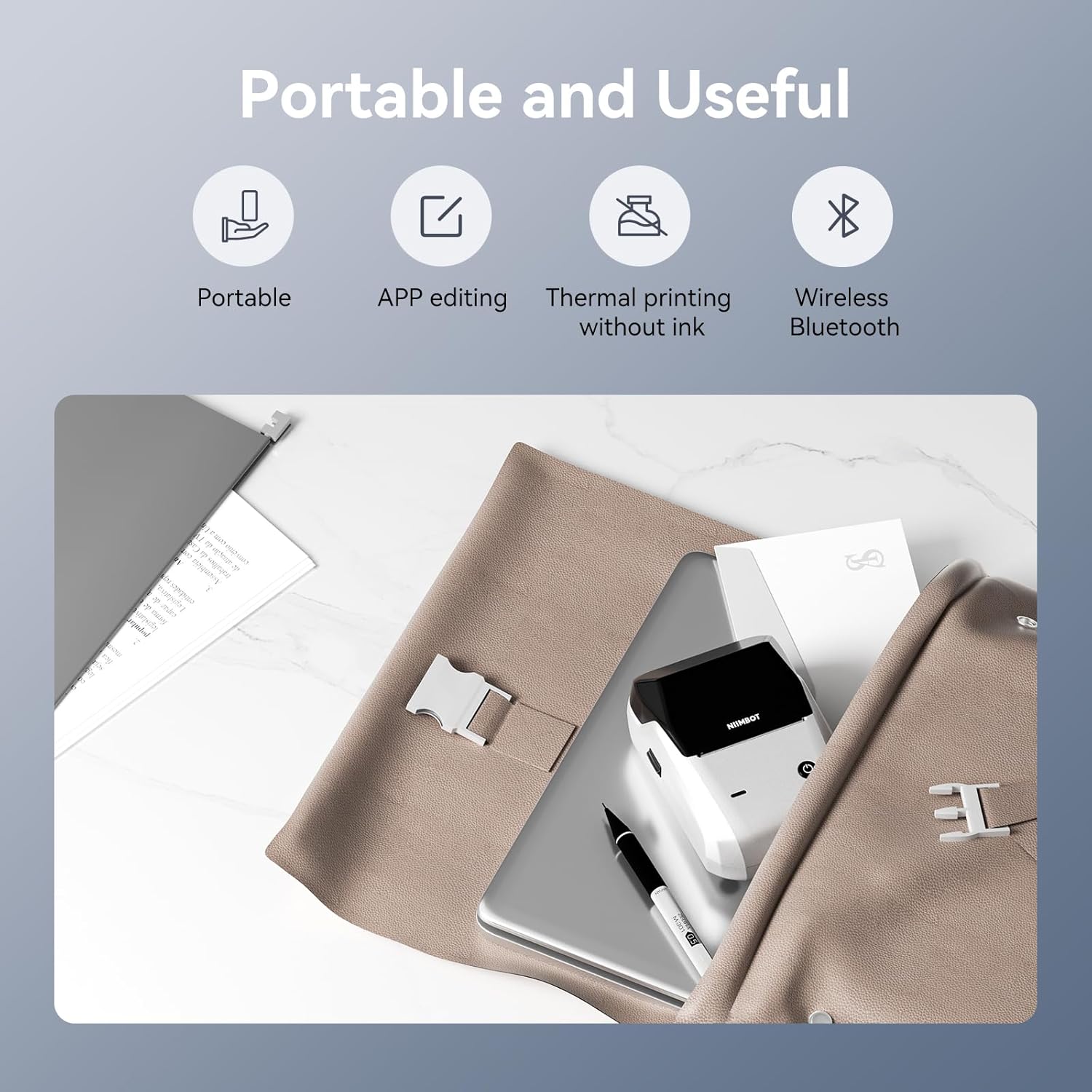
画像2.2: 以上view of the NIIMBOT B1's portable and useful features.
3. セットアップ
3.1 ラベルテープの装着
- Rotate the side latch to open the tape slot.
- Load the label tape into the slot, ensuring the label side faces upwards.
- Adjust the guide plate to fit the label roll snugly.
- Close the tape slot, leaving a small portion of the label tape extending for smooth feeding.

Image 3.1: Proper installation of label tape in the NIIMBOT B1.
3.2 アプリのインストールと接続
The NIIMBOT B1 requires the NIIMBOT app for smartphone operation.
- Download the NIIMBOT app from the App Store (iOS) or Google Play Store (Android). 検索する "NIIMBOT".
- 携帯電話の Bluetooth が有効になっていることを確認してください。
- Open the NIIMBOT app and click "Connect" to search for nearby devices.
- Select your B1 printer from the list (e.g., B1-XXXXXX) to pair. If prompted for a pairing code, enter 0000 or 1234.
- Once connected, the app will automatically identify the label tape in the printer.

Image 3.2: NIIMBOT App download and connection process.
3.3 PC Connection (Windows)
For PC connectivity, you will need to download the driver from the official NIIMBOT webサイト。
- 公式 NIIMBOT にアクセスしてください website and download the B1 printer driver for Windows 7/10.
- Install the driver on your PC.
- Connect the NIIMBOT B1 printer to your PC using the provided USB Type-C cable.
- Open the NIIMBOT desktop software to begin printing.

Image 3.3: Connecting the NIIMBOT B1 to a PC via USB.
3.4 Quick Start Video Guide
Watch this video for a quick visual guide on setting up and using your B1 Label Maker.
Video 3.4: A quick start guide demonstrating the initial setup and basic operation of the NIIMBOT B1 Label Maker.
4. 操作手順
4.1 ラベルの作成と編集
- In the NIIMBOT app, select a template or create a new label.
- Use the various editing tools to add text, images, icons, barcodes, QR codes, and other elements.
- Customize font styles, sizes, alignment, and other layout options.
- The app supports features like OCR (Optical Character Recognition) for converting images to text.

Image 4.1: The NIIMBOT App interface for creating and editing labels.
4.2 ラベルの印刷
- After designing your label, click the "Print" button in the app.
- Adjust the number of copies and print density as needed.
- Confirm the print settings and initiate printing.
- The printer will automatically feed and print the labels. Gently tear off the printed labels.

Image 4.2: Smartphone printing process with the NIIMBOT B1.
4.3 インジケーターライトの意味
Understand the status of your printer through its indicator light:
- フラッシュブルー: ファームウェアのアップグレードが進行中です。
- 安定した青: Printer is in standby mode.
- フラッシュグリーン: Printer is actively printing.
- ステディグリーン: Bluetooth is successfully connected.
- フラッシュレッド: Printer is charging.
- 安定した赤: Cover is open, out of paper, or low battery.

Image 4.3: Guide to the NIIMBOT B1 indicator light statuses.
4.4 使用例ampレ
The NIIMBOT B1 is versatile for various labeling needs:
- 家庭用: Kitchen labels, gift labels, kids' item labels, trip item labels.
- ビジネス用途: Beauty & personal care, DIY item labels, mail labels, perfume labels, bakery food labels.

図4.4: 例amples of NIIMBOT B1 usage for home organization.

図4.5: 例amples of NIIMBOT B1 usage for small businesses.

図4.6: 例amples of labels for bakery and food products.
Video 4.7: Demonstration of the NIIMBOT B1 Label Maker's ease of use for various labeling tasks.
ビデオ4.8: ショーasing the multipurpose capabilities of the NIIMBOT B1 Label Maker for different applications.
5. メンテナンス
5.1 プリントヘッドのクリーニング
Regular cleaning of the print head ensures optimal print quality.
- プリンタの電源をオフにして、電源ケーブルを外します。
- ラベル収納部を開きます。
- プリントヘッドを綿棒で軽く拭きます。ampイソプロピルアルコールで消毒しました。
- Allow the print head to dry completely before closing the compartment and turning on the printer.
5.2バッテリーケア
- 頻繁に使用しない場合でも、バッテリーの状態を維持するために定期的にプリンターを充電してください。
- プリンターを極端な温度にさらさないでください。
- 充電には付属のType-Cケーブルのみを使用してください。
6。 トラブルシューティング
6.1 一般的な問題と解決策
| 問題 | 考えられる原因 | 解決 |
|---|---|---|
| プリンターが起動しない | バッテリー残量が少ない。電源ボタンが十分に押されていない。 | Charge the printer; Press and hold the power button for 3 seconds. |
| Bluetooth経由で接続できません | Bluetooth off on phone; Printer not in pairing mode; App permissions | Ensure Bluetooth is on; Restart printer; Check app permissions for nearby devices. |
| 印刷品質が悪い | Dirty print head; Incorrect print density; Low battery | Clean the print head (see 5.1); Adjust print density in the app; Charge the printer. |
| ラベルが正しく送られない | Incorrect label installation; Guide plate not adjusted | Reinstall label tape correctly (see 3.1); Adjust the guide plate to fit the label roll. |
| Printer not recognized by PC | Driver not installed; Faulty USB cable | Install the correct PC driver (see 3.3); Try a different USB cable. |
7. 仕様
| 特徴 | 詳細 |
|---|---|
| モデル名 | B1 |
| 印刷技術 | サーマル |
| 接続性 | ブルートゥース、USB |
| 最大印刷解像度 | 203dpi |
| 最大印刷速度(モノクロ) | 15mm/秒 |
| 最大メディアサイズ | 2インチ(50mm) |
| 対応デバイス | Smartphone (Android & iOS), PC (Windows 7/10) |
| アイテム重量 | 1.1ポンド(499グラム) |
| 製品寸法 | 奥行き5.5インチ x 幅3.5インチ x 高さ2.5インチ |
| バッテリー | 1 A 電池が必要 (付属) |
| 具体的な用途 | Labeling for Small Business Product Price/Address, School and Office Files Classification, Home Supplies Organization, Personal Item Identification, Name Tags and Warehouse |
8. 保証とサポート
8.1 保証情報
The NIIMBOT B1 Label Printer comes with a 1-year warranty coverage. Please retain your proof of purchase for warranty claims.
8.2 カスタマーサポート
For further assistance, technical support, or warranty inquiries, please contact NIIMBOT customer service through their official webサイトまたは製品パッケージに記載されている連絡先情報をご覧ください。


