1.製品オーバーview
The 8Bitdo 18 Key Retro Mechanical Numpad is a versatile input device designed for both PC numpad functionality and standard calculator operations. It features a retro aesthetic, hot-swappable mechanical switches, and multiple connectivity options.

画像: 正面 view of the 8Bitdo 18 Key Retro Mechanical Numpad, C64 Edition, showcasing its retro design and LED display.
2. パッケージ内容
セットアップを進める前に、パッケージにすべてのアイテムが揃っていることを確認してください。
- 8Bitdo 18 Key Retro Mechanical Numpad
- 2.4Gワイヤレスアダプター
- USB-Cケーブル
- 取扱説明書

Image: The 8Bitdo Numpad alongside its packaging and included accessories, such as the 2.4G adapter and USB-C cable.
3. セットアップと接続
3.1 テンキーの充電
The numpad is equipped with a rechargeable Lithium Polymer battery. A full charge takes approximately 4 hours and provides up to 160 hours of use.
- Connect the supplied USB-C cable to the numpad's USB-C port.
- ケーブルのもう一方の端を USB 電源 (コンピューターの USB ポート、USB 壁アダプターなど) に接続します。
- LED インジケーターは充電状態を示し、完全に充電されると消灯します。

画像: サイド view of the numpad, highlighting the USB-C charging port and the magnetic compartment for the 2.4G adapter.
3.2 接続オプション
The numpad supports three connection methods: Bluetooth, 2.4G Wireless, and Wired USB-C.
3.2.1 Bluetooth接続
- Set the mode switch on the numpad to 'BT'.
- On your Windows or Android device, go to Bluetooth settings and enable Bluetooth.
- Press and hold the Bluetooth pairing button on the numpad (usually indicated by a Bluetooth icon) until the LED starts blinking rapidly.
- Select '8Bitdo Retro Numpad' from the list of available devices on your computer or phone.
- The LED will become solid when connected.
3.2.2 2.4Gワイヤレス接続
- Locate the 2.4G wireless adapter stored in the magnetic compartment on the numpad's side.
- Set the mode switch on the numpad to '2.4G'.
- 2.4G ワイヤレス アダプターを PC の使用可能な USB ポートに接続します。
- The numpad should automatically connect. The LED indicator will become solid.

Image: A hand demonstrating the insertion of the 2.4G wireless adapter into its magnetic storage compartment on the numpad.
3.2.3 有線USB-C接続
- Set the mode switch on the numpad to 'OFF' or 'BT'/'2.4G' (wired connection will override wireless).
- Connect the USB-C cable from the numpad to a USB port on your PC.
- The numpad will be recognized as a standard USB input device.
3.3 互換性
The 8Bitdo Retro Mechanical Numpad is compatible with:
- Windows 10 (1803) and above
- Android 9.0以上
4. テンキーの操作
4.1 Switching Between Numpad and Calculator Modes
The device functions as both a PC numpad and a standalone calculator. Use the dedicated mode switch or button (often labeled 'CAL' or a similar icon) to toggle between these modes.

Image: A user operating the 8Bitdo Numpad in Standard Calculator Mode, demonstrating its use as a standalone calculator.
4.2 Windows Calculator App Shortcut
A dedicated shortcut button is available to instantly launch the Windows Calculator application on your PC. Refer to the numpad's control panel for the specific button.
4.3 独立したコントロールパネル
The numpad features an independent control panel with a turn dial and buttons for effortless operations. These controls manage connectivity modes, power, and potentially other functions.
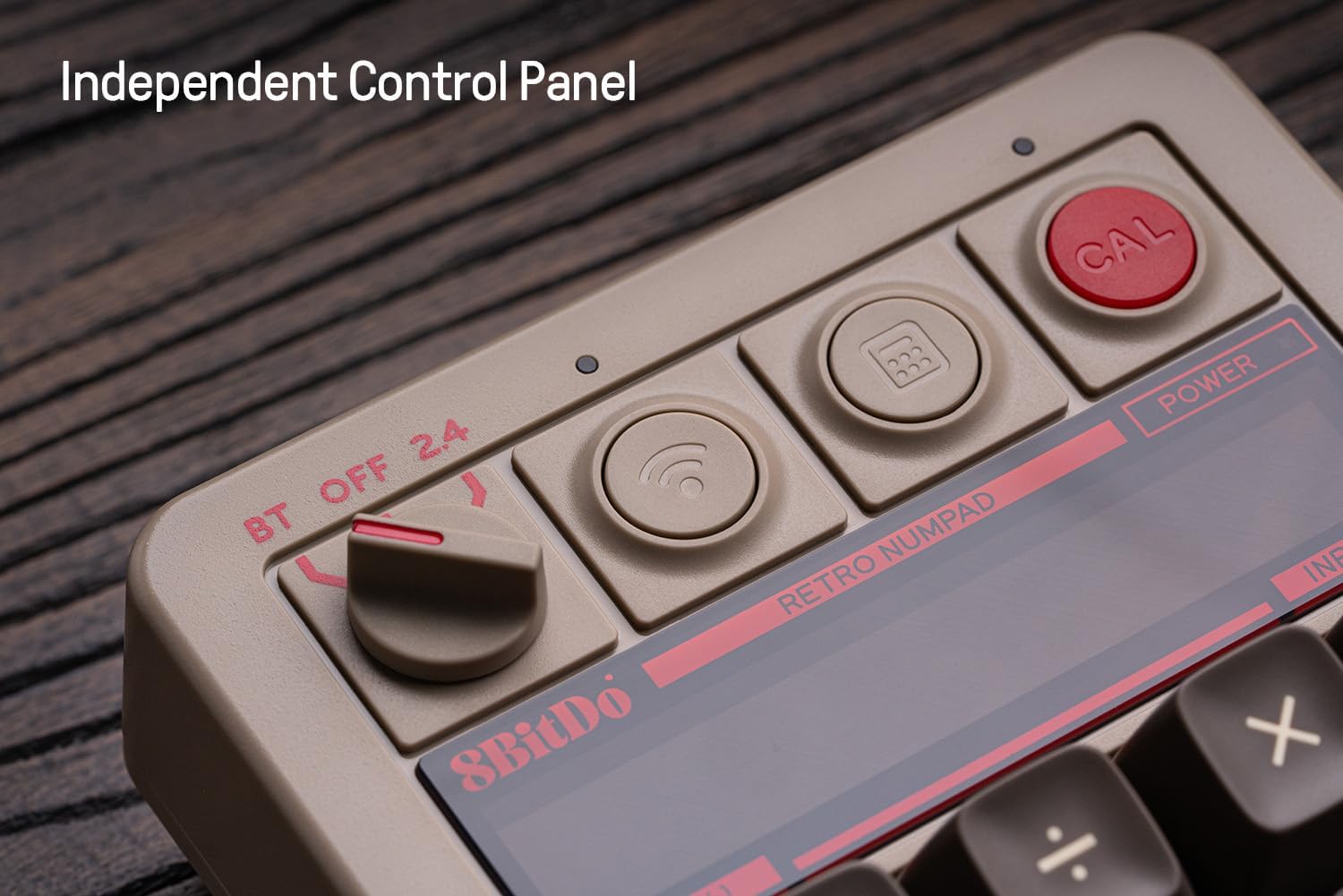
画像: クローズアップ view of the numpad's independent control panel, showing the mode switch, wireless/Bluetooth buttons, and the calculator shortcut button.
4.4 Retro LED Display
The numpad incorporates a nine-digit seven-segment LED display, providing clear and visible numerical output for calculator mode and status indicators.
4.5 Hot-swappable PCB and Switches
The numpad features a hot-swappable PCB, allowing users to easily change the mechanical switches without soldering. It comes equipped with Kailh Box White switches V2.

画像: 詳細 view of the hot-swappable PCB, showing a keycap and switch removed to illustrate the ease of switch replacement.
4.6 Nキーロールオーバー
The numpad supports N-key rollover, ensuring that every key press is registered accurately, even when multiple keys are pressed simultaneously.
4.7 キーキャップ
The C64 Edition features double-shot ABS keycaps with an SA profile, providing durability and a distinct tactile feel.
5. メンテナンス
5.1 クリーニング
To maintain the numpad's appearance and functionality:
- 外側を拭くときは、柔らかく乾いた布を使用してください。
- 頑固な汚れには、軽くamp布を水または中性洗剤で拭いてください。刺激の強い化学薬品は避けてください。
- 圧縮空気を使用して、キーキャップ間のほこりやゴミを取り除きます。
5.2 キーキャップとスイッチの交換
Due to the hot-swappable design, keycaps and switches can be replaced. Use a keycap puller and switch puller (not included) for safe removal and installation. Ensure the new switches are compatible with the PCB.
5.3バッテリーケア
バッテリー寿命を延ばすには:
- バッテリーを頻繁に完全に放電することは避けてください。
- Store the numpad in a cool, dry place when not in use for extended periods.
- Charge the battery at least once every three months if unused.
6。 トラブルシューティング
6.1 接続の問題
- No Connection (Bluetooth/2.4G): Ensure the numpad is charged and the mode switch is set correctly. Re-pair Bluetooth or re-insert the 2.4G adapter. Try a different USB port for the 2.4G adapter.
- 断続的な接続: Reduce distance between numpad and device. Avoid sources of interference (e.g., other wireless devices).
- 有線接続が認識されません: Try a different USB-C cable or USB port on your PC. Ensure the cable is fully inserted.
6.2 表示の問題
- 空白を表示: Ensure the numpad is powered on and charged. If in PC numpad mode, the display may show less information. Switch to calculator mode to verify.
- Incorrect Characters: Restart the numpad. If persistent, check for firmware updates.
6.3 キー入力の問題
- キーが反応しない: Check for debris under keycaps. If hot-swappable, ensure switches are fully seated.
- Double Input/Missed Input: これはスイッチの故障を示している可能性があります。ホットスワップ機能を利用して、影響を受けたスイッチを交換してください。
6.4 バッテリーが充電されない
- Ensure the USB-C cable is functional and properly connected.
- 別の USB 電源を試してください。
- 問題が解決しない場合は、カスタマーサポートに連絡してください。
7. 仕様
| 特徴 | 詳細 |
|---|---|
| モデル名 | C64 Edition |
| キーの数 | 18 |
| スイッチ | Kailh Box White switches V2 (Hot-swappable) |
| キーキャップ | Double-shot ABS (C64 edition) |
| 接続性 | Bluetooth, 2.4G Wireless, Wired USB-C |
| 互換性 | Windows (10 以上)、Android (9.0 以上) |
| 電池のタイプ | リチウムポリマー |
| バッテリー寿命 | Up to 160 use hours |
| 充電時間 | 約4時間 |
| 画面 | Nine-digit seven-segment LED |
| 寸法 | 7.91 x 7.05 x 2.36インチ |
| アイテム重量 | 1.3ポンド |
8. 保証情報
8Bitdo products typically come with a limited manufacturer's warranty. For specific details regarding the warranty period and terms for your 8Bitdo 18 Key Retro Mechanical Numpad, please refer to the warranty card included in your product packaging or visit the official 8Bitdo webサイト。
9. サポート
For further assistance, firmware updates, or to download the 8Bitdo Ultimate Software V2 (for firmware updates only), please visit the official 8Bitdo support webサイト:
You may also contact 8Bitdo customer service through their website for technical support or inquiries.


