1. はじめに
Thank you for choosing the Mecer 23.8 Inch Full HD LED Monitor. This manual provides essential information for setting up, operating, and maintaining your monitor. Please read it thoroughly before use to ensure proper functionality and longevity of your device.
This monitor features a 23.8-inch Full HD (1920 x 1080) display, offering crisp and clear visuals. It incorporates TFT LED panel technology for energy efficiency and vibrant colors, with a 16:9 aspect ratio suitable for widescreen viewing. Connectivity options include VGA and HDMI, making it compatible with various devices. Built-in speakers provide basic audio, and wide 178° viewing angles ensure comfortable use. With a 2ms response time, it is suitable for general computing and multimedia consumption.
2. 安全情報
- 電源: モニターに付属の電源アダプターのみを使用してください。電源コンセントが適切にアースされていることを確認してください。
- 換気: 通気口を塞がないでください。過熱を防ぐため、モニターの周囲に十分なスペースを確保し、適切な空気の流れを確保してください。
- 配置: モニターは安定した平らな面に設置してください。直射日光の当たる場所、熱源の近く、ほこりや湿気の多い場所に置かないでください。
- クリーニング: Disconnect the power cord before cleaning. Use a soft, dry cloth for the screen and a slightly damp cloth for the casing. 研磨剤入りの洗剤や溶剤の使用は避けてください。
- 液体への暴露: Keep liquids away from the monitor. If liquid enters the monitor, disconnect power immediately and contact qualified service personnel.
- 分解: モニターをご自身で分解したり修理したりしないでください。すべてのメンテナンスは、資格のあるサービス担当者にご依頼ください。
3. パッケージ内容
パッケージの内容をチェックして、すべてのアイテムが揃っていることを確認してください。
- Mecer 23.8 Inch LED Monitor
- モニタースタンド(ベースとネック)
- 電源アダプターとケーブル
- HDMIケーブル
- VGAケーブル
- ユーザーマニュアル(このドキュメント)
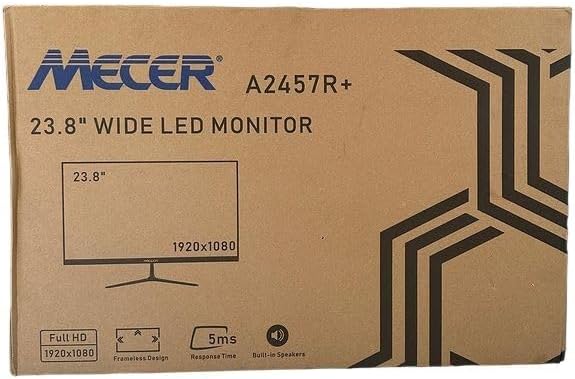
画像3.1: The monitor packaging box, indicating the model A2457R+ and key features like 23.8" display, Full HD 1920x1080 resolution, frameless design, 5ms response time, and built-in speakers.
4. セットアップ
4.1. モニタースタンドの組み立て
- モニターとスタンドのコンポーネントをパッケージから慎重に取り出します。
- タブを合わせてカチッと音がするまでしっかりと押し込み、スタンド ネックをモニター パネルに取り付けます。
- Attach the stand base to the stand neck, securing it with the provided screw (usually hand-tightened).
- 組み立てたモニターを安定した平らな面に置きます。

画像4.1: フロント view of the Mecer 23.8 Inch LED Monitor with its stand assembled, ready for connection.
4.2. コンピュータへの接続
The monitor supports both HDMI and VGA connections. Choose the appropriate cable for your computer.
- HDMI接続: Connect one end of the HDMI cable to the HDMI port on your computer's graphics card and the other end to the HDMI port on the monitor. HDMI transmits both video and audio signals.
- VGA接続: Connect one end of the VGA cable to the VGA port on your computer's graphics card and the other end to the VGA port on the monitor. VGA transmits only video signals.

画像4.2: 後方 view of the Mecer 23.8 Inch LED Monitor, showing the input ports including HDMI and VGA, as well as the power input.
4.3. 電源接続
- Connect the power adapter cable to the DC IN port on the back of the monitor.
- 電源アダプタを壁のコンセントに差し込みます。
5. 操作手順
5.1.電源のオン/オフ
Press the power button, typically located on the bottom right side or rear of the monitor, to turn the monitor on or off. The power indicator light will illuminate when the monitor is on.
5.2. 入力ソースの選択
If you have multiple devices connected, you may need to manually select the input source. Use the monitor's control buttons (usually located near the power button) to navigate to the input selection menu and choose between HDMI or VGA.
5.3. オンスクリーンディスプレイ(OSD)メニュー
The OSD menu allows you to adjust various display settings. Use the monitor's control buttons to:
- OSDメニューにアクセスします。
- Navigate through menu options (e.g., Brightness, Contrast, Color Settings, Input Source).
- Adjust values or select options.
- OSD メニューを終了します。
一般的な調整可能な設定は次のとおりです。
- 輝度コントラスト: 全体的な輝度と明るい部分と暗い部分の差を調整します。
- 色の設定: Adjust color temperature, RGB values, or select preset color modes.
- アスペクト比: Change between 16:9, 4:3, or other available options.
- オーディオ: Adjust volume for the built-in speakers.
5.4.内蔵スピーカー
The monitor includes built-in speakers for basic audio output. If using an HDMI connection, audio will be transmitted automatically. For VGA connections, ensure your computer's audio output is configured correctly. Adjust the volume through the OSD menu or your computer's operating system.
6. メンテナンス
6.1. モニターのクリーニング
- 清掃する前に必ずモニターの電源プラグをコンセントから抜いてください。
- 画面: 柔らかく糸くずの出ない布で画面を優しく拭いてください。頑固な汚れには、軽くampen the cloth with water or a specialized screen cleaner (ensure it's alcohol-free and ammonia-free) and wipe carefully. Do not spray liquid directly onto the screen.
- Casing: モニターの表面を拭くときは、柔らかく乾いた布を使用してください。asing. 必要であれば、わずかにdamp 布で拭いた後、乾いた布で拭いてください。
6.2. ストレージ
モニターを長期間保管する場合は、すべてのケーブルを外し、元の梱包材(ある場合)に入れて、直射日光や極端な温度を避け、涼しく乾燥した場所に保管してください。
7。 トラブルシューティング
モニターに問題が発生した場合は、次の一般的な問題と解決策を参照してください。
- 電源なし:
- 電源ケーブルがモニターと壁のコンセントにしっかりと接続されていることを確認してください。
- 別のデバイスを接続して、電源コンセントが機能していることを確認します。
- 電源アダプターが正しく動作しているかどうかを確認してください。
- 信号なし:
- ビデオ ケーブル (HDMI または VGA) がモニターとコンピューターの両方にしっかりと接続されていることを確認します。
- Verify that the correct input source is selected on the monitor (via the OSD menu).
- コンピュータの電源がオンになっていて、ビデオ信号を出力しているかどうかを確認します。
- 可能であれば別のビデオ ケーブルを試してください。
- 画像がぼやけている、または歪んでいる:
- Ensure the monitor's resolution is set to its native resolution (1920 x 1080) in your computer's display settings.
- Adjust the monitor's OSD settings for brightness, contrast, and sharpness.
- For VGA connections, use the 'Auto Adjust' function in the OSD menu if available.
- 内蔵スピーカーから音声が出ない:
- Ensure the monitor's volume is not muted or set too low in the OSD menu.
- Check your computer's audio output settings to ensure the monitor is selected as the playback device.
- If using VGA, ensure your computer's audio is routed to an external speaker system, as VGA does not carry audio.
8. 仕様
| 特徴 | 仕様 |
|---|---|
| ブランド | Mecer |
| モデル番号 | A2457R+ |
| 表示サイズ | 23.8インチ |
| 解決 | 1920 x 1080 ピクセル (フル HD) |
| 表示タイプ | LED (TFT LED Panel) |
| アスペクト比 | 16:9 |
| 応答時間 | 2ミリ秒 |
| リフレッシュレート | 75Hz |
| View角度を変える | 水平178° / 垂直178° |
| 接続性 | 1x HDMI、1x VGA |
| 内蔵スピーカー | はい |
| 色 | 黒 |
| 製品寸法(奥行き×幅×高さ) | 560D x 42W x 410H millimetres |
| 特集 | High performance intelligent multi-frequency scanning, Micro Computer digital technology control, no radiation, no glare, Comply with VESA DPMS international power saving regulation, Support DDC 1/2B and Windows PNP Plug and Play |
9. 保証とサポート
This Mecer monitor comes with a 1年間の限定保証 ご購入日より1年間有効です。保証請求の際は購入証明書を保管してください。
For technical support, service, or warranty inquiries, please contact your retailer or the authorized Mecer service center in your region. Do not attempt to repair the product yourself, as this may void your warranty.


