1. セットアップ
1.1 開梱と初期検査
すべての部品をパッケージから慎重に取り出し、すべての付属品が揃っていることを確認してください。
- Logitech Wave Keys ワイヤレス人間工学キーボード
- Logitech Lift Vertical Wireless Mouse
- Logi BoltUSBレシーバー
- AA Battery (pre-installed in mouse)
- AAA Batteries (pre-installed in keyboard)
1.2 バッテリーの取り付け
The keyboard and mouse come with pre-installed batteries. If replacement is needed:
- For Wave Keys Keyboard: Open the battery compartment on the underside of the keyboard. Insert two AAA batteries, ensuring correct polarity. Close the compartment.
- For Lift Vertical Mouse: マウスの底面にある電池ケースを開けます。単3電池1本を、極性に注意しながら挿入します。ケースを閉じます。
Detailed diagram illustrating the features of the Logitech Lift Vertical Mouse, including its battery compartment and multi-OS compatibility.
1.3 デバイスの接続
Your devices can connect via Bluetooth or the Logi Bolt USB receiver.
1.3.1 Bluetooth接続
- それぞれの電源スイッチを使用してキーボードとマウスの電源をオンにします。
- Press and hold one of the Easy-Switch buttons (1, 2, or 3) on the keyboard or mouse until the LED indicator blinks rapidly, indicating pairing mode.
- On your computer or device, navigate to Bluetooth settings and select "Logitech Wave Keys" or "Logitech Lift" from the list of available devices.
- Follow any on-screen prompts to complete the pairing process. The LED will glow solid for 5 seconds when connected.
1.3.2 Logi Bolt Receiver Connection
- Logi Bolt USB レシーバーをコンピューターの使用可能な USB ポートに接続します。
- Turn on the keyboard and mouse. They should automatically connect to the receiver. If not, press an Easy-Switch button on the device to select an available channel (e.g., 1) and ensure the receiver is detected.
- For initial pairing with the receiver, you may need to use the Logi Options+ App to add the device.

Diagram highlighting multi-OS connectivity options for the Logitech Wave Keys keyboard, compatible with Windows, macOS, iPadOS, and iOS.
1.4 Logi Options+ アプリのインストール
For full customization and advanced features, download and install the Logi Options+ App:
- ロジテックの公式ウェブサイトをご覧ください web地点 (ロジクール.com/optionsplus) をコンピューターにインストールします。
- Download the Logi Options+ App compatible with your operating system (Windows or macOS).
- 画面の指示に従ってアプリケーションをインストールします。
- Once installed, open the app to detect and customize your Wave Keys keyboard and Lift Vertical Mouse.

A user customizing their workflow using the Logi Options+ App with the Logitech Wave Keys keyboard and Lift Vertical Mouse.
2. 操作
2.1 キーボードの使用
2.1.1 Ergonomic Typing Position
The Wave Keys keyboard is designed for comfort:
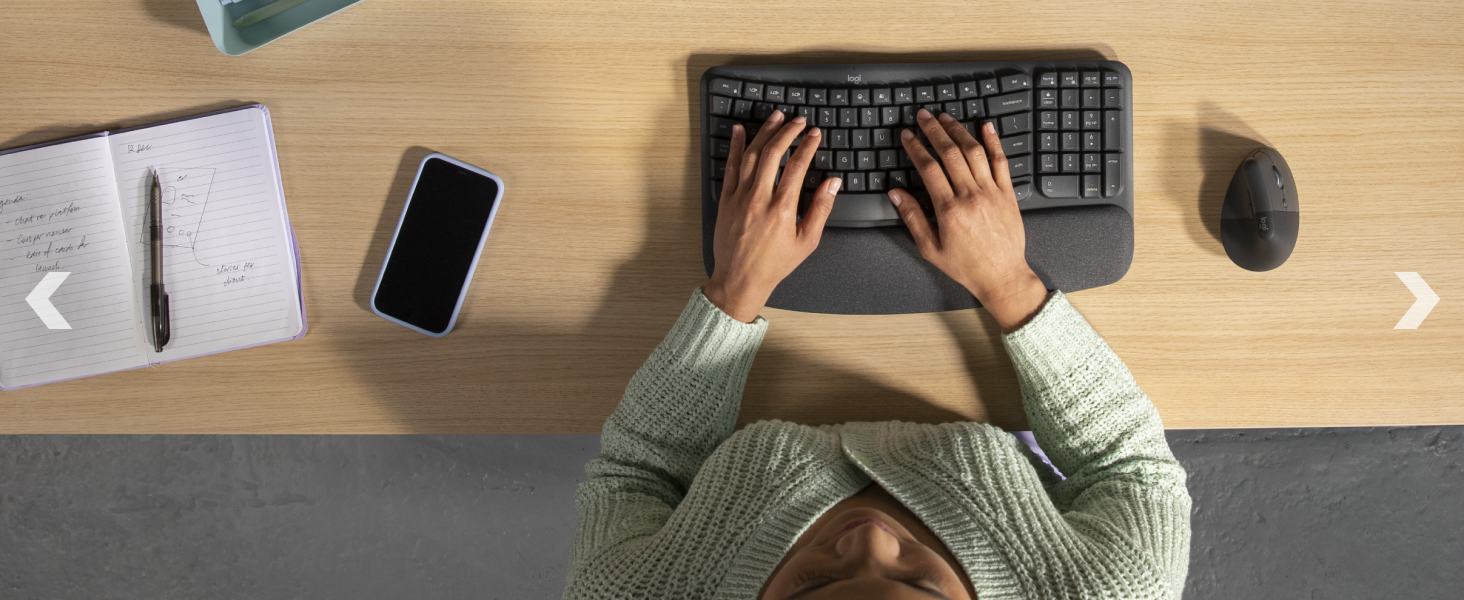
- Position your hands naturally on the wavy keyframe.
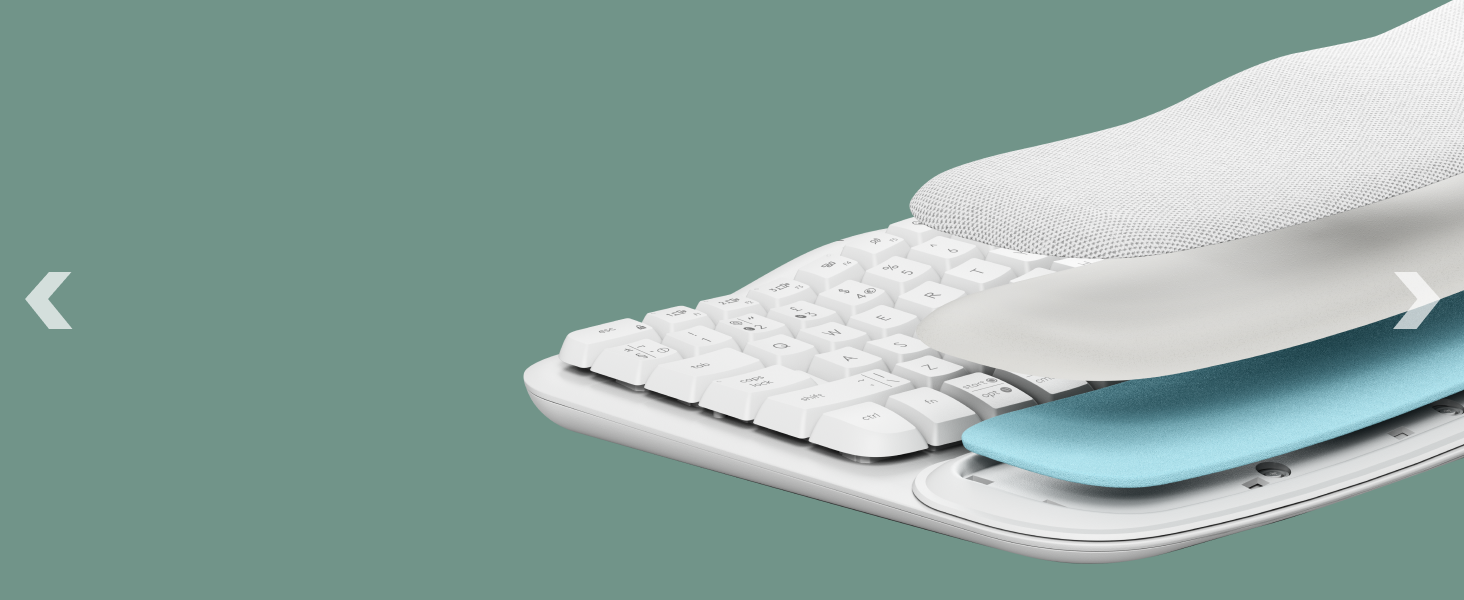
- Utilize the integrated cushioned palm rest to support your wrists, keeping them straight and relaxed.
- Adjust the tilt legs (+4°) on the underside of the keyboard for your preferred typing angle.
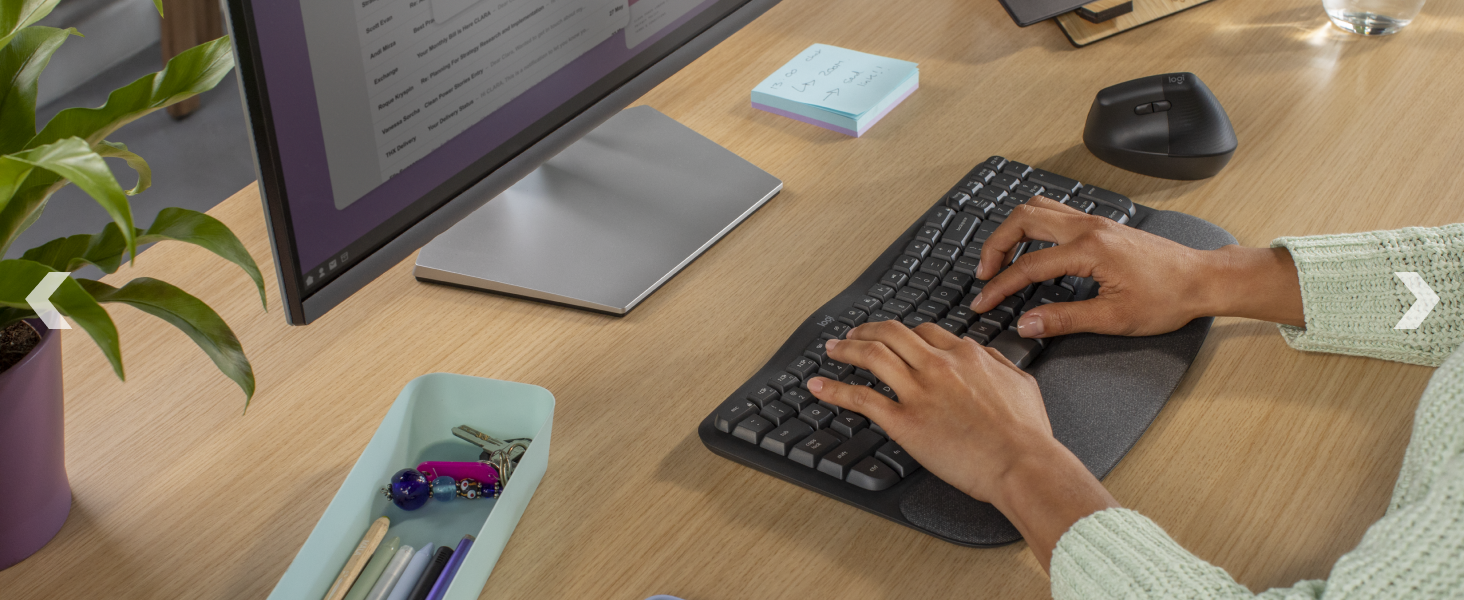
Hands comfortably positioned on the Logitech Wave Keys keyboard, demonstrating the ergonomic design with palm rest support.
2.1.2 Function Keys and Customization
- The top row of keys includes media controls and function keys (F1-F12).
- Use the Logi Options+ App to customize these keys and assign shortcuts for specific applications or actions.
2.2 マウスの使用
2.2.1 人間工学に基づいたグリップ
The Lift Vertical Mouse promotes a natural handshake position:
- Place your hand on the mouse so your palm rests comfortably on its vertical body.
- The 57-degree vertical angle helps reduce wrist pressure and promotes a more natural forearm posture.
- The textured grip and snug thumb rest are designed for small to medium hands.
A hand holding the Logitech Lift Vertical Mouse, demonstrating the natural handshake position facilitated by its vertical design.
2.2.2 SmartWheel and Customizable Buttons
- The SmartWheel offers precise line-by-line scrolling and switches to super-fast free-spin mode for long documents.
- The mouse features quiet clicks for a focused work environment.
- Utilize the Logi Options+ App to customize the side buttons for various functions, such as back/forward navigation or application-specific shortcuts.
2.3 Easy-Switch Functionality
Both the Wave Keys keyboard and Lift Vertical Mouse support Easy-Switch, allowing you to connect to and switch between up to three devices:
- Pair your devices with up to three different computers or operating systems using the Easy-Switch buttons (1, 2, 3).
- To switch between connected devices, simply press the corresponding Easy-Switch button on the keyboard or mouse. The LED indicator will light up for the selected channel.
3. メンテナンス
3.1 クリーニング
To maintain your devices, follow these cleaning guidelines:
- 掃除する前にキーボードとマウスの電源をオフにしてください。
- 柔らかく糸くずの出ない布で軽く拭き取ってください。amp水または中性で研磨剤を含まない洗剤で洗ってください。
- 液体をデバイスに直接吹きかけないでください。
- For keyboard keys, use compressed air to remove debris from between the keys.
3.2 電池の交換
Replace batteries when the low battery indicator appears or performance degrades:
- キーボード: Replace with two AAA batteries. The keyboard offers up to 3 years of battery life.
- ねずみ: Replace with one AA battery. The mouse offers up to 2 years of battery life.
- 使用済みバッテリーは、地域の規制に従って廃棄してください。
4。 トラブルシューティング
4.1 接続の問題
- デバイスが接続されていません: Ensure the keyboard and mouse are turned on and fully charged or have fresh batteries. Verify that the correct Easy-Switch channel is selected.
- Bluetoothペアリング失敗: Make sure your device's Bluetooth is enabled and the keyboard/mouse is in pairing mode (blinking LED). Try removing the device from your computer's Bluetooth list and re-pairing.
- Logi Bolt receiver issues: Ensure the receiver is securely plugged into a working USB port. Try a different USB port. Use the Logi Options+ App to re-pair the devices with the receiver if necessary.
- 干渉: Move the devices closer to your computer or receiver. Avoid placing them near other wireless devices or large metal objects that might cause interference.
4.2 Mouse Tracking Irregularities
- Sporadic tracking or cursor disappearance (especially on Windows PC): Ensure your operating system (e.g., Windows 11) and Logitech drivers are up to date. Check for any conflicting software or background processes. Try restarting your computer.
- Unresponsive cursor: Clean the mouse sensor on the underside of the mouse. Ensure you are using the mouse on a suitable surface; reflective or uneven surfaces can affect tracking.
4.3 デバイスが応答しない
- 電池を確認してください: 電池残量が少なくなったり消耗したりした場合は電池を交換してください。
- 電源サイクル: デバイスの電源をオフにしてから再度オンにします。
- Re-establish connection: セクション 1.3 の接続手順に従ってください。
4.4 Logi Options+ App Issues
- App not detecting devices: Ensure devices are connected and turned on. Restart the Logi Options+ App and your computer.
- Customizations not applying: Ensure the app is running in the background. Check for app updates.
5. 仕様
| 特徴 | 詳細 |
|---|---|
| ブランド | ロジテック |
| シリーズ | Lift Ergo |
| オペレーティングシステムの互換性 | Mac OS, Windows 7 and later, iPadOS, iOS |
| 色 | オフホワイト |
| 電源 | 電池駆動(キーボード:単4電池2本、マウス:単3電池1本) |
| 接続技術 | Bluetooth、Logi Bolt USBレシーバー |
| 特集 | Ergonomic Design, Wrist Support, Easy-Switch, Customizable Keys/Buttons, SmartWheel, Quiet Clicks |
| Movement Detection Technology (Mouse) | 光学 |
| キーボードのバッテリー寿命 | 最長3年 |
| マウスの電池寿命 | 最長2年 |
| Recycled Plastic Content (Keyboard) | 46% |
| Recycled Plastic Content (Mouse) | 54% |
6. 保証とサポート
6.1 保証情報
For detailed warranty information regarding your Logitech Wave Keys & Lift Vertical Mouse Ergonomic Bundle, please refer to the official Logitech web保証規定については、ウェブサイトまたは製品パッケージに同梱されている保証書をご覧ください。保証条件は地域によって異なる場合があります。
6.2 カスタマーサポート
If you encounter any issues or have questions not covered in this manual, please visit the official Logitech support webサポートサイト:
- ロジクールサポート: support.logi.com
- The Logi Options+ App also provides access to support resources and software updates.


