導入
Thank you for choosing the Cherry KW 3000 Wireless Keyboard. This full-size keyboard is designed for quiet and comfortable typing, featuring 2.4 GHz wireless technology for reliable connectivity with Windows and Mac operating systems. This manual provides essential information for setting up, operating, and maintaining your keyboard.
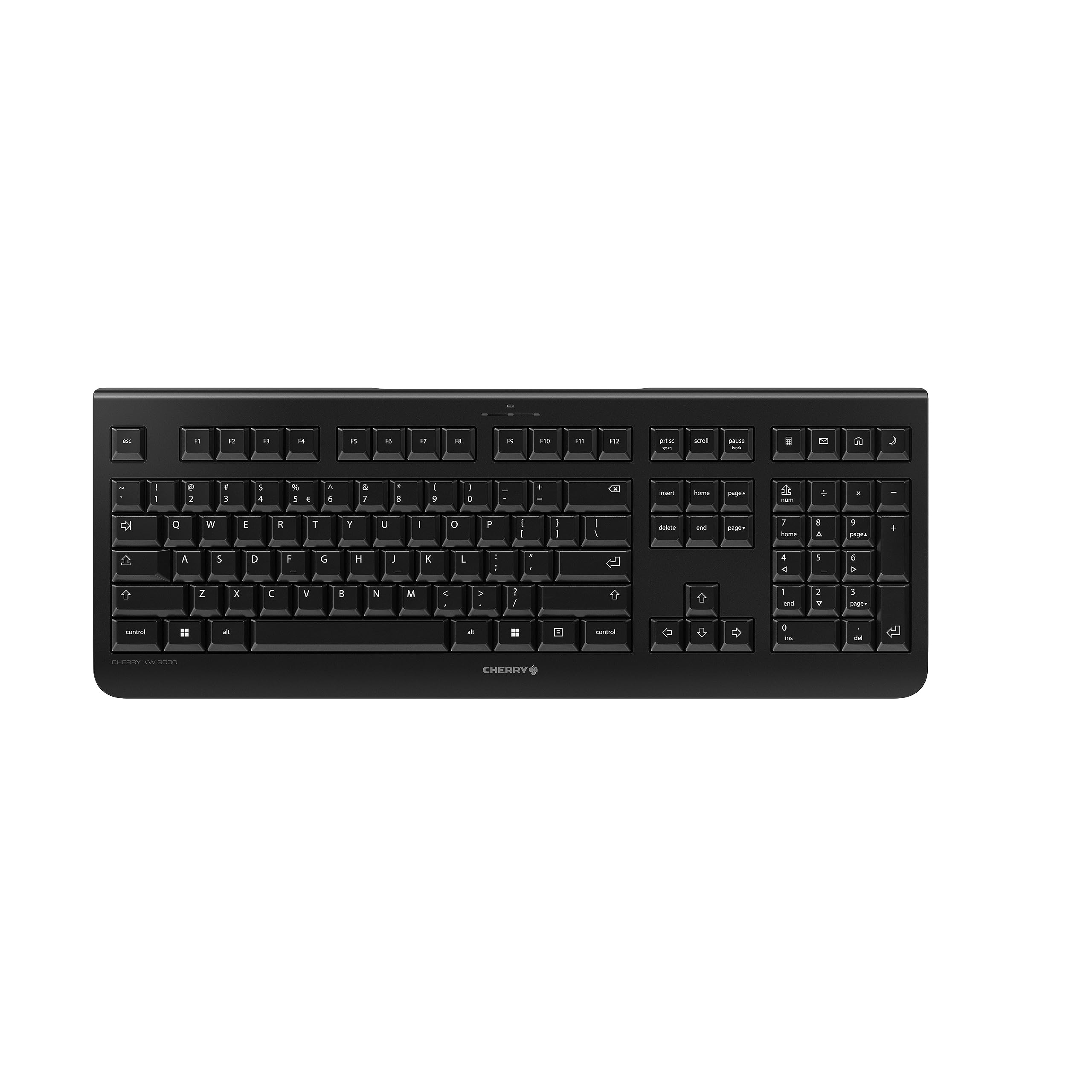
Image: The Cherry KW 3000 Wireless Keyboard, a full-size black keyboard, is shown on a light-colored desk mat. A laptop and an external monitor are visible in the background, indicating a typical office or home workspace setup. A computer mouse is also next to the keyboard.
パッケージ内容
パッケージに以下の項目が含まれているか確認してください。
- Cherry KW 3000 Wireless Keyboard
- USB Nano Receiver (dongle)
- 単2電池XNUMX本
- クイックスタートガイド(この文書)
設定
Follow these steps to set up your Cherry KW 3000 Wireless Keyboard:
- バッテリーの挿入: Locate the battery compartment on the underside of the keyboard. Open the cover and insert the two AAA batteries, ensuring correct polarity (+/-). Close the battery cover securely.
- USBレシーバーを接続します: Plug the USB nano receiver into an available USB-A port on your computer (Windows or Mac). The operating system will automatically detect and install the necessary drivers.
- 入力を開始: Your keyboard is now ready for use. There is no on/off switch; the keyboard enters a power-saving sleep mode automatically when not in use and wakes up with any key press.

Image: The underside of the keyboard is shown, highlighting the battery compartment. The adjustable feet are also visible in their extended position.

Image: A small black USB nano receiver, labeled 'CHERRY', is shown on a light-colored surface, ready to be plugged into a computer's USB port.
操作手順
基本使用
The Cherry KW 3000 features a standard full-size QWERTY layout, including a numeric keypad and function keys. Simply begin typing as you would with any standard keyboard.
ホットキー
The keyboard includes four dedicated hotkeys for quick access to common functions:
- 電卓: 電卓アプリケーションを開きます。
- メールアドレス: Launches your default email client.
- ブラウザ: デフォルトの web ブラウザ。
- スリープモード: Puts your computer into sleep mode.

画像: クローズアップ view of the upper right section of the keyboard, showing the four dedicated hotkeys with icons for calculator, email, web browser, and sleep mode.
調節可能な脚
For ergonomic comfort, the keyboard is equipped with stable fold-out feet on the underside. You can extend these feet to adjust the typing angle to your preference. The keyboard also features a non-slip bottom for stability.
画像: 副業file of the Cherry KW 3000 keyboard, illustrating its slim design and the adjustable feet extended to provide an elevated typing angle.
特徴
- 2.4 GHzワイヤレステクノロジー: Provides a stable and reliable connection with a range of up to 10 meters.
- フルサイズのレイアウト: Includes a numeric keypad and cursor keys for comprehensive functionality.
- 静かなメンブレンキー: Designed for low-noise typing, ideal for office and home environments.
- 耐久性に優れたデザイン: Built for longevity with a keystroke lifespan of up to 10 million actuations.
- ホットキー: Four convenient hotkeys for quick access to essential applications.
- 調整可能な人間工学: Fold-out feet allow for customizable typing angles.
- プラグアンドプレイ: Easy installation without the need for complex software.

Image: A close-up of the keyboard keys, emphasizing their low-profile design and durable lettering, indicative of a quiet and long-lasting typing experience.
メンテナンス
クリーニング
To clean your keyboard, disconnect the USB receiver from your computer. Use a soft, lint-free cloth slightly dampened with water or a mild cleaning solution. Avoid excessive moisture and do not spray cleaners directly onto the keyboard. For cleaning between keys, use compressed air or a small brush.
バッテリー交換
When the keyboard's performance degrades or it stops responding, it's likely time to replace the batteries. Open the battery compartment on the underside, remove the old AAA batteries, and insert new ones, observing the correct polarity. Dispose of old batteries responsibly according to local regulations.
トラブルシューティング
- キーボードが反応しない:
- USB レシーバーがコンピューターの動作中の USB ポートにしっかりと差し込まれていることを確認します。
- 電池を確認してください。電池残量が少ない場合や消耗している場合は交換してください。
- 範囲の問題を排除するには、キーボードを USB レシーバーに近づけます。
- USB レシーバーを別の USB ポートに接続してみてください。
- キーが固まったり反応しなくなったりする:
- Clean the keyboard as described in the Maintenance section to remove any debris that might be affecting key presses.
- 断続的な接続:
- Ensure there are no large metal objects or other wireless devices causing interference between the keyboard and the receiver.
- Try using the keyboard in a different location to check for environmental interference.
仕様
| 特徴 | 詳細 |
|---|---|
| モデル番号 | JK-3000EU-2 |
| 接続技術 | 2.4 GHz Wireless (USB-A receiver) |
| キーボードの説明 | 膜 |
| 対応デバイス | Mac、Windows |
| 特集 | Durable, Hotkeys and Media Keys, Wireless |
| 色 | 黒 |
| 材料 | プラスチック |
| 製品寸法 | 18.03 x 6.69 x 0.79 インチ (45.8 x 17 x 2 cm) |
| アイテム重量 | 1.11ポンド(0.5kg) |
| バッテリー | 単2電池XNUMX本(付属) |
| メーカー | チェリー |
保証とサポート
Cherry products are manufactured to high-quality standards. This product comes with a standard manufacturer's warranty against defects in materials and workmanship. For specific warranty terms, duration, and to access customer support, please refer to the official Cherry web購入サイトをご覧いただくか、カスタマーサービスに直接お問い合わせください。保証請求のために購入証明書を保管してください。
安全情報
- キーボードを液体や過度の湿気にさらさないでください。
- 極端な温度を避けてください。
- キーボードを分解したり改造したりしないでください。保証が無効になります。
- 電池はお子様の手の届かないところに保管してください。 飲み込んだ場合は、直ちに医師の診察を受けてください。
- 電池や電子廃棄物は責任を持って処分してください。


