1. はじめに
This manual provides essential instructions for the installation, operation, and maintenance of your PureLink Vuelogic VB200 Huddle Space Videobar. Please read this manual thoroughly before using the product to ensure proper functionality and to prevent damage.
The PureLink Vuelogic VB200 is an all-in-one conferencing solution designed for huddle spaces and small to medium meeting rooms. It integrates a 4K camera, multiple microphones, and stereo speakers to provide a comprehensive audio and video experience.
2. 安全情報
デバイスの損傷を防ぎ、ユーザーの安全を確保するために、次の安全上の注意事項を守ってください。
- デバイスを水、湿気、または極端な温度にさらさないでください。
- デバイスを熱源の近くや直射日光の当たる場所に置かないでください。
- デバイスに付属の電源アダプタのみを使用してください。
- ご自身でデバイスを開けたり修理したりしないでください。すべての修理は資格のある専門家にご依頼ください。
- 操作中はデバイスの周囲に適切な換気を確保してください。
3.製品オーバーview
The PureLink Vuelogic VB200 combines a high-quality camera, microphone array, and speakers into a single, compact unit for streamlined video conferencing.
3.1. パッケージ内容
パッケージにすべてのアイテムが揃っていることを確認します。
- PureLink Vuelogic VB200 Videobar
- 電源アダプター
- USBケーブル
- 取り付けブラケット(付属している場合)
- クイックスタートガイド

Figure 3.1: The retail packaging for the PureLink Vuelogic VB200 Videobar, indicating it is an all-in-one conferencing solution.

図3.2:詳細 view of the product packaging, showing the model number VL-VB200 and UPC 4251364736913.
3.2. デバイスコンポーネント
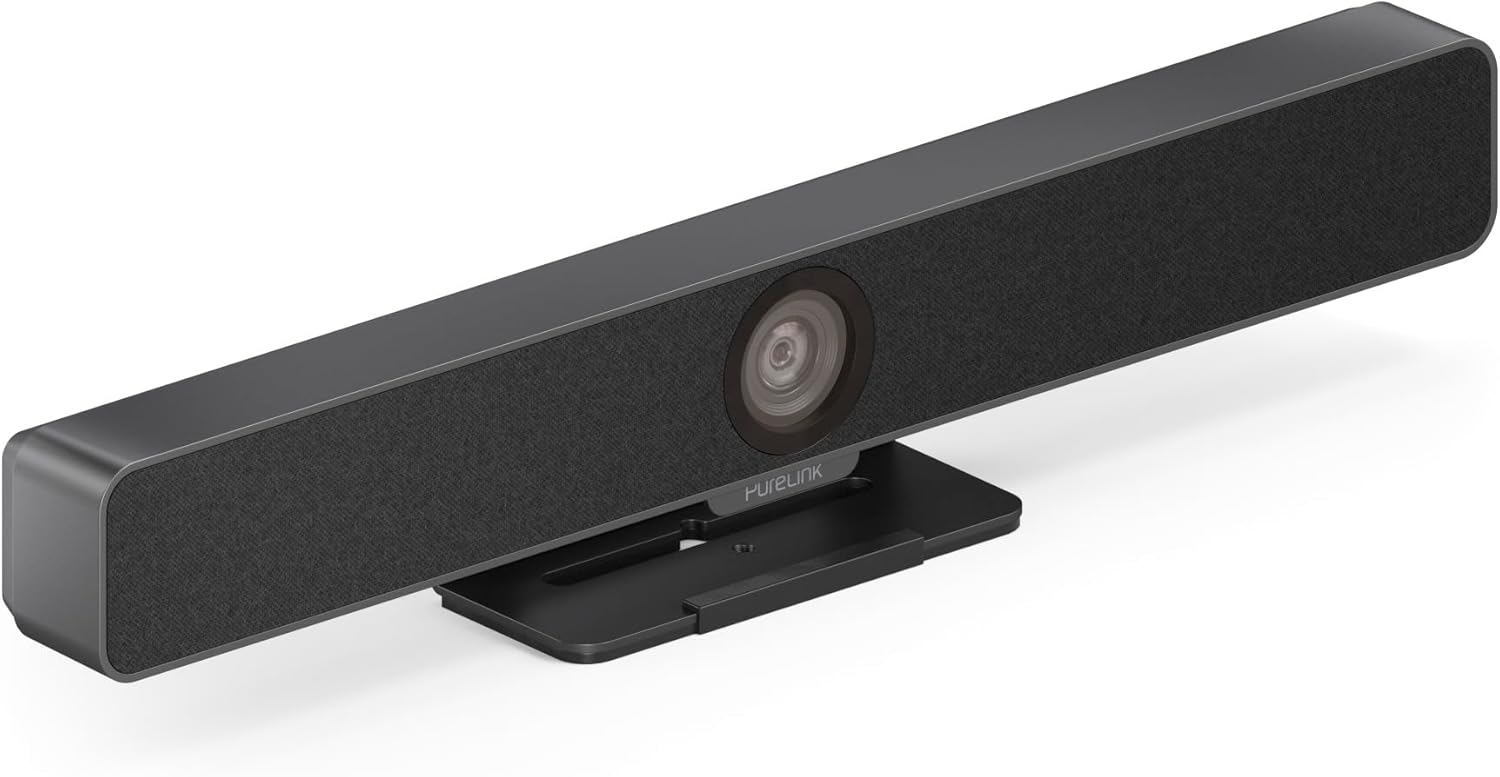
図3.3: 前面 view of the PureLink Vuelogic VB200 Huddle Space Videobar, showcasing the integrated camera and speaker grille.

図3.4: 前面と背面 views of the videobar. The rear view displays the power input, USB-C port, and other connectivity options.
- フロント: Integrated 4K camera, speaker grille, PureLink branding.
- 後方: Power input, USB-C port for data and power, HDMI output (if applicable), mounting points.
4. セットアップ
Follow these steps to set up your PureLink Vuelogic VB200 Videobar:
- 配置: Position the videobar on a stable surface, such as a table or monitor, ensuring the camera has a clear view of the meeting participants. The integrated stand allows for flexible placement.
- 電源接続: Connect the provided power adapter to the videobar's power input and then to a wall outlet.
- USB接続: Connect the videobar to your computer using the supplied USB-C cable. The device is plug-and-play and should be recognized automatically by your operating system.
- オプションのHDMI接続: If your setup requires video output to a display, connect an HDMI cable from the videobar's HDMI output (if available) to your display.
- ソフトウェア認識: Once connected, your computer's operating system (Windows, macOS, etc.) should detect the device. You may need to select the "PureLink Vuelogic VB200" as your preferred camera, microphone, and speaker in your video conferencing application settings (e.g., Zoom, Microsoft Teams, Web元)。

Figure 4.1: The videobar positioned on a surface, demonstrating its flexible mounting options for various work environments.
5. 操作手順
The PureLink Vuelogic VB200 is designed for ease of use with popular video conferencing platforms.
5.1. 会議の開始
- Ensure the videobar is connected and powered on.
- Open your preferred video conferencing application (e.g., Zoom, Microsoft Teams, WebEx, Google Meet, Skype, Slack, GoToMeeting).
- In the application's audio and video settings, select "PureLink Vuelogic VB200" as your camera, microphone, and speaker device.
- Start or join your meeting.

Figure 5.1: The videobar is compatible with leading communication platforms such as Zoom, Slack, GoToMeeting, Google Hangouts, Skype, Microsoft Teams, and Google Meet.
5.2. 主な特徴
- 4Kビデオ品質: The 120° wide-angle lens captures sharp, high-resolution video, suitable for small to medium rooms.
- Intelligent Auto Framing and Tracking: The camera automatically adjusts its frame to keep all participants visible and can track the active speaker, ensuring optimal framing during dynamic meetings.
- 高品質のオーディオキャプチャ: Equipped with 4 MEMS digital microphone arrays, offering a 3-5m range and 180° coverage. Features like Acoustic Echo Cancellation (AEC), Automatic Gain Control (AGC), and Automatic Noise Suppression (ANS) ensure clear communication.
- Hi-Fi Stereo Speakers: Two 3W stereo speakers with bass boost provide clear and powerful audio output for an immersive sound experience.
6. メンテナンス
To ensure the longevity and optimal performance of your videobar:
- クリーニング: Use a soft, dry cloth to clean the exterior of the device. For the camera lens, use a lens cleaning cloth and solution specifically designed for optics. Do not use abrasive cleaners or solvents.
- ストレージ: 長期間使用しない場合は、直射日光を避けて涼しく乾燥した場所に保管してください。
- ファームウェアの更新: Periodically check the PureLink webデバイスに最新の機能とパフォーマンス強化が適用されていることを確認するには、サイトで利用可能なファームウェア アップデートを確認してください。
7。 トラブルシューティング
If you encounter issues with your PureLink Vuelogic VB200, refer to the following common problems and solutions:
| 問題 | 考えられる原因 | 解決 |
|---|---|---|
| ビデオ出力なし / カメラが検出されません | Loose USB connection, incorrect software settings, driver issue. |
|
| No audio from speakers / Microphone not working | Incorrect audio settings, muted device. |
|
| Auto-framing not functioning correctly | Poor lighting, obstruction, software glitch. |
|
8. 仕様
| 特徴 | 詳細 |
|---|---|
| ブランド | ピュアリンク |
| モデル番号 | VL-VB200 |
| 寸法 | 20.47 x 7.87 x 5.12インチ |
| 重さ | 2.2ポンド |
| 色 | 黒 |
| ビデオキャプチャ解像度 | 4K |
| 光学ズーム | 5x |
| フォトセンサー技術 | シーモス |
| 特集 | Auto Framing and Tracking |
| マイクタイプ | 4 MEMS Digital Microphone Arrays |
| マイク範囲 | 3-5m, 180° coverage |
| オーディオ機能 | AEC、AGC、ANS |
| スピーカー | Two 3W Stereo Speakers with Bass Boost |
| 接続技術 | HDMI、USB |
| サポートされているオーディオ形式 | MP3、AAC、MPXNUMX |
| サポートされているビデオ形式 | MP4 |
| 互換性 | Windows, macOS, Zoom, WebEx, Tencent Meeting, Teams, etc. |
9. 保証とサポート
PureLink products are designed for reliability and performance. For specific warranty information, please refer to the warranty card included with your product or visit the official PureLink webサイト。
For technical support, troubleshooting assistance, or to inquire about service, please contact PureLink customer support through their official channels. Keep your purchase receipt and product model number (VL-VB200) handy when contacting support.
Official PureLink Webサイト: www.purelink.de


