導入
The Makeid L1 Label Maker Machine is a portable, wireless thermal printer designed for creating custom labels for home, school, and office use. It connects wirelessly to your smartphone via Bluetooth, allowing you to design and print labels with various fonts, templates, and icons using the dedicated MakeID-Life app. This manual provides comprehensive instructions for setting up, operating, and maintaining your L1 Label Maker.

Figure 1: Makeid L1 Label Maker Machine and example ラベル。
箱の中身
Upon unboxing your Makeid L1 Label Maker, please ensure all the following items are present:
- Makeid L1 Label Maker Machine (Beige, 203dpi model)
- One 4-meter roll of label tape
- USB充電ケーブル
- ユーザーマニュアル(このドキュメント)
設定
1. デバイスの充電
Before first use, fully charge your Makeid L1 Label Maker. Connect the provided USB charging cable to the label maker and a compatible USB power source (e.g., computer USB port, wall adapter). The indicator light will show charging status.

Figure 2: Power on/off button and charging port location.
2. ラベルテープをセットする
The Makeid L1 supports various label tape widths and types. To load tape:
- ラベルメーカーの蓋を開けます。
- Insert the label tape roll into the designated slot, ensuring the tape feeds out correctly.
- 蓋をしっかりと閉めてください。
Figure 3: Instructions for opening the lid and replacing tape.

図4:例amples of compatible label tapes.
3. アプリのダウンロードとBluetooth接続
The Makeid L1 operates via the "MakeID-Life" app. Follow these steps to connect:
- Download the "MakeID-Life" app from your smartphone's app store (Google Play for Android, App Store for iOS).
- スマートフォンでBluetoothが有効になっていることを確認します。
- Open the MakeID-Life app and follow the on-screen prompts to connect to your L1 Label Maker. The app will typically detect the device automatically.

Figure 5: Steps for downloading the app and connecting via Bluetooth.
The app offers free access and does not require account registration. It complies with applicable data protection laws.
操作手順
1. ラベルのデザイン
The MakeID-Life app provides extensive customization options:
- 文章: Enter your desired text. You can choose from multiple font styles and adjust size.
- アイコンとシンボル: Access a library of over 600 icons and symbols to enhance your labels.
- テンプレート: Utilize over 400 pre-designed templates for various purposes.
- 特殊機能: Create barcodes, QR codes, tables, dates, borders, and patterns. The app also supports drawing/doodling.

Figure 6: App features for label design.

Figure 7: Customizing labels with drawings in the app.
2. Printing Your Label
Once your design is complete:
- Review the print preview in the app to ensure the label appears as desired.
- Select the number of copies if needed.
- Tap the "Print" button in the app. The label maker will begin printing.

Figure 8: Workflow from app download to printing.
3. Cutting the Label
The Makeid L1 features a built-in cutter for clean and precise label separation. After printing, simply press the cutter button located on the side of the device to cut the label. No scissors or external blades are required.

Figure 9: Built-in cutter for professional and safe label cutting.
4. Label Types and Applications
The L1 supports both continuous and die-cut label tapes, offering versatility for various labeling needs. Labels are waterproof, oil-proof, friction resistant, light resistant, and do not fade, ensuring durability.

Figure 10: Continuous vs. Die-Cut label printing.

Figure 11: Durable and crisp print labels.
一般的な用途:
- ケーブル管理 Organize charging cables, headphones, and other electronic wires.
- オフィス組織: ラベル files, folders, shelves, and office supplies.
- Kitchen Storage: Label spice jars, food containers, and pantry items.
- Personal Items: Mark lunchboxes, water bottles, school supplies, and other personal belongings.
- Medical Reminders: Label pill organizers or medication bottles for clarity.
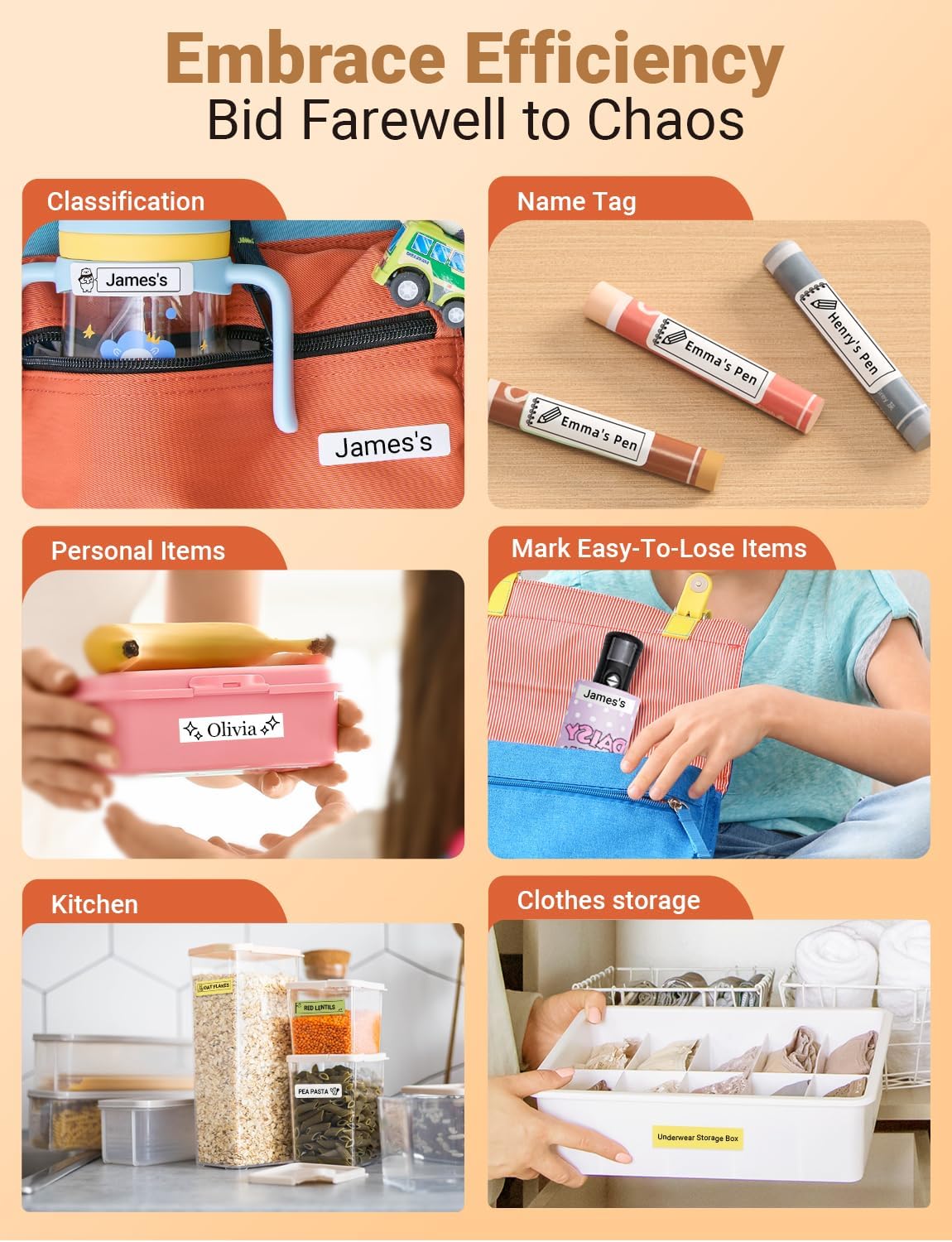
図12:例amples of how the label maker can be used for organization.

Figure 13: Diverse applications for the Makeid L1 label maker.
5. 公式製品ビデオ
Video 1: Official MakeID L1 Portable Bluetooth Thermal Label Maker overview. This video demonstrates the product's features, ease of use, and various applications for organization in different settings.
メンテナンス
To ensure the longevity and optimal performance of your Makeid L1 Label Maker:
- クリーニング: Regularly wipe the exterior of the device with a soft, dry cloth. For the print head, refer to the app's maintenance section or contact support for specific cleaning instructions to avoid damage.
- バッテリーのケア: Avoid completely draining the battery frequently. Charge the device when the battery is low. If storing for an extended period, charge it to about 50% and recharge every few months to preserve battery health.
- ストレージ: ラベルメーカーは、直射日光や極端な温度を避け、涼しく乾燥した場所に保管してください。
トラブルシューティング
If you encounter issues with your Makeid L1 Label Maker, try the following common troubleshooting steps:
| 問題 | 考えられる原因 | 解決 |
|---|---|---|
| デバイスの電源が入らない | バッテリー残量が少ない; 電源ボタンが正しく押されていない | デバイスを完全に充電します。電源ボタンを数秒間押し続けます。 |
| Bluetooth経由で接続できません | Bluetooth off; Device out of range; App issue | Ensure Bluetooth is on. Move device closer to phone. Restart app/phone. |
| 印刷品質が悪い | Low battery; Dirty print head; Incorrect label type | Charge device. Clean print head (refer to manual/support). Ensure correct label tape is used. |
| Label not feeding/cutting | Tape jammed; Cutter obstructed | Open lid and check for tape jams. Clear any obstructions around the cutter. |
If these steps do not resolve the issue, please contact Makeid customer support for further assistance.
仕様
| 特徴 | 詳細 |
|---|---|
| ブランド | マケイド |
| モデル名 | L1 |
| 印刷技術 | サーマル |
| 解決 | 203 x 203 DPI (current model) |
| 接続技術 | ブルートゥース |
| 対応デバイス | スマートフォン(iOSおよびAndroid) |
| 最大メディアサイズ | 1.6インチ |
| シートサイズ | 0.63インチ |
| 製品寸法 | 3.93 x 1.6 x 1.96インチ |
| アイテム重量 | 4.4オンス(126グラム) |
| バッテリー | リチウムイオン電池1個(付属) |
| 特集 | Continuous & Pre-cut Label Tapes, Waterproof, Oil-proof, Friction Resistant, Light Resistant, No Fading; Rich Font Icon Pattern, Portable, Inkless, Wireless, Rechargeable; Creative Print Functions: Barcode, Text, Picture, QR 2D Code, Table, Date, Border, Icon, Shape, Pattern, Template. |
保証とサポート
The Makeid L1 Label Maker Machine comes with a 生涯保証.
For technical support, warranty claims, or additional product information, please visit the official Makeid web公式サイトをご覧いただくか、カスタマーサービスまでお問い合わせください。詳細情報と連絡先は、 AmazonのMakeidストア.


