1. はじめに
1.1このマニュアルについて
This manual provides essential information for setting up, operating, maintaining, and troubleshooting your Fujitsu LIFEBOOK E546 laptop. Please read it carefully before using your device to ensure proper function and longevity.
1.2 製品終了view
The Fujitsu LIFEBOOK E546 is a business-class laptop designed for productivity and reliability. This particular unit is a refurbished model, professionally tested and renewed to function like new. It features an Intel Core i5-6200U processor, 8GB of RAM, a 256GB SSD, and a 14-inch Full HD (1920x1080) display. It comes pre-installed with Windows 10 Pro.

Image: Fujitsu LIFEBOOK E546 laptop, closed, showing the top lid with the Fujitsu logo.
2. セットアップ
2.1 開梱
すべての部品をパッケージから慎重に取り出します。以下のものがすべて揃っていることを確認してください。
- 富士通LIFEBOOK E546ノートパソコン
- ACアダプター
- 電源ケーブル
不足または破損した商品がある場合は、すぐにカスタマーサポートにご連絡ください。
2.2初期電源オン
Connect the AC adapter to the laptop's power input port and then to a functional power outlet. Open the laptop lid and press the power button, typically located near the keyboard. The system will guide you through the initial Windows 10 setup process, including language selection, network connection, and user account creation.

Image: Fujitsu LIFEBOOK E546 laptop open, viewed from an angle, showing the keyboard and screen. The power button is typically located near the keyboard.
3. 操作
3.1 電源管理
- オンにするには: 電源ボタンを押します。
- オフにするには: In Windows, click the Start button, then select Power > Shut down.
- スリープモード: ノートパソコンの蓋を閉じるか、[スタート] ボタンをクリックして、[電源] > [スリープ] を選択します。
3.2 周辺機器の接続
The LIFEBOOK E546 offers various ports for connecting external devices:
- USB ポート: Connect USB devices such as mice, keyboards, external storage drives, or printers to the three USB-A 3.0 ports.
- ビデオ出力: Use the VGA or DisplayPort for connecting external monitors or projectors.
- ネットワーク: Connect to a wired network using the Gigabit LAN (Gb LAN) port for stable internet access.
- オーディオ: Utilize the audio in/out ports for headphones, external speakers, or microphones.
- カード読み取り装置: Insert compatible memory cards into the card reader slot for data transfer.
- ドッキングステーション: A dedicated connector allows for integration with a compatible docking station (sold separately) for expanded connectivity.

画像: 左側 view of the Fujitsu LIFEBOOK E546, showing audio jacks and USB ports.
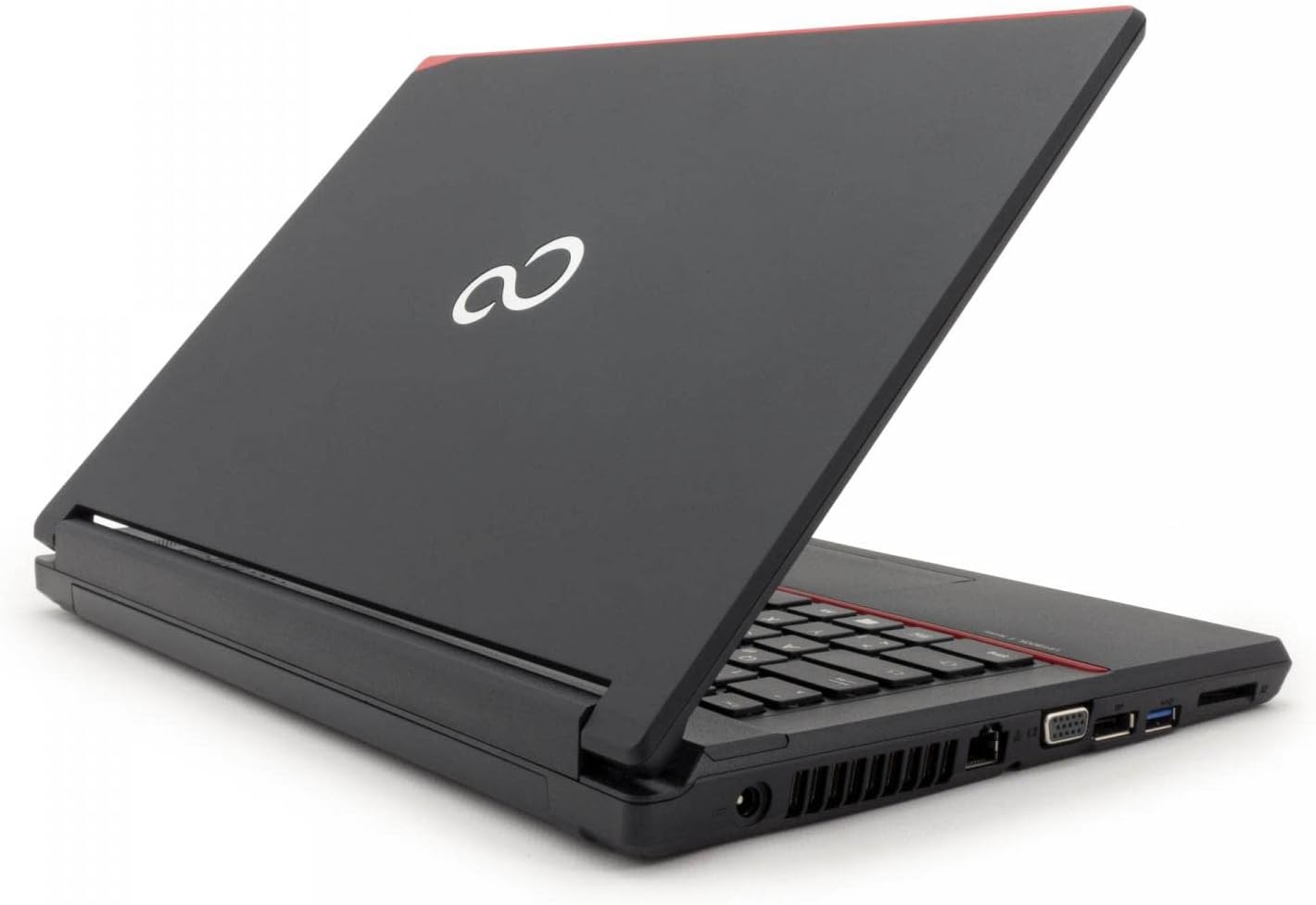
画像: 右側 view of the Fujitsu LIFEBOOK E546, showing VGA, DisplayPort, LAN, and other ports.
3.3 キーボードとタッチパッドの使用
The laptop features a full-sized keyboard for comfortable typing. The integrated touchpad allows for precise cursor control and supports multi-touch gestures such as scrolling and zooming. Refer to Windows settings for touchpad customization options.
4. メンテナンス
4.1 クリーニング
ノートパソコンの外観と機能を維持するには:
- 柔らかく、糸くずの出ない布を少し使用してください。ampディスプレイを清掃するには、水またはスクリーンクリーナーを使用してください。
- Wipe exterior surfaces with a soft, dry cloth.
- 表面を傷つける恐れがあるため、刺激の強い化学薬品、研磨剤入りの洗剤、溶剤の使用は避けてください。
- 掃除する前に、ノートパソコンの電源がオフになっており、プラグが抜かれていることを確認してください。
4.2ソフトウェアアップデート
最適なパフォーマンス、セキュリティ、互換性を確保するために、Windows オペレーティング システムとデバイス ドライバーを定期的に更新してください。Windows Update は設定メニューからアクセスできます。
4.3バッテリーケア
ノートパソコンのバッテリーの寿命を延ばすには:
- ノートパソコンを極端な温度(非常に暑いまたは寒い)にさらさないでください。
- Do not frequently fully discharge the battery. It is generally better to keep the charge between 20% and 80%.
- ノートパソコンを長期間保管する場合は、バッテリーが約 50% まで充電されていることを確認してください。
5。 トラブルシューティング
5.1 一般的な問題と解決策
- ノートパソコンの電源が入らない:
- Check power connection: Ensure the AC adapter is securely connected to the laptop and a working power outlet.
- Battery charge: If running on battery, ensure it is sufficiently charged.
- Screen is blank or no display:
- Check brightness settings: Increase screen brightness using the function keys.
- External monitor test: Connect an external monitor to the laptop to verify if the issue is with the laptop's internal display or the graphics output.
- パフォーマンスが遅い:
- Close unnecessary applications: Reduce the number of programs running simultaneously.
- Check for background processes: Use Task Manager (Ctrl+Shift+Esc) to identify and close resource-intensive background processes.
- Ensure sufficient free space: Verify that your 256GB SSD has adequate free space for optimal operation.
- 周辺機器が認識されません:
- Reconnect the device: Unplug and re-plug the peripheral.
- Try a different port: Test the device in another USB or relevant port.
- Update or reinstall drivers: Ensure the latest drivers for the peripheral are installed.
For more complex issues or persistent problems, refer to the official Fujitsu support webさらにサポートが必要な場合は、サイトを参照するか、テクニカル サポートにお問い合わせください。
6. 仕様
| 特徴 | 詳細 |
|---|---|
| モデル | Fujitsu LIFEBOOK E546 |
| プロセッサ | Intel Core i5-6200U (6th Generation) |
| ラム | 8ギガバイト |
| ストレージ | 256GB SSD |
| 画面 | 14 inches, 1920 x 1080 pixels (Full HD) |
| オペレーティング·システム | ウィンドウズ10プロ |
| グラフィックス | インテル HD グラフィックス 520 |
| 重さ | 1.9キログラム |
| ポート | 3x USB-A 3.0, Gb LAN, VGA, DisplayPort, Audio in/out, Card Reader, Docking Station connector |
| ヒューマンインターフェイス入力 | マイクロフォン |
| バッテリー構成 | リチウムイオン |
*Note: Specifications may vary slightly based on specific configuration or regional models.
7. 保証とサポート
7.1 保証情報
This Fujitsu LIFEBOOK E546 comes with a 1-year warranty. Please retain your proof of purchase for any warranty claims. The warranty covers manufacturing defects and ensures the product functions as described. It does not cover damage caused by misuse, accidents, unauthorized modifications, or normal wear and tear.
7.2 テクニカルサポート
For technical assistance, troubleshooting beyond this manual, or service requests, please visit the official Fujitsu support website or contact their customer service department. A "Recovery" shortcut is pre-installed on the desktop for system recovery options, which can help resolve software issues.