1. はじめに
Thank you for choosing the Stouchi 16K DisplayPort 2.1 Cable. This high-performance cable is designed to connect DisplayPort-enabled desktops, laptops, and graphics cards directly to monitors, HDTVs, and gaming displays. It supports crystal-clear audio and high-resolution video, providing a smooth and immersive visual experience. This manual provides essential information for proper setup, operation, and maintenance of your cable.
2. 主な特徴
- 高帯域幅: Supports 80Gbps for stable and fast signal transmission without loss.
- 超高解像度サポート: Compatible with 16K (15360x8640) at 60Hz, 10K (10240x4320) at 60Hz, 8K (7680x4320) at 120Hz, and 4K (3840x2160) at 240Hz/165Hz/144Hz.
- 下位互換性: Fully compatible with DisplayPort 2.0, 1.4, 1.3, 1.2, and 1.1 standards.
- 先端技術: Supports FreeSync and G-Sync for tear-free gaming, Display Stream Compression (DSC), and Dynamic HDR transmission.
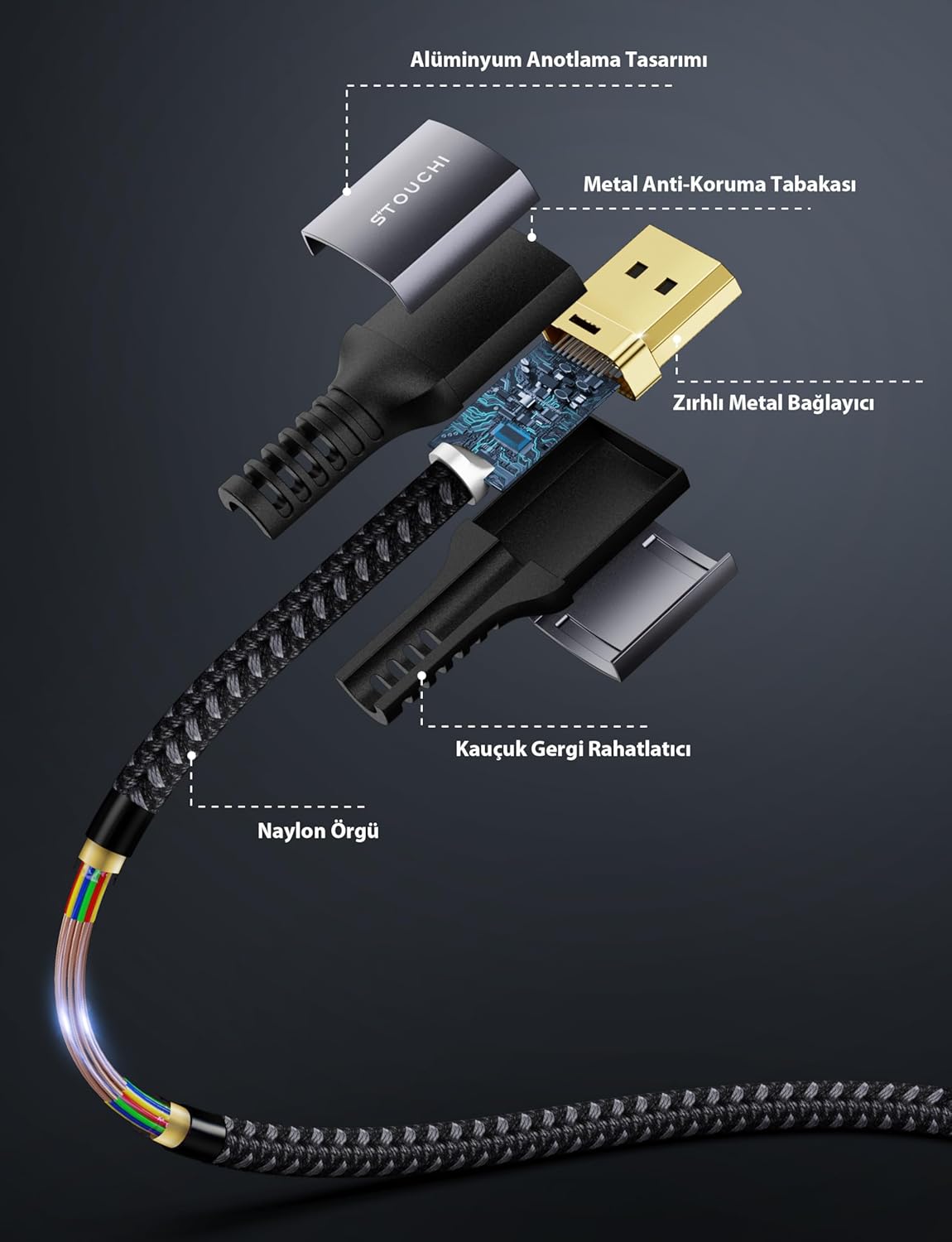
- 耐久性のある構造: Features 24K gold-plated connectors, 28 AWG tinned copper wire with triple-layer shielding, a high-quality nylon braided sleeve, and an aluminum alloy ultra-thin casing for reliable interference prevention and longevity.
- 耐久性の向上: Engineered to withstand over 30,000 bends, ensuring a long lifespan.
- ユーザーフレンドリーなデザイン: Features a no-latch design for easy connection and disconnection, and a slim profile to save space and prevent blocking adjacent ports.


3. セットアップ手順
Follow these steps to connect your Stouchi DisplayPort 2.1 Cable:
- ポートを識別します: Locate the DisplayPort output on your source device (e.g., computer, graphics card) and the DisplayPort input on your display device (e.g., monitor, HDTV). DisplayPort connectors are typically rectangular with one corner beveled.
- ケーブルを接続します: Gently insert one end of the Stouchi DisplayPort 2.1 cable into the DisplayPort output of your source device. Ensure it is fully seated.
- ディスプレイに接続: Insert the other end of the cable into the DisplayPort input of your display device. Ensure a firm connection.
- デバイスの電源をオンにします: ソースデバイスとディスプレイデバイスの電源を入れます。
- 入力を選択します: On your display device, use the input/source selection menu to choose the correct DisplayPort input.

4. 操作手順
After connecting the cable, you may need to adjust settings on your computer or display for optimal performance:
- ディスプレイの設定: On your computer, navigate to your operating system's display settings. Verify that the correct resolution and refresh rate are selected for your monitor. For Windows, right-click on the desktop and select 'Display settings' or 'Screen resolution'. For macOS, go to 'System Preferences' > 'Displays'.
- Graphics Card Control Panel: For advanced settings, such as enabling FreeSync or G-Sync, open your graphics card's control panel (e.g., NVIDIA Control Panel, AMD Radeon Software). Ensure that these features are enabled if your monitor and graphics card support them.
- オーディオ出力: If you are using the DisplayPort cable for audio transmission, ensure that your display device is selected as the audio output device in your computer's sound settings.
5. メンテナンス
To ensure the longevity and optimal performance of your Stouchi DisplayPort 2.1 Cable, follow these maintenance guidelines:
- クリーニング: Use a soft, dry cloth to gently wipe the cable and connectors. Avoid using liquid cleaners or abrasive materials, as these can damage the cable.
- ストレージ: 使用しない時は、ケーブルを直射日光や極端な温度を避け、涼しく乾燥した場所に保管してください。ケーブルを強く巻き付けたり、重いものを載せたりしないでください。
- 取り扱い: Always grasp the connector ends when plugging or unplugging the cable. Avoid pulling on the cable itself, as this can strain the internal wires and connectors. Do not bend the cable sharply, especially near the connectors.

6。 トラブルシューティング
If you encounter issues with your Stouchi DisplayPort 2.1 Cable, refer to the following troubleshooting steps:
- 信号なし/黒い画面:
- Ensure both ends of the cable are securely connected to the DisplayPort ports.
- Verify that your monitor is set to the correct DisplayPort input source.
- Try restarting both your computer and monitor.
- Test the cable with another DisplayPort-enabled device or try a different DisplayPort on your current devices, if available.
- グラフィック カード ドライバーが最新であることを確認してください。
- ちらつき/断続的な信号:
- ケーブルまたはコネクタに物理的な損傷がないか確認します。
- Reduce the display resolution or refresh rate in your computer's display settings to see if the issue persists. Some older hardware may not fully support the highest resolutions/refresh rates.
- Ensure the cable is not near sources of strong electromagnetic interference.
- 解像度またはリフレッシュ レートが正しくありません:
- Access your computer's display settings and manually select the desired resolution and refresh rate.
- グラフィック カード ドライバーを最新バージョンに更新します。
- Confirm that both your graphics card and monitor support the desired resolution and refresh rate.
If these steps do not resolve the issue, please contact Stouchi customer support.
7. 仕様
| 特徴 | 仕様 |
|---|---|
| ブランド | Stouchi |
| モデル番号 | D16K2 |
| ケーブルバージョン | DisplayPort 2.1 (Backward compatible with DP 2.0, 1.4, 1.3, 1.2, 1.1) |
| 帯域幅 | 80Gbps |
| サポートされている解像度とリフレッシュレート | 16K (15360x8640) @ 60Hz 10K (10240x4320) @ 60Hz 8K (7680x4320) @ 120Hz 4K (3840x2160) @ 240Hz/165Hz/144Hz |
| Key Technologies Supported | HDR, HDCP 2.2, DSC 1.2a, FreeSync, G-Sync |
| コネクタの材質 | 24K金メッキ |
| 導体材質 | 28 AWG Tinned Copper Wire |
| ケーブルジャケット | Nylon Braided Sleeve |
| Casing | Aluminum Alloy Ultra-thin Casing |
| 耐久性 | 30,000+ bend lifespan |
| 対応デバイス | Computer, Monitor, Graphics Card |
| ケーブル長さ | 2メートル(6.6フィート) |

8. 保証とサポート
Stouchi offers a lifetime warranty for this product. To benefit from the lifetime warranty, customers are encouraged to register their product on the official Stouchi webサイト。
For any issues, questions, or support needs, please contact our dedicated support team:
メールアドレス: お問い合わせ


