1. はじめに
This manual provides comprehensive instructions for the safe and efficient use of your MARKLIFE P50 Portable Bluetooth Thermal Label Printer. Please read this manual thoroughly before operating the device and retain it for future reference.
2. 安全情報
- デバイスを分解、修理、または変更しないでください。
- デバイスを水、湿気、高温から遠ざけてください。
- Use only MARKLIFE approved labels and accessories.
- 印刷直後はプリントヘッドが熱くなっている可能性があるので、触らないでください。
- お子様の手の届かない場所に保管してください。
3. パッケージ内容
パッケージにすべてのアイテムが含まれていることを確認します。
- MARKLIFE P50 ラベルプリンター
- 3 Rolls of Labels (2x 1.57"x1.18" white gap labels, 1x 2"x2" circle gap label)
- USB-C充電ケーブル
- ユーザーマニュアル(このドキュメント)
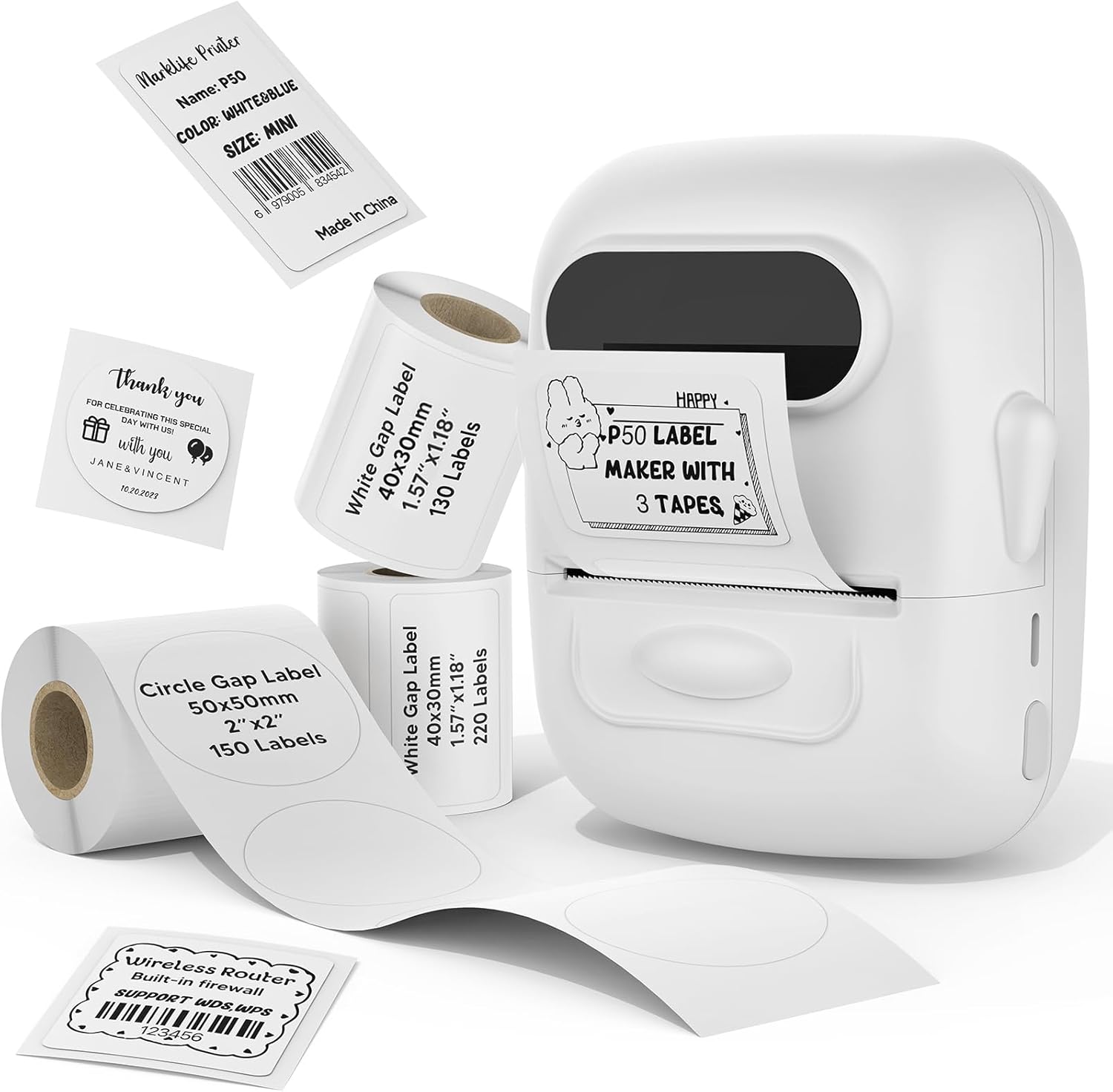
Image: MARKLIFE P50 Label Printer and various label rolls included in the package.
4.製品オーバーview
The MARKLIFE P50 is a compact, portable thermal label printer designed for various labeling needs. It connects wirelessly via Bluetooth to your smartphone or tablet and can also connect to a Windows PC via USB. It utilizes thermal printing technology, requiring no ink, and supports black and white printing only.

Image: The MARKLIFE P50 printer being placed into a handbag, highlighting its portable design and built-in 1200mAh battery with Type-C charging.
5. セットアップ
5.1デバイスの充電
Before first use, fully charge the printer using the provided USB-C cable and a compatible power adapter (not included). The charging indicator light will show the charging status.
5.2 ラベルの読み込み
- ラベルコンパートメントカバーを開きます。
- 印刷面を上に向けてラベルロールを挿入します。
- Ensure the label edge is aligned and extends slightly out of the printer slot.
- Close the cover firmly. The printer will automatically detect the label type and size.

Image: Illustration of label loading and compatible label widths (0.59 to 2.24 inches) for the P50 printer.
5.3 App Installation and Bluetooth Pairing (for Mobile Devices)
- Download the "Marklife" app from your device's app store (iOS or Android).
- Turn on the P50 printer.
- スマートフォンまたはタブレットでBluetoothを有効にします。
- Open the Marklife app and follow the on-screen instructions to connect to your P50 printer. The app will typically detect the printer automatically.
5.4 PC Connection (for Windows)
For Windows PC connectivity, download the official software from the MARKLIFE website. Connect the printer to your PC using the USB-C cable. The software will guide you through the printing process.

Image: The P50 label printer connected to both a laptop and a smartphone, illustrating its support for mobile and PC devices.
6. 操作
6.1 Basic Printing (via App)
- Ensure the printer is powered on and connected to the Marklife app.
- Select a template or create a new label design within the app.
- Enter your desired text, add images, barcodes, or QR codes.
- Adjust print settings (e.g., quantity, density) as needed.
- アプリ内の「印刷」ボタンをタップして印刷を開始します。

Image: Various label applications, such as clothing tags with barcodes, handmade soap labels, and price tags for baked goods, demonstrating the printer's versatility.
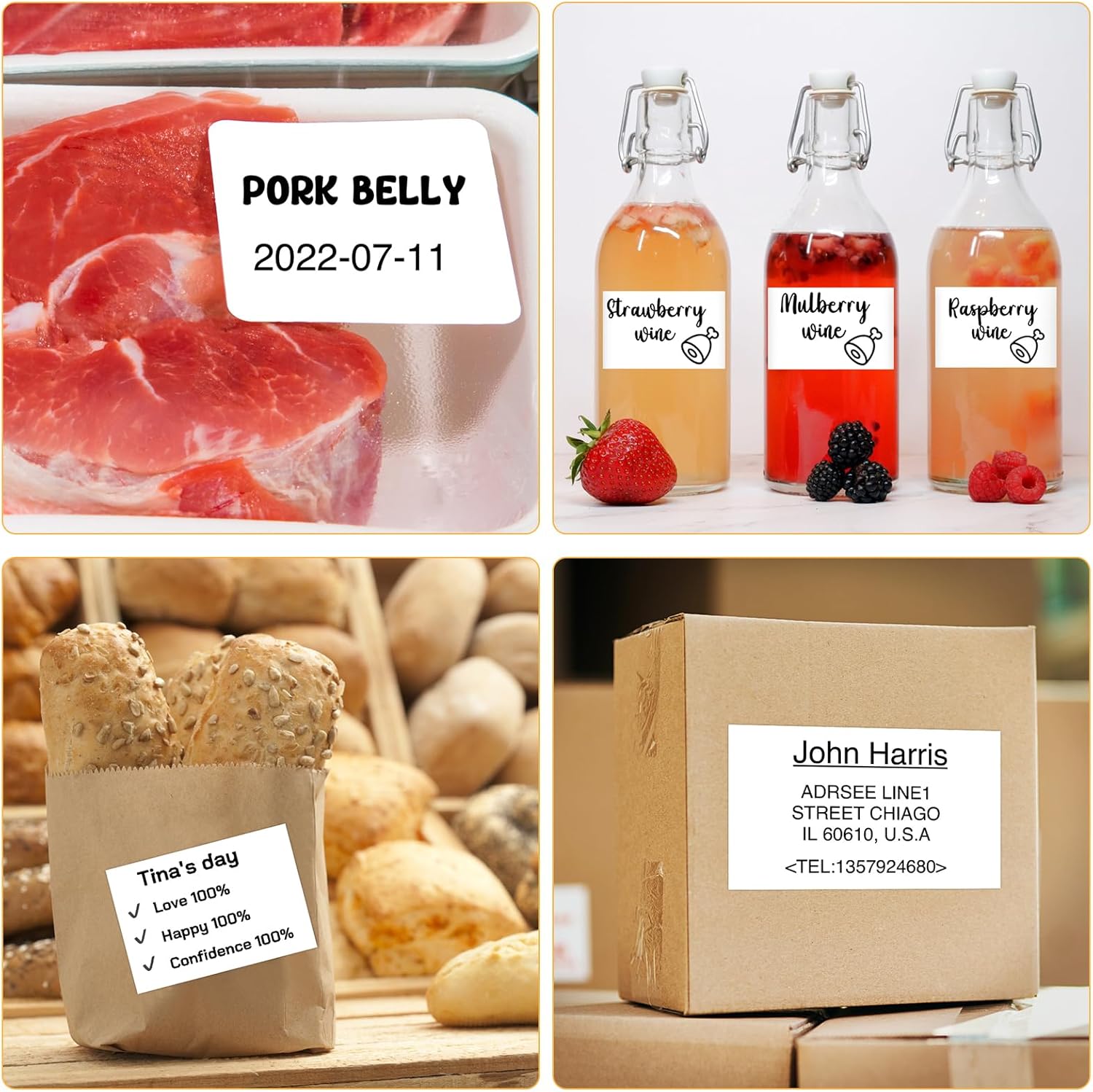
画像: Examples of labels for food items (pork belly, beverages) and a shipping address label, showcasing different label content possibilities.
6.2 バッチ印刷
The Marklife app supports batch printing for multiple copies of the same label or sequential labels. Refer to the app's specific instructions for detailed steps on batch printing functionality.

Image: The MARKLIFE P50 printer actively printing multiple barcode labels in a batch, demonstrating stable printing over a long duration.
7. メンテナンス
- プリントヘッドのクリーニング: 柔らかく糸くずの出ない布を軽く拭いてください。ampened with alcohol to gently wipe the print head. Ensure the printer is off and cooled down before cleaning.
- 外装の清掃: Wipe the printer's exterior with a soft, dry cloth. Do not use harsh chemicals.
- ラベル保管場所: Store label rolls in a cool, dry place away from direct sunlight to preserve their quality.
8。 トラブルシューティング
| 問題 | 考えられる原因 | 解決 |
|---|---|---|
| プリンターが起動しない | バッテリー残量不足または電源の問題 | Charge the printer using the USB-C cable. |
| Bluetooth経由で接続できません | Bluetoothがオフ、アプリに問題がある、またはプリンターが検出できない | Ensure Bluetooth is enabled on your device. Restart the printer and the app. Try re-pairing. |
| 印刷品質が悪い | Dirty print head, incorrect label loading, or low print density setting | Clean the print head. Re-load labels correctly. Adjust print density in the app. |
| ラベルが正しく送られない | Improper label loading or label jam | Open the cover, re-seat the label roll, ensuring it's aligned. Clear any jammed labels. |
9. 仕様
| 特徴 | 詳細 |
|---|---|
| モデル | P50 |
| 印刷技術 | サーマル |
| 接続性 | ブルートゥース、USB |
| 対応デバイス | Android、iOS、Windows PC |
| 最大メディアサイズ | 2インチ(57mm) |
| Print Width Range | 0.59インチ - 2.24インチ (15mm - 57mm) |
| プリンタ出力 | モノクロ(白黒) |
| バッテリー | 内蔵1200mAh(充電可能) |
| 充電ポート | USB-C |
| 製品寸法 | 奥行き4インチ x 幅3インチ x 高さ2インチ(約) |
| アイテム重量 | 6オンス(約) |
10. 保証とサポート
The MARKLIFE P50 Label Printer comes with a limited warranty. For warranty details, technical support, or customer service inquiries, please refer to the official MARKLIFE web購入サイトから購入するか、カスタマーサポートに直接お問い合わせください。購入証明書としてレシートを保管してください。
メーカー: マークライフ


