1. はじめに
This manual provides essential information for the proper setup, operation, and maintenance of your Sharp 32FG6EA 32-inch HD Android TV. The Sharp 32FG6EA offers a wide range of connection options and features the Android TV operating system, providing a modern and intuitive television experience. It functions as an all-in-one entertainment hub, integrating Google Assistant for a smarter viewing experience. Users can quickly access entertainment, control smart devices, and obtain on-screen information using voice commands.
2. 安全情報
テレビをご使用になる前に、すべての安全に関する注意事項をよくお読みください。このマニュアルは、今後の参考のために保管してください。
- 電源: テレビが適切な音量で電源に接続されていることを確認してくださいtage. 電源コンセントに過負荷をかけないでください。
- 換気: 通気口を塞がないでください。過熱を防ぐため、テレビの周囲に十分なスペースを確保し、適切な空気の流れを確保してください。
- 水と湿気: Do not expose the TV to rain, moisture, or excessive humidity. Avoid placing objects filled with liquids on or near the TV.
- クリーニング: 清掃する前にテレビの電源プラグを抜いてください。柔らかく乾いた布を使用してください。液体クリーナーやエアゾールスプレーは使用しないでください。
- 配置: Place the TV on a stable, level surface. If wall-mounting, ensure the mount is securely installed and can support the TV's weight.
- サービス: テレビの修理はご自身で行わないでください。修理はすべて資格を持ったサービス担当者にお任せください。
3. パッケージ内容
パッケージ内のすべてのアイテムが揃っていることを確認します。
- Sharp 32FG6EA 32-inch HD Android TV
- リモコン(単4電池2本付き)
- Stand Type Base
- 取扱説明書
- 電源ケーブル
4. セットアップ
4.1 開梱
テレビとすべての付属品を梱包から慎重に取り出してください。梱包材は、今後の輸送や修理の際に必要となるため、保管しておいてください。
4.2 スタンドの取り付け
If you are not wall-mounting the TV, attach the included stand base:
- 損傷を防ぐため、テレビ画面を下にして柔らかく平らな面に置いてください。
- スタンドベースをテレビの下部にある取り付け穴に合わせます。
- 付属のネジを使用してスタンドを固定します。スタンドがしっかりと固定されていることを確認してください。
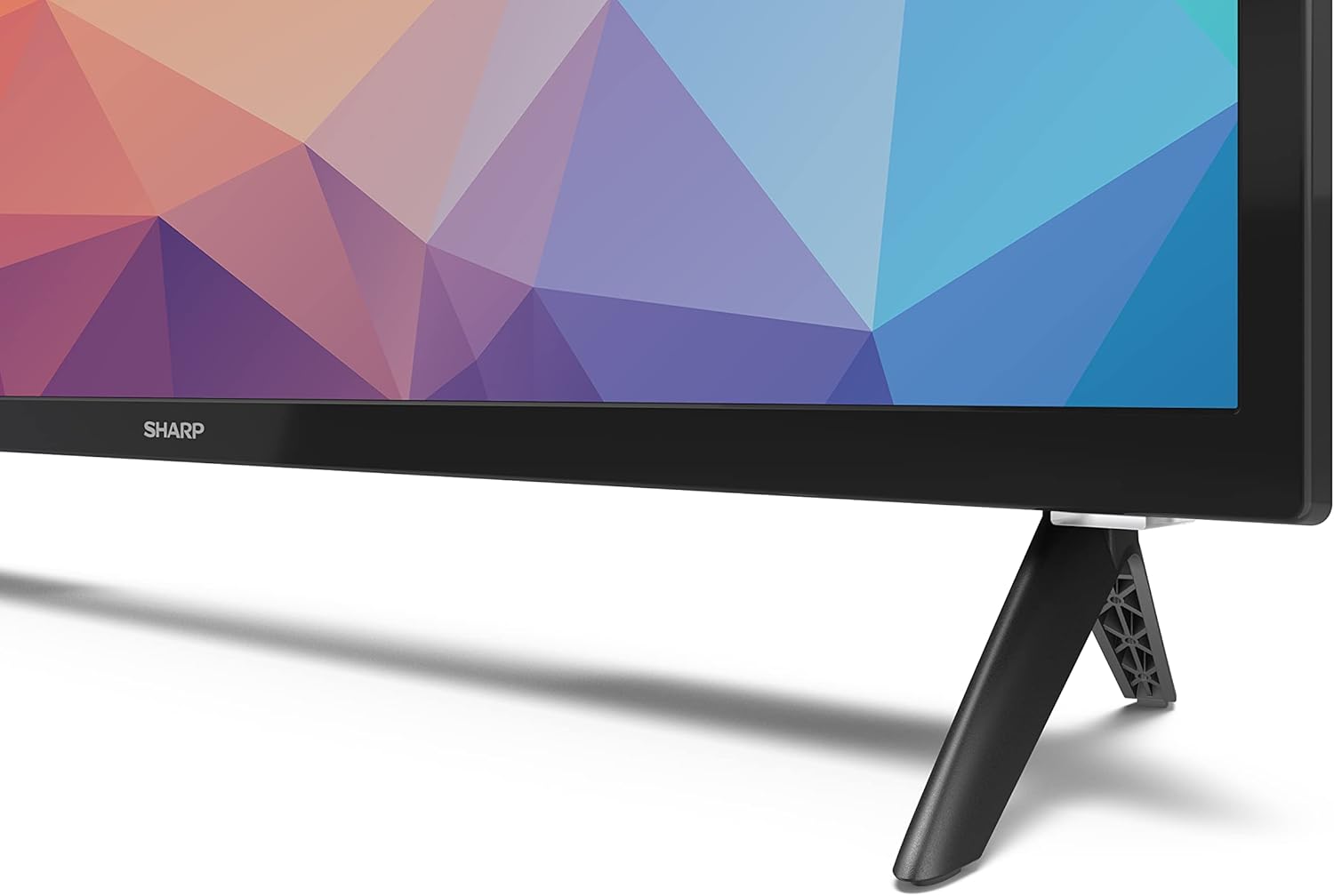
Image: Close-up of the TV stand attachment.
4.3 壁面への取り付け
The Sharp 32FG6EA supports VESA wall mounts with dimensions of 75 x 75 mm. Wall mount hardware is not included. Follow the instructions provided with your wall mount kit.
4.4 外部機器の接続
Your TV features multiple ports for connecting various devices:
- HDMI: Connect Blu-ray players, game consoles, or set-top boxes to the 2 HDMI ports.
- USB: Connect USB storage devices for media playback to the 2 USB ports.
- アンテナ/ケーブル: Connect an antenna or cable TV source for broadcast channels.
- イーサネット: 有線インターネット接続用。
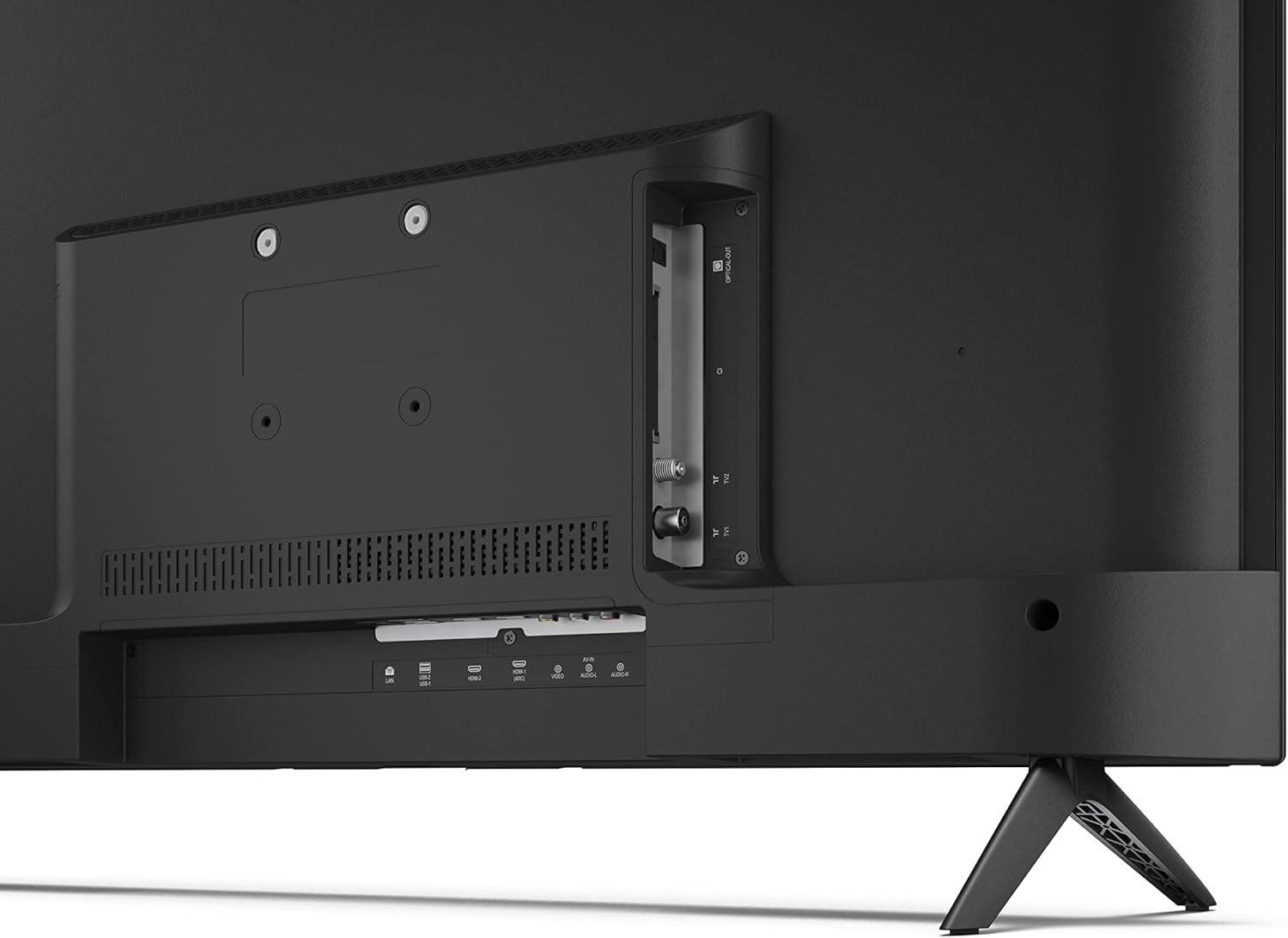
画像: 背面 view 接続ポートを備えたテレビの。
4.5電源接続
After connecting all necessary devices, plug the power cable into the TV and then into a wall outlet.
4.6 初期セットアップウィザード
初めて電源を入れると、テレビが初期設定の手順を案内します。これには以下の内容が含まれます。
- 言語選択。
- ネットワーク接続 (Wi-Fi または Ethernet)。
- Google account sign-in (required for full Android TV features).
- チャンネルスキャン。
5.運用
5.1 リモートコントロールオーバーview
The included remote control allows you to navigate the TV's features. Insert the 2 AAA batteries into the remote control before use.
- 電源ボタン: テレビの電源をオンまたはオフにします。
- 方向パッド(Dパッド)とOKボタン: メニューを移動し、選択内容を確認します。
- 戻るボタン: 前の画面に戻ります。
- ホームボタン: Android TV のホーム画面にアクセスします。
- 音量を上げる/下げる: オーディオの音量を調整します。
- チャンネルアップ/ダウン: テレビのチャンネルを変更します。
- Google アシスタント ボタン: 音声制御を有効にします。
- アプリのショートカットボタン: Dedicated buttons for popular streaming services like Netflix, Prime Video, and YouTube.
5.2 Android TV Interface Navigation
The Android TV home screen provides access to your installed apps, recommended content, and settings. Use the directional pad on your remote to navigate through the interface.
5.3Googleアシスタント
リモコンの Google アシスタント ボタンを押して、マイクに向かって話しかけると、次のことができます。
- 検索する movies, shows, or information.
- スマートホームデバイスを制御します。
- アプリケーションを開きます。
- テレビの設定を調整します。
5.4 Chromecast Built-in
The TV includes Chromecast built-in, allowing you to cast content from compatible apps on your smartphone, tablet, or computer directly to the TV screen.
5.5 Bluetooth接続
Connect Bluetooth devices such as headphones or speakers to your TV for a personalized audio experience. Navigate to the TV's settings menu to pair new Bluetooth devices.
5.6 オーディオ設定
The TV supports Dolby Audio with 2 x 6 W RMS speakers. You can adjust audio settings, including sound modes and equalizer, through the TV's settings menu.
6. メンテナンス
6.1 テレビの掃除
To clean the TV screen and cabinet:
- 電源コードを壁のコンセントから抜きます。
- Use a soft, lint-free cloth to gently wipe the screen and surfaces.
- 頑固な汚れには、軽くamp布を水または専用のスクリーンクリーナーで拭きます(スクリーンに直接塗布するのではなく、布に塗布します)。
- 研磨剤入りの洗剤、ワックス、溶剤は使用しないでください。
6.2ソフトウェアアップデート
Android TVは、パフォーマンスの向上や新機能の追加のため、定期的にソフトウェアアップデートを受け取る場合があります。アップデートを受け取るには、TVがインターネットに接続されていることを確認してください。TVの設定メニューから手動でアップデートを確認できます。
7。 トラブルシューティング
テレビで問題が発生した場合は、次の一般的な問題と解決策を参照してください。
- 電源なし: 電源ケーブルがテレビと壁のコンセントの両方にしっかりと差し込まれていることを確認してください。別のコンセントで試してみてください。
- 画像/音声なし: Check that the correct input source is selected. Verify all cables (HDMI, antenna) are properly connected.
- リモコンが動作しない: Check the batteries and ensure they are inserted correctly. Point the remote directly at the TV's IR sensor.
- 画質が悪い: Check antenna/cable connections. Adjust picture settings in the TV menu. For streaming content, ensure a stable internet connection.
- インターネット接続なし: Verify Wi-Fi password or Ethernet cable connection. Restart your router and the TV.
- 動作しないアプリ: Ensure the TV's software is up to date. Try clearing the app's cache or reinstalling the app.
If problems persist, consult the Sharp support webサイトをご覧いただくか、カスタマーサービスにお問い合わせください。
8. 仕様
| 特徴 | 仕様 |
|---|---|
| モデル番号 | 32FG6EA |
| ブランド | シャープ |
| 画面サイズ | 32インチ(対角81cm) |
| ディスプレイ技術 | 導かれた |
| 解決 | 720p(1366×768ピクセル) |
| アスペクト比 | 16:9 |
| リフレッシュレート | 50Hz |
| オペレーティング·システム | Android TV 11 |
| 特集 | Android TV, Google Assistant, Chromecast built-in |
| オーディオ出力 | 2 x 6 W RMS, Dolby Audio |
| HDMIポート | 2 |
| USBポート | 2 |
| 接続性 | Wi-Fi、Bluetooth、イーサネット |
| VESA ウォールマウント | 75×75ミリ |
| スタンドを含む寸法 (幅 x 高さ x 奥行き) | 731 x 486 x 177 ミリメートル |
| スタンドなしの寸法(幅 x 高さ x 奥行き) | 731 x 433 x 68 ミリメートル |
| 製品寸法(奥行き×幅×高さ) | 16 x 73 x 46.4 cm (approximate, with stand) |
| 重さ | 3.9キロ |
| エネルギー効率クラス | E |

Image: TV dimensions diagram.

Image: Energy Label. For more details, visit EPRELデータベース.
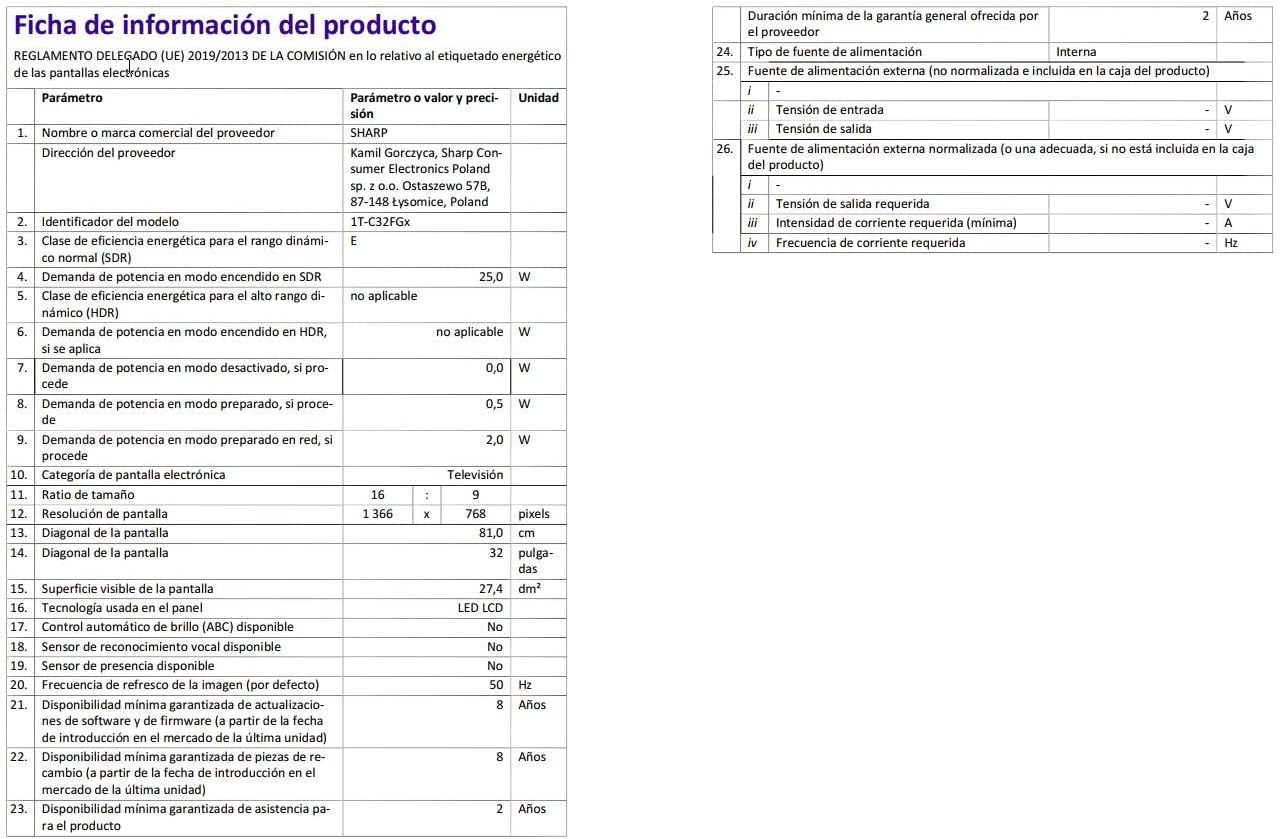
Image: Detailed product information sheet.
9. 保証とサポート
The Sharp 32FG6EA television comes with a minimum general warranty duration of 2 years from the provider.
For technical support, warranty claims, or further assistance, please refer to the contact information provided with your purchase documentation or visit the official Sharp support webあなたの地域のサイト。


