導入
Thank you for choosing the FANTECH MAXFIT61 Frost Wireless Mechanical Keyboard. This compact 61-key keyboard offers versatile connectivity options, customizable RGB lighting, and hot-swappable switches for a personalized typing and gaming experience. This manual provides detailed instructions for setup, operation, maintenance, and troubleshooting to ensure optimal performance.

Image: The FANTECH MAXFIT61 Frost Wireless Mechanical Keyboard, showcasing its 5-pin hot-swappable design, 3 connection modes (Bluetooth, 2.4GHz, USB-C), RGB lighting, and switch options (Red and Blue).
設定
箱の中身
- FANTECH MAXFIT61 Frost Wireless Mechanical Keyboard
- キーキャッププーラー
- スイッチプーラー
- USB Type-C充電ケーブル
- USBレシーバー(2.4GHzワイヤレス接続用)
- 取扱説明書

Image: A visual representation of the items included in the product packaging, such as the keyboard, cables, and tools.
接続モード
The MAXFIT61 Frost Wireless keyboard supports three connection modes:
- Bluetooth 5.0 (BT5.0): 最大3台のデバイスにワイヤレス接続できます。
- 2.4GHzワイヤレス: Utilizes the included USB receiver for a stable, low-latency wireless connection.
- USB Type-C 有線: Connect directly via the USB-C cable for a wired connection and charging.
To switch between modes, use the dedicated switch on the keyboard or specific key combinations as detailed in the operating instructions.
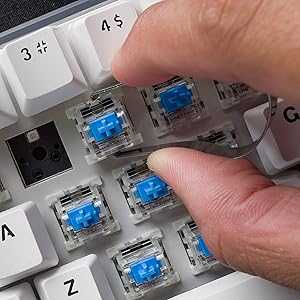
Image: A visual comparison showing the keyboard operating in wireless (Bluetooth/2.4GHz) mode and wired mode, highlighting the flexibility of connection options.

画像: クローズアップ view of the detachable USB Type-C cable connected to the keyboard, emphasizing its portability and ease of management.
操作手順
基本機能
- 電源オン/オフ: Use the switch located on the keyboard's side or bottom.
- モード切り替え: Refer to the specific key combinations or physical switch for changing between Bluetooth, 2.4GHz, and wired modes.
- ペアリング(Bluetooth): Activate Bluetooth mode, then search for 'MAXFIT61' on your device and pair.
- 2.4GHz接続: Insert the USB receiver into your computer. The keyboard should connect automatically.
マジックFNキー
The 'Fn' key provides access to various multimedia functions, lighting controls, and custom macros. Pressing Fn + 大文字 allows quick access to multimedia keys, home key, and custom functions.

Image: A close-up of the 'Caps' and 'Shift' keys, indicating the functionality of the 'Magic FN Key' for accessing additional commands.
RGB 照明のカスタマイズ
The keyboard features 15 built-in brilliant backlight effects. You can cycle through these effects using specific Fn key combinations. For advanced customization, including per-key RGB lighting, macros, and function key remapping, download and install the FANTECH MAXFIT61 software from the official FANTECH webサイト。

Image: A screenshot of the FANTECH MAXFIT61 software, demonstrating the interface for adjusting RGB lighting modes and creating custom key assignments.
メンテナンス
クリーニング
To clean your keyboard, disconnect it from your computer. Use a soft, dry cloth to wipe the surface. For deeper cleaning, you may carefully remove keycaps using the provided keycap puller and use compressed air to clear debris from underneath.
ホットスワップ可能なスイッチ
The MAXFIT61 features hot-swappable sockets, allowing you to change switches without soldering. It supports most 5-pin/3-pin mechanical switches from brands like Gateron, Cherry, and Kailh.
- キーキャップの取り外し: キーキャッププーラーを使用して、キーキャップをゆっくりとまっすぐ持ち上げます。
- スイッチの取り外し: Use the switch puller to grip the top and bottom clips of the switch and pull it straight out.
- スイッチのインストール: 新しいスイッチのピンをPCBの穴に合わせます。スイッチがカチッと音がするまでしっかりと押し込みます。ピンが曲がっていないことを確認してください。
- キーキャップの取り付け: キーキャップをスイッチステムに合わせて軽く押し下げます。
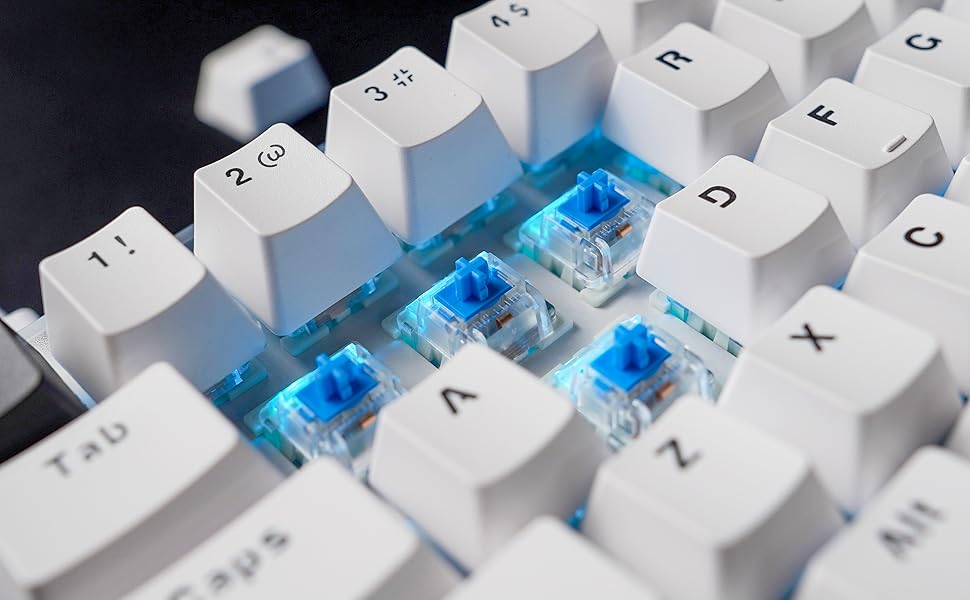
Image: A close-up showing mechanical switches being removed from the keyboard's PCB using a switch puller, demonstrating the hot-swappable feature.

Image: An exploded diagram illustrating the internal components of the keyboard, including keycaps, plate, switches, sound-proofing foam, PCB, and bottom case.
トラブルシューティング
- キーボードが応答しない:
- キーボードが充電されていること、または USB-C 経由で接続されていることを確認します。
- Check the connection mode (Bluetooth, 2.4GHz, Wired) and ensure it matches your device.
- 2.4GHz の場合、USB レシーバーが正しく挿入されていることを確認してください。
- For Bluetooth, ensure it's paired correctly and your device's Bluetooth is enabled.
- RGB 照明が機能しない/正しくない:
- キーボードの電源がオンになっていることを確認してください。
- Cycle through built-in effects using Fn key combinations.
- If using custom settings, verify them in the FANTECH software.
- キーが登録されない:
- If a specific key is not working, carefully remove the keycap and switch to check for debris or bent pins. Reinstall or replace the switch if necessary.
- Ensure the keyboard firmware is up to date (check FANTECH web地点)。
- 接続の問題(遅延/切断):
- キーボードとレシーバー/デバイス間の距離を短くします。
- 他の無線デバイスからの干渉を避けてください。
- キーボードが完全に充電されていることを確認してください。
- ワイヤレスの問題を排除するために有線接続を試してください。
仕様
| 特徴 | 詳細 |
|---|---|
| 製品名 | MAXFIT61 FROST WIRELESS MK857 |
| キーの数 | 61キー |
| スイッチタイプ | メカニカル(ホットスワップ可能) |
| 接続技術 | BT5.0, 2.4GHz Wireless, USB Type-C Wired |
| アンチゴースト | すべてのキー |
| キーボードバックライト | RGB |
| 寸法(長さ×幅×高さ) | 294mm x 103mm x 42mm(13.5 x 5.63 x 1.85インチ) |
| 重さ | 566g(1.37ポンド) |
| バッテリー | 1 リチウムポリマー電池 (付属) |
| 対応デバイス | PC(Windows) |

Image: A table outlining the characteristics of Outemu Red and Blue switches, including actuation force, pre-travel, travel distance, behavior, and sound level.
保証とサポート
FANTECH products come with a limited warranty. For detailed warranty information, technical support, or service inquiries, please visit the official FANTECH web公式サイトをご覧いただくか、カスタマーサポートに直接お問い合わせください。保証請求のために購入証明書を保管してください。


