導入
Welcome to the user manual for CLABEL 4x6 Inch Direct Thermal Shipping Labels. These high-quality labels are designed for efficient and reliable printing of shipping information, compatible with a wide range of thermal label printers and e-commerce platforms. This manual provides essential information on product features, proper usage, and maintenance to ensure optimal performance.
製品終了view
CLABEL 4x6 Inch Direct Thermal Shipping Labels are specifically engineered for thermal printing, eliminating the need for ink or toner. Each label measures 4 inches by 6 inches, the standard size for most shipping carriers. They are ideal for small businesses, e-commerce operations, and personal use, providing clear, scannable barcodes and text.

Packages ready for shipment, each bearing a CLABEL shipping label. An inset diagram clearly shows the dimensions of the 4x6 inch label, highlighting its standard size for shipping.
主な特徴
These labels are designed with durability and convenience in mind:
- 防水: Resistant to moisture, ensuring your shipping information remains legible even in damp 条件。
- Oil-proof: Protects against smudges and damage from oils and greases.
- Easy to Tear: Perforated for quick and clean separation from the roll or stack.
- BPAフリー: Manufactured without Bisphenol A, ensuring a safer product.
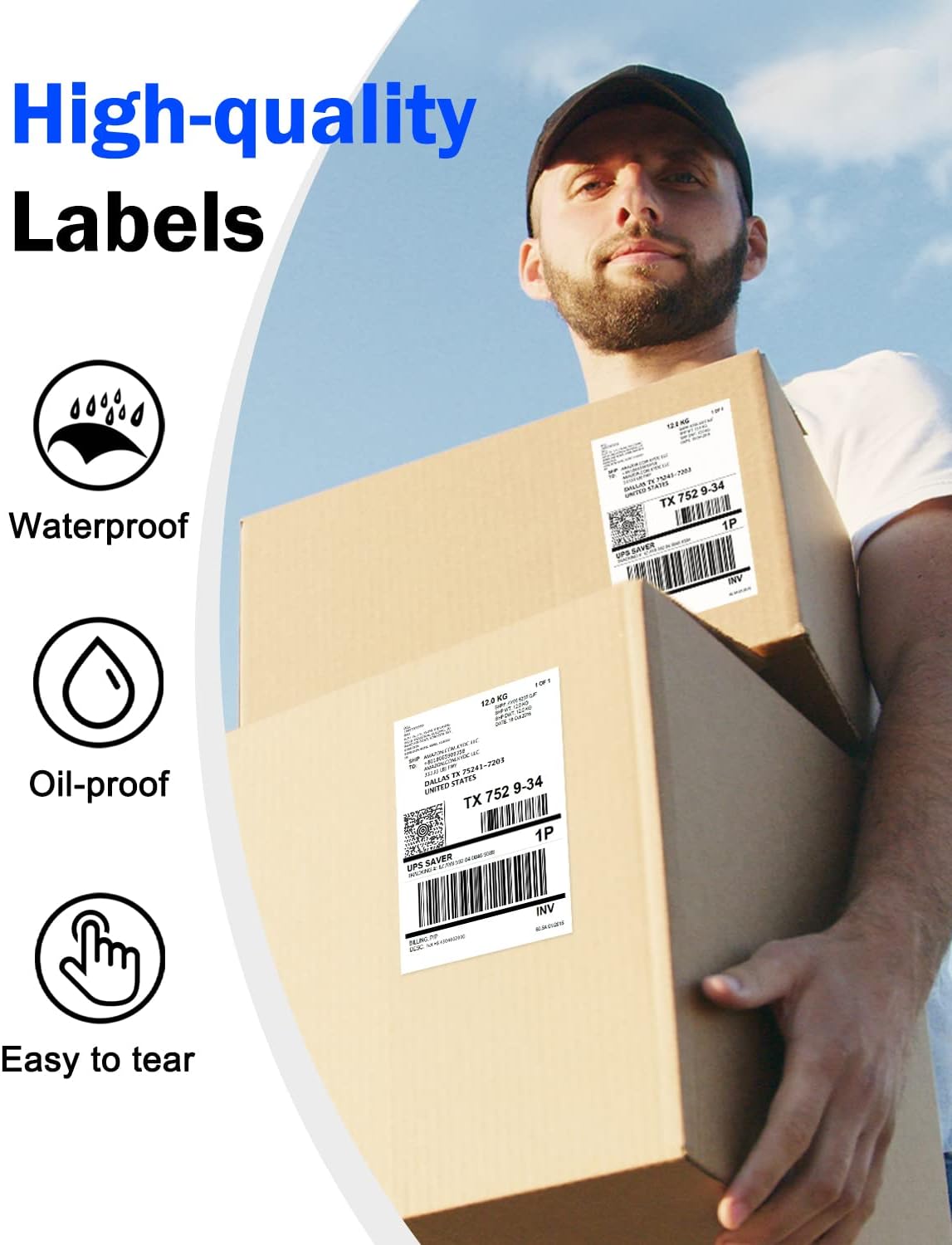
A person holding two packages with CLABEL shipping labels attached. Icons next to the image highlight key features of the labels: waterproof, oil-proof, and easy to tear, emphasizing their durability and convenience.

Water droplets on label.

Oil droplets on label.

Label being easily torn.

Label indicating BPA Free.
Setup: Loading Labels
Proper loading of CLABEL thermal labels into your printer is crucial for optimal performance and to prevent jams. Refer to your specific thermal printer's manual for detailed loading instructions, as procedures may vary by model.
General Steps for Loading Fanfold Labels:
- Ensure your thermal printer is powered off.
- Open the printer's top cover or access panel.
- Place the stack of CLABEL fanfold labels into the external label holder or feed slot, ensuring the print side (usually the smoother, brighter side) faces the print head.
- Guide the first label through the printer's feed mechanism until it is correctly aligned and detected by the printer's sensors.
- プリンターのカバーをしっかりと閉じてください。
- Power on the printer and perform a test print or calibration if required by your printer model.

A stack of CLABEL 4x6 inch direct thermal shipping labels, demonstrating their fanfold design. A sample shipping label is shown on top, featuring a barcode, tracking number, and destination address.
互換性
CLABEL 4x6 Inch Direct Thermal Shipping Labels are designed for broad compatibility.
プリンターの互換性:
These labels are compatible with CLABEL thermal printers and most other direct thermal label printers that support 4x6 inch labels. Ensure your printer is a direct thermal model, as these labels do not work with inkjet or laser printers.

A CLABEL thermal printer is shown with labels. To its right, images of other common shipping label printers are displayed, indicating that CLABEL labels are compatible with a wide range of thermal printer models.
プラットフォームの互換性:
Our labels seamlessly integrate with popular e-commerce and shipping platforms, including but not limited to:
- アマゾン
- イーベイ
- ショッピファイ
- エッツィー
- フェデックス
- UPS
- DHL
- USPS
- Stamps.com
- シップステーション
- ペイパル
- ポッシュマーク
- その他多数。

A CLABEL thermal printer is shown actively printing a shipping label. Around it are logos of numerous e-commerce and shipping platforms, including Amazon, eBay, Shopify, Etsy, FedEx, UPS, DHL, and more, demonstrating the labels' wide compatibility.
Usage: Printing Shipping Labels
Once labels are loaded and your printer is connected to your computer or device, you can begin printing.
- Design or Select Your Label: Use your preferred shipping software or e-commerce platform to generate the shipping label. Ensure the label format is set to 4x6 inches.
- プリンター設定: In your print dialogue box, select your thermal label printer. Verify that the paper size is set to 4x6 inches (or 100x150mm) and that the print quality is set to "Direct Thermal" or "Thermal Label".
- 印刷: Send the print job to your printer. The label should print clearly and quickly.
- 適用する: Peel the printed label from its backing and firmly apply it to your package, ensuring all edges are sealed to prevent peeling.
Example of a printed label: This label includes a UPS tracking number 1ZAY85920400469388 and destination details for Dallas, TX 75241-7203.

A delivery person, wearing a face mask, is seen scanning a CLABEL shipping label on a package with a handheld device. This illustrates the scannability and practical use of the labels in logistics.
メンテナンスと保管
To maintain the quality and longevity of your CLABEL thermal labels:
- 涼しく乾燥した場所に保管してください。 Avoid direct sunlight, high temperatures, and humidity, which can degrade the thermal coating.
- 化学物質から遠ざけてください: Exposure to certain chemicals (e.g., alcohol, plasticizers) can cause the labels to fade or discolour.
- Protect from Abrasion: Store labels in their original packaging or a protective container to prevent scratching or damage to the thermal surface.
一般的な問題のトラブルシューティング
Faint or Blank Prints:
- Ensure the labels are loaded correctly with the print side facing the thermal print head.
- Check your printer's print density or darkness settings and adjust if necessary.
- Clean the thermal print head according to your printer's manual.
Labels Not Feeding Correctly or Jams:
- Verify that the labels are properly aligned in the feeder.
- Check for any obstructions in the paper path.
- Ensure the label roll or stack is not too tight or too loose.
ドライバーのインストールに関する問題:
Some users have reported issues with drivers provided on flash drives. If you encounter problems, consider downloading drivers directly from the manufacturer of your thermal printer. For printers identified as Xprinter XP-460B, drivers can often be found on seagullscientific.com. Install the printer manually by selecting it from the list and choosing the correct USB port.
製品仕様
| 属性 | 詳細 |
|---|---|
| ラベルの寸法 | 4 x 6インチ(100 x 150 mm) |
| ラベルタイプ | ダイレクトサーマル |
| 量 | 500 sheets per stack/roll (as per product variant) |
| 色 | 白 |
| 素材の特徴 | Waterproof, Oil-proof, Easy to Tear, BPA Free |
| 製品寸法(パッケージ) | 9.1 x 6.8 x 6インチ |
| 商品重量(梱包) | 2.16ポンド |
| モデル番号 | Labels-Fold |
保証とサポート
For any questions regarding CLABEL 4x6 Inch Direct Thermal Shipping Labels, please refer to the seller's contact information on the platform where you purchased the product. Specific warranty details, if applicable, are typically provided at the point of sale or on the product packaging.


