1. はじめに
This manual provides comprehensive instructions for the setup, operation, maintenance, and troubleshooting of your Star Micronics BSH-HR2081BT Wireless Bluetooth 1D/2D Barcode Scanner. Designed for efficiency and durability, this scanner is a reliable solution for various point-of-sale and inventory management applications.
The BSH-HR2081BT scanner is equipped with a high-power CPU, enabling it to effortlessly capture high-density, high-volume, and even distorted barcodes from both printed materials and digital screens. Its robust design, coupled with advanced wireless capabilities, ensures seamless integration into your workflow.
2. 主な特徴
- 高性能スキャン: Powerful CPU captures high-density, high-volume, and distorted 1D/2D barcodes on paper or screen.
- バッテリー寿命の延長: Offers up to 12 hours of continuous operation (one scan every six seconds) with its 2200mAh battery.
- 多彩な接続性: Connects directly to the host device via Bluetooth Low Energy (BLE) or wirelessly to a Star printer using the included USB dongle.
- 信頼性の高いワイヤレス範囲: Maintains a stable wireless connection to transmit data, with communication distances up to 50 meters (approximately 164 feet).
- 耐久性のある構造: Features an IP42-rated design and a drop-resistant housing, capable of withstanding drops from up to 1.2 meters (approximately 4 feet).
3.セットアップガイド
3.1. 開梱と初期検査
すべてのコンポーネントをパッケージから慎重に取り出します。以下のものがすべて揃っていることを確認してください。
- Star Micronics BSH-HR2081BT Barcode Scanner
- USB充電ケーブル
- USB Dongle (for wireless connection to Star printers)
- スキャナースタンド

Figure 3.1: Barcode scanner and its USB dongle.
3.2. スキャナの充電
Before first use, fully charge the scanner. Connect the USB charging cable to the scanner's charging port (located at the bottom of the handle) and plug the other end into a USB power adapter (not included) or a computer's USB port. The charging indicator light will show the charging status.

Figure 3.2: USB charging port at the base of the scanner handle.
3.3. スキャナーの接続
The BSH-HR2081BT scanner offers two primary connection methods:
3.3.1. Bluetooth Connection (Direct to Host Device)
- スキャナーの電源がオンになっていることを確認します。
- ホストデバイス(スマートフォン、タブレット、またはコンピューター)で Bluetooth を有効にします。
- 検索する available Bluetooth devices. The scanner should appear as "Star Micronics BSH-HR2081BT" or similar.
- ペアリングするスキャナーを選択します。画面の指示に従ってペアリングを完了してください。
3.3.2. Wireless Connection (via USB Dongle to Star Printer)
- Insert the provided USB dongle into an available USB port on your compatible Star printer (e.g., mC-Print, mPOP).
- Power on the scanner. The scanner and dongle should automatically establish a connection.
- Refer to your Star printer's manual for specific instructions on connecting external devices.

Figure 3.3: Barcode scanner placed in its included stand.
4. 操作手順
4.1. 基本的なスキャン操作
To scan a barcode, point the scanner's window at the barcode and press the trigger button. A successful scan will typically be indicated by an audible beep and/or a visual confirmation light.
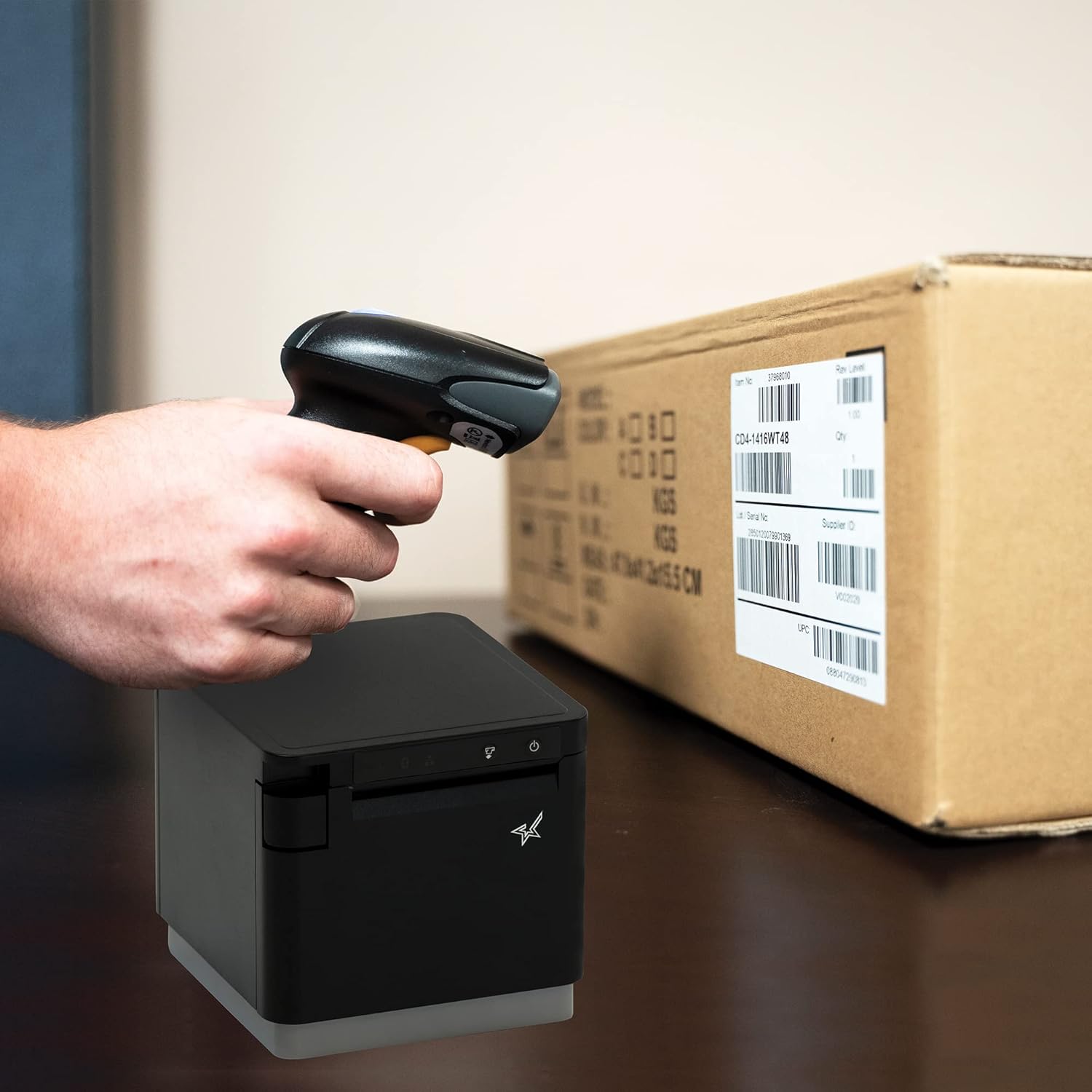
図4.1:例ampパッケージ上のバーコードをスキャンする例。
4.2. スキャンモード
The BSH-HR2081BT scanner supports six different scanning modes to accommodate various operational needs:
- レベルモード: The scanner's trigger will activate the decode session.
- トリガーモード: A trigger pull activates a decode session.
- センスモード: The scanner activates a decode session every time it detects a barcode.
- 連続モード: The scanner automatically starts one decode session after another.
- パルスモード: When the trigger is pulled and released, scanning is activated until a barcode is decoded or the decode session timeout expires.
- バッチモード: When the trigger is pulled and released, scanning is activated until the trigger is released.
Refer to the full user guide (link in Section 7) for detailed instructions on how to switch between these modes and configure specific settings.
5. メンテナンス
5.1. スキャナのクリーニング
To maintain optimal performance, keep the scanner's window clean. Use a soft, lint-free cloth lightly dampened with water or a mild, non-abrasive cleaner. Do not use harsh chemicals or abrasive materials, as they may damage the scanner's surface or optical components.
5.2. バッテリーのお手入れ
スキャナーにはリチウムイオンバッテリーが搭載されています。バッテリー寿命を延ばすには:
- バッテリーを頻繁に完全に放電することは避けてください。
- スキャナーを長期間使用しない場合は、涼しく乾燥した場所に保管してください。
- Charge the battery regularly, even if the scanner is not in frequent use.
6。 トラブルシューティング
6.1. スキャナーが接続されない
- 電力を確認します: Ensure the scanner is fully charged and powered on.
- Bluetoothのペアリング: For Bluetooth connections, ensure Bluetooth is enabled on your host device and the scanner is in pairing mode. Try unpairing and re-pairing the device.
- USBドングル: If using the USB dongle, ensure it is securely plugged into the Star printer and the printer is powered on.
- 範囲: Ensure the scanner is within the effective communication range (up to 50m) of the host device or dongle.
6.2. スキャナがバーコードを読み取れない
- バーコードの状態: バーコードが鮮明で、汚れや破れがなく、過度に反射していないことを確認します。
- 距離と角度: Adjust the distance and angle of the scanner to the barcode. Try different scanning modes if applicable.
- 点灯: 十分な照明を確保してください。バーコードへの直射日光を避けてください。
- スキャナーウィンドウ: 「メンテナンス」セクションの説明に従って、スキャナーの読み取りウィンドウをクリーニングします。
6.3. バッテリー寿命が短い
- フル充電: Ensure the scanner is charged until the indicator shows a full charge.
- 使用パターン: Continuous heavy usage will deplete the battery faster.
- バッテリーの寿命: Over time, rechargeable batteries naturally lose capacity.
7. 技術仕様
| 仕様 | 詳細 |
|---|---|
| 製品寸法 | 5.7 x 4 x 2.7インチ |
| アイテム重量 | 1.06ポンド |
| モデル番号 | BSH-HR2081BT BLK |
| バッテリー | 1 個のリチウムイオン電池が必要 (付属) |
| メーカー | スターマイクロニクス |
| 対応デバイス | スマートフォン、タブレット |
| 電源 | 電池駆動 |
| 接続技術 | Bluetooth、USBケーブル |
| IP 定格 | IP42 |
| 落下耐性 | 最大1.2メートル |
8. 保証とサポート
For warranty information and technical support, please contact Star Micronics directly or visit their official webサイトでご確認ください。保証請求の際は購入証明として領収書を保管してください。
詳細なユーザー ガイド (PDF 形式) をダウンロードできます。


