1. はじめに
This manual provides comprehensive instructions for the safe and efficient operation of your CLABEL 220B Thermal Bluetooth Label Printer. This portable, inkless label maker is designed for various applications in small businesses, offices, and homes, supporting label widths from 20mm to 50mm.
2. パッケージ内容
以下にリストされているすべてのアイテムがパッケージに含まれていることを確認してください。
- CLABEL 220B Thermal Bluetooth Label Printer
- 1 Roll of Thermal Labels
- USB充電ケーブル
- ユーザーマニュアル(このドキュメント)
3.製品オーバーview
Familiarize yourself with the components of your CLABEL 220B printer.
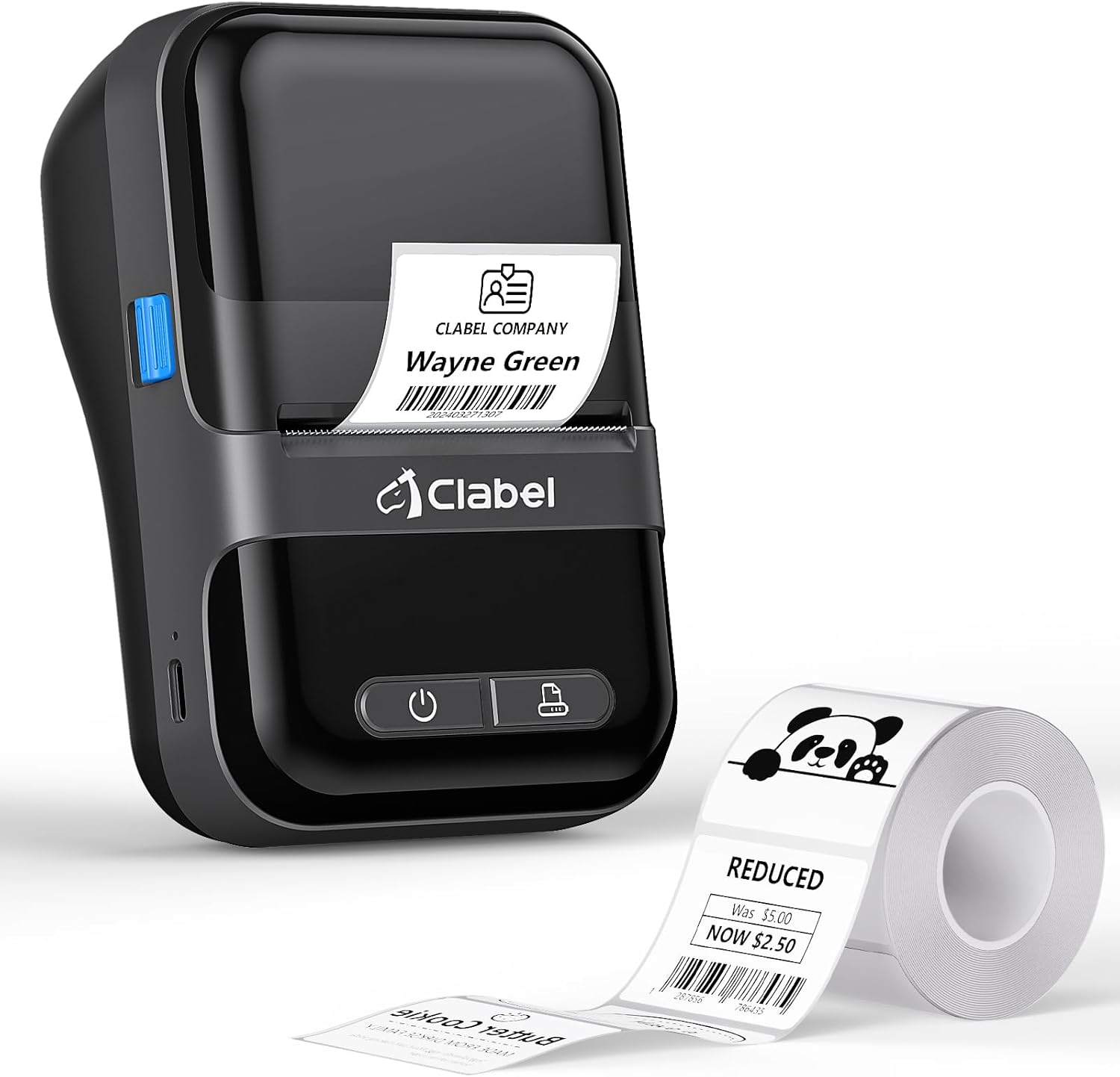
Image: The CLABEL 220B printer, showcasing its compact design, a printed label emerging from the output slot, and a roll of blank labels.
The printer features a power button, a feed button, and a label compartment. The charging port is typically located on the side or back.
4. セットアップ
4.1. プリンターの充電
Before initial use, fully charge the printer. Connect the provided USB cable to the printer's charging port and to a 5V-2A power adapter (not included) or a computer's USB port. The charging indicator light will show the charging status.
4.2. ラベルの読み込み
Follow these steps to correctly load the thermal labels:

Image: Step-by-step guide for label installation, showing opening the cover, setting jam protection, inserting labels, and closing the cover.
- プリンターのカバーを開きます。
- Set the jam protection to "OPEN" if applicable.
- Insert the label roll into the compartment, ensuring the printable side faces up and the labels are aligned on the left.
- Pull out a small length of labels and close the cover securely.
5. 接続
5.1. Mobile Phone Connection (Bluetooth)
The CLABEL 220B supports connection with iOS and Android devices via Bluetooth.

Image: Mobile phone connection steps, illustrating downloading the 'Clabel trade' app, enabling Bluetooth, and connecting to the printer within the app.
- Download the "CLABEL trade" app from your device's app store (iOS App Store or Android Google Play Store).
- 携帯電話で Bluetooth が有効になっていることを確認してください。
- Open the "CLABEL trade" app and connect to your printer from the device list.
5.2. PC接続(USB)
For Windows PCs, connect the printer using the provided USB cable.

Image: Computer connection steps, detailing turning on the printer, connecting via USB, downloading the driver/app, and printing.
- プリンタの電源を入れます。
- USB ケーブルを介してプリンターをコンピューターに接続します。
- Download the necessary driver or application from the official CLABEL brand webサイト。
- Open the application, create or select a label, and initiate printing.
6. 操作手順
6.1. Using the CLABEL Trade App
The "CLABEL trade" app offers extensive features for label creation and management:
- Access over 30 business label templates.
- Utilize more than 450 common symbols for various applications.
- Create and customize your own label templates.
- Edit and typeset labels with text, barcodes, QR codes, images, and more.
6.2. バッチ印刷
The printer supports batch printing, allowing you to import data from Excel tables to print multiple labels efficiently. This feature helps improve printing efficiency by setting the printing quantity without repetitive operations.
6.3. Recommended Label Sizes and Uses
The CLABEL 220B printer supports labels with a width of 20-50mm and a length of 15-100mm, accommodating various styles and applications.

Image: Recommended label sizes for business applications, including price tags, barcodes, logos, and product information (e.g., 40x40mm, 50x50mm).

Image: Recommended label sizes for food applications, such as bakery items, ingredient lists, and price & date labels (e.g., 40x30mm, 50x40mm).

Image: Recommended label sizes for office organization, including labels for letters, addresses, folders, and cables (e.g., 25x78mm, 50x30mm).
7. メンテナンス
To ensure optimal performance and longevity of your CLABEL 220B printer, follow these maintenance guidelines:
- プリントヘッドのクリーニング: Regularly clean the thermal print head with an alcohol swab to remove dust or adhesive residue. Ensure the printer is off and cooled down before cleaning.
- 外装清掃: プリンターの外側は、柔らかく乾いた布で拭いてください。刺激の強い化学薬品や研磨剤の使用は避けてください。
- ストレージ: プリンターは、直射日光や極端な温度を避け、涼しく乾燥した場所に保管してください。
- バッテリーのケア: For long-term storage, charge the battery to about 50% every three months to prevent deep discharge.
8。 トラブルシューティング
CLABEL 220B プリンタで問題が発生した場合は、次の一般的な問題と解決策を参照してください。
| 問題 | 考えられる原因 | 解決 |
|---|---|---|
| プリンターの電源が入らない | バッテリー残量不足または電源の問題 | プリンターを完全に充電してください。電源ボタンが正しく押されていることを確認してください。 |
| Poor print quality (light or spotty) | プリントヘッドが汚れている、ラベルの種類が間違っている、またはバッテリー残量が少ない | Clean the print head. Ensure you are using thermal labels. Charge the printer. Adjust print density in the app if available. |
| ラベルがずれている、または詰まっている | Labels not loaded correctly | Open the cover, re-align the label roll, and ensure it's properly seated. Refer to Section 4.2. |
| Bluetooth経由で接続できません | Bluetoothがオフ、アプリに問題がある、またはプリンターが検出できない | Ensure Bluetooth is enabled on your phone and the printer is on. Restart the app and printer. Try re-pairing the device. |
| PC connection issues | Driver not installed, incorrect cable, or software issue | Install the correct driver from the CLABEL website. Ensure the USB cable is functional. Restart PC and printer. |
If the problem persists, please contact CLABEL customer support for further assistance.
9. 仕様
Key technical specifications for the CLABEL 220B Thermal Bluetooth Label Printer:
- モデル: 220B
- 印刷技術: サーマル
- 接続性: ブルートゥース、USB
- プリンター出力: モノクロ
- 最大印刷解像度: 203DPI
- 最大メディアサイズ: 25~50mm(幅)
- 対応デバイス: Smartphones (iOS, Android), Windows XP or above
- バッテリー容量: 2200mAh
- 消費電力: 2.2ワット(オンモード)
- 製品寸法: 奥行き4.65インチ x 幅4.6インチ x 高さ2.88インチ
- 商品の重量: 14.1オンス(400グラム)
10. 保証とサポート
The CLABEL 220B Thermal Bluetooth Label Printer comes with a limited warranty. For specific warranty terms and conditions, please refer to the documentation included with your purchase or visit the official CLABEL webサイト。
For additional support, including detailed user guides and installation manuals, please refer to the following resources:
- Official CLABEL Webサイト: CLABEL Store
- ユーザーガイド(PDF): ユーザーガイドのダウンロード
- インストールマニュアル(PDF): インストールマニュアルをダウンロード
For technical assistance or customer service inquiries, please contact CLABEL support through their official channels.


