導入
Thank you for choosing the Tera Pro Series L0013B-OG 1D Wireless Barcode Scanner. This manual provides detailed instructions for setting up, operating, and maintaining your device. Please read this manual thoroughly before use to ensure optimal performance and longevity of your scanner.
設定
1.接続オプション
The Tera L0013B-OG scanner offers two primary connection methods: Bluetooth and Wired USB.
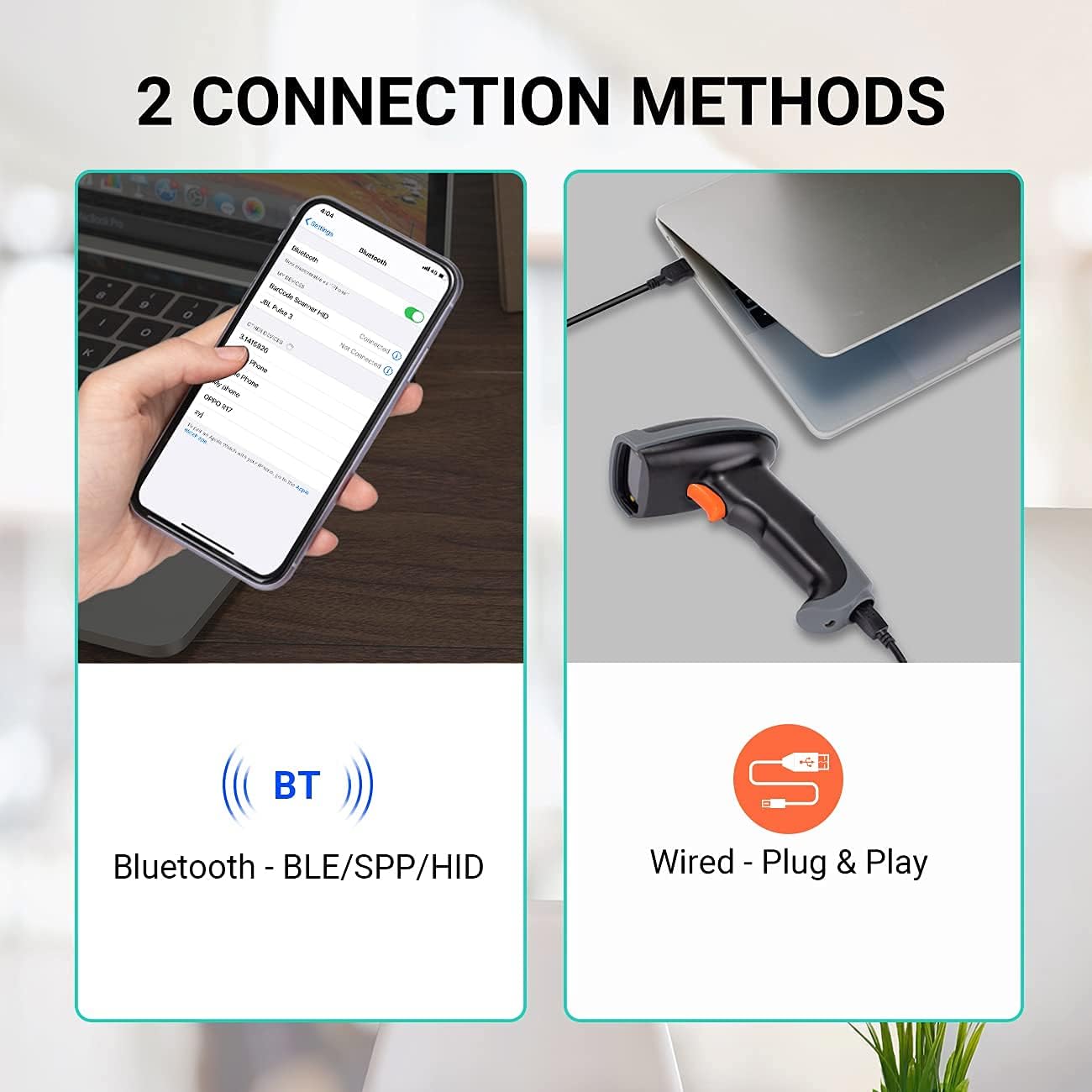
This image illustrates the two connection methods: Bluetooth for wireless pairing with devices like smartphones, and wired USB for direct connection to computers. The scanner supports both for versatile use.
Bluetooth接続:
- スキャナーが充電されていることを確認してください。
- スキャナーの電源をオンにします。
- Scan the Bluetooth pairing barcode (refer to the quick start guide or the scanner's internal settings for this barcode).
- On your host device (e.g., smartphone, tablet, laptop), enable Bluetooth and search for available devices.
- Select "Tera L0013B" or a similar device name from the list to pair.
- スキャナーはペアリングが成功したことを通知します (例: ビープ音または LED の変化)。
- Bluetooth transmission range is up to 50 meters in an accessible environment.
有線USB接続:
- Connect the USB cable to the scanner and to an available USB port on your computer.
- スキャナーはプラグアンドプレイなので、ドライバーのインストールは不要です。
- スキャナーはキーボード入力デバイスとして認識されます。
2. Scan Modes
The scanner supports three operational scan modes:
- 連続スキャンモード: スキャナーはレーザービームを連続的に放射し、バーコードが提示されると自動的にスキャンします。
- 手動トリガーモード: The scanner only scans when the trigger button is pressed.
- Sensor Scan Mode: The scanner activates the laser beam and scans when it detects a barcode in its field of view.

This image illustrates the scanner in operation, emphasizing the availability of three distinct scan modes: Continuous, Manual Trigger, and Sensor Scan Mode, allowing users to choose the most suitable method for their workflow.
3. データアップロードモード
スキャナーには 2 つのデータアップロード モードがあります。
- Real-Time Upload Mode: Barcodes are transmitted to the host device immediately after scanning.
- Memory (Storage) Upload Mode: Scanned barcodes are saved in the scanner's internal memory. Data can be uploaded to the host device later when connectivity is established or restored. This mode is useful when the scanner is out of Bluetooth range.

This image demonstrates the two data upload modes: Real Time Mode, where data is uploaded instantly, and Storage Mode, where barcodes are saved internally for later upload, particularly useful when out of range.
4. キーボード言語のサポート
The scanner supports multiple keyboard languages to ensure compatibility with various regional setups. You can configure the scanner to match your system's keyboard layout (e.g., English, Spanish, German, Japanese, French, Italian).

This image highlights the scanner's support for multiple keyboard languages, including English, Spanish, German, Japanese, French, and Italian, ensuring broad compatibility with international systems.
5. Device and System Compatibility
The Tera L0013B-OG barcode scanner is designed for wide compatibility with various devices and operating systems.
- 対応デバイス: Computers, Laptops, Mobile Phones, Tablets.
- 互換性のあるオペレーティングシステム: iOS, Android, Windows, Mac OS, POS, Linux, Raspberry Pi.

This image illustrates the broad compatibility of the scanner with various devices such as PCs, laptops, iPads, and iPhones, and operating systems including Windows, iOS, Linux, Android, and Mac OS.
操作手順
バーコードのスキャン
The Tera L0013B-OG scanner provides superior 1D decoding capabilities, handling various barcode conditions efficiently.
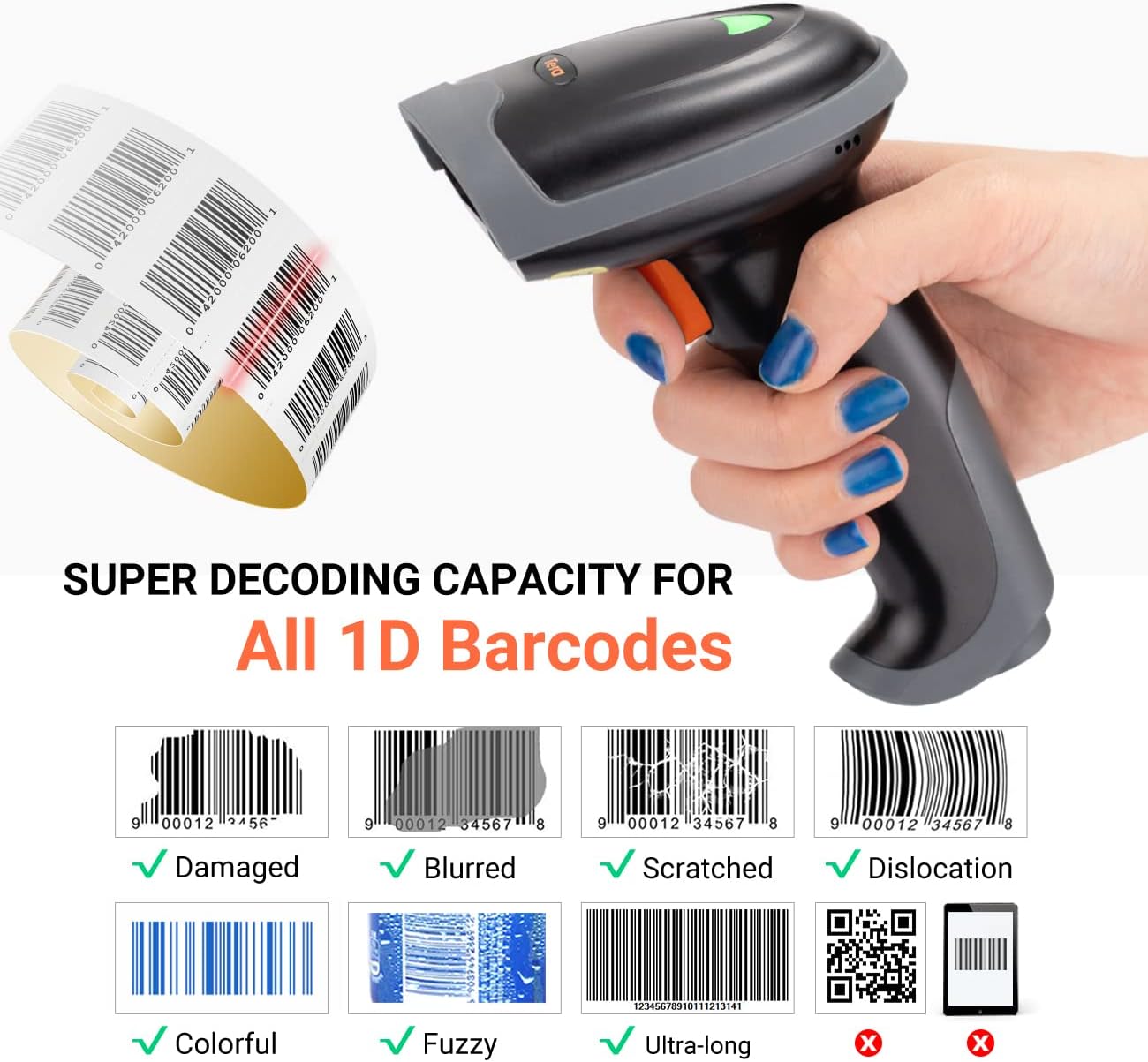
This image demonstrates the scanner's advanced 1D decoding capability, showing its ability to read damaged, blurred, scratched, dislocated, colorful, fuzzy, and ultra-long 1D barcodes. Please note that 2D/QR codes are not supported by this model.
- Ensure the scanner is powered on and connected to your host device via Bluetooth or USB.
- スキャンしたいバーコードにスキャナーの光線を向けます。
- Depending on your selected scan mode (Continuous, Manual Trigger, or Sensor), either wait for the automatic scan or press the trigger button.
- A successful scan will typically be indicated by a beep and/or an LED indicator change.
- The scanned data will appear in the active application on your host device (e.g., a text editor, spreadsheet, or POS system).
サポートされている1Dバーコードの種類:
The scanner supports most common 1D barcodes, including:
- CODE39, CODE39 Full ASCII, CODE128, CODE 32, CODEBAR, CODE93, EAN13, CODE11, EAN-128, EAN-8, EAN-13, UPC-A, UPC-E, MSI, ISBN, ISBN 13, Industrial 2/5, ITF14, Interleaved 2/5, Standard 2/5, Matrix 2/5, GS1.
NOTE: This scanner does NOT support 2D or QR codes.
メンテナンス
適切なメンテナンスを行うことで、バーコード スキャナーの寿命が長くなり、最適なパフォーマンスが確保されます。
- クリーニング: スキャナの外側は、柔らかく乾いた布で拭いてください。スキャンウィンドウは、糸くずの出ない布で軽く拭いてください。amp低刺激性で研磨剤を含まない洗剤で洗ってください。刺激の強い化学薬品や研磨剤は使用しないでください。
- ストレージ: スキャナーは、直射日光や極端な温度を避け、涼しく乾燥した場所に保管してください。
- バッテリーのケア: 充電式バッテリー搭載モデルの場合、バッテリーを頻繁に完全に放電することは避けてください。バッテリーの状態を維持するために、常に使用していない場合でも、定期的に充電してください。
- ケーブルのお手入れ: Inspect USB cables for any signs of wear or damage. Replace damaged cables immediately to prevent connectivity issues.
トラブルシューティング
If you encounter issues with your Tera L0013B-OG scanner, refer to the following common troubleshooting steps:
スキャナーが応答しません:
- 電力を確認します: スキャナーが充電され、電源がオンになっていることを確認します。
- 接続を確認してください:
- USB: USBケーブルがスキャナーとコンピュータの両方にしっかりと接続されていることを確認してください。別のUSBポートまたはケーブルを試してください。
- ブルートゥース: Ensure Bluetooth is enabled on your host device and the scanner is paired. If already paired, try unpairing and re-pairing the device. Make sure the scanner is within the 50-meter Bluetooth range.
- Reset Scanner: Refer to the quick start guide for instructions on how to perform a factory reset, if available.
バーコードをスキャンできません:
- バーコードタイプ: Confirm that you are scanning a 1D barcode. This scanner does not support 2D or QR codes.
- バーコードの状態: Ensure the barcode is not severely damaged, blurred, or too small/large for the scanner's read range.
- 点灯: Adjust ambient lighting if necessary. Avoid direct glare on the barcode.
- スキャンモード: Verify the scanner is in the correct scan mode (e.g., Manual Trigger requires pressing the button).
Scanned Data Appears Incorrectly:
- キーボード言語: Ensure the scanner's configured keyboard language matches your host device's keyboard layout. Refer to the quick start guide for instructions on changing the keyboard language.
- アプリケーションの焦点: Make sure the target application (e.g., text editor) is active and has focus to receive input.
仕様
| 特徴 | 詳細 |
|---|---|
| ブランド | テラ |
| モデル番号 | L0013B |
| 色 | オレンジ |
| 接続技術 | Bluetooth, USB (Wired) |
| 対応デバイス | Laptop, Tablet, Desktop Computer, Mobile Phones |
| 互換性のあるオペレーティングシステム | iOS, Android, Windows, Mac OS, POS, Linux, Raspberry Pi |
| スキャンレート | 毎秒100フレーム |
| 電源 | ケーブルエレクトリック |
| デコード機能 | 1D Barcodes (CODE39, CODE128, EAN13, UPC-A, etc.) |
| 2D/QR Code Support | いいえ |
| Bluetoothの伝送範囲 | Up to 50 meters (accessible environment) |
| データアップロードモード | Real-Time, Memory (Storage) |
| 原産国 | 中国 |
| スペアパーツの入手可能性 | 情報がありません |
| ソフトウェアアップデートの保証期間 | 情報がありません |
保証とサポート
For warranty information, please refer to the documentation included with your purchase or contact your retailer. For technical support or further assistance, please reach out to Tera customer service.

This image depicts customer service representatives ready to assist with any inquiries or support needs regarding the product.
While specific details on spare parts availability and guaranteed software updates are not provided, Tera is committed to providing quality products and support.


