1. はじめにview
The Tascam TM-250U is a USB condenser microphone designed for high-quality audio capture in various applications, including podcasting, online conferencing, computer recording, and live streaming. This microphone offers direct-to-computer connectivity without the need for additional drivers, ensuring a simple plug-and-play experience. It features a headphone output for direct monitoring and built-in controls for convenient operation.

Image 1.1: The Tascam TM-250U USB Condenser Microphone shown on its included desktop stand, ready for use.
2. パッケージ内容
パッケージに以下のすべての項目が含まれていることを確認してください。
- Tascam TM-250U USB Condenser Microphone
- USB C-A cable (2 meters)
- Microphone holder (with 5/8 inch screw diameter)
- Desktop tripod stand
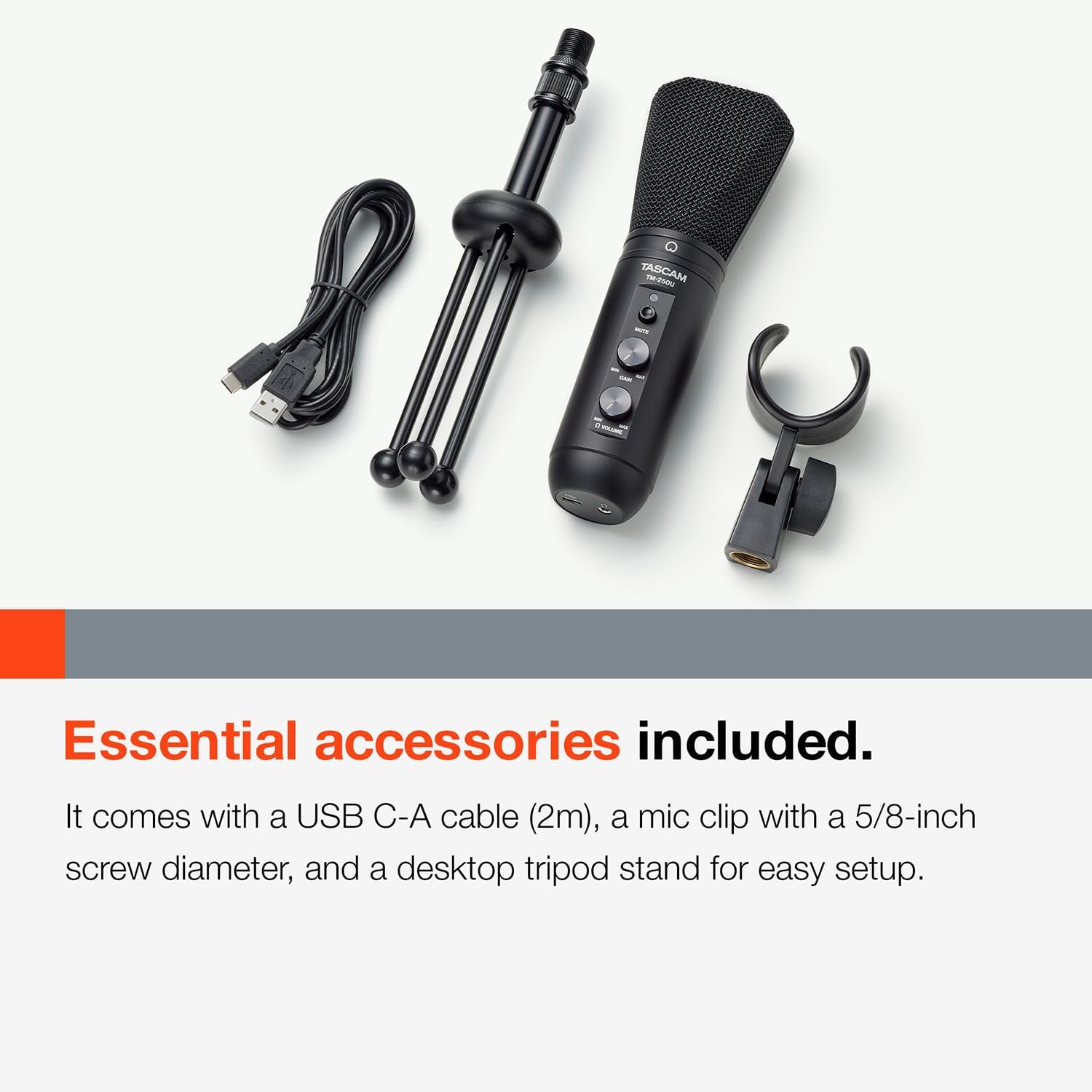
Image 2.1: The Tascam TM-250U microphone, USB C-A cable, mic holder, and desktop stand are shown together.
3. セットアップ手順
Follow these steps to set up your Tascam TM-250U microphone:
- マイクをスタンドに取り付けます。 Screw the included microphone holder onto the desktop tripod stand. Then, securely attach the TM-250U microphone to the holder.
- コンピューターに接続します: Use the provided USB C-A cable. Insert the USB-C end into the microphone's USB-C port and the USB-A end into an available USB-A port on your computer. The microphone is USB class compliant, meaning no special drivers are required for Windows, macOS, iOS, Android, or Chrome OS.
- ヘッドフォンを接続する(オプション): 直接モニタリングするには、マイクにある 3.5 mm ヘッドフォン ジャックにヘッドフォンを接続します。
- オーディオデバイスとして選択: Once connected, your computer should automatically recognize the TM-250U. Navigate to your operating system's sound settings (e.g., System Preferences > Sound on Mac, Sound Settings > Input/Output on Windows) and select the Tascam TM-250U as both your input (microphone) and output (headphone) device.

Image 3.1: The microphone's universal compatibility is illustrated, showing connections to Windows, macOS, iOS, and Android devices.
4. 操作手順
The Tascam TM-250U features intuitive controls for managing your audio:
- ゲインコントロール: Use the GAIN knob on the microphone to adjust the input sensitivity. Turn it clockwise to increase microphone gain and counter-clockwise to decrease it. Adjust this to achieve a strong signal without clipping (distortion).
- ヘッドフォンの音量コントロール: The VOLUME knob controls the output level of the headphone jack. Adjust this to a comfortable listening level for direct monitoring.
- 消音ボタン: Press the MUTE button to instantly mute or unmute the microphone's input. An indicator light will typically show the mute status.
- 直接監視: The microphone supports low-latency direct monitoring, allowing you to hear your voice through headphones without delay. This is crucial for recording and live streaming. Ensure your headphones are connected to the microphone's 3.5mm jack.
The microphone supports 16-bit/48kHz audio resolution, providing clear and detailed sound for your recordings and broadcasts.

画像4.1: 詳細な view of the gain, volume, and mute controls on the Tascam TM-250U microphone.
5. メンテナンス
Proper care will ensure the longevity and optimal performance of your Tascam TM-250U microphone:
- クリーニング: Gently wipe the microphone's exterior with a soft, dry cloth. Avoid using liquid cleaners, solvents, or abrasive materials, as these can damage the finish or internal components.
- ストレージ: When not in use, store the microphone in a clean, dry place, away from direct sunlight, extreme temperatures, and high humidity. The original packaging or a protective case is recommended to prevent dust accumulation and physical damage.
- 取り扱い: Avoid dropping the microphone or subjecting it to strong impacts, as this can affect its internal components and sound quality.
6。 トラブルシューティング
If you encounter issues with your Tascam TM-250U microphone, refer to the following common solutions:
- マイクがコンピュータに認識されない:
- Ensure the USB C-A cable is securely connected to both the microphone and your computer's USB-A port.
- Try connecting to a different USB-A port on your computer.
- Verify that the microphone is selected as the input device in your computer's sound settings.
- 重要な注意: The TM-250U is designed to work with a USB-C to USB-A cable. It may not function correctly with a USB-C to USB-C cable, even if your computer has USB-C ports. If you only have USB-C ports, use the provided USB-C to USB-A cable with a suitable USB-C to USB-A adapter or hub.
- No Sound or Low Volume from Microphone:
- Check the GAIN knob on the microphone and ensure it is turned up sufficiently.
- Confirm the microphone is not muted (check the MUTE button and its indicator light).
- Adjust the input level settings in your computer's sound preferences or recording software.
- No Sound or Low Volume from Headphones (Direct Monitoring):
- Ensure your headphones are fully plugged into the microphone's 3.5mm jack.
- Adjust the VOLUME knob on the microphone.
- If using a Mac, direct monitoring setup can be complex. Refer to the Tascam website for detailed instructions on configuring Audio MIDI Setup for optimal direct monitoring. Note that direct monitoring volume may be softer than software monitoring.
- 歪んだ音:
- Reduce the GAIN knob on the microphone.
- Ensure you are not speaking too closely or too loudly into the microphone. Maintain an appropriate distance.
7. 仕様
| 特徴 | 仕様 |
|---|---|
| モデル名 | TM-250U USB Condenser Microphone |
| ブランド | タスカム |
| マイクフォームファクター | 境界 |
| 極性パターン | スーパーカーディオイド |
| 接続技術 | USB |
| コネクタタイプ | USB-C (on mic), USB-A (on cable) |
| 電源 | USBマイク |
| ハードウェアプラットフォーム | PC (Compatible with Windows, macOS, iOS, Android, Chrome OS) |
| チャンネル数 | 1 |
| 信号対ノイズ比 | 78デシベル |
| 材料 | プラスチック |
| 色 | 黒 |
| アイテム重量 | 16オンス(1ポンド) |
| 製品寸法(長さ x 幅 x 高さ) | 10 x 3.15 x 8.74インチ |
| 特集 | Stand, Headphone Output for Direct Monitoring |
| 推奨用途 | Singing, Gaming, Streaming, Voice Recording, Video Recording, Karaoke, Speech, Video Conference |
| 初回利用可能日 | 1年2021月XNUMX日 |
8. 安全情報
Please observe the following safety guidelines to ensure safe operation and prevent damage to the device:
- Do not expose the microphone to water, moisture, or extreme temperatures.
- Avoid placing the microphone near heat sources or in direct sunlight.
- マイクを分解したり改造したりしないでください。修理は必ず資格のある専門家にご依頼ください。
- マイクを強い磁場から遠ざけてください。
- 付属の USB ケーブルまたは互換性のある交換用ケーブルのみを使用してください。
9. 保証とサポート
For warranty information, technical support, or further assistance, please visit the official Tascam website or contact Tascam customer service. Keep your purchase receipt as proof of purchase for warranty claims.
公式タスカム Webサイト: 詳しくはこちら