1. はじめに
This manual provides comprehensive instructions for the setup, operation, and maintenance of your PXN V9 Universal Sim Racing Wheel. Designed for an immersive racing experience, the PXN V9 is compatible with PC, Xbox One, Xbox Series X/S, PS4, PS3, and Nintendo Switch. It features a 270/900 degree rotation, a 3-pedal unit, and an H-pattern shifter to enhance your simulation gameplay.
2.製品オーバーview
2.1 主な特徴
- 6-in-1 互換性: Supports PC, Xbox One, Xbox Series X/S, PS4, PS3, and Nintendo Switch.
- 調整可能な回転: Easily switch between 270-degree and 900-degree steering rotation for different game types.
- Realistic Pedal Unit: Includes a 3-pedal unit (accelerator, pressure-sensitive brake, and clutch) with linear pedal adjustment.
- H-Pattern Shifter: Features a 6-speed manual H-pattern shifter for enhanced realism.
- デュアルモーター振動: Provides realistic force feedback and intelligent auto-adjusting vibration levels based on driving scenes.
- アプリ構成: Customize settings such as sensitivity, vibration, and button mapping via the "PXN Wheel" mobile application.
2.2 コンポーネント

図1: 前面 view of the PXN V9 Steering Wheel, highlighting the L-paddle, R-paddle, D-pad, ABXY buttons, Indicator light, and Function buttons.

Figure 2: The 3-pedal unit (Clutch, Brake, Accelerator) and the 6+1 H-pattern shifter with High/Low Gear Shifting and Handbrake Switch.
ビデオ1: 一般的なオーバーview of the PXN V9 racing wheel, showcasinデザインと機能。
3. セットアップ手順
Follow these steps to connect your PXN V9 Racing Wheel to your desired platform.
3.1 パソコンとの接続
- PCの電源がオンになっていることを確認してください。
- Connect the PXN V9 Racing Wheel's USB cable to an available USB port on your PC.
- The system should automatically detect and install the necessary drivers. If not, please visit the official PXN webドライバーダウンロードのサイト。
- For optimal performance, consider installing the "PXN Wheel" app for advanced configuration.
Video 2: Demonstrates the connection process for the PXN V9 Steering Wheel to a PC.
3.2 Xbox One / Xbox Series X/S Connection
- Ensure your Xbox console is powered off.
- Connect a Micro USB cable (with data transfer function) to your original Xbox One controller.
- Connect the other end of the Micro USB cable from the controller to the PXN V9 Racing Wheel's designated port.
- Plug the main USB cable of the PXN V9 into an available USB port on your Xbox console.
- Power on your Xbox console. The indicator lights on both the controller and the PXN V9 should remain ON, indicating a successful connection.
- Press the [MODE] button on the PXN V9 twice to switch to Xbox mode.
- Use the D-Pad or turn the steering wheel to navigate the Xbox menu.
3.3 PS4 / PS3 Connection
- PlayStation 本体の電源がオフになっていることを確認してください。
- Connect a Micro USB cable (with data transfer function) to your original PS4 controller.
- Connect the other end of the Micro USB cable from the controller to the PXN V9 Racing Wheel's designated port.
- Plug the main USB cable of the PXN V9 into an available USB port on your PlayStation console.
- Power on your PlayStation console. The indicator lights on both the controller and the PXN V9 should remain ON, indicating a successful connection.
- Press the [MODE] button on the PXN V9 twice to switch to PlayStation mode.
- Use the D-Pad or turn the steering wheel to navigate the PlayStation menu.
3.4 Nintendo Switch接続
- Connect the Nintendo Switch to its dock.
- Plug the PXN V9 Racing Wheel's USB cable into an available USB port on the Switch dock.
- Ensure "Pro Controller Wired Communication" is enabled in the Switch system settings.
- The wheel should be automatically recognized.
4. 操作手順
4.1 ステアリング角度調整(270°/900°)
The PXN V9 allows you to switch between 270-degree and 900-degree steering rotation to suit different racing games.
- 270度モード: Ideal for competitive racing games like Need for Speed, Forza Horizon, and GTA5, offering quicker response.
- 900度モード: Suitable for driving simulator games such as Euro Truck Simulator and American Truck Simulator, providing a more realistic steering feel.
To switch between modes, use the physical button located on the steering wheel base. Refer to Figure 3 for visual guidance.

Figure 3: The PXN Wheel App interface, used for configuring the racing wheel settings.
4.2 App Configuration ("PXN Wheel" App)
The "PXN Wheel" app (available on Apple App Store and Google Play) allows for detailed customization of your racing wheel settings.
- Download and install the "PXN Wheel" app on your smartphone.
- Connect your PXN V9 Racing Wheel to your device (PC/Console) and ensure it's powered on.
- Open the app and swipe right to locate the PXN V9 page, then click "Search" to connect.
- Once connected, you can adjust settings such as:
- Effective Turning: Fine-tune the steering angle.
- 感度: Adjust steering responsiveness (High, Middle, Low).
- 振動: Set vibration intensity (Off, Low, Middle, High).
- ボタンのマッピング: Customize button functions to keyboard keys or other buttons.
- The app also includes a "Testing" page to verify the functionality of the steering wheel, pedals, and shifter.
- If you experience any abnormal behavior, use the "Reset" function within the app to restore default settings.
4.3 ゲームの互換性
The PXN V9 is designed to work with a wide range of racing and driving simulation games across multiple platforms.

Figure 4: Compatible PC games include Euro Truck Simulator, Truck Life, CTS, and Assetto Corsa.
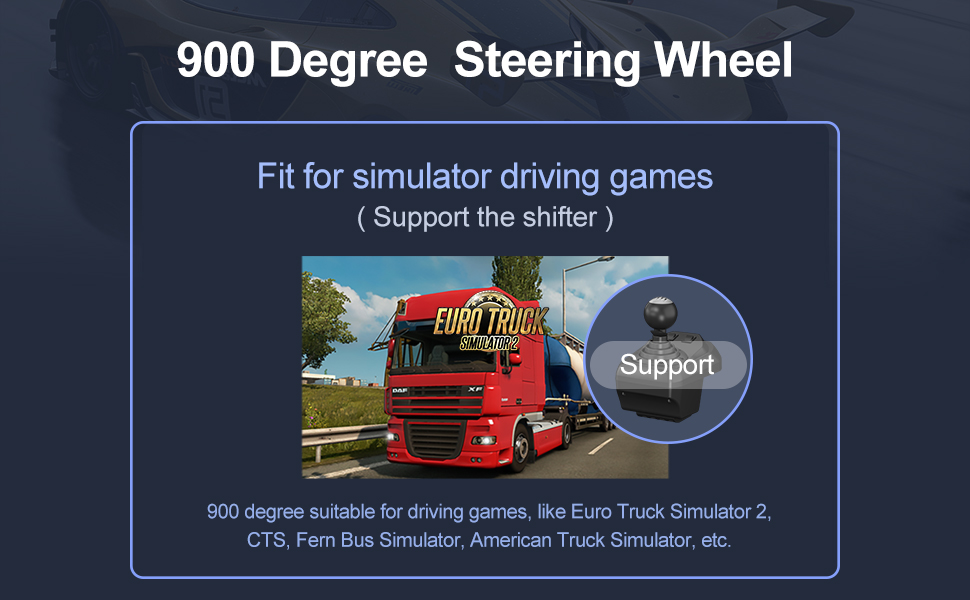
Figure 5: Compatible PlayStation games include Need for Speed, The Crew 2, GRID, and Project CARS.
5. メンテナンス
- Keep the racing wheel, pedals, and shifter clean by wiping them with a soft, dry cloth.
- デバイスを極端な温度、直射日光、湿気にさらさないでください。
- Do not use abrasive cleaners or solvents, as these can damage the product's finish.
- Store the device in a cool, dry place when not in use to prevent dust accumulation and potential damage.
6。 トラブルシューティング
- デバイスが認識されません:
- すべてのケーブルがしっかりと接続されていることを確認してください。
- Verify that the console's original controller is powered off before connecting the racing wheel (for Xbox/PS4).
- For PC, check device manager for driver issues or try a different USB port.
- For Nintendo Switch, ensure "Pro Controller Wired Communication" is enabled.
- No Force Feedback/Vibration:
- Check in-game settings to ensure force feedback is enabled and adjusted.
- Adjust vibration intensity via the "PXN Wheel" app.
- Incorrect Steering Angle:
- Verify the 270°/900° switch is set correctly for your game type.
- Adjust "Effective Turning" and "Sensitivity" settings in the "PXN Wheel" app.
- ペダルまたはシフターが反応しない:
- Ensure the pedal unit and shifter are correctly plugged into the racing wheel base.
- Use the "Testing" function in the "PXN Wheel" app to check individual component responses.
- If issues persist, try resetting the device via the "PXN Wheel" app or consult the PXN customer support.
7. 製品仕様

Figure 6: Approximate product dimensions for the steering wheel, pedal unit, and shifter.
| 属性 | 価値 |
|---|---|
| 製品モデル | V9 |
| 接続タイプ | USB有線 |
| 動作電流 | 80mA~150mA |
| 梱包サイズ | 約 410x360x307mm |
| 製品サイズ | 約 280x340x285mm |
| 単位重量 | 約3280g |
| 使用温度 | 10℃~40℃ |
| 使用湿度 | 20%~80% |
Note: The above page data is the theoretical value from PXN laboratory, please be subject to actual using situation.
8. 保証とサポート
PXN is committed to providing high-quality products and customer satisfaction.
- 12月保証: The PXN V9 Racing Wheel comes with a 12-month warranty from the date of purchase. This warranty covers manufacturing defects and ensures the product meets our quality standards.
- 顧客サービス: If you encounter any product problems or require technical assistance, please contact PXN customer service. Our team is available to provide satisfactory answers and support.
- For further information or to contact support, please visit the official PXN webサイトをご覧いただくか、製品パッケージに記載されている連絡先を参照してください。