1.製品オーバーview
The HyperX Alloy Origins 60 is a supremely portable 60% form factor keyboard designed to provide more room for mouse movements. It features a durable, full aluminum body and reliable HyperX switches optimized for speed and performance, rated for 80 million keypresses. The double shot PBT keycaps include secondary functions printed on them for quick access. The exposed LED design of the HyperX switches allows for stunning RGB lighting effects. Further customization, including macros and personalized lighting profiles, can be achieved using HyperX NGENUITY software.

Figure 1.1: HyperX Alloy Origins 60 Mechanical Gaming Keyboard with vibrant RGB backlighting.
2. 主な特徴
- Petite 60% Form Factor: Maximizes desk space for mouse movement.

図 2.1: キーボードのコンパクトな 60% フォーム ファクター。
- Full Aircraft-Grade Aluminum Body: Ensures structural soundness and stability.

Figure 2.2: Illustration of the durable full aluminum body construction.
- Double Shot PBT Keycaps with Side Printing: Durable keycaps resistant to wear, with secondary functions clearly printed.

Figure 2.3: Double shot PBT keycaps with secondary functions printed on the sides.
- HyperX メカニカルスイッチ: Custom-designed for speed and accuracy, rated for 80 million keypresses.

Figure 2.4: HyperX mechanical switches designed for optimal performance.
- RGB Backlit Keys with Radiant Lighting Effects: Enhanced RGB lighting due to exposed LED design.

Figure 2.5: The keyboard displaying its radiant RGB lighting effects.
- Advanced Customization with HyperX NGENUITY: Software for Game Mode, macros, and per-key lighting.

Figure 2.6: HyperX NGENUITY software for advanced customization.
- Three Adjustable Keyboard Angles and Detachable USB-C Cable: For ergonomic comfort and portability.

Figure 2.7: The keyboard's adjustable feet for three different tilt angles.
- Included Keycap Puller and Additional Keycaps: For customization and maintenance.
Figure 2.8: Included accessories for keycap customization.
- マルチプラットフォーム互換性: Compatible with PC, PS5, PS4, Xbox Series X|S, and Xbox One.
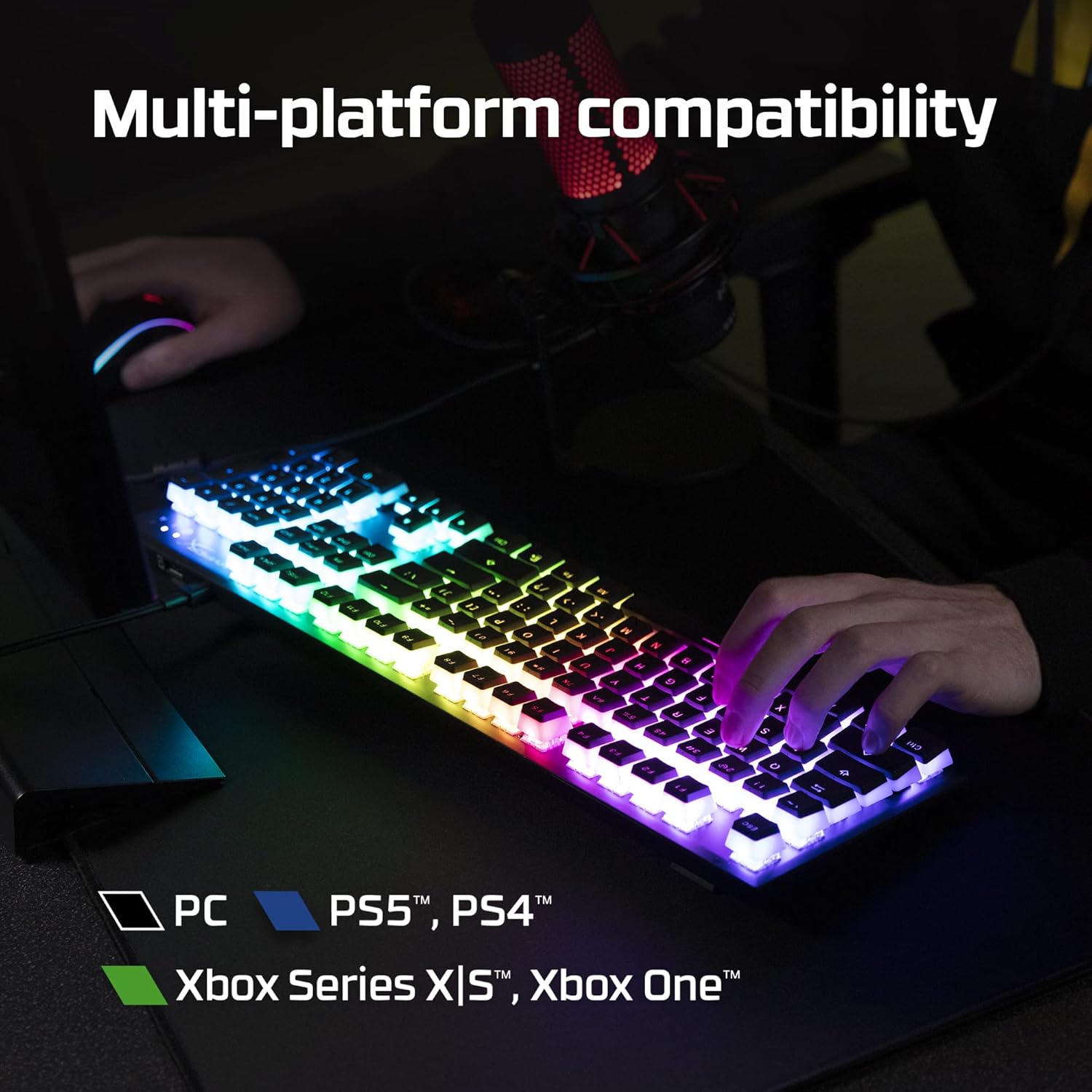
Figure 2.9: The keyboard's multi-platform compatibility.
3.セットアップガイド
3.1 パッケージ内容
始める前に、パッケージにすべてのアイテムが揃っていることを確認してください。
- HyperX Alloy Origins60メカニカルゲーミングキーボード
- 取り外し可能なUSB-C - USB-Aケーブル
- キーキャッププーラー
- Additional Keycaps (e.g., alternate Esc key, special spacebar)
Figure 3.1: All components included in the HyperX Alloy Origins 60 package.
3.2 キーボードの接続
- Locate the detachable USB-C to USB-A cable.
- Connect the USB-C end of the cable to the USB-C port on the back of the HyperX Alloy Origins 60 keyboard.
- Connect the USB-A end of the cable to an available USB-A port on your PC or gaming console.
- The keyboard will automatically be detected and drivers will install if necessary. The RGB lighting will illuminate upon successful connection.

Figure 3.2: Connecting the detachable USB-C cable to the keyboard.
3.3 キーボードの角度調整
The keyboard features two-step keyboard feet, allowing you to set it at three different tilt angles (3°, 7°, 11°) for optimal ergonomic comfort.
- Flip the keyboard over to access the feet on the underside.
- Extend the smaller feet for a moderate tilt.
- Extend both the smaller and larger feet for the maximum tilt.

Figure 3.3: Adjusting the keyboard's tilt angle using the integrated feet.
4. 操作手順
4.1 基本機能
The HyperX Alloy Origins 60 is a 60% keyboard, meaning it omits the number pad, function row, navigation cluster, and arrow keys to achieve its compact size. These functions are typically accessed via a combination of the Fn key and other keys.
- Fn + [キー]: Activates the secondary function printed on the side of the keycap. Refer to the side legends for specific functions.
- ゲームモード: Prevents accidental presses of the Windows key during gaming. Activate/deactivate via NGENUITY software.
4.2 HyperX NGENUITY Software
For advanced customization of your keyboard, download and install the HyperX NGENUITY software from the official HyperX webサイト。このソフトウェアを使用すると、次のことが可能になります。
- Customize RGB lighting effects and colors on a per-key basis.
- Create and manage macros for complex commands.
- Set up and switch between multiple onboard profiles.
- Adjust Game Mode settings.

Figure 4.1: HyperX NGENUITY software for comprehensive keyboard control.
5. メンテナンス
Proper maintenance ensures the longevity and optimal performance of your HyperX Alloy Origins 60 keyboard.
5.1 キーボードのクリーニング
- 清掃する前に、キーボードをコンピューターから取り外してください。
- 圧縮空気缶を使用して、キーキャップ間のほこりやゴミを取り除きます。
- For surface cleaning, gently wipe the keycaps and frame with a soft, lint-free cloth damp少量の水、または低刺激で研磨剤を含まない洗浄液で拭き取ってください。過度の湿気は避けてください。
- 洗浄液をキーボードに直接吹きかけないでください。
5.2 キーキャップの取り外しと交換
付属のキーキャップ プーラーを使用すると、キーキャップを安全に取り外して交換し、クリーニングやカスタマイズを行うことができます。
- Gently place the keycap puller over the keycap you wish to remove, ensuring the wires hook onto opposite sides of the keycap.
- キーキャップがスイッチステムから外れるまで、均一な圧力をかけながらまっすぐ上に引きます。
- キーキャップを交換するには、キーキャップをスイッチ ステムに合わせて、カチッと音がするまでしっかりと押し下げます。

Figure 5.1: Using the keycap puller to remove keycaps.
6。 トラブルシューティング
If you encounter issues with your HyperX Alloy Origins 60 keyboard, try the following troubleshooting steps:
| 問題 | 考えられる原因 / 解決策 |
|---|---|
| キーボードが反応しない / 点灯しない |
|
| RGB lighting not working correctly |
|
| キーが認識されない、または二重入力される |
|
If these steps do not resolve the issue, please contact HyperX customer support for further assistance.
7. 仕様
| 特徴 | 詳細 |
|---|---|
| 製品寸法 | 11.7 x 1.5 x 4.2インチ |
| アイテム重量 | 2.14ポンド |
| メーカー | HP株式会社 |
| 言語 | 英語 |
| ASIN | B08XBQ79MN |
| 商品型番 | HKBO1S-RB-US/G |
| ブランド | ハイパーX |
| 対応デバイス | ゲーム機、PC |
| 接続技術 | USB-CからUSB-Aへ |
| キーボードの説明 | 機械、ゲーム |
| 製品の推奨用途 | ゲーム |
| 特集 | Backlit, Lighting, Portable |
| 色 | 黒 |
| キーの数 | 61 |
| キーボード バックライトの色のサポート | RGB |
| スタイル | HyperX Red |
8. 保証とサポート
For detailed warranty information and technical support, please refer to the official HyperX resources:
- 公式ユーザーガイド(PDF): ユーザーガイドのダウンロード
- HyperX Brand Store: Visit HyperX Store on Amazon
- For further assistance, contact HyperX customer support through their official webサイト。


