1. はじめにview
The Tera 1100C 1D Mini CCD Wireless Barcode Scanner is a compact, portable, and highly versatile device designed for efficient barcode data collection. Featuring 3-in-1 connectivity (Bluetooth, 2.4G Wireless, and USB Wired), an IP66 waterproof and dustproof rating, and the ability to read 1D barcodes from both digital screens and printed materials, this scanner is suitable for a wide range of applications.

Figure 1.1: Tera 1100C Mini CCD Barcode Scanner in use.

Figure 1.2: Key features of the Tera 1100C scanner.
ビデオ1.1: 公式製品終了view of the Tera 1100C Mini Portable 1D CCD Barcode Scanner, demonstrating its features and portability.
2. パッケージ内容
Upon opening your Tera 1100C Barcode Scanner package, please verify that all the following items are included:
- バーコードスキャナー(x1)
- USBケーブル(x1)
- 2.4G USBドングル(x1)
- ユーザーマニュアル (x1)
3 製品の特徴
3.1. IP66 Water-proof & Dust-proof Design
The Tera 1100C scanner boasts an IP66 rating, ensuring it is highly resistant to both water and dust ingress. This makes it suitable for use in various demanding environments.
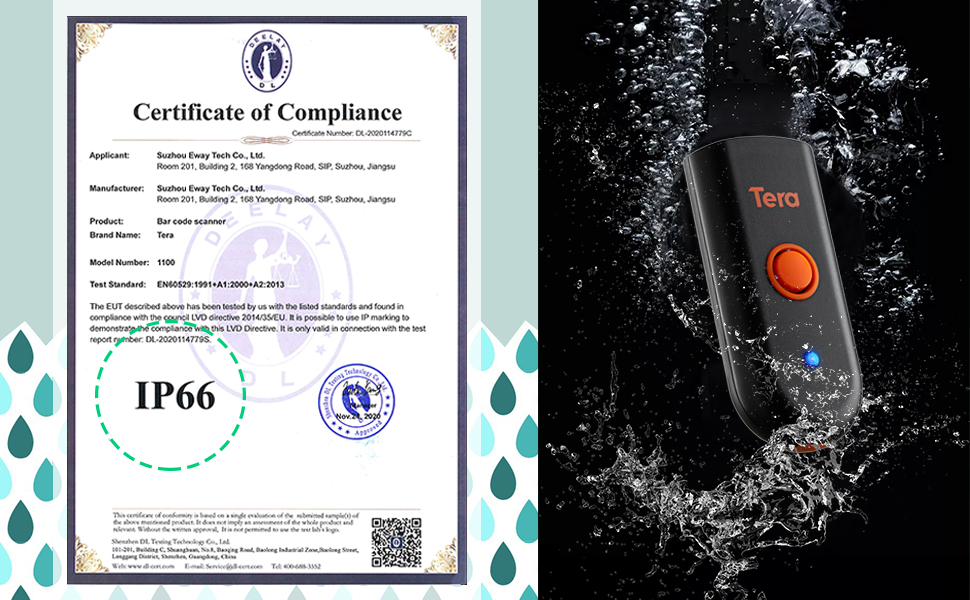
Figure 3.1: IP66 Certification and waterproof demonstration.
3.2. 1D Barcode Reading Capability
This scanner is specifically designed to read 1D barcodes. It supports both digital (on-screen) and printed 1D barcode symbologies, including Codabar, Code 11, Code93, MSI, Code 128, UCC/EAN-128, Code 39, EAN-8, EAN-13, UPC-A, ISBN, Industrial 25, Interleaved 25, Standard 25, and 2/5 Matrix.

Figure 3.2: Scanning 1D barcodes from screens and printed materials.
3.3. 振動アラート
For environments requiring quiet operation, the scanner features a vibration alert function. When the audible volume is turned off, the vibration will confirm a successful barcode scan.
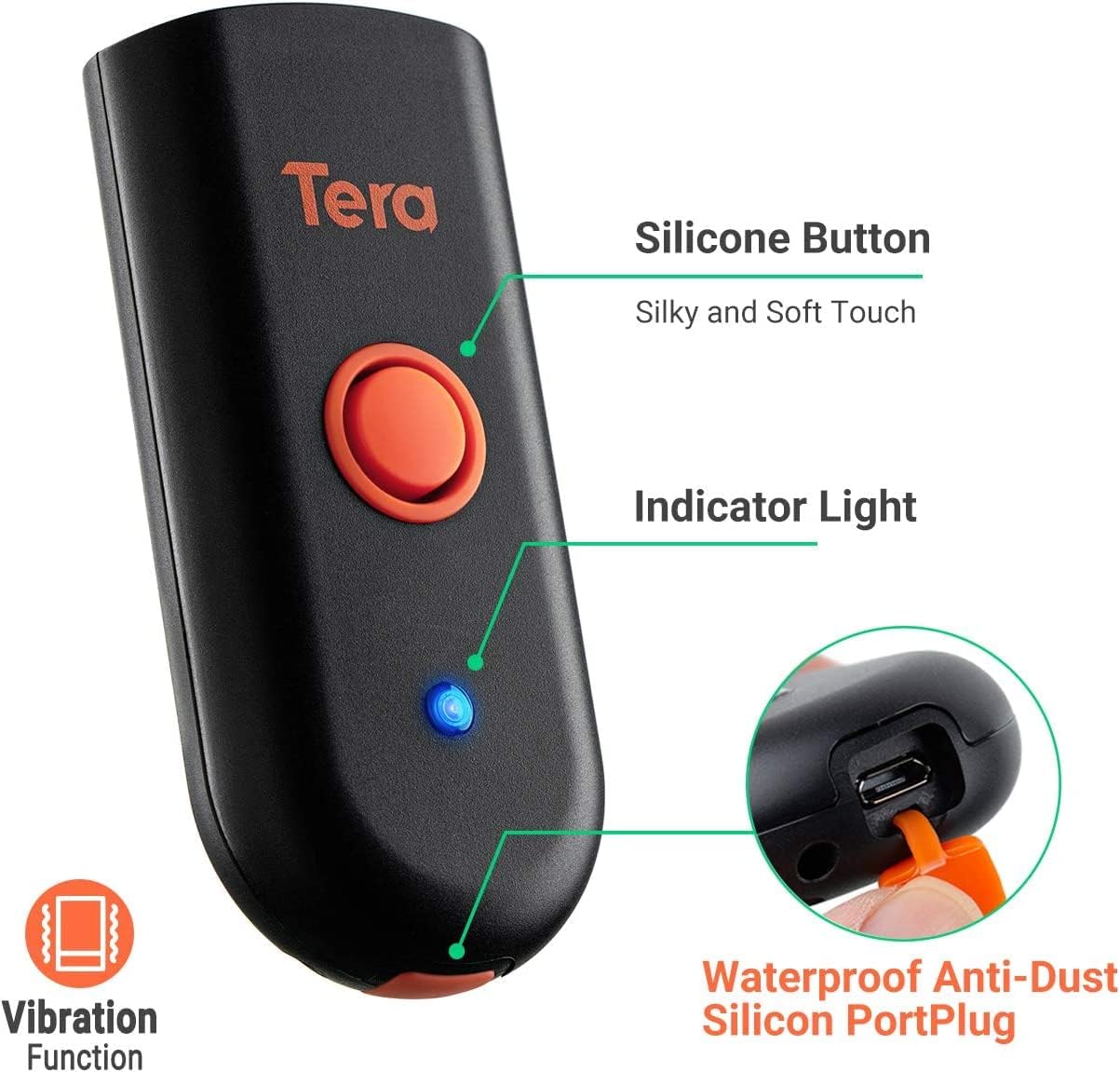
Figure 3.3: Scanner features including vibration alert.
4. はじめに
4.1. スキャナの充電
Before first use, fully charge the scanner. Use the provided USB cable. It is recommended to use a 5V/1A charging adapter. Do not use USB Power Delivery (USB PD) standard power adapters or cables, as this scanner does not support that standard.

Figure 4.1: Charging recommendations for the scanner.
4.2. Connection Ways
The Tera 1100C offers three versatile connection methods:
- ブルートゥース: Connect wirelessly to devices like smartphones, tablets, and laptops.
- 2.4GHzワイヤレス: Use the included USB dongle for wireless connection to computers. This mode offers a transmission distance of up to 656ft in barrier-free environments and 98ft with obstacles.
- USB 2.0 有線: Connect directly to your device via the USB cable for a stable wired connection.

Figure 4.2: Three-in-one connection modes.
4.3. Compatible Devices and Systems
スキャナーは、幅広いデバイスおよびオペレーティング システムと互換性があります。
- デバイス: PC, Laptop, iPad, iPhone, Smartphone, Tablet.
- システム: Windows、iOS、Android、Linux、Mac OS。
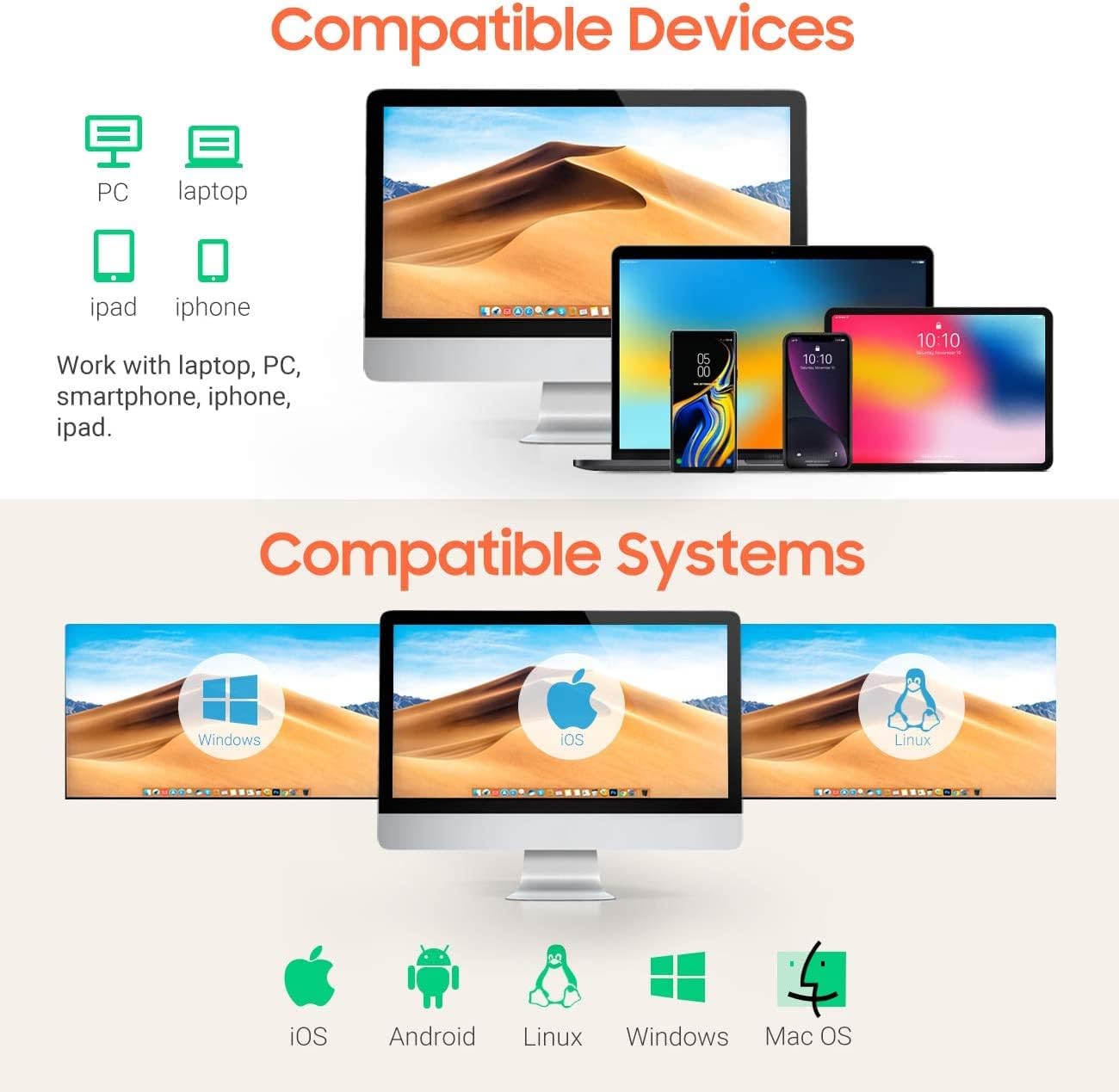
図 4.3: 互換性のあるデバイスとオペレーティング システム。
5. 操作手順
5.1. バーコードのスキャン
To scan a barcode, point the scanner's reading window at the barcode and press the trigger button. Ensure the barcode is within the scanner's field of view 最適な読み取りのために。
5.2. Two Scanning Modes
スキャナーは主に 2 つのスキャン モードをサポートしています。
- キートリガーモード: スキャンごとにトリガーボタンを押します。
- 連続モード: The scanner continuously reads barcodes without needing to press the trigger for each scan. This mode is ideal for high-volume scanning.
Figure 5.1: Key Trigger Mode vs. Continuous Mode.
5.3. データアップロードモード
スキャナーには、ワークフローに合わせて 2 つのデータアップロード モードがあります。
- インスタントアップロードモード: Barcodes are uploaded directly to your connected device immediately after scanning.
- ストレージモード: Scan and store up to 50,000 barcodes in the scanner's built-in memory. All stored data can then be uploaded to your device when needed.

Figure 5.2: Instant Upload Mode and Storage Mode.
5.4. Adding Time Prefix/Suffix
The scanner supports adding time prefixes or suffixes to scanned barcode data, which can be useful for timestamping inventory or tracking. Refer to the full user manual (PDF) for detailed instructions on configuring this feature.

Figure 5.3: Scanner supporting time prefix/suffix.
5.5. 多言語サポート
The scanner supports various language settings, allowing for broader compatibility and ease of use in different regions. Supported languages include English, Spanish, German, Japanese, French, and Italian.

図 5.4: 多言語サポート。
6. メンテナンス
To ensure the longevity and optimal performance of your Tera 1100C Barcode Scanner, follow these maintenance guidelines:
- クリーニング: スキャナーの外側は、柔らかく乾いた布で拭いてください。スキャンウィンドウは、糸くずの出ない布と、必要に応じて中性洗剤をご使用ください。研磨剤や刺激の強い化学薬品の使用は避けてください。
- ストレージ: スキャナーは、直射日光や極端な温度を避け、涼しく乾燥した場所に保管してください。
- Port Plug: Always ensure the waterproof anti-dust silicon port plug is securely in place when the USB port is not in use to maintain the IP66 rating.
- バッテリーのケア: Avoid fully discharging the battery frequently. For long-term storage, charge the battery to about 50% and store in a cool place.
7。 トラブルシューティング
If you encounter issues with your Tera 1100C Barcode Scanner, please refer to the following common troubleshooting steps:
| 問題 | 考えられる原因 | 解決 |
|---|---|---|
| スキャナーが起動しない | バッテリー残量が少ない; 電源ボタンが正しく押されていない | Charge the scanner fully; Press and hold the power button until indicator light appears. |
| Bluetooth/2.4G経由で接続できません | Out of range; Incorrect pairing mode; Interference | Ensure scanner is within range; Re-enter pairing mode (refer to full manual); Move away from other wireless devices. |
| バーコードをスキャンできません | Barcode damaged/unreadable; Incorrect scanning mode; Scanner lens dirty | Try scanning a different barcode; Switch scanning modes (e.g., Key Trigger); Clean the scanning lens. |
| Scanned data incorrect/missing | Incorrect data format settings; Connection issue | Check scanner configuration for prefixes/suffixes; Re-establish connection. |
For more detailed troubleshooting steps or persistent issues, please consult the comprehensive User Manual PDF provided with your product or visit the Tera official webサポートサイト。
8. 仕様
| 特徴 | 詳細 |
|---|---|
| モデル | 1100C 1D Mini CCD |
| 製品寸法 | 0.78 x 1.57 x 3.4インチ (奥行き0.78インチ x 幅1.57インチ x 高さ3.4インチ) |
| アイテム重量 | 4.9オンス |
| 接続技術 | Bluetooth、2.4Gワイヤレス、USBケーブル |
| 電源 | Corded Electric (Internal Rechargeable Battery) |
| 対応デバイス | ラップトップ、デスクトップ、タブレット、スマートフォン |
| メーカー | テラ |
| デコード機能(1D) | Codabar, Code 11, Code93, MSI, Code 128, UCC/EAN-128, Code 39, EAN-8, EAN-13, UPC-A, ISBN, Industrial 25, Interleaved 25, Standard 25, 2/5 Matrix etc. |
| IP 定格 | IP66 (Water-proof, Dust-proof) |
| バッテリー容量 | 650mAh (approx. 12 hours normal use time) |
| ストレージ容量 | 最大50,000個のバーコード |
9. 保証とサポート
For information regarding product warranty, technical support, and service, please refer to the warranty card included in your product packaging or visit the official Tera website. The full User Manual (PDF) is also available for download from the Tera website for detailed instructions and advanced configurations.
ユーザーマニュアル(PDF): ダウンロードはこちら


