1. はじめにview
The Tera Mini 1D 2D QR Wireless Barcode Scanner is a compact, robust, and versatile device designed for efficient barcode data collection. Its IP66 waterproof and dustproof rating ensures durability in various environments. With multiple connection options and support for a wide range of barcode types, this scanner is suitable for diverse applications.

Figure 1.1: Tera Mini 1100D Barcode Scanner and accessories.
2. パッケージ内容
パッケージにすべてのアイテムが揃っていることを確認してください:
- バーコードスキャナ x1
- USBケーブルx1
- ドングルx1
- ユーザーマニュアル x1 (本書)
3. 製品の特徴と構成
The Tera Mini 1100D is designed with user convenience and durability in mind. Key components and features include:
-
Silicone Button: Provides a soft and smooth scanning experience.
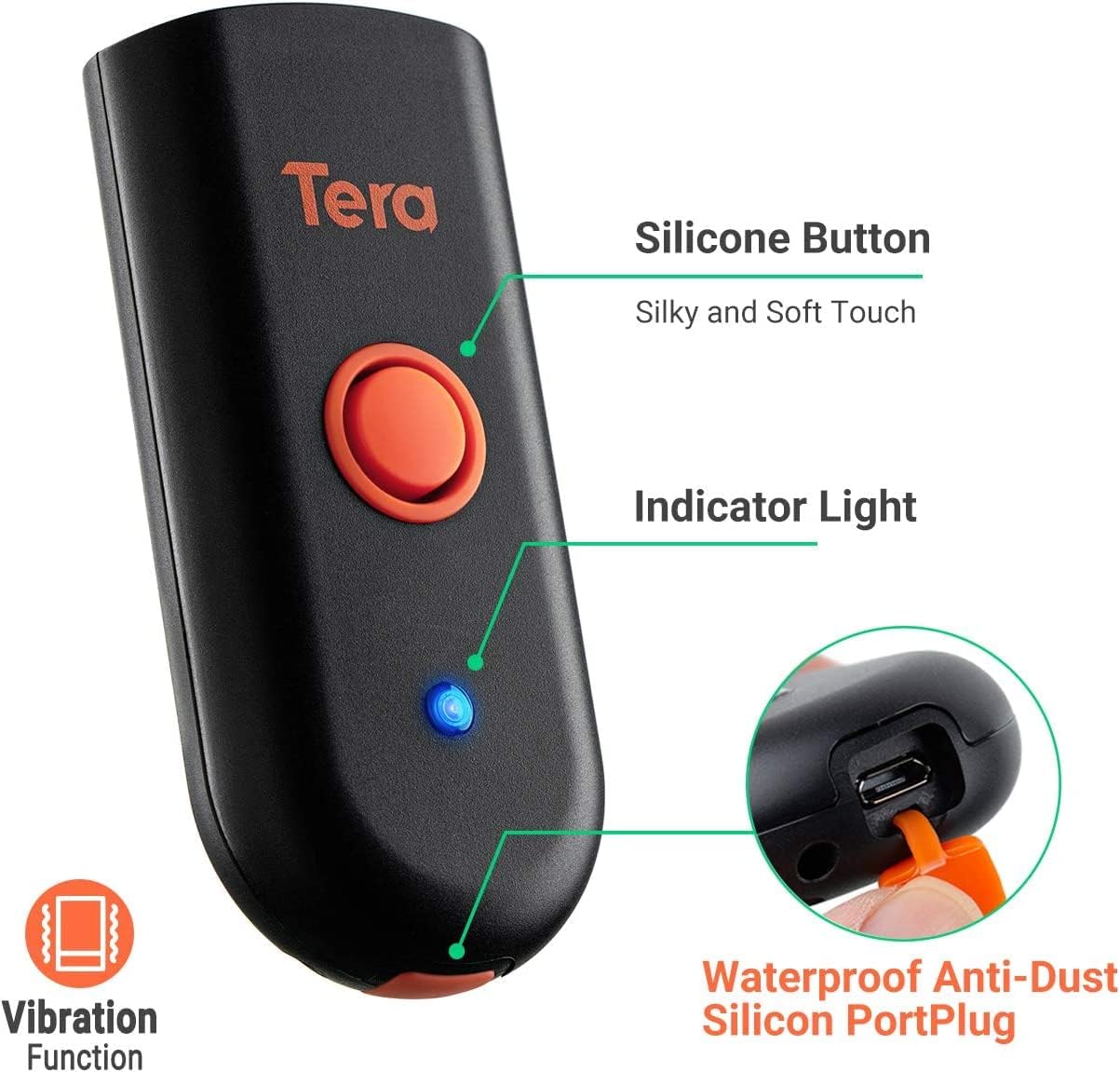
Figure 3.1: Scanner components including the silicone button and port plug.
- インジケーターライト: スキャナーの状態に関する視覚的なフィードバックを提供します。
-
Waterproof Anti-Dust Silicone Port Plug: Ensures better performance in various working conditions by protecting the charging port.

Figure 3.2: Detail of the waterproof silicone port plug.
-
振動アラート: Provides tactile feedback when a barcode is detected, useful for quiet environments.
Figure 3.3: Vibration alert functionality.
-
コンパクトで軽量なデザイン: Easily fits into a pocket for portability.

Figure 3.4: Scanner dimensions and portability.
4. セットアップ
The Tera Mini 1100D offers three connection methods:
-
Bluetooth接続:
To connect via Bluetooth, ensure your device's Bluetooth is enabled. Scan the Bluetooth pairing barcode (usually found in the full user manual or quick start guide) with the scanner. The scanner will then appear in your device's Bluetooth settings for pairing.
-
2.4GHzワイヤレス接続:
Insert the provided 2.4G USB dongle into a USB port on your computer. The scanner will automatically connect to the dongle. This mode offers a transmission distance of up to 656ft in barrier-free environments and 98ft with obstacles.
-
USB有線接続:
付属のUSBケーブルを使用して、スキャナーをコンピューターに直接接続します。スキャナーは有線デバイスとして機能し、同時に充電も行います。

Figure 4.1: Three-in-one connection modes.
5。 動作モード
The scanner supports different operating and data upload modes to suit various workflows:
-
データアップロードモード:
- インスタントアップロードモード: Barcodes are uploaded directly to your connected device immediately after scanning.
- ストレージモード: Scan and store up to 10,000 barcodes internally. Data can be uploaded to a computer later when available.
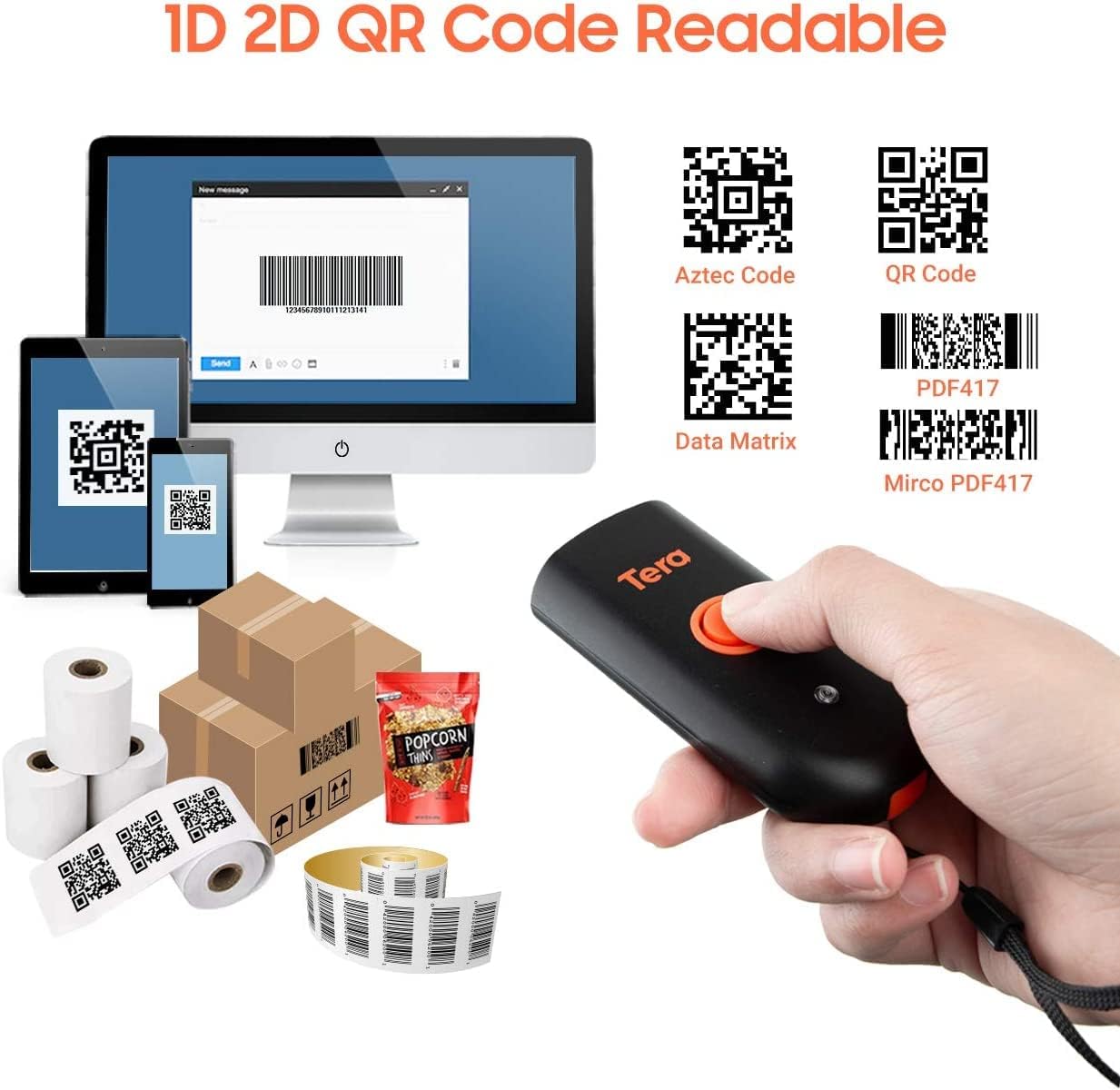
図 5.1: データアップロードモード。
-
スキャンモード:
- キートリガーモード: Scan a barcode by pressing the trigger button for each scan.
- 連続モード: The scanner continuously emits its scan beam, allowing for rapid scanning without repeatedly pressing the trigger.

Figure 5.2: Scanning modes.
6. 充電
To charge the Tera Mini 1100D, use the provided USB cable. Connect it to a standard USB power source. Observe the following charging guidelines:
- 推奨充電電流: 5V/1A。
- 最大充電電流: 5V/1.2A。
- 重要: Do ない use quick charge adapters or USB Power Delivery (USB PD) standard power adapters and data cables to charge this scanner. Use only the original USB cable included in the package for optimal charging and to prevent damage.
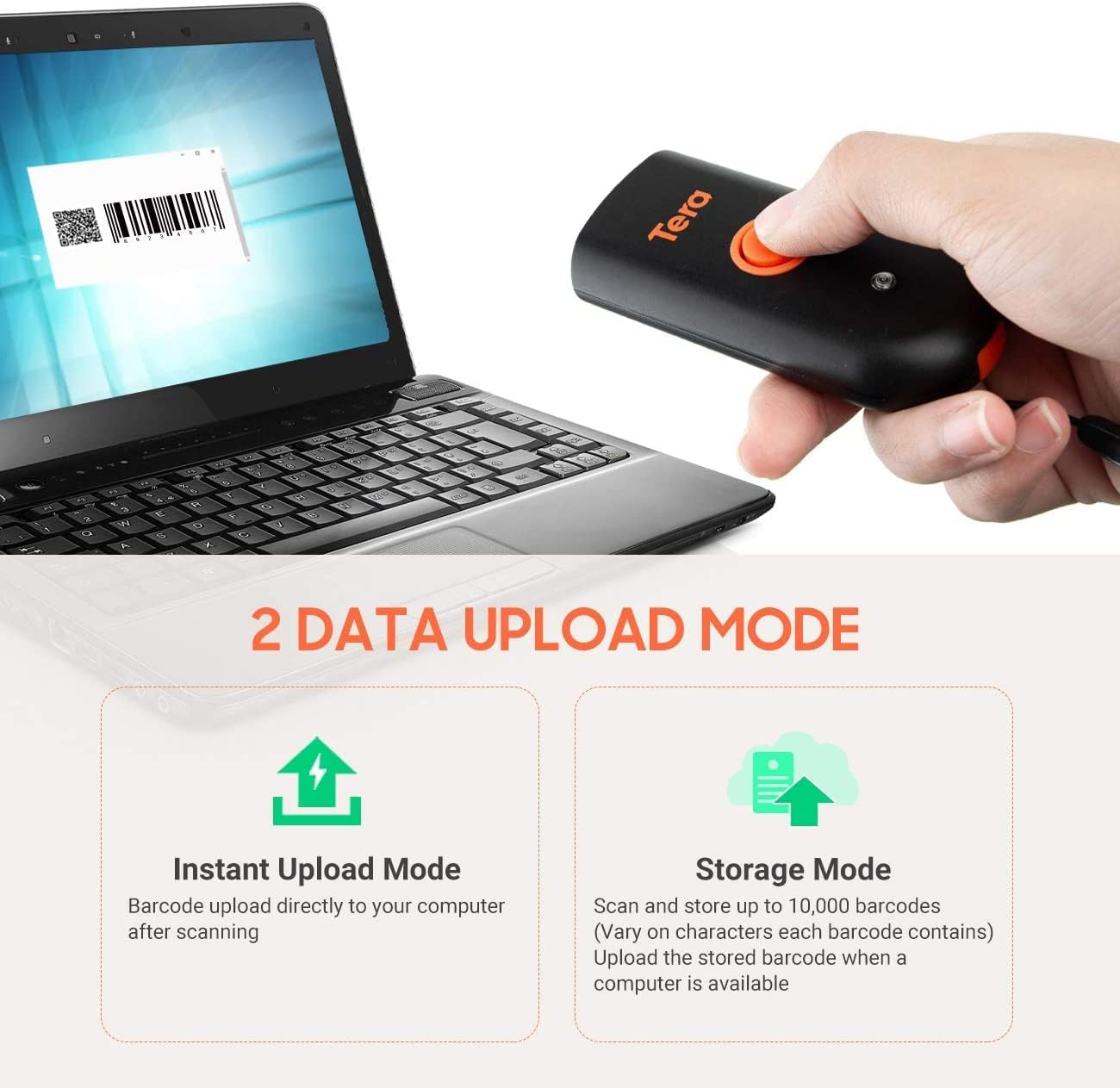
Figure 6.1: Charging specifications and warnings.
7. 互換性
The Tera Mini 1100D barcode scanner is compatible with a wide range of devices and operating systems:
- 対応デバイス: デスクトップ コンピューター、ラップトップ、スマートフォン、タブレット。
- 互換性のあるオペレーティングシステム: Windows (11/10/8/7/XP), Mac OS, iOS, Android, Linux.
- 注記: This scanner is ない compatible with Square POS systems.
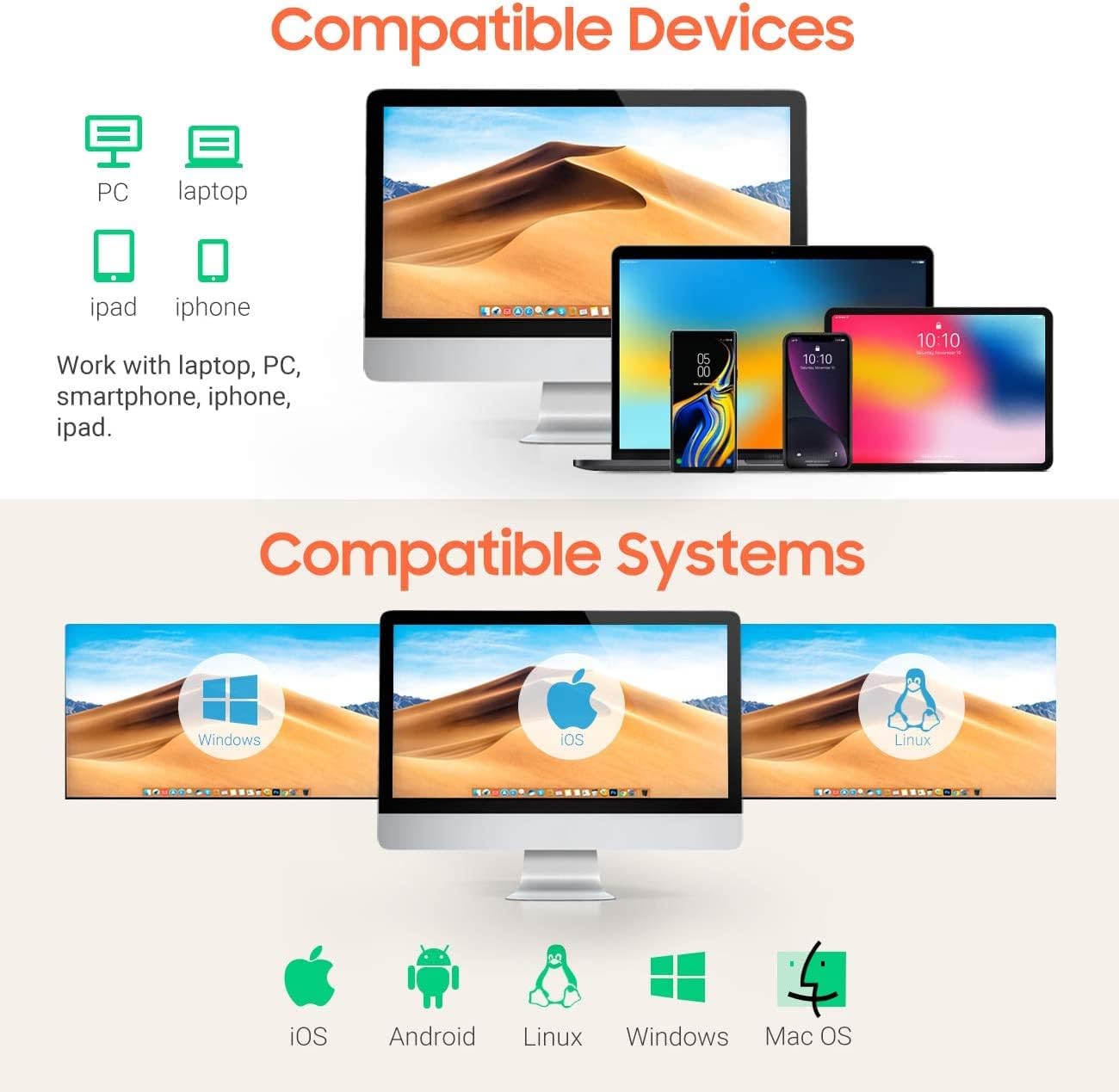
Figure 7.1: Device and system compatibility.
8. スキャン機能
The Tera Mini 1100D is capable of reading both digital and printed 1D, 2D, and QR barcode symbologies. It features a global shutter for fast and accurate decoding performance.
- 1Dデコード機能: Codabar、Code 11、Code93、MSI、Code 128、UCC/EAN-128、Code 39、EAN-8、EAN-13、UPC-A、ISBN、Industrial 25、Interleaved 25、Standard 25、2/5 Matrix。
- 2Dデコード機能: QR, PDF417, Data Matrix, Aztec code, Maxi Code.
- The scanner supports reading barcodes directly from computer screens and mobile phones.
- It also supports adding time prefixes or suffixes to scanned data.
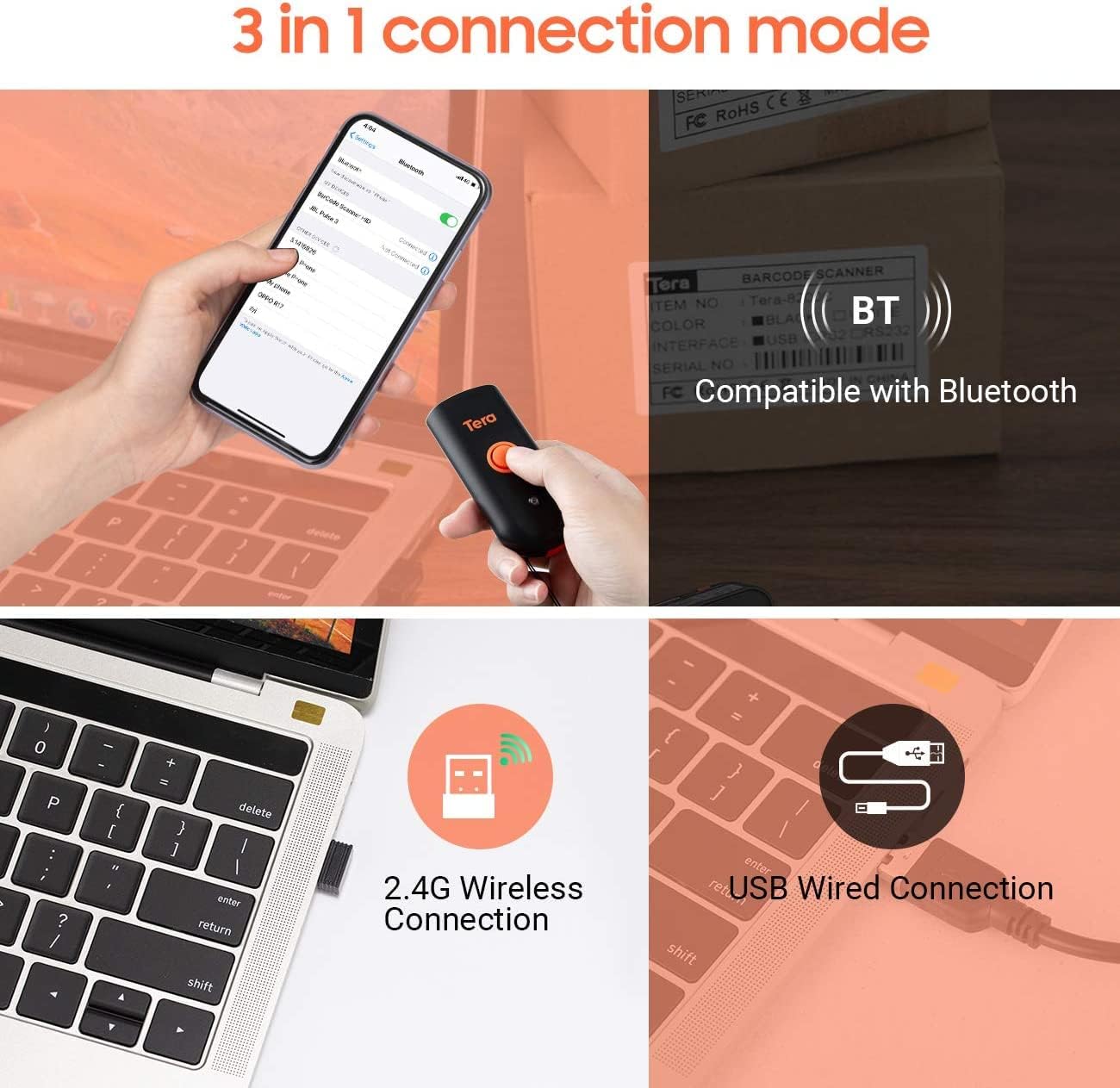
Figure 8.1: 1D, 2D, and QR code readability.
Figure 8.2: Reading barcodes from screens.
Figure 8.3: Time prefix/suffix support.
9.詳細設定
The scanner can be configured for various advanced functionalities by scanning specific setup barcodes (refer to the comprehensive user manual for all configuration barcodes):
-
数字の追加または非表示: Customize scanned data by adding or removing specific digits from the barcode output.

Figure 9.1: Customizing barcode output.
-
多言語サポート: Configure the scanner to support various keyboard layouts for different languages, including English, Spanish, German, Japanese, French, and Italian.

Figure 9.2: Multi-language keyboard support.
10. 仕様
| 特徴 | 詳細 |
|---|---|
| 製品寸法 | 奥行き3.43インチ x 幅1.57インチ x 高さ0.79インチ (87 x 40 x 20 mm) |
| アイテム重量 | 5.3オンス(150g) |
| 接続技術 | 2.4G ワイヤレス、Bluetooth、USB ケーブル |
| 電源 | Corded Electric (Internal Battery) |
| 対応デバイス | デスクトップ、ラップトップ、スマートフォン、タブレット |
| メーカー | テラ |
| IP 定格 | IP66(防水・防塵) |

図 10.1: IP66 防水・防塵設計。
11. メンテナンス
適切なメンテナンスを行うことで、スキャナーの寿命が長くなり、最適なパフォーマンスが確保されます。
- クリーニング: Use a soft, dry cloth to clean the scanner's exterior. For stubborn dirt, a slightly damp 布を使用することもできますが、ポートに湿気が入らないようにしてください。
- ストレージ: スキャナーは、直射日光や極端な温度を避け、涼しく乾燥した場所に保管してください。
- ポート保護: Always ensure the silicone port plug is securely in place when the USB cable is not connected to maintain its waterproof and dustproof integrity.
- バッテリーのケア: Avoid fully discharging the battery frequently. Charge the scanner regularly, especially if it will be stored for an extended period.
12。 トラブルシューティング
If you encounter issues with your Tera Mini 1100D scanner, please refer to the following common troubleshooting steps:
-
スキャナーが接続されていません:
- スキャナーが完全に充電されていることを確認してください。
- Verify the correct connection mode (Bluetooth, 2.4G, or USB) is selected and properly set up.
- For Bluetooth, ensure your host device's Bluetooth is on and the scanner is in pairing mode.
- 2.4G ワイヤレスの場合、USB ドングルがしっかりと挿入され、コンピューターに認識されていることを確認してください。
- スキャナーとホストデバイスの両方を再起動してみてください。
-
バーコードをスキャンできません:
- スキャナーの電源がオンになっていて接続されていることを確認します。
- バーコードが破損していないか、印刷が不良ではないか確認してください。
- Adjust the scanning distance and angle. The scanner works best within 2 to 16 inches.
- バーコードを読み取るために十分な照明があることを確認してください。
- バーコード タイプがスキャナーでサポートされていることを確認します (セクション 8 を参照)。
- 画面からスキャンする場合は、画面の明るさが適切であり、反射がないことを確認してください。
-
Data Not Uploading Correctly:
- Confirm the correct data upload mode (Instant or Storage) is selected.
- If using Storage Mode, ensure you have initiated the upload process to transfer stored data.
- Check for any software or driver issues on your host device.
-
バッテリーの消耗が早い:
- 使用する前にスキャナーが完全に充電されていることを確認してください。
- Reduce continuous scanning if not necessary, as this consumes more power.
- Check for any background processes or settings that might be keeping the scanner active.
13. 公式製品ビデオ
Watch the official product video for a visual guide on the Tera Pro 1100D Waterproof Mini Barcode Scanner's features and capabilities.
Video 13.1: Tera Pro 1100D Waterproof Mini Barcode Scanner Overview.
14. 保証とサポート
For warranty information, technical support, or further assistance, please contact Tera customer service through the official webご購入いただいたサイトまたはご購入店にお問い合わせください。購入証明書としてレシートを保管してください。
詳細な PDF ユーザー マニュアルもダウンロードできます。 ユーザーマニュアル(PDF)をダウンロード