1. はじめに
This manual provides detailed instructions for the setup, operation, and maintenance of your Tera Wireless Barcode Scanner, Model 8541733886. Please read this manual thoroughly before using the device to ensure proper functionality and to prevent damage.
The Tera Wireless Barcode Scanner offers versatile connectivity and efficient scanning capabilities for various barcode types, both printed and digital.
2.製品オーバーview
2.1 コンポーネント
通常、パッケージには次のものが含まれます。
- Tera Wireless Barcode Scanner
- Hands-Free Stand
- 2.4GHzワイヤレスUSBドングル
- USB充電/データケーブル
- 取扱説明書(本書)

Image: Tera Wireless Barcode Scanner, showing the scanner unit, flexible stand, 2.4GHz USB dongle, and USB cable.
2.2 主な特徴
- 3つの接続モード: Supports Bluetooth, 2.4GHz wireless, and USB 2.0 wired connections.
- 幅広い互換性: Works with POS systems, iOS, Android, Windows, Mac OS, and Linux. Supports Bluetooth HID, SPP, and BLE protocols.
- 高速かつ正確なスキャン: Equipped with an ARM32Bit Cortex CPU and a Japan-manufactured scanner head, achieving decoding speeds up to 500 scans per second.
- デュアルアップロードモード:
- インスタントアップロードモード: Barcodes are transmitted to your device immediately upon scanning.
- オフライン保存モード: Stores up to 50,000 barcodes internally when out of range, allowing for later upload.
- Multi-Language Barcode Support: Capable of scanning barcodes in English, Spanish, German, French, Italian, and Japanese. Ensure your keyboard language matches the selected language for correct input.
- Versatile Barcode Symbologies:
- 1D: UPC-A, UPC-E, EAN-8, EAN-13, Code 128, Code 39, Code 93, Code 11, Interleaved 2 of 5, Matrix 2 of 5, Standard 2 of 5, Coda bar, MSI Plessey, RSS, etc.
- 2D: QRコード、データマトリックス、PDF417、アステカコード、マキシコードなど
- 耐久性: Designed to withstand impacts from drops of up to 1.5 meters (5 feet) onto concrete.
- 長いバッテリー寿命: Built-in 2200mAh battery supports approximately 57,000 scans on a full charge, with up to 15 days of standby time.
3. セットアップ
3.1 スキャナの充電
Before first use, fully charge the scanner. Connect the USB charging cable to the scanner's charging port and to a USB power source (e.g., computer USB port, USB wall adapter). The indicator light will show charging status.

Image: Illustration showing the scanner's 2200mAh battery capacity and its ability to withstand a 1.5-meter drop.
3.2 接続モード
スキャナーは次の 3 つの接続方法をサポートしています。

Image: Visual representation of the three connection modes: Bluetooth, 2.4G Wireless via USB dongle, and USB Wired connection.
3.2.1 USB Wired Mode (Plug & Play)
- 付属の USB ケーブルを使用して、スキャナーをコンピューターに直接接続します。
- The computer will typically recognize the device automatically without requiring driver installation.
- スキャナーを使用する準備ができました。

Image: The scanner connected to a laptop, illustrating its plug-and-play functionality and compatibility with various operating systems including Windows, Mac OS, Linux, and Android.
3.2.2 2.4GHzワイヤレスモード
- Insert the 2.4GHz USB dongle into an available USB port on your computer or device.
- バーコードスキャナーをオンにします。ドングルと自動的にペアリングされます。
- A successful connection is usually indicated by a specific sound or light on the scanner.
3.2.3Bluetoothモード
- デバイス(スマートフォン、タブレット、コンピューター)で Bluetooth が有効になっていることを確認します。
- Put the scanner into Bluetooth pairing mode (refer to the scanner's quick start guide for specific instructions, usually by scanning a special barcode).
- On your device, search for available Bluetooth devices and select "Tera Barcode Scanner" (or similar name).
- プロンプトが表示されたらペアリングを確認します。
注記: Wireless range varies. Indoors with obstacles, Bluetooth range is approximately 33ft, and 2.4GHz wireless is approximately 98ft. Outdoors in barrier-free environments, Bluetooth range is approximately 65ft, and 2.4GHz wireless is approximately 328ft.
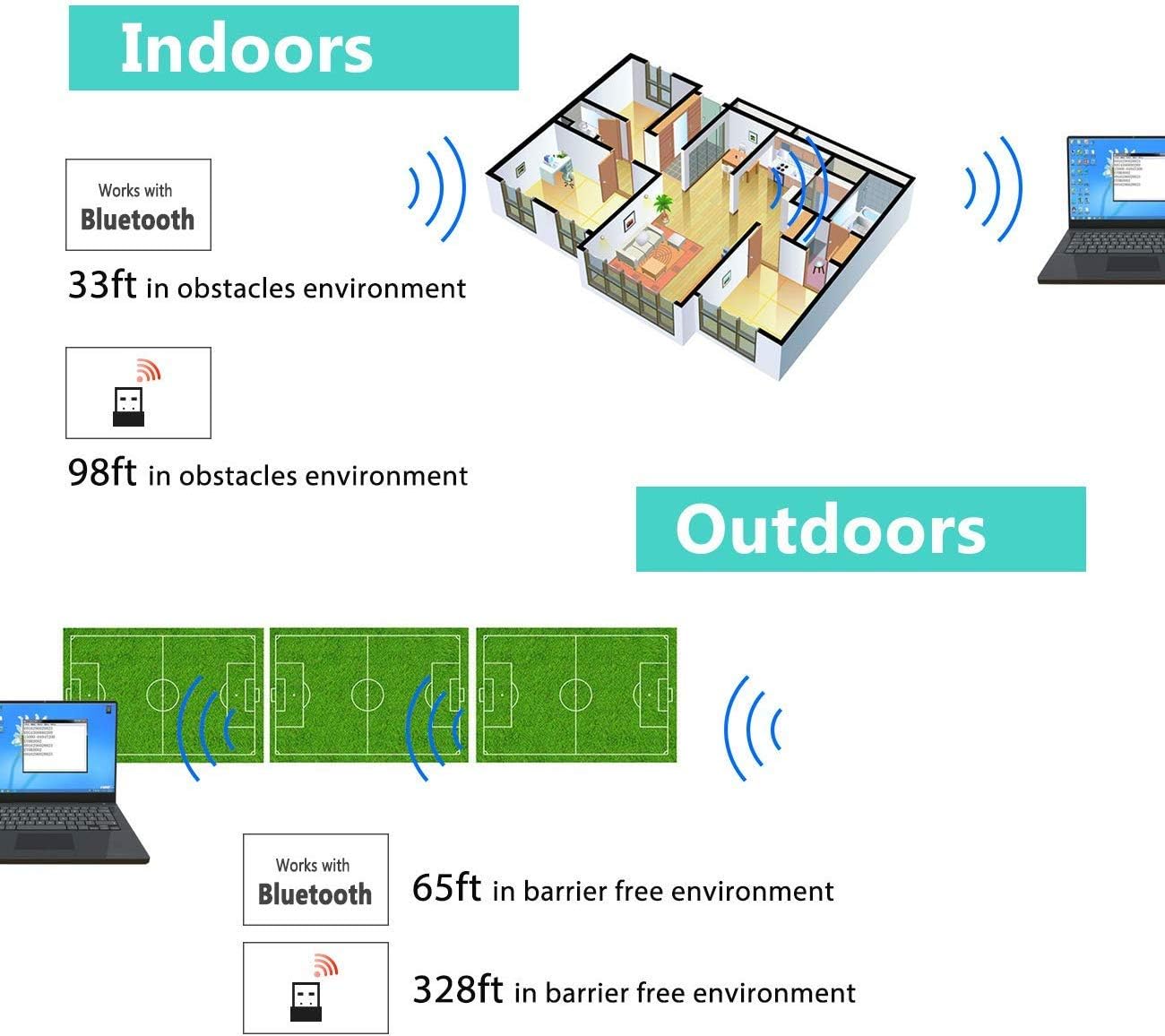
Image: Diagram illustrating the effective wireless range of the scanner in both indoor (with obstacles) and outdoor (barrier-free) environments for Bluetooth and 2.4GHz connections.
4. 操作手順
4.1 バーコードのスキャン
The scanner can read both 1D and 2D barcodes, including QR codes, from printed materials and digital screens.
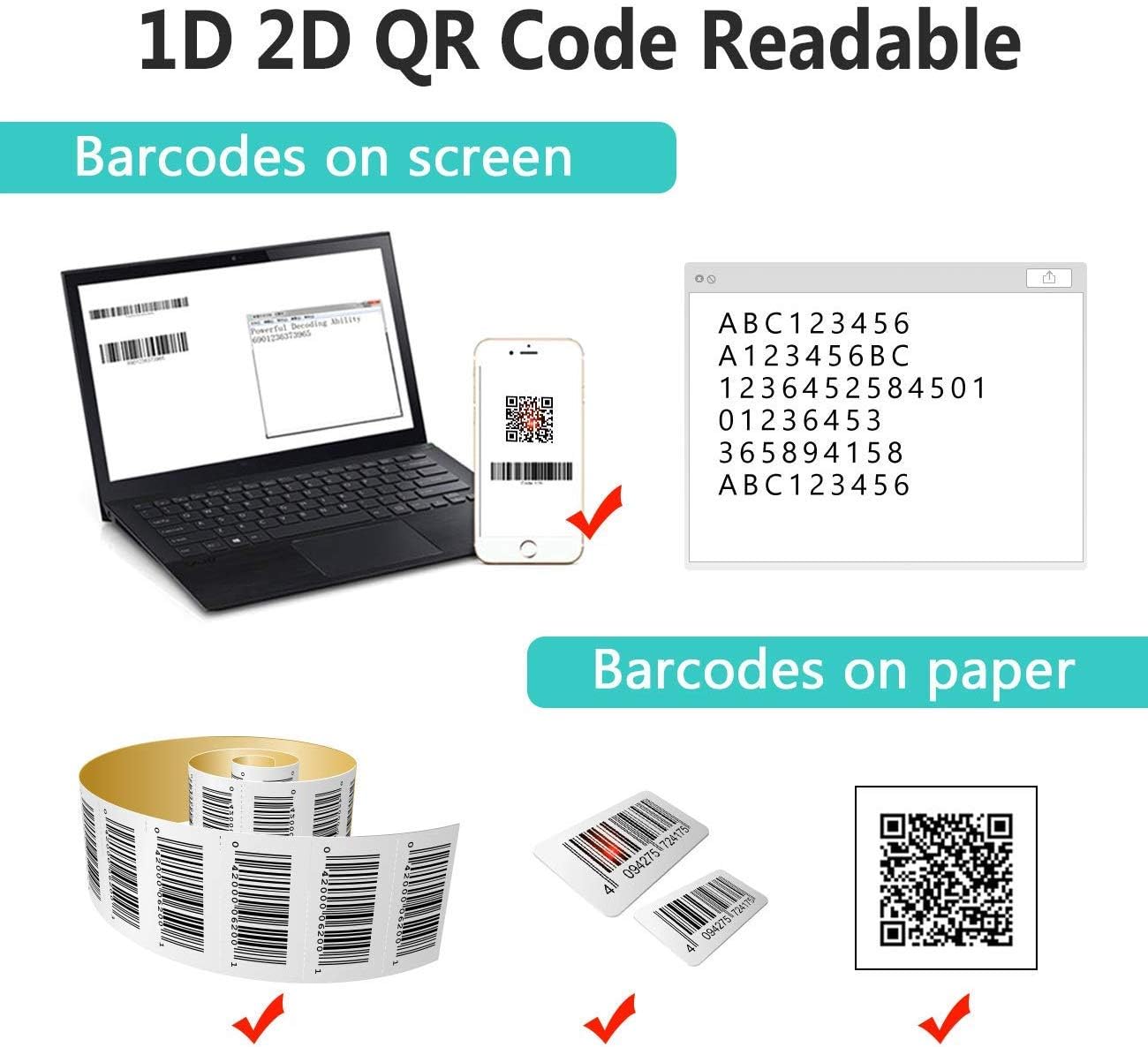
Image: The scanner demonstrating its ability to read 1D and 2D barcodes from both digital screens (laptop, smartphone) and physical printed labels.
バーコードをスキャンするには:
- スキャナーのウィンドウをバーコードに向けます。
- Press the trigger button (or allow the sensor to activate in automatic modes).
- A successful scan is indicated by a beep and/or a green light.
4.2 スキャンモード
スキャナーは主に 3 つのスキャン モードをサポートしています。

Image: The barcode scanner mounted on its stand, highlighting its 360-degree rotation capability and the three available scanning modes: Key Trigger Mode, Sensor Activated Mode, and Continuous Scan Mode.
- キートリガーモード: Scan by manually pressing the trigger button for each barcode.
- Sensor Activated Mode: スキャナは読み取り範囲内でバーコードが検出されると自動的に起動します。 view.
- 連続スキャンモード: The scanner continuously emits a scan beam, reading any barcode that passes through it.
Refer to the quick start guide or programming barcodes for instructions on how to switch between these modes.
4.3 データアップロードモード
スキャナーでは、スキャンしたデータをアップロードする方法が 2 つあります。
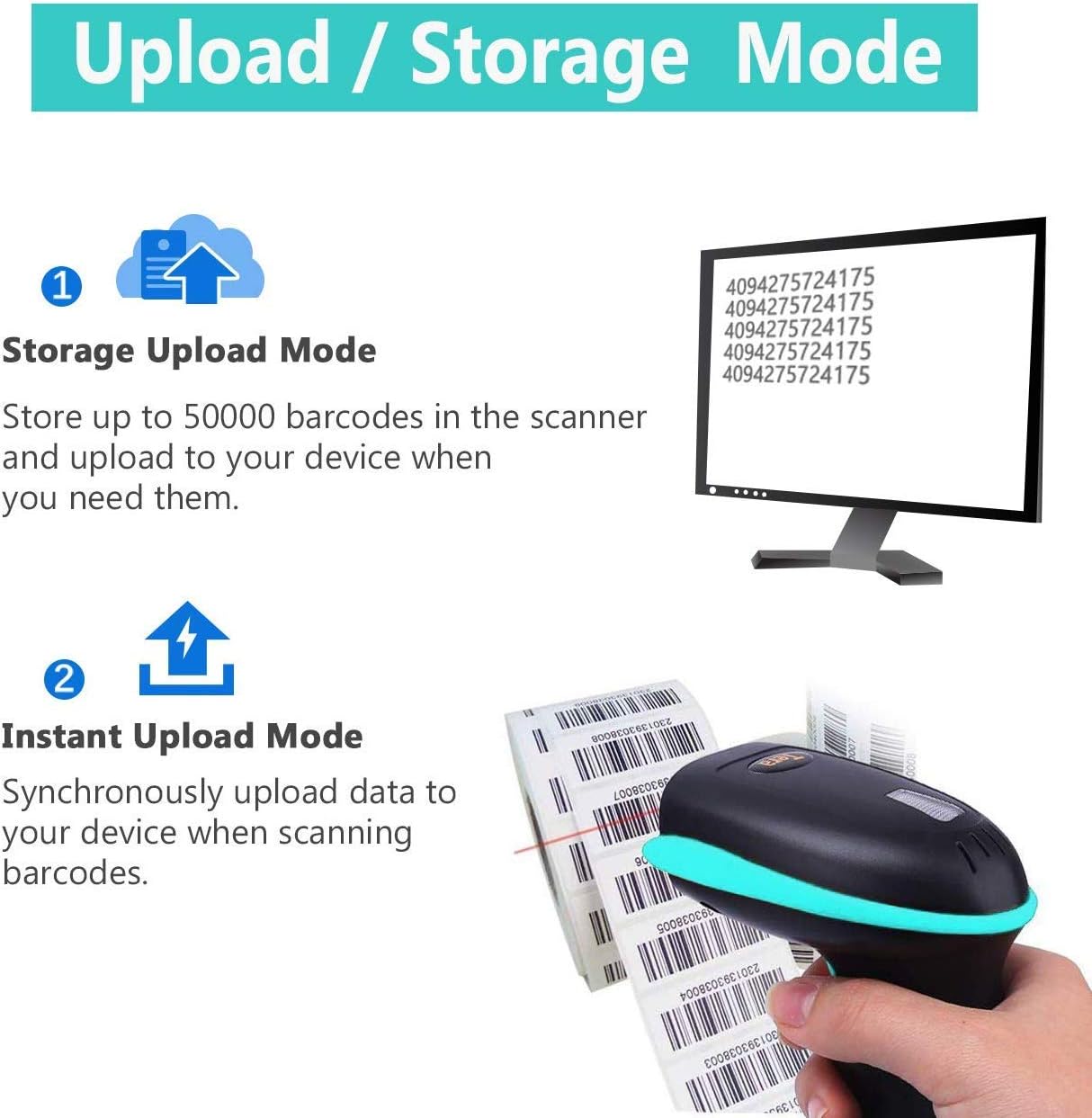
Image: Illustration of the two data upload modes: Storage Upload Mode, where barcodes are stored internally and uploaded later, and Instant Upload Mode, where data is transmitted immediately.
- インスタントアップロードモード: Barcodes are sent to your connected device immediately after scanning. This is suitable for real-time data entry.
- オフライン保存モード: If the scanner is out of range or not connected, it will store scanned barcodes internally. Up to 50,000 barcodes can be stored. Once reconnected, you can upload the stored data to your device.
To switch between upload modes, scan the appropriate programming barcode found in the quick start guide.
5. メンテナンス
5.1 クリーニング
- 柔らかくて清潔な布で軽く拭いてください。ampスキャナーの外側を水または中性洗浄液で拭いてください。
- Do not use abrasive cleaners, solvents, or excessive liquid, as these can damage the device.
- Keep the scanning window clean and free of dust or smudges to ensure optimal reading performance.
5.2バッテリーケア
- 特に長期間保管する場合は、スキャナーを定期的に充電してください。
- バッテリーの寿命が短くなる可能性があるため、頻繁にバッテリーを完全に放電することは避けてください。
- スキャナーを使用しないときは、涼しく乾燥した場所に保管してください。
5.3 ストレージ
When not in use, store the scanner in a safe place to prevent physical damage. The included stand can be used for convenient storage and hands-free operation.
6。 トラブルシューティング
| 問題 | 考えられる原因 | 解決 |
|---|---|---|
| スキャナーがオンになりません。 | バッテリー残量が少なくなりました。 | スキャナーを少なくとも2〜3時間充電してください。 |
| スキャナーがバーコードを読み取りません。 |
|
|
| No data transmitted to device. |
|
|
| スキャナーが継続的にビープ音を鳴らしたり、不規則に動作したりします。 | Configuration error or internal issue. | Perform a factory reset (refer to the quick start guide for the reset barcode). If the issue persists, contact support. |
7. 仕様
- モデル番号: 8541733886
- 製品寸法: 6.1 x 2.55 x 3.54インチ
- 商品の重量: 1.05ポンド
- バッテリー: リチウムイオン電池 1 個 (2200mAh)
- 接続性: Bluetooth, 2.4GHz Wireless, USB 2.0 Wired
- 対応デバイス: Desktop, Laptop, Smartphone (POS, iOS, Android, Windows, Mac OS, Linux)
- 電源: コード式電気(充電用)
- メーカー: テラ
- 最初に入手可能: 7年2019月XNUMX日
8. 保証とサポート
8.1 保証情報
For specific warranty details, please refer to the warranty card included with your product or visit the official Tera webサイトでご確認ください。保証請求の際は購入証明として領収書を保管してください。
8.2 カスタマーサポート
If you encounter any issues not covered in this manual or require further assistance, please contact Tera customer support. Contact information can typically be found on the product packaging, the official Tera webサイト、または小売店を通じてご購入いただけます。
サポートにお問い合わせの際は、製品のモデル番号 (8541733886) と購入の詳細をご用意ください。


Image: Illustrations representing customer service and technical support teams available to assist users.


