1. はじめに
This manual provides detailed instructions for the Retro-Bit Official Sega Genesis USB Controller 8-Button Arcade Pad. This controller is designed to offer a classic gaming experience with modern compatibility, featuring a familiar design and additional functionality for various platforms. Please read this manual thoroughly to ensure proper setup and operation of your device.
2.製品オーバーview
The Retro-Bit Official Sega Genesis USB Controller is an officially licensed replica of the classic Sega Genesis controller, enhanced with modern features for broad compatibility.
主な特徴:
- 公式SEGAライセンスコントローラー(オリジナルグレード品質)
- Classic 6-button layout with repositioned Mode button
- New L/R Shoulder Buttons for extra configuration options
- 10-foot cable length for flexible gameplay
- Compatible with Sega Genesis Mini, Nintendo Switch/Switch 2, PC, Mac, Steam, RetroPie, Raspberry Pi
- Supports both D-Input and X-Input modes
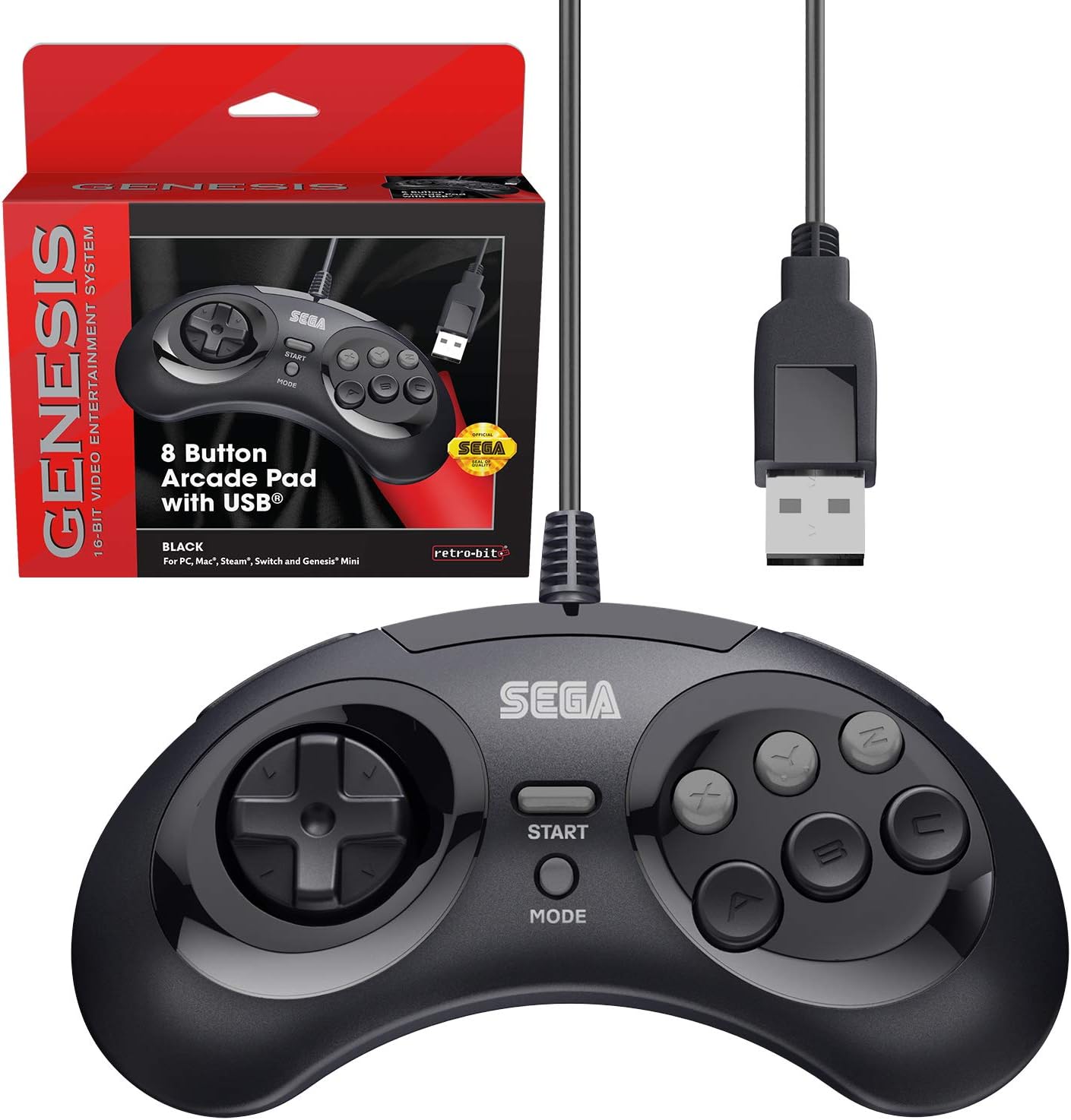
Figure 2.1: The Retro-Bit Official Sega Genesis USB Controller 8-Button Arcade Pad and its packaging.
3. セットアップ
Setting up your Retro-Bit Sega Genesis USB Controller is a straightforward process. The controller is designed for plug-and-play functionality on most supported systems.
3.1 コントローラの接続
- Locate an available USB port on your desired gaming device (PC, Mac, Nintendo Switch, Sega Genesis Mini, RetroPie, Raspberry Pi).
- Plug the USB-A connector of the controller's 10-foot cable into the USB port.
- The system should automatically detect and install the necessary drivers. No additional software installation is typically required.
- For Nintendo Switch handheld mode, a USB-C adapter (not included) may be required to connect the USB-A cable.

図 3.1: 拡大図 view of the controller's face buttons and D-pad.
Video 3.1: An unboxing of the Retro-Bit Official Sega Genesis USB Controller, demonstrating the physical product and its packaging. This video shows the controller being removed from its box and highlights its wired USB connection.
4. 操作手順
The controller features a classic 6-button layout with additional shoulder buttons and a Mode button for enhanced functionality.
4.1 ボタン配置
- 十字キー: Directional input for movement.
- A, B, C, X, Y, Z Buttons: メインアクションボタン。
- スタートボタン: 通常、ゲームを一時停止したり、選択を確認したりするために使用されます。
- モードボタン: Can be used for specific game functions or system navigation.
- L/Rショルダーボタン: New additions for expanded control options in modern games or emulators.

図4.1:側面 view of the controller, highlighting the newly added L and R shoulder buttons.
4.2 入力モードの切り替え(D入力 / X入力)
The controller supports both D-Input (DirectInput) and X-Input (XInput) modes. X-Input is commonly used for modern PC games, while D-Input is often used for older games and some emulation platforms.
- To swap between D-Input and X-Input, hold the 始める button for 5 seconds. The controller will switch modes.
- Note: The controller defaults to D-Input mode upon connection and does not retain settings between sessions. You may need to switch modes each time you connect the controller.
4.3 Switch Macros (Nintendo Switch Specific)
For Nintendo Switch, specific button combinations can be used to change D-Pad input or swap button layouts:
- Hold START for 5 seconds: モード有効
- Up + START: D-Pad input (Left Joystick)
- Left + START: 左ジョイスティック
- Right + START: 右ジョイスティック
- Down + START: Swap A, B, X, Y buttons
ビデオ4.2: 詳細なview of the Retro-Bit Official Sega Genesis USB Controller, including demonstrations of its features, button feel, and compatibility with various systems. This video also explains the D-Input/X-Input switching and button mapping.
5. 互換性
The Retro-Bit Official Sega Genesis USB Controller offers broad compatibility with various modern and retro gaming platforms:
- Sega Genesis Mini
- ニンテンドースイッチ / スイッチ2
- PC(Windows)
- マック
- Steam (PC/Mac)
- RetroPie
- ラズベリーパイ
- PS3 (as indicated in manual, though not on box)

Figure 5.1: A compatibility chart showing various Retro-Bit controller types and their supported platforms. This wired USB model is compatible with many systems.

Figure 5.2: The controller is fully compatible with the Sega Genesis Mini console, providing an authentic retro gaming experience.
6. Default Button Mapping
The following table illustrates the default button mapping across different input modes and platforms. Please refer to this table for optimal configuration.
| コントロール | 創世記 | D入力 | X入力 | PS3* | マック* | スイッチ |
|---|---|---|---|---|---|---|
| Up | Up ↑ | Up ↑ | Y軸↑ | Up ↑ | Up ↑ | Up ↑ |
| 右 | Right → | Right → | X-Axis → | Right → | Right → | Right → |
| 下 | Down ↓ | Down ↓ | Y-Axis ↓ | Down ↓ | Down ↓ | Down ↓ |
| 左 | Left ← | Left ← | X-Axis ← | Left ← | Left ← | Left ← |
| A | A | 1 | A | 2 | 1 | B |
| B | B | 2 | B | 1 | 2 | A |
| C | C | 3 | X | 3 | 3 | Y |
| X | X | 4 | Y | 4 | 4 | X |
| Y | Y | 5 | LB | L1 | 5 | L |
| Z | Z | 6 | RB | R1 | 6 | R |
| L | L | 7 | LT | L2 | 7 | ZL |
| R | R | 8 | RT | R2 | 8 | ZR |
| モード | 選択 | 9 | 戻る | 選択 | 9 | - |
| 始める | 始める | 10 | 始める | 始める | 10 | + |
| スタート + A | ガイド | 11 | ガイド | 家 | 11 | 家 |
*PS3 and Mac compatibility may vary or require specific settings.
7. メンテナンス
コントローラーの寿命を延ばし、最適なパフォーマンスを確保するには、次のメンテナンス ガイドラインに従ってください。
- クリーニング: コントローラーは柔らかく乾いた布で拭いてください。頑固な汚れには、軽くamp布を水で拭いてください。刺激の強い化学薬品や研磨剤入りの洗剤は使用しないでください。
- ストレージ: コントローラーは、直射日光や極端な温度を避け、涼しく乾燥した場所に保管してください。ケーブルをきつく巻き付けると損傷する恐れがありますので、ご注意ください。
- 取り扱い: Do not drop the controller or expose it to excessive force. Avoid pulling the cable forcefully from the USB port.
8。 トラブルシューティング
If you encounter issues with your controller, please refer to the following common troubleshooting steps:
- コントローラーが検出されません:
- Ensure the USB cable is securely plugged into an active USB port.
- Try plugging the controller into a different USB port on your device.
- ゲームデバイスまたはコンピューターを再起動します。
- Verify that your operating system or gaming platform supports the controller (refer to Section 5: Compatibility).
- ボタンが正しく反応しない:
- Check the input mode (D-Input vs. X-Input) by holding the 始める button for 5 seconds. Some games or emulators require a specific mode.
- For Nintendo Switch, try the Switch Macros (Section 4.3) to adjust D-Pad input or swap buttons if needed.
- Ensure the game or emulator's control settings are configured correctly for a 6-button or 8-button controller.
- ラグまたは入力遅延:
- Ensure the controller is directly connected to a USB port and not through an unpowered USB hub.
- Minimize background applications on your PC/Mac that might consume system resources.
- For optimal performance, ensure your display device (monitor/TV) is set to a low-latency "Game Mode" if available.
9. 仕様
| 特徴 | 詳細 |
|---|---|
| ブランド | レトロビット |
| シリーズ | SEGA Genesis 8-button Arcade Pad |
| モデル番号 | 849172010239 |
| 接続技術 | USB (有線) |
| ケーブル長さ | 10フィート(約3メートル) |
| コントローラータイプ | ゲームパッド |
| 対応デバイス | SEGA Genesis Mini, PC, Mac, Steam, RetroPie, Raspberry Pi, Nintendo Switch |
| 入力モード | D-Input, X-Input (switchable) |
| アイテム重量 | 9.7オンス |
| パッケージ寸法 | 7.09 x 5.75 x 2.48インチ |
10. 保証とサポート
For warranty information and customer support, please refer to the official Retro-Bit webメーカーのウェブサイトをご覧いただくか、カスタマーサービスに直接お問い合わせください。詳細は通常、製品のパッケージまたはメーカーのウェブサイトに記載されています。 webサイト。
If you have questions, comments, or if this product did not turn out the way it was intended, please contact Retro-Bit customer service at info@retro-bit.com.