1. はじめに
The ENHANCE Infiltrate USB Gaming Mouse is designed for an enhanced gaming experience, featuring customizable controls and dynamic lighting. This manual provides instructions for setting up, operating, and maintaining your gaming mouse.

Image: The ENHANCE Infiltrate USB Gaming Mouse, showcasin人間工学に基づいたデザインと洗練された黒の仕上げが特徴です。
2. 主な特徴
- Multi-Color LED Light: Dynamic rainbow lighting pattern illuminates the mouse accents, slowly fading between colors.
- オンザフライDPI調整: Quickly select from 4 DPI intervals (800, 1200, 1600, 2400) using the dedicated DPI button.
- Ergonomic Design with Smooth Rubber Grip: The top features a sleek rubber coating, while the side includes two extra thumb buttons with a textured grip for comfort.
- 6 つのプログラム可能なボタン: Customize your gaming experience with additional buttons for macros or specific functions.
- プラグアンドプレイ設計: Connects easily to your PC via a gold-plated USB connector for immediate use.
- 耐久性のある編組ケーブル: 長寿命と絡まりにくさを考慮して設計されています。
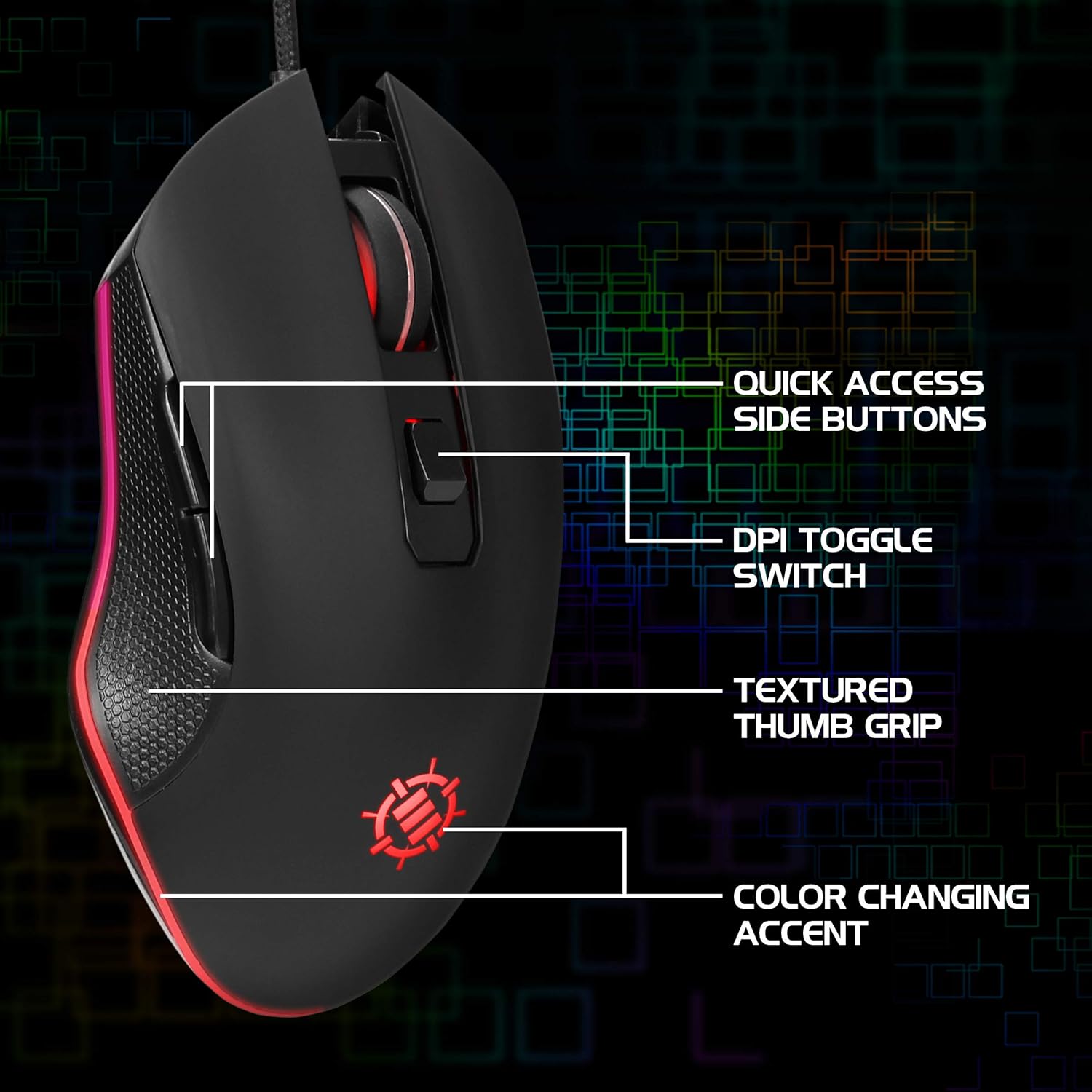
Image: Diagram highlighting key features of the ENHANCE Infiltrate mouse, including quick access side buttons, DPI toggle switch, textured thumb grip, and color-changing accent.
3.セットアップガイド
- マウスを開梱します。 Carefully remove the ENHANCE Infiltrate USB Gaming Mouse from its packaging.
- コンピュータに接続します: Locate an available USB port on your computer. Insert the gold-plated USB connector of the mouse into the USB port. The mouse is plug-and-play, so no additional drivers are typically required for basic functionality.
- 初期認識: オペレーティングシステムは必要なドライバを自動的に検出し、インストールします。この処理には数分かかる場合があります。
- 機能の確認: Once installed, the mouse's LED lighting should activate, and you should be able to move the cursor on your screen.

画像: クローズアップ view of the heavy-duty braided cable and gold-plated USB connector, ready for connection.
For a visual guide on connecting and using the mouse, please watch the official product video below.
Video: Official product video demonstrating the ENHANCE Infiltrate USB Gaming Mouse, including connection and feature highlights.
4. 操作手順
4.1 マウスの基本機能
The ENHANCE Infiltrate mouse functions like a standard USB mouse. It includes left-click, right-click, and a scroll wheel with a clickable middle button.

Image: A hand demonstrating the ergonomic grip of the ENHANCE Infiltrate Gaming Mouse on a gaming mouse pad.
4.2 DPI調整
The mouse features a dedicated DPI button located behind the scroll wheel. Press this button to cycle through four preset DPI (Dots Per Inch) sensitivity levels:
- 800DPI
- 1200DPI
- 1600DPI
- 2400DPI
Each DPI setting may correspond to a different LED color on the mouse, providing visual feedback for the current sensitivity level.
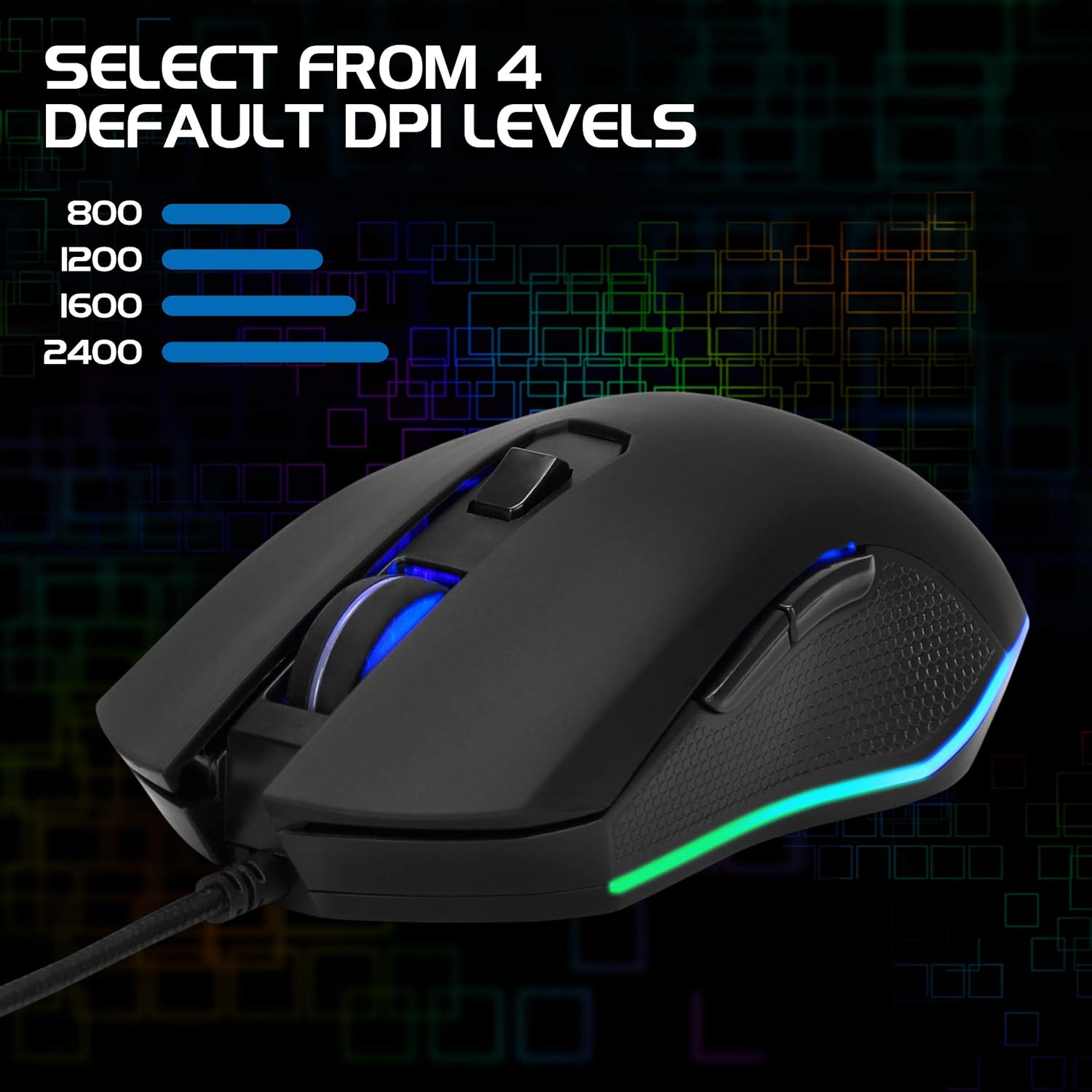
Image: The ENHANCE Infiltrate Gaming Mouse illustrating the four selectable DPI levels (800, 1200, 1600, 2400) and their corresponding LED indicators.
4.3 Multi-Color LED Lighting
The Infiltrate mouse features dynamic multi-color LED lighting that cycles through a rainbow pattern. This lighting is automatic and provides an aesthetic enhancement to your gaming setup.

Image: The ENHANCE Infiltrate Gaming Mouse displaying its sleek color-changing lighting accents.

画像: サイドプロfile of the ENHANCE Infiltrate Gaming Mouse, showcasing its blue LED lighting.
4.4つのプログラム可能なボタン
The mouse includes 6 programmable buttons. For advanced customization and programming of these buttons, please refer to your operating system's mouse settings or any third-party software compatible with generic gaming mice. Specific software for this model is not provided by the manufacturer.
5. メンテナンス
- クリーニング: マウスの表面は、柔らかく乾いた布で拭いてください。頑固な汚れには、軽く湿らせた布で拭いてください。amp 布を使用することで、内部コンポーネントに湿気が入らないようにすることができます。
- 光学センサー: Periodically clean the optical sensor area on the underside of the mouse with a cotton swab to ensure optimal tracking performance.
- ケーブルのお手入れ: 損傷を防ぐため、編組 USB ケーブルを急激に曲げたり、過度に引っ張ったりしないでください。
- ストレージ: 使用していないときは、マウスを極端な温度を避け、清潔で乾燥した環境に保管してください。
6。 トラブルシューティング
- マウスが反応しない:
- USB ケーブルがコンピューターの動作中の USB ポートにしっかりと差し込まれていることを確認します。
- マウスを別の USB ポートに接続してみてください。
- コンピュータを再起動します。
- 別のコンピューターでマウスをテストして、問題がマウスにあるのかシステムにあるのかを判断します。
- カーソルの動きが不規則または飛び跳ねる:
- マウスの裏側にある光学センサーを清掃します。
- マウスは清潔で反射しない表面で使用してください。マウスパッドの使用をお勧めします。
- コンピューター上でソフトウェアの競合や古いドライバーがないか確認してください。
- LED ライトが動作しない:
- マウスがコンピューターに正しく接続されていることを確認します。
- The LED lighting is automatic and should activate upon connection. If not, try a different USB port or computer.
- DPIボタンの感度が変更されない:
- Ensure the mouse is fully recognized by your computer.
- DPIボタンをしっかりと押します。
7. 仕様
| ブランド | 強化する |
| モデル番号 | ENINMNU100BOEW |
| ハードウェアプラットフォーム | Mac、PC |
| アイテム重量 | 4.4オンス |
| 製品寸法(長さx幅x高さ) | 4.92 x 2.68 x 1.56インチ |
| 色 | 黒 |
| 電源 | コード付き電気 (USB) |
| 接続技術 | USB |
| 特集 | 人間工学に基づいたデザイン |
| 動き検出技術 | 光学 |
| DPI レベル | 800、1200、1600、2400 |
8. 保証とサポート
The ENHANCE Infiltrate USB Gaming Mouse is backed by a 3年間のメーカー保証この保証は、通常の使用における材料および製造上の欠陥をカバーします。
For warranty claims or technical support, please contact ENHANCE customer service. Keep your proof of purchase for warranty validation.
For further assistance, visit the official ENHANCE Gaming webサイトをご覧いただくか、サポート チャネルにお問い合わせください。


