導入
The HyperX Alloy Core RGB Gaming Keyboard is designed to provide a responsive and durable typing experience with dynamic RGB lighting. This manual provides detailed instructions for setting up, operating, and maintaining your keyboard, ensuring optimal performance.

Image: The HyperX Alloy Core RGB Gaming Keyboard, showcasin完全なレイアウトとデザイン。
特徴
- ダイナミックRGB照明: Features a distinctive light bar and dynamic RGB lighting effects with multiple customizable patterns.
- 耐久性のある構造: Built with a reinforced plastic frame for enhanced durability and stability.
- 静かで応答性の高いキー: Equipped with soft-touch membrane keys that offer a quiet typing experience and anti-ghosting functionality for accurate input.
- こぼれにくい設計: Tested to withstand up to 120ml of liquid spills, providing protection against accidental damage.
- 専用メディアコントロール: Convenient buttons for audio playback, volume adjustment, and mute functions.
- クイック アクセス ボタン: Dedicated buttons for adjusting brightness, changing lighting modes, and activating game mode.
- Keyboard Lock Mode: Prevents accidental key presses during intense gaming sessions.
- 互換性: Supports Windows 7, 8, 8.1, and 10.
- 寸法: Approximately 443.20mm (width) x 175.31mm (depth) x 35.68mm (height).
設定
- キーボードを開梱します。 キーボードをパッケージから慎重に取り出します。
- コンピュータに接続します: Plug the USB-A connector of the keyboard cable into an available USB port on your computer. The keyboard is a plug-and-play device and typically does not require additional drivers for basic functionality.
- キーボードの脚を調整する: For ergonomic comfort, you can extend the adjustable feet located on the underside of the keyboard to tilt it to your preferred angle.
Video: This video demonstrates the physical handling of the keyboard, including adjusting the feet for optimal typing angle, and showcases the initial RGB lighting effects upon connection.

Image: A hand connecting the USB-A cable of the keyboard to a computer's USB port.
操作手順
RGB照明制御
The HyperX Alloy Core RGB keyboard features dynamic RGB lighting. Use the dedicated quick access buttons located above the function keys to customize your lighting experience.
- 明るさ調整: Press the sun icon button to cycle through different brightness levels.
- 照明モードの選択: Press the color palette icon button to switch between various lighting effects (e.g., Color Cycle, Spectrum Wave, Breathing, Solid, 5 Zones, Aurora).
- 効果速度: Use the FN key + Up/Down arrow keys to increase or decrease the speed of lighting effects.
- Solid Color Selection: Use the FN key + Left/Right arrow keys to switch between solid colors.
- 5-Zone Customization: For 5-zone lighting, press the FN key + F1-F5 keys multiple times to customize the color of each zone.
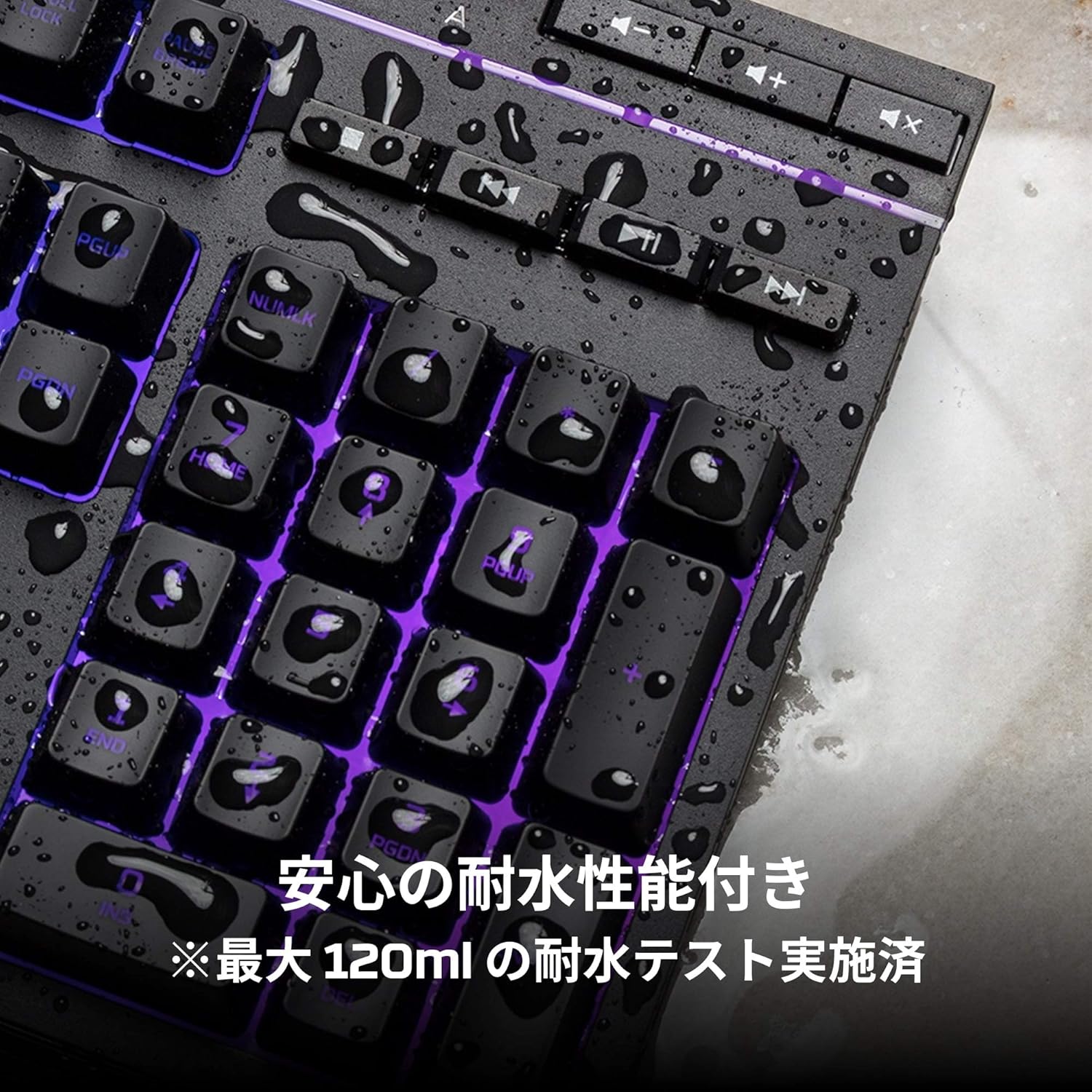
Image: Visual representation of various RGB lighting patterns and key combinations for controlling them.
メディアコントロール
Dedicated media control buttons are located on the top right of the keyboard for easy access to audio functions.
- 音量を上げる/下げる: システムの音量を調整します。
- ミュート: オーディオをミュートまたはミュート解除します。
- 再生/一時停止: メディアの再生を制御します。
- 前/次のトラック: Skip to the previous or next media track.

Image: Close-up of the dedicated media control buttons on the top right of the keyboard.
Game Mode and Keyboard Lock
- ゲームモード: Press the game controller icon button to activate Game Mode, which disables the Windows key to prevent accidental interruptions during gameplay.
- キーボードロック: Press FN + F12 to enable keyboard lock mode, which temporarily disables all key inputs.
メンテナンス
To ensure the longevity and optimal performance of your HyperX Alloy Core RGB keyboard, follow these maintenance guidelines:
- クリーニング: Regularly clean the keyboard with a soft, dry cloth. For stubborn dirt, a slightly damp 布を使用することで、キースイッチに液体が入らないようにすることができます。
- こぼれ耐性: While the keyboard is spill-resistant (up to 120ml), it is not waterproof. In case of a spill, immediately disconnect the keyboard from your computer, wipe off any liquid, and allow it to air dry completely before reconnecting.
- 極端な状況を避ける: Do not expose the keyboard to extreme temperatures, humidity, or direct sunlight.

Image: The keyboard with water droplets on its surface, illustrating its spill-resistant feature.
トラブルシューティング
If you encounter issues with your HyperX Alloy Core RGB keyboard, refer to the following common solutions:
- キーボードが応答しない:
- USB ケーブルがキーボードとコンピュータの両方にしっかりと接続されていることを確認します。
- キーボードをコンピューターの別の USB ポートに接続してみてください。
- コンピュータを再起動します。
- Check if Keyboard Lock Mode (FN + F12) is active.
- RGB 照明が機能しない:
- Ensure the brightness is not set to the lowest level using the brightness adjustment button.
- Cycle through different lighting modes using the lighting mode selection button.
- キーボードが正しく接続され、電源が供給されていることを確認します。
- キーが正しく登録されない:
- 影響を受けたキーの周囲を清掃して、ゴミを取り除きます。
- Ensure your operating system is compatible (Windows 7/8/8.1/10).
- Game Mode Issues:
- Ensure Game Mode is properly activated by pressing the game controller icon button. The indicator light should be on.
If the issue persists after trying these steps, please contact HyperX customer support for further assistance.
仕様
| 特徴 | 詳細 |
|---|---|
| ブランド | ハイパーX |
| モデル番号 | HX-KB5ME2-JP |
| 接続性 | USB-A |
| キーボードタイプ | メンブレンゲーミングキーボード |
| バックライトの色 | RGB |
| 特集 | Backlit, Spill-Resistant |
| 寸法(長さ×幅×高さ) | 44.32 x 17.53 x 3.57 cm |
| 重さ | 1.1キロ |
| 対応OS | Windows 7/8/8.1/10 |
保証とサポート
The HyperX Alloy Core RGB Gaming Keyboard comes with a 2年間保証 ご購入日より1年間有効です。保証請求の際は購入証明書を保管してください。
For technical support, warranty inquiries, or additional information, please visit the official HyperX support webサイトまたは顧客サービス部門に連絡してください。
公式HyperX Webサイト: www.hyperx.com


