1. はじめに
This manual provides detailed instructions for the installation, setup, and operation of your MOES WiFi Smart Wall Touch Light Switch. Please read this manual thoroughly before installation and use to ensure proper function and safety.

Figure 1: MOES WiFi Smart Wall Touch Light Switch (1 Gang, Black)
2. 安全情報
- 電気設備: 設置作業は、資格のある電気技師または電気配線を十分に理解している人のみが行う必要があります。
- 電源切断: Always disconnect power at the circuit breaker before installing, removing, or servicing the switch. Failure to do so may result in serious injury or death.
- 必要な中性線: This smart switch requires a neutral wire in your switch box to operate correctly. If you do not have a neutral wire, this switch is not compatible.
- Wi-Fiネットワーク: Requires a 2.4GHz Wi-Fi network connection. It is not compatible with 5GHz Wi-Fi networks.
- 互換性: Only compatible with 1 gang switch boxes. Not compatible with standard US 2/3/4 gang switch plates. This switch is not designed for 3-way switch configurations or as a dimmer switch.
- 屋内使用のみ: このデバイスは乾燥した屋内での使用を目的としています。
- 営業巻tage: 電気システムが指定された電圧範囲内で動作していることを確認してくださいtage レンジ (240 ボルト)。

Figure 2: Key compatibility and wiring considerations.
3. パッケージ内容
- MOES WiFi Smart Wall Touch Light Switch (1 Gang)
- ユーザーマニュアル
- 取り付けネジ
4 製品の特徴
- タッチコントロール: Features a toughened glass surface for touch operation.
- 音声コントロール: Compatible with Amazon Alexa (Amazon Echo/Dot/Tap) and Google Assistant for hands-free operation.
- Wi-Fiリモコン: Control the wall switch wirelessly from anywhere using the 'Smart Life' app on your smartphone via Wi-Fi or 4G network. No separate hub is required.
- タイミング機能: Schedule lights and appliances to turn on/off automatically at specific times.

Figure 3: Smart Switch in a home environment.
5. 仕様
| 仕様 | 価値 |
|---|---|
| 操作モード | 自動、オフ、スマート スイッチ |
| 現在の評価 | 10 Amps |
| 営業巻tage | 240ボルト |
| 連絡先の種類 | 通常オープン |
| コネクタタイプ | 無線 |
| ターミナル | スクリュー |
| 商品の寸法 (長さ x 幅 x 高さ) | 4.7 x 2.9 x 1.5インチ |
| 回路タイプ | 1ウェイ |
| アクチュエータタイプ | 触る |
| 連絡先 | 真鍮 |
| 国際保護格付け | IPX4 |
| ポジション数 | 3 |
| コントローラータイプ | Amazon Alexa、Google アシスタント |
| 制御方法 | リモート |
| 接続プロトコル | Wi-Fi(2.4GHzのみ) |
| ワットtage | 1000ワット |
| アイテム重量 | 7.4オンス |

Figure 4: Product dimensions and wiring terminals.
6.インストールガイド
始める前に:
- 回路ブレーカーで電源がオフになっていることを確認してください。
- Confirm your switch box has a neutral wire. This is essential for the smart switch to function.
- Wi-Fi ネットワークが 2.4GHz であることを確認します。
- This switch is for 1-gang setups only and is not a dimmer or 3-way switch.
配線手順:
- Turn off power at the circuit breaker for the light switch you are replacing.
- 既存の壁プレートとスイッチを取り外します。
- Identify the wires: Live (usually black), Neutral (usually white), and Load (to the light fixture). A Ground wire (usually green or bare copper) may also be present.
- 壁のボックスからの配線を MOES スマート スイッチの対応する端子に接続します。
- N: Connect the Neutral wire (usually white).
- L: Connect the Live wire (incoming power, usually black).
- L1: Connect the Load wire (to the light fixture). For 1-gang switches, only L1 is typically used.
- 地面: If present, connect the ground wire to the switch's ground terminal (if available) or safely cap it.
- 付属のネジを使用してスイッチを壁のボックスに固定します。
- ガラスパネルを取り付けます。
- 回路ブレーカーで電源を復旧します。
After installation, the indicator lights on the switch should blink quickly, indicating it is ready for Wi-Fi connection in Default Normal Mode.

Figure 5: Replacing a traditional switch with the smart touch switch.
7. アプリのセットアップとペアリング
To control your smart switch via smartphone, download the 'Smart Life' app from the App Store (iOS) or Google Play (Android).
- ダウンロードと登録: Install the 'Smart Life' app and register an account.
- デバイスを追加: Open the app, tap '+' or 'Add Device', and select 'Light Switch' or 'Electrical Switch'.
- インジケータステータスの確認: Ensure the indicator light on your switch is blinking quickly. If not, you may need to reset the device.
- Wi-Fiに接続します: アプリ内の指示に従って、スイッチを2.4GHz Wi-Fiネットワークに接続します。プロンプトが表示されたら、Wi-Fiのパスワードを入力してください。
- デバイス名の変更: Once connected, you can rename the switch for easier identification (e.g., "Living Room Light").
デバイスをリセットする:
If the indicator lights are not blinking quickly, or if you need to reset the switch for any reason:
- Press and hold any button on the switch for approximately 20 seconds until the indicator light blinks quickly. This puts the device into Default Normal Mode for Wi-Fi connection.
- If the indicator light blinks very slowly after holding for 20 seconds, it is in AP (Access Point) mode. This is an alternative pairing mode if Default Normal Mode fails.
Video 1: Demonstrates how to reset or unlock the device by pressing and holding a button for 20 seconds, showing the indicator light changes for different pairing modes.
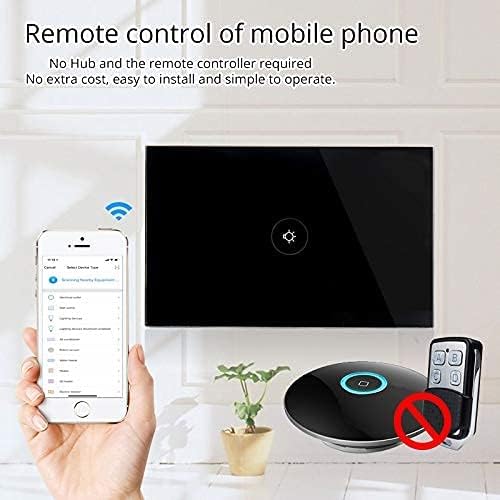
図 6: モバイル アプリケーションによるリモート コントロール。
8. 操作
Once installed and paired with the 'Smart Life' app, you can operate your switch in several ways:
- Manual Touch: Simply touch the glass panel to turn the connected light or appliance on or off.
- アプリコントロール: Use the 'Smart Life' app on your smartphone to remotely turn the switch on or off from anywhere with an internet connection.
9. 音声制御の統合
The MOES Smart Switch is compatible with Amazon Alexa and Google Assistant for convenient voice control.
- Link 'Smart Life' Account: In your Amazon Alexa or Google Home app, search for the 'Smart Life' skill/action and enable it.
- ログイン: Log in with your 'Smart Life' account credentials.
- デバイスの検出: Once linked, ask Alexa or Google Assistant to "Discover devices" or manually initiate device discovery in their respective apps.
- 音声コマンド: You can now use voice commands such as "Alexa, turn on [device name]" or "Hey Google, turn off [device name]". Use the names you assigned in the 'Smart Life' app.

図 7: Alexa と Google Home による音声制御。
10.タイミング機能
The 'Smart Life' app allows you to set schedules and timers for your smart switch, automating your lighting or appliances.
- スケジュールの作成: In the 'Smart Life' app, navigate to the device settings and select 'Schedule' or 'Timer'.
- Set On/Off Times: Configure specific times for the switch to turn on or off. You can set daily, weekly, or custom schedules.
- Sunrise/Sunset Automation: Some app versions allow for automation based on local sunrise and sunset times.

Figure 8: Setting schedules via the Smart Life app.
11。 トラブルシューティング
| 問題 | 考えられる原因 | 解決 |
|---|---|---|
| スイッチがタッチに反応しません。 | No power, incorrect wiring, or device locked. | Check circuit breaker. Verify wiring (Live, Neutral, Load). Perform a device reset (hold button for 20 seconds). |
| Wi-Fiに接続できません。 | Incorrect Wi-Fi band (5GHz), weak signal, incorrect password, or device not in pairing mode. | Ensure your router is broadcasting a 2.4GHz signal. Move closer to the router. Double-check Wi-Fi password. Reset the switch to enter pairing mode (blinking indicator). Try AP mode if normal mode fails. |
| 音声制御が機能しません。 | 'Smart Life' skill not enabled, incorrect device name, or no internet connection. | Ensure the 'Smart Life' skill is enabled and linked in your Alexa/Google Home app. Verify device names match. Check internet connectivity. |
| Switch goes offline frequently. | Weak Wi-Fi signal, network congestion, or router issues. | Improve Wi-Fi signal strength (e.g., Wi-Fi extender). Reduce network congestion. Restart your router. |
12. メンテナンス
- クリーニング: ガラスパネルは柔らかく乾いた布で優しく拭いてください。研磨剤入りの洗剤や溶剤は使用しないでください。
- ファームウェアの更新: Periodically check the 'Smart Life' app for available firmware updates to ensure optimal performance and security.
13. 保証とサポート
For warranty information or technical support, please refer to the documentation provided with your purchase or contact MOES customer service directly. Contact details can typically be found on the MOES official website or within the 'Smart Life' app's support section.
ビデオ2: 終了view of MOES smart home products and their integration, demonstrating various smart life features like color temperature control, music sync lighting, and smart automation based on environmental sensors.


