1. はじめに
This manual provides essential information for the installation, operation, maintenance, and troubleshooting of your Juniper Networks EX3400-48P Ethernet Switch. The EX3400-48P is designed to deliver a high-performance, flexible, and cost-effective solution for demanding data, voice, and video enterprise access environments. It supports Juniper Networks Virtual Chassis technology for simplified network operations.
2. 安全情報
Please read and understand all safety instructions before installing or operating the device. Failure to follow these guidelines may result in injury or damage to the equipment.
- 機器が適切に接地されていることを確認してください。
- 濡れた状態や暗い場所でスイッチを操作しないでください。amp 条件。
- Use only the power supply provided or approved by Juniper Networks.
- 過熱を防ぐため、換気口をふさがないようにしてください。
- Refer to qualified service personnel for any servicing not described in this manual.
3.製品オーバーview
The Juniper Networks EX3400-48P is a 48-port Power over Ethernet (PoE+) capable Ethernet switch. It features a compact design suitable for rack mounting and offers various connectivity options.
3.1. 物理コンポーネント
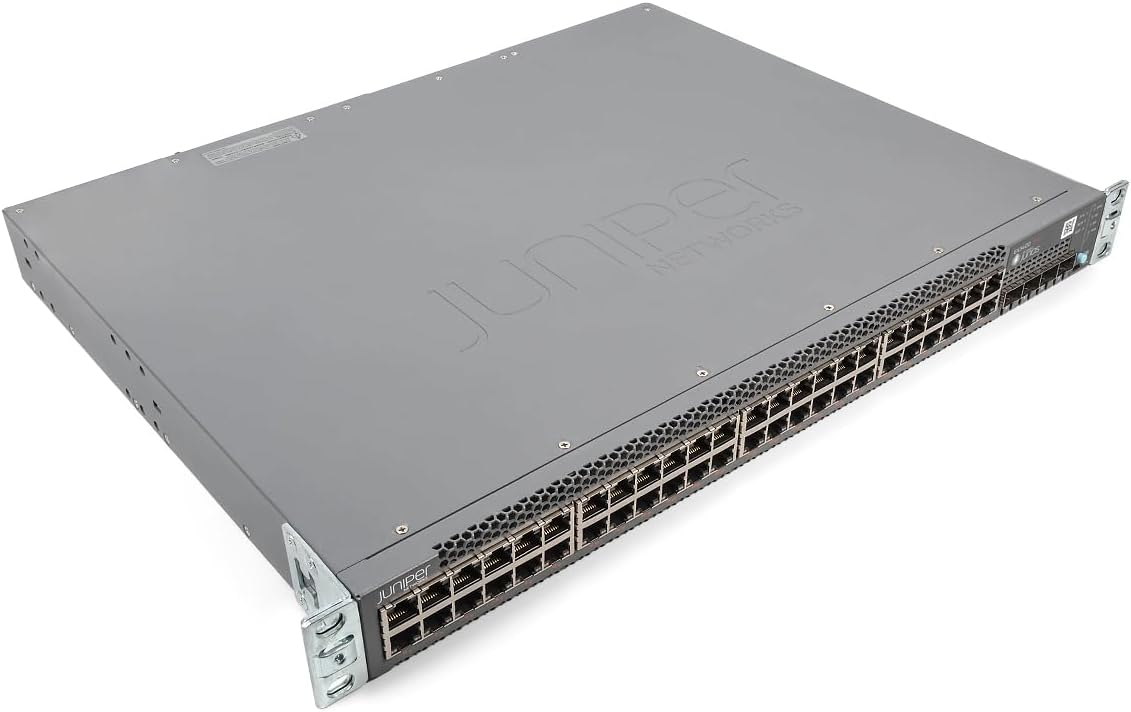
図1: 角度付き view of the Juniper EX3400-48P Ethernet Switch, showing the top and front panels with the Juniper Networks logo.

図2: フロント view of the EX3400-48P switch, highlighting the 48 Ethernet ports, uplink ports, and status LEDs.

図3: 後方 view of the EX3400-48P, displaying the modular power supply bay, fan modules, management (MGMT) port, and console (CON) port.

図4: 角度付きリア view of the EX3400-48P, showing the power supply unit partially extracted, illustrating its modular design.
3.2. フロントパネルの機能
- 48 x 10/100/1000BASE-T イーサネット ポート: For connecting network devices.
- アップリンクポート: SFP/SFP+ ports for high-speed connections to other switches or routers.
- ステータス LED: Indicators for system status, port activity, and PoE status.
3.3. 背面パネルの機能
- Power Supply Bay: Houses the modular power supply unit.
- ファンモジュール: Provide cooling for the system.
- Management (MGMT) Port: An out-of-band Ethernet port for device management.
- Console (CON) Port: For local serial console access.
4. セットアップ
4.1。 開梱と検査
Carefully remove the switch from its packaging. Inspect the device for any signs of physical damage. Report any damage to your supplier immediately.
4.2. ラックマウント
The EX3400-48P is designed for standard 19-inch rack installation. Use the provided rack-mount brackets and screws to secure the switch in the rack. Ensure adequate space for airflow around the unit.
4.3. 電源接続
- 背面パネルの電源スイッチがオフになっていることを確認します。
- Connect the power cord to the power supply unit on the rear of the switch.
- 電源コードのもう一方の端をアース付き AC 電源コンセントに差し込みます。
- Flip the power switch to the ON position. The system status LED should illuminate.
4.4. 初期設定
For initial configuration, connect a console cable from your computer to the console port on the rear of the switch. Use a terminal emulation program (e.g., PuTTY, Tera Term) with the following settings:
- ボーレート:9600
- データビット: 8
- パリティ: なし
- ストップビット: 1
- フロー制御: なし
Follow the on-screen prompts to set up basic network parameters such as IP address, subnet mask, and default gateway.
5.運用
5.1.電源のオン/オフ
- 電源オン: After connecting the power cord, press the power switch to the ON position. The switch will perform a power-on self-test (POST).
- 電源を切る: To power off, press the power switch to the OFF position. For a controlled shutdown, it is recommended to save the configuration and issue a shutdown command via the command-line interface (CLI) before physically powering off.
5.2.LEDインジケーター
前面パネルの LED は、スイッチの動作状態を視覚的に示します。
- SYS LED: システム全体のステータスを示します (例: 通常の稼働の場合は緑、警告の場合は黄色、重大なエラーの場合は赤)。
- アラームLED: アラームのステータスを示します。
- PoE LED: Power over Ethernet のステータスを示します。
- ポート LED: 各イーサネット ポートのリンク ステータスとアクティビティを示します。
5.3.ネットワーク構成
The EX3400-48P can be configured via its command-line interface (CLI) or a web-based graphical user interface (GUI) if enabled. Common configurations include:
- VLAN creation and assignment.
- Port security settings.
- Routing protocols.
- Quality of Service (QoS) settings.
- Spanning Tree Protocol (STP) configuration.
Refer to the Juniper Networks documentation for detailed configuration guides specific to Junos OS.
6. メンテナンス
6.1. ファームウェアのアップデート
ジュニパーネットワークスのサポートを定期的にチェックする website for the latest Junos OS firmware updates. Keeping the firmware up-to-date ensures optimal performance, security, and access to new features. Follow the instructions provided with the firmware package for the update procedure.
6.2. 清掃
Keep the switch clean and free of dust. Use a soft, dry cloth to wipe the exterior. For ventilation openings, use compressed air to remove dust buildup. Ensure the switch is powered off before cleaning.
6.3. Modular Component Replacement
The EX3400-48P features modular power supplies and fan trays. If a component fails, it can be replaced without powering down the entire switch (hot-swappable). Refer to the Juniper Networks hardware guide for specific replacement procedures.
7。 トラブルシューティング
このセクションでは、発生する可能性のある一般的な問題に対する解決策を示します。
7.1.ノーパワー
- 電源コードがスイッチと電源コンセントの両方にしっかりと接続されていることを確認します。
- 電源コンセントが機能しているかどうかを確認してください。
- 背面パネルの電源スイッチがオンの位置になっていることを確認します。
- Inspect the power supply unit for any fault indicators.
7.2. ポートにリンクがありません
- イーサネット ケーブルの両端の接続を確認します。
- 接続されているデバイスの電源がオンになっていて、正しく機能していることを確認します。
- スイッチの別のポートを試してください。
- Verify the cable is not damaged and meets specifications (e.g., Cat5e or higher).
7.3. ネットワーク接続の問題
- Verify IP address, subnet mask, and gateway settings on the switch and connected devices.
- Check VLAN configurations if applicable.
- Use diagnostic tools like
pingそしてtraceroutefrom the switch CLI. - Consult system logs for error messages.
8. 仕様
The following table outlines the technical specifications for the Juniper Networks EX3400-48P Ethernet Switch:
| 特徴 | 仕様 |
|---|---|
| モデル番号 | EX3400-48P |
| ポート数 | 48 |
| インターフェースタイプ | SFP/SFP+ |
| データ転送速度 | 336 ギガビット/秒 |
| 巻tage | 48 ボルト (DC) |
| ケース素材 | 金属 |
| 上限温度定格 | 摂氏50度 |
| 製品寸法 | 17.2 x 13.78 x 1.73インチ |
| アイテム重量 | 12.65ポンド |
| メーカー | ジュニパー |
| 欧州連合 | 832938071001 |
9. 保証とサポート
9.1. 製品保証
This product is typically covered by a manufacturer's warranty. Please refer to the specific warranty terms provided at the time of purchase or on the official Juniper Networks website. A 30-day return policy may apply depending on the vendor.
9.2. テクニカルサポート
For technical assistance, documentation, software downloads, and further support, please visit the official Juniper Networks support website. You may also contact your authorized Juniper Networks reseller for local support options.