1。 オーバーview
The Aerocool Cylon RGB Midi-Tower PC Case, model ACCM-PV10012.11, is designed to house computer components, offering both functionality and aesthetic appeal. It features a side window panel for showcasing internal hardware and an RGB LED illumination strip on the front panel for customizable lighting effects. This case supports ATX motherboards and provides ample space for various components, including multiple storage drives and cooling solutions.

図1: 前面 view of the Aerocool Cylon RGB Midi-Tower PC Case, highlighting its distinctive RGB LED strip.
2. パッケージ内容
パッケージにすべてのアイテムが揃っていることを確認してください:
- Aerocool Cylon RGB Midi-Tower PC Case (ACCM-PV10012.11)
- アクセサリ ボックス (ネジ、スタンドオフ、ケーブル タイなどを含む)
- ユーザーマニュアル(このドキュメント)
3. 安全情報
Read and understand all safety instructions before installing or operating the PC case. Failure to do so may result in injury or damage to the product.
- 設置やメンテナンスを行う前に、必ず壁のコンセントから電源を抜いてください。
- 損傷を防ぐために、すべてのコンポーネントを慎重に取り扱ってください。
- Avoid touching electronic components directly; use anti-static precautions if possible.
- 小さな部品や付属品は子供の手の届かないところに保管してください。
- 過熱を防ぐために、ケースの周囲に適切な換気を確保してください。
4. セットアップとインストール
4.1 ケースの準備
Before installing components, remove the side panels to access the interior of the case.
- ケースを平らで安定した面に置きます。
- Locate the thumbscrews on the rear of the case securing the side panel.
- Unscrew the thumbscrews and carefully slide the side panel backward, then lift it off. Repeat for the other side panel if necessary.
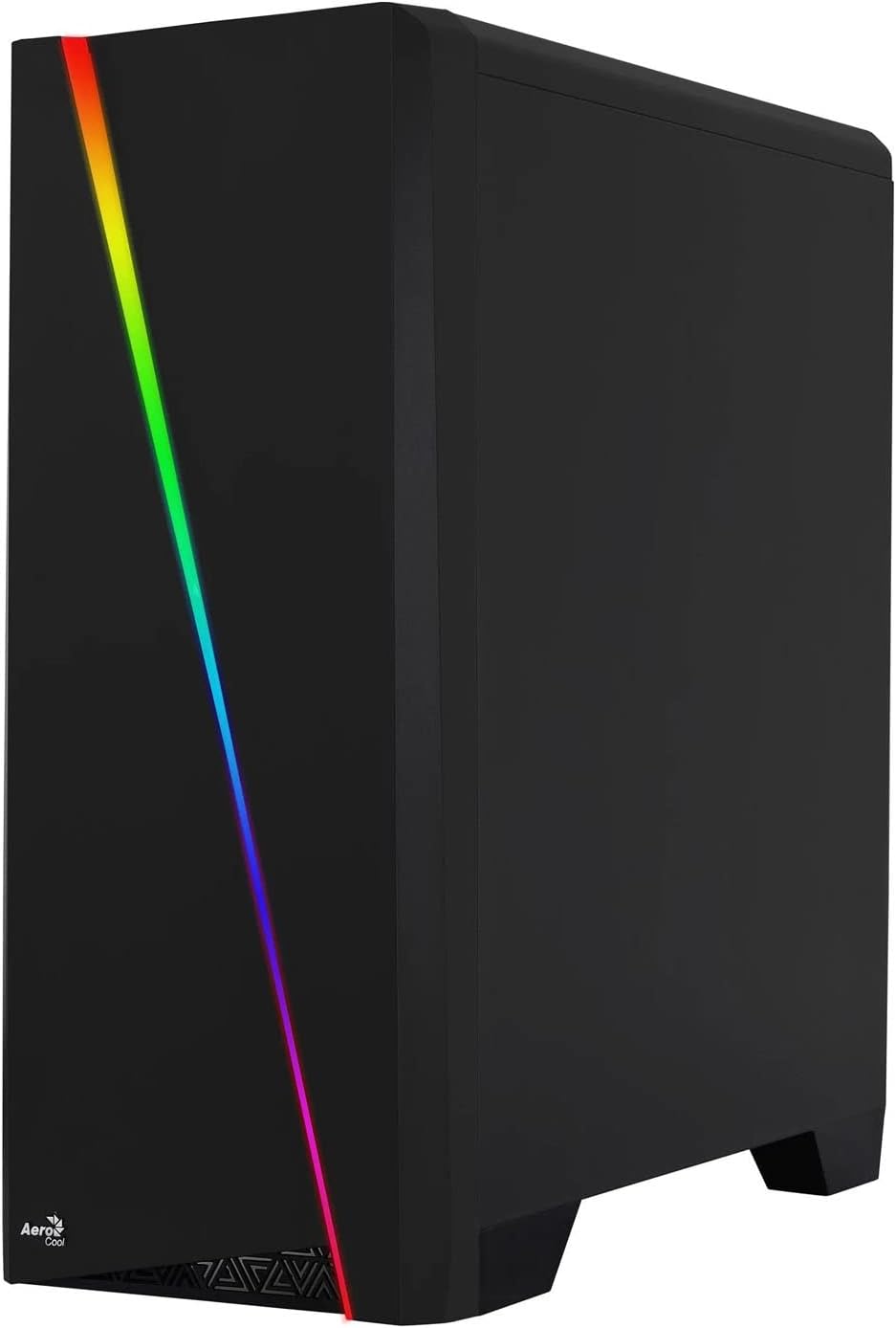

Figure 2: Left image shows the side panel attached, right image shows the side panel removed for access.
4.2マザーボードの取り付け
The Aerocool Cylon case supports ATX motherboards.
- マザーボードに付属の I/O シールドをケース背面の開口部に取り付けます。
- Ensure motherboard standoffs are correctly aligned with your motherboard's screw holes. Install any missing standoffs from the accessory box.
- ネジ穴を合わせながら、マザーボードをスタンドオフの上に慎重に置きます。
- アクセサリ ボックスの適切なネジを使用してマザーボードを固定します。
4.3 Drive Installation (2.5" / 3.5")
The case provides bays for 2.5-inch and 3.5-inch drives.
- Locate the drive bays within the case. Refer to the case diagram for specific locations.
- For 3.5-inch HDDs, slide the drive into the designated tray or bay and secure it with screws.
- For 2.5-inch SSDs, mount the drive onto the designated bracket or tray and secure it with screws.
4.4電源ユニット(PSU)の設置
The PSU is typically mounted at the bottom rear of the case.
- ケースの背面から PSU を指定されたコンパートメントにスライドさせます。
- Align the PSU's screw holes with those on the case.
- 付属のネジでPSUを固定します。
4.5 Expansion Card (GPU) Installation
Install your graphics card or other expansion cards into the PCIe slots.
- Remove the necessary PCI-E slot covers from the rear of the case corresponding to your expansion card's size.
- Carefully insert the expansion card into the appropriate PCI-E slot on the motherboard until it clicks into place.
- 拡張カードをネジで固定します。

図3:背面 view of the PC case, showing the expansion slots and I/O area.
4.6 Fan / Liquid Cooling Radiator Installation
The Aerocool Cylon case supports various cooling configurations.
- 後方: 1 x 120mm fan (pre-installed or optional).
- トップ: 2 x 120mm ファンまたは 1 x 240mm ラジエーターをサポートします。
- 底: 2 x 120mm ファンをサポートします。
- Mount fans or radiators to their respective positions using the appropriate screws.
- Connect fan power cables to the motherboard or a fan controller.

Figure 4: An interior shot of the case, illustrating potential fan and liquid cooling radiator placements.
4.7 ケーブル管理
効果的なケーブル管理により、空気の流れと美観が向上します。
- Route cables through the cutouts and behind the motherboard tray.
- Use cable ties (included in the accessory box) to bundle and secure cables.
4.8 フロントパネルI/Oの接続
フロントパネルのケーブルをマザーボード上の対応するヘッダーに接続します。
- USB3.0: USB 3.0 ケーブルをマザーボードの USB 3.0 ヘッダーに接続します。
- USB2.0: Connect the USB 2.0 cables (x2) to the motherboard's USB 2.0 headers.
- HDオーディオ: HD オーディオ ケーブルをマザーボードのオーディオ ヘッダーに接続します。
- 電源/リセット/LED: Connect the small individual cables (Power SW, Reset SW, HDD LED, Power LED) to the motherboard's front panel headers according to your motherboard manual.
5. PCケースの操作
Once all components are installed and connected, reattach the side panels and power on your system.
- 電源オン: ケースの上部の I/O パネルにある電源ボタンを押します。
- RGB照明コントロール: The front panel RGB LED illumination can be controlled via a dedicated button on the top I/O panel or through compatible motherboard software, depending on your setup. Refer to your motherboard manual for software control options.
6. メンテナンス
定期的なメンテナンスを行うことで、PC ケースとコンポーネントの最適なパフォーマンスと寿命を確保できます。
- ダストフィルターのクリーニング: The case features dust filters (e.g., on the top and bottom). Regularly remove and clean these filters to prevent dust buildup and maintain good airflow. Use compressed air or a soft brush.
- 一般的な清掃: 柔らかくてamp cloth to wipe down the exterior of the case. Avoid abrasive cleaners or solvents. For the transparent side panel, use a microfiber cloth to prevent scratches.
7。 トラブルシューティング
問題が発生した場合は、次の一般的なトラブルシューティング手順を検討してください。
- 電源なし: Ensure the PSU is properly connected to the wall outlet and the power switch on the PSU is in the 'ON' position. Verify all power cables to the motherboard and components are securely seated.
- ファンが回転しない: Check that all fan cables are correctly connected to the motherboard or fan controller. Ensure the system is receiving power.
- RGBが機能しない: Confirm RGB cables are properly connected. If using motherboard software, ensure it is installed and configured correctly.
- 緩い接続: Recheck all internal connections (power, data, front panel I/O) to ensure they are firmly seated.
8. 仕様
| 特徴 | 仕様 |
|---|---|
| モデル名 | ACCM-PV10012.11 |
| ケースタイプ | ミディタワー |
| マザーボードの互換性 | ATTX |
| 寸法(長さx幅x高さ) | 16.26 x 7.8 x 18.07インチ |
| アイテム重量 | 8.36ポンド |
| 材料 | アクリル |
| USB 3.0 ポート | 1 |
| USB 2.0 ポート | 2 |
| 冷却方法 | 空気 |
| Fan Size (Rear) | 120ミリメートル |
| RGBイルミネーション | Front Panel LED Strip |
9. 保証情報
The Aerocool Cylon RGB Midi-Tower PC Case is covered by a manufacturer's warranty. Please refer to the warranty card included with your product or visit the official AeroCool web保証期間や請求手続きなどの詳細な保証条件については、こちらのサイトをご覧ください。
10. サポート
For further assistance, technical support, or to download the latest drivers and software, please visit the official AeroCool webサイト:
Webサイト: www.aerocool.io
You may also contact AeroCool customer service through the contact information provided on their webサイト。


