導入
The T-Mobile SyncUP DRIVE is a connected car device designed to enhance your driving experience by providing valuable vehicle information and connectivity features. It plugs into your car's OBD-II port, collecting data that can be accessed via a dedicated mobile application. This manual provides essential information for setting up, operating, and maintaining your SyncUP DRIVE device.
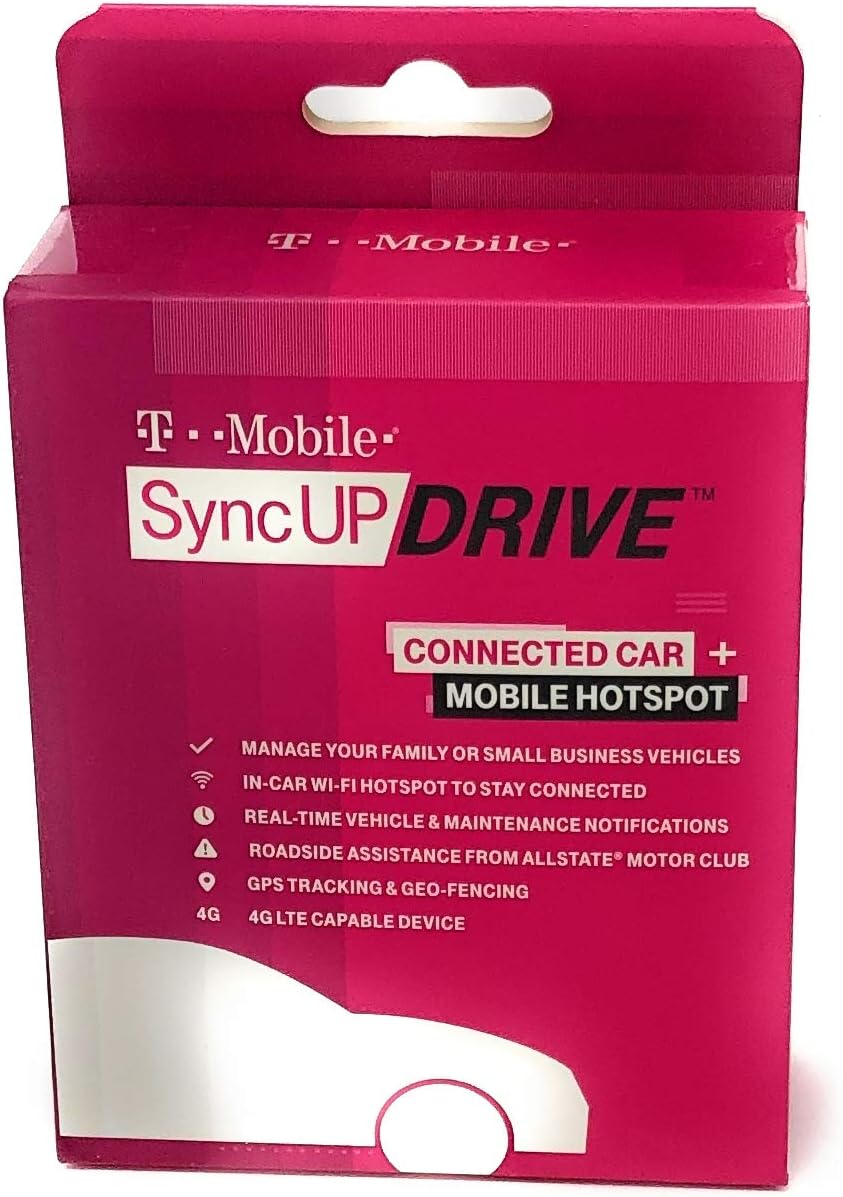
Image: The T-Mobile SyncUP DRIVE device, typically found in its retail packaging.
箱の中身
Upon opening your T-Mobile SyncUP DRIVE package, you should find the following components:
- T-Mobile® SyncUP DRIVE™ device
- クイックスタートガイド
- WiFi instruction card
- SIM card instruction card
- T-Mobile triple SIM card
- SIM取り出しツール
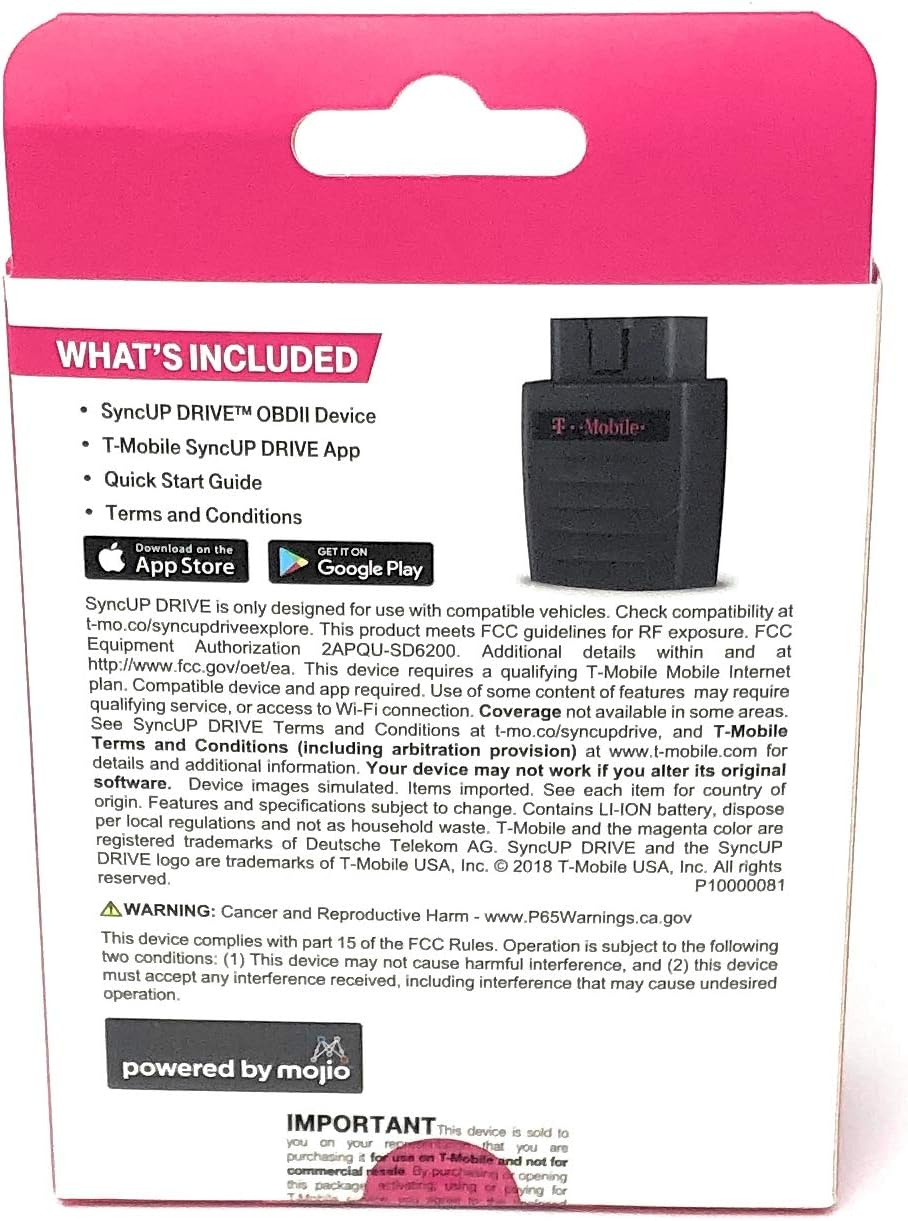
Image: The back of the SyncUP DRIVE packaging, detailing the contents of the box.
設定
1.デバイスのインストール
- OBD-II ポートを見つけます。 The OBD-II (On-Board Diagnostics II) port is typically located under the dashboard on the driver's side, usually within 3 feet of the steering wheel. Consult your vehicle's owner's manual if you cannot find it.
- SIMカードを挿入します: Use the provided SIM eject tool to open the SIM card slot on the SyncUP DRIVE device. Carefully insert the T-Mobile triple SIM card into the slot, ensuring it is correctly oriented.
- デバイスを接続します: With the vehicle's ignition off, firmly plug the SyncUP DRIVE device into the OBD-II port. Ensure it is securely seated.
- 車両を始動します。 Turn on your vehicle's ignition. The device should power on, and indicator lights will show its status. Refer to the Quick Start Guide for specific light patterns.
2. アプリのインストールとアクティベーション
- アプリをダウンロード: Download the T-Mobile SyncUP DRIVE app from your smartphone's app store (available on both iOS and Android).
- アカウントを作成する: Open the app and follow the on-screen instructions to create a new account or log in with your existing T-Mobile credentials.
- デバイスをペアリングする: The app will guide you through the process of pairing your SyncUP DRIVE device with your account. This typically involves scanning a QR code on the device or entering its serial number.
- セットアップを完了します: Follow any remaining prompts in the app to finalize the setup, including vehicle information and notification preferences.
Operating Your SyncUP DRIVE
The SyncUP DRIVE offers several features accessible through its mobile application:
- Vehicle Location and Tracking: Monitor your car's real-time location and view trip history. This feature allows you to keep track of your vehicle and family members while they travel.
- In-Car Wi-Fi Hotspot: The device creates a Wi-Fi hotspot, allowing up to five Wi-Fi capable devices (smartphones, tablets, laptops) to connect to the internet using your T-Mobile data plan.
- Maintenance Reminders and Vehicle Diagnostics: Receive notifications about your car's health, including maintenance reminders and alerts for potential car trouble. The device uses OBD-II data to provide insights into your vehicle's performance.
- 運転行動モニタリング: The app can provide insights into driving habits, such as hard braking, rapid acceleration, and exceeding set speed limits.
- ロードサイドアシスタンス: Access 24/7 roadside assistance provided by Allstate Motor Club directly through the app for services like lockouts, jump starts, tire changes, and towing.
- ジオフェンシング: Set up virtual boundaries (geo-fences) and receive alerts when your vehicle enters or exits these defined areas.
To utilize these features, ensure your SyncUP DRIVE device is properly installed and powered on, and your smartphone has an active internet connection to communicate with the app.
メンテナンス
The T-Mobile SyncUP DRIVE device requires minimal maintenance. Follow these guidelines to ensure optimal performance:
- Keep it Connected: Ensure the device remains securely plugged into the OBD-II port. Loose connections can interrupt data transmission.
- ソフトウェアアップデート: Periodically check the SyncUP DRIVE app for available software updates for the device. Updates often include performance improvements and new features.
- クリーニング: If necessary, gently wipe the device with a dry, soft cloth. Avoid using liquid cleaners or abrasive materials.
- 環境条件: デバイスを極端な温度、長時間の直射日光、過度の湿気にさらさないでください。
トラブルシューティング
If you encounter issues with your SyncUP DRIVE, try the following troubleshooting steps:
- デバイスの電源が入っていない:
- Ensure the device is firmly plugged into the OBD-II port.
- Check that your vehicle's ignition is on.
- Verify your vehicle's battery is not depleted.
- No Wi-Fi Hotspot or Data Connectivity:
- SIM カードが正しく挿入され、データ プランでアクティブ化されていることを確認します。
- 現在の場所のネットワーク範囲を確認します。
- Restart your vehicle and the SyncUP DRIVE app.
- Ensure your connected devices are within range of the hotspot.
- App Not Displaying Vehicle Data:
- スマートフォンのインターネット接続が有効になっていることを確認してください。
- Verify the SyncUP DRIVE device is powered on and connected to the T-Mobile network.
- Close and reopen the SyncUP DRIVE app.
- Log out and log back into your app account.
- デバイスのリセット: If issues persist, you may need to perform a factory reset. Refer to the Quick Start Guide or T-Mobile support for instructions on how to reset your specific device model.
For further assistance, contact T-Mobile Customer Support.
仕様
| ブランド | T-モバイル |
| モデル番号 | Z6200 HO2 |
| 製品寸法 | 2.95 x 2.06 x 1.11インチ |
| アイテム重量 | 4.6オンス |
| 接続技術 | Wi-Fi |
| 特集 | Roadside Assistance, Vehicle Tracking, Maintenance Reminders, Wi-Fi Hotspot |
| 色 | 黒 |
| メーカー | T-モバイル |
保証情報
Warranty coverage for the T-Mobile SyncUP DRIVE device is provided by T-Mobile. Specific warranty terms, conditions, and duration may vary. Please refer to the warranty documentation included with your purchase or visit the official T-Mobile website for detailed information regarding your device's warranty.
保証請求のために購入証明書を保管しておくことをお勧めします。
サポート
For technical support, customer service, or further inquiries regarding your T-Mobile SyncUP DRIVE, please contact T-Mobile directly:
- T-Mobileカスタマーサービス: Visit the official T-Mobile website or call their customer support line.
- SyncUP DRIVE App: The mobile application may include a help section, FAQs, or direct contact options for support.
- オンラインリソース: Check the T-Mobile support pages for SyncUP DRIVE for updated information, FAQs, and troubleshooting guides.
When contacting support, have your device's model number (Z6200 HO2) and serial number readily available.


