1. はじめに
This manual provides essential information for the installation, operation, and maintenance of the Arista Networks DCS-7050S-52-R 7050 Series Switch. This high-performance switch features 52 SFP+ ports, rear-to-front airflow, and dual 460W AC power supplies, designed for demanding network environments.
デバイスの設置または操作を行う前に、このマニュアルをよくお読みください。このマニュアルは、今後の参考のために保管してください。
安全情報
Always observe standard safety precautions when working with electrical equipment. Ensure proper grounding and ventilation. Only qualified personnel should perform installation and maintenance procedures. Disconnect power before servicing.
2. セットアップとインストール
2.1 スイッチの開梱
Carefully remove the switch and all accessories from the packaging. Verify that all components listed in the packing list are present and undamaged. Report any missing or damaged items to your supplier immediately.
2.2物理的な設置
The DCS-7050S-52-R switch is designed for rack mounting. Ensure the rack is stable and properly grounded. This model features rear-to-front airflow, meaning cool air enters from the rear of the chassis and exits through the front. Ensure adequate clearance for airflow at both the front and rear of the switch.
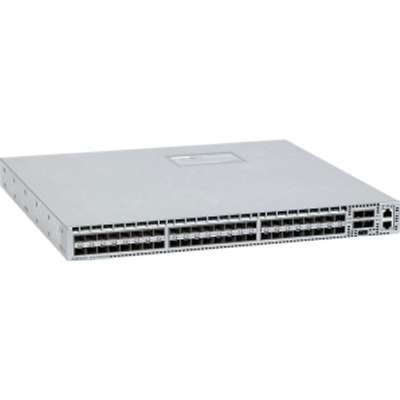
図1: フロント view of the Arista Networks DCS-7050S-52-R switch, showing the SFP+ ports and status indicators. This image illustrates the port layout and general appearance of the device.
2.3電源接続
The switch is equipped with dual 460W AC power supplies for redundancy. Connect the provided 2XC13-C14 power cords to the AC inlets on the rear of the switch and then to separate, grounded AC power sources. It is recommended to connect to different power circuits for maximum redundancy.
- Ensure power sources match the switch's input voltag要件。
- Connect both power supplies for redundant operation.
2.4ネットワーク接続
The DCS-7050S-52-R features 52 つの SFP+ ポート. Insert compatible SFP+ transceivers into the desired ports. Connect appropriate fiber optic or direct attach copper (DAC) cables to the transceivers. Ensure proper cable management to avoid strain on the ports.
2.5 初回電源投入
After all physical connections are made, power on the switch. Observe the system status LEDs for initial boot-up sequence. Refer to the LED indicators section for status interpretation.
3. 操作手順
3.1 電源オン/オフ
To power on, ensure power cords are connected. The switch will automatically power on. To power off, disconnect both power cords from their sources. For graceful shutdown, it is recommended to use the operating system commands before disconnecting power.
3.2 Management Interface Access
The switch can be managed via a console port (RJ-45), out-of-band management (OOB) Ethernet port, or in-band management through one of the SFP+ data ports. Connect a console cable to the console port and use a terminal emulator (e.g., PuTTY, Tera Term) with settings: 9600 baud, 8 data bits, no parity, 1 stop bit, no flow control.
3.3 Arista EOS Overview
The Arista DCS-7050S-52-R runs Arista EOS (Extensible Operating System). EOS provides a command-line interface (CLI) for configuration and monitoring. For detailed configuration instructions, refer to the official Arista EOS documentation available on the Arista Networks webサイト。
3.4 SFP+ Port Operation
The 52 SFP+ ports support 10 Gigabit Ethernet connectivity. Ensure that compatible SFP+ transceivers are used for the desired link type (e.g., SR, LR, DAC). Port status LEDs indicate link activity and speed.
4. メンテナンス
4.1 クリーニング
Periodically clean the exterior of the switch with a soft, dry, lint-free cloth. Ensure ventilation openings are free from dust and obstructions. Do not use liquid or aerosol cleaners directly on the switch.
4.2ファームウェアアップデート
Regularly check the Arista Networks support website for the latest EOS firmware updates. Follow the provided instructions for safe and effective firmware upgrades to ensure optimal performance and security.
4.3 コンポーネントの交換
The DCS-7050S-52-R is designed with hot-swappable components such as fan trays and power supplies. Refer to the Arista Networks hardware guide for specific instructions on replacing these components while the switch is operational.
5。 トラブルシューティング
This section provides basic troubleshooting steps for common issues. For more complex problems, consult the Arista Networks support resources.
5.1 LEDインジケーター
Observe the status LEDs on the front panel for diagnostic information:
- システムLED: システム全体の健全性を示します (例: 正常の場合は緑、警告の場合は黄色、重大な場合は赤)。
- 電源LED: Indicate the status of each power supply.
- ファン LED: Indicate the status of the fan trays.
- ポート LED: Indicate link status and activity for each SFP+ port.
Refer to the Arista Networks documentation for a detailed explanation of all LED states.
5.2 よくある問題
- 電源なし: Verify power cord connections, power source, and power supply LEDs.
- ポートにリンクがありません: Check transceiver compatibility, cable integrity, and connection to the peer device. Verify port configuration.
- システム障害: Check system LED. If red, consult logs via console or management interface.
5.3 リセット手順
A system reboot can often resolve minor issues. Use the appropriate EOS command for a graceful reboot. In cases where the system is unresponsive, a hard power cycle (disconnecting and reconnecting power) may be necessary, but this should be a last resort.
6. 仕様
| 特徴 | 説明 |
|---|---|
| モデル番号 | DCS-7050S-52-R |
| メーカー | アリスタ |
| インターフェースタイプ | イーサネット |
| ポート数 | 52 |
| 気流方向 | 後ろから前へ |
| 電源装置 | Dual 460W AC |
| 製品寸法 | 1 x 1 x 1インチ |
| アイテム重量 | 2ポンド |
| 上限温度定格 | 摂氏40度 |
| ケース素材 | 金属 |
7. 保証情報
This Arista Networks product is covered by a standard manufacturer's warranty. For detailed information regarding warranty terms, conditions, and duration, please refer to the warranty statement provided with your purchase or visit the official Arista Networks webサイトでご確認ください。保証請求に備えて購入証明書を保管してください。
8. テクニカルサポート
For technical assistance, product documentation, and software downloads, please visit the Arista Networks support portal. You can find comprehensive resources, FAQs, and contact information for their technical support team.
- アリスタネットワークス Webサイト: www.アリスタ.com
- サポートポータル: Refer to the Arista website for specific support contact details and online resources.